Core Features
When NotBot Prints
Every rule for whether a label prints: label types, rules, print mode, bonus labels, and reprints.
Last updated 2026-10-08 · Applies to NotBot 1.4.4+
This page has every rule NotBot uses to decide whether a label prints. If something printed, or did not, and you want to know why, the answer is here.
Four things decide it, in this order:
- Whether NotBot is printing at all: auto-print, preview mode, the active show tab, a printer.
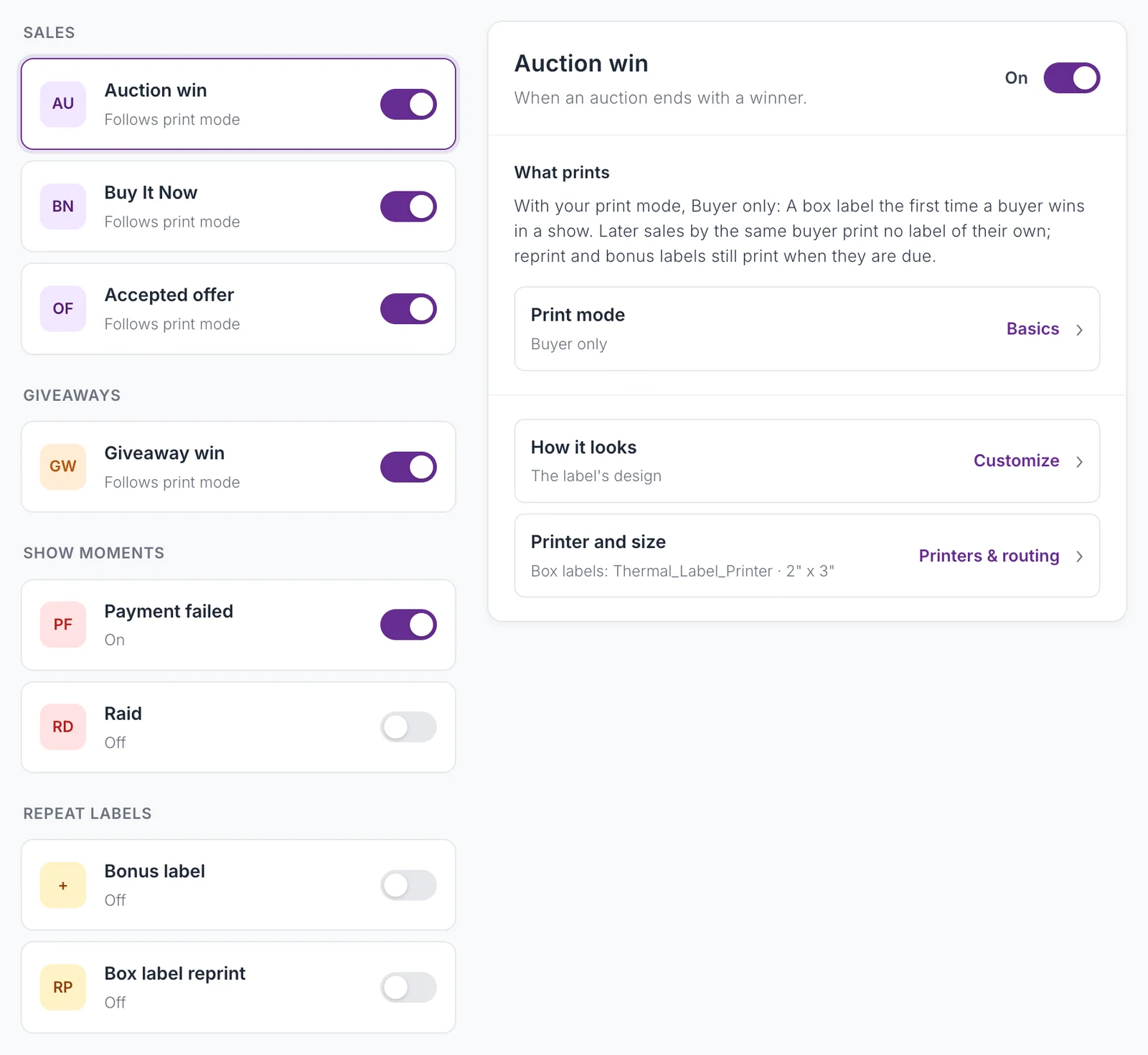
- The label type: each kind of sale or moment can be on or off in Customize › Advanced Settings › Label types.
- Rules & filters: Skip by item name rules and card breaks.
- Your print mode, plus bonus labels and box label reprints on top.
Customize › Advanced Settings › Label types shows the result for your current settings: pick a type and What prints says exactly what it prints with your print mode, and Printer and size says where. See Choose which labels print.
Auction wins
| Print mode | New buyer | Returning buyer |
|---|---|---|
| Every Item | Item label | Item label |
| Buyer Only | Box label | Nothing (shown as Skipped, repeat buyer in Recent Labels) |
| Every Item + Buyer | Item label with number, + box label | Item label with number |
"+ box label" needs Box label for new buyers on (the default). It only affects Every Item + Buyer.
Buy It Now purchases and accepted offers
Accepted offers print exactly like Buy It Now, with an OFFER ACCEPTED badge. Only accepted offers that close as a sale count; declined or cancelled offers do nothing. Accepted offers are Whatnot only.
| Print mode | New buyer | Returning buyer |
|---|---|---|
| Every Item | Item label | Item label |
| Buyer Only, choice An item label (default) | Item label, no number | Item label with their number |
| Buyer Only, choice A box label for new buyers | Box label | Nothing |
| Buyer Only, choice Both | Box label + item label with number | Item label with number |
| Every Item + Buyer | Item label with number, + box label | Item label with number |
The Buyer Only choice is In Buyer only mode, Buy It Now purchases print under Label types › Buy It Now.
Flash sales are Buy It Now purchases. Turn off Include flash sale purchases (Label types › Buy It Now) to skip only flash sales and keep regular Buy It Now printing. On eBay Live, flash sales are not told apart from regular Buy It Now sales, so that switch does not apply there. If the connection drops and comes back during an eBay Live show, a Buy It Now purchase that already printed does not print again.
Giveaway wins
Giveaways follow the same table as Buy It Now, using In Buyer only mode, giveaway wins print under Label types › Giveaway win. The default is An item label.
Payment failures
When a buyer's payment fails, Payment failed (on by default) prints an item label marked PENDING PAYMENT, so you can pull the item before shipping. If the buyer has a box number, it is on the label. This works on Whatnot and for eBay Live auctions. When the payment goes through later, NotBot marks the sale as paid. With the type off, failed payments still show in the live view and no label prints. See Payment failures.
Raids
When another seller raids your Whatnot show, Raid prints a label with their name, how many viewers they brought, and the time. It is off by default. A raider is not a buyer, so the label has no box number. The same seller raiding again within 10 minutes prints once.
Turning a label type off
Each sale type (Auction win, Buy It Now, Accepted offer, Giveaway win) has a switch in Label types. Off means:
- no label and no box number for that sale;
- the sale is still recorded in show history and totals;
- it still counts toward bonus labels if its kind is ticked under the bonus label's Counts toward it, and a bonus it earns still prints.
Skip by item name
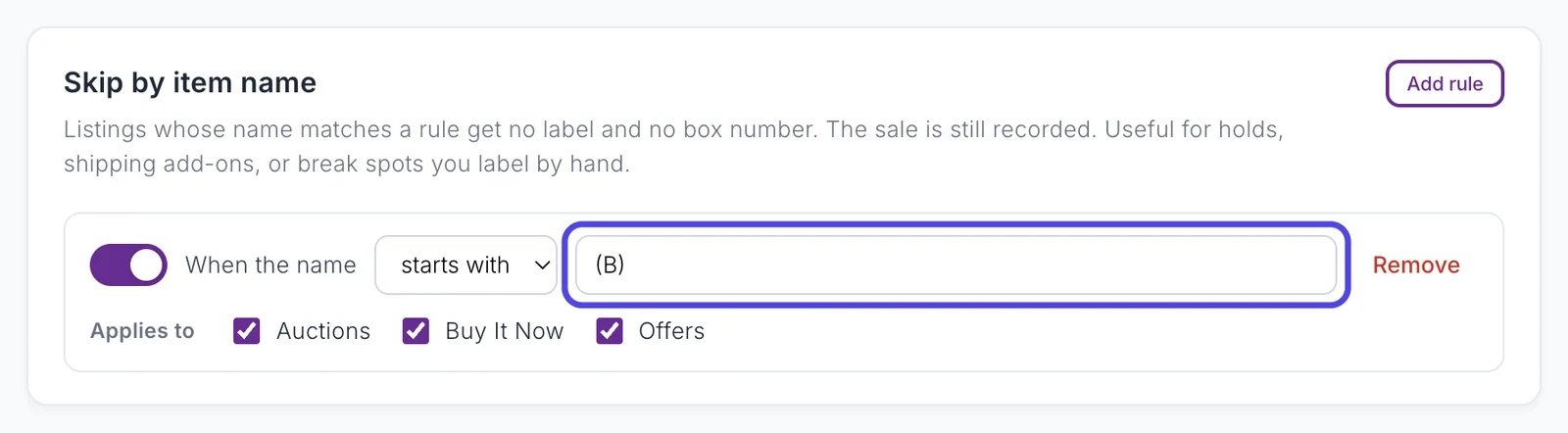
Rules in Customize › Advanced Settings › Rules & filters skip the label and box number for a sale whose item name starts with, or contains, a word you set, like "(B)" for break spots. Each rule applies to any of auctions, Buy It Now, and offers, and has its own on/off switch. The sale is still recorded and still counts toward bonus labels. See Skip labels by name.
Pinned shop listings
A shop listing you pin and run like an auction on Whatnot prints as a Buy It Now purchase: it follows your Buy It Now settings, has the BUY IT NOW badge, and is skipped when Buy It Now is off. Turn off Treat pinned shop listings as Buy It Now (Rules & filters) to print it as an auction win.
Card breaks
With Card break support on (Customize › Advanced Settings › Show behavior, off by default), labels for break spots wait for the randomizer, so each label shows the team or spot the buyer got instead of the listing name. A BREAK bar in the NotBot panel shows the break while it fills.
When break labels print decides when they come out:
- Print when the break ends (default): all of the break's labels print together, in spot order, once every spot is assigned. No label can show a team that was later re-spun.
- Print each spot as it is assigned: each label prints as its spot is assigned, and a re-spin prints a replacement marked CORRECTED.
With support off, break spots print at purchase like any other sale. Turning support off during a break prints the waiting labels right away. See Card breaks.
Bonus labels
Bonus label (Label types, off by default) prints a reward label every N purchases by the same buyer in a show: at N, 2N, 3N, and so on. You choose N (default 7), the text (default BONUS LABEL), and what counts toward it: auction wins and Buy It Now are ticked by default, giveaway wins are not. Accepted offers count with Buy It Now.
The kind of bonus label depends on the sale that reaches the count:
| Sale | Every Item | Buyer Only | Every Item + Buyer |
|---|---|---|---|
| Auction win | Bonus item label | Bonus box-style label | Bonus item label, + bonus box-style label |
| Buy It Now or accepted offer | Bonus item label | Bonus item label | Bonus item label, + bonus box-style label |
| Giveaway win | Bonus item label | Follows the giveaway choice | Bonus item label, + bonus box-style label |
"+ bonus box-style label" needs Box label for new buyers on. A sale that is skipped (its type is off, a name rule matches, or it is a flash sale with flash sales off) prints its bonus as an item label, with the buyer's box number if they have one.
Box label reprints
Box label reprint (Label types, off by default) prints the buyer's box label again every N wins in a show (default 7), with the same number. Useful when one buyer fills more than one bag. Auction wins count by default; Buy It Now and giveaways can be ticked too.
Reprints are box labels, so they only print when your settings print box labels: Buyer Only, or Every Item + Buyer with Box label for new buyers on. In Buyer Only, a Buy It Now purchase or giveaway set to print an item label never triggers a reprint. The page says so when this applies.
A reprint uses the design, size, and printer in your settings at the moment it prints. To reprint by hand, see Reprint labels.
More than one label from one sale
The rules above add up. A new buyer's first auction win in Every Item + Buyer that also reaches the bonus count can print four labels: an item label, a box label, a bonus item label, and a bonus box-style label.
Cases where nothing prints
- Auto-print is off. The switch in the printer control at the top of the panel on the right. Sales are still recorded and appear in Recent Labels as Skipped. Tap to print. When NotBot moves from one show to a different one, it turns auto-print off and says Auto-print disabled for new stream; turn it back on before you start selling.
- Preview mode is on (Printers & routing). Each label opens as a PDF instead of printing.
- The sale is on a tab that is not the active show. Only one tab is the active show; sales on other tabs are recorded but do not print.
- The label type is off in Label types. The one exception is a bonus label: if bonus labels are on and the sale reaches the bonus count, the bonus still prints.
- A Skip by item name rule matches. As with a type that is off, a bonus label still prints if the sale reaches the bonus count.
- The sale is a break spot and card break support is on. Not yet: it prints with the rest of the break.
- No printer is selected. NotBot still records sales and gives out box numbers, but labels cannot be sent.
See also
- Print Modes for the three modes in plain terms.
- Settings Reference for every setting named here.
- Print Queue for what happens once a label is queued.
- Troubleshooting for labels that did not print.