Run your show. We handle the organization.
Print organizational labels the moment a buyer wins, on labels you design, with a live dashboard tracking your show.
Built for live sellers, Mac and Windows. When your show ends, every item is already sorted and ready to pack.


What you need to get started
Before and after NotBot
What the end of a show looks like, with and without it.
Before
Writing labels by hand, sorting after the show.
- Scribbling usernames or item numbers between sales.
- Hunting through a pile of items to group them by buyer.
- Hours of sorting before you can start packing.
After
Labels print themselves, packages are already organized.
- A label prints the moment a buyer wins.
- Same buyer wins again? In buyer-label modes they keep the same number, so items stay together.
- Show ends, everything is sorted, you start packing.
How It Works
NotBot works seamlessly in the background while you sell
Install & Connect
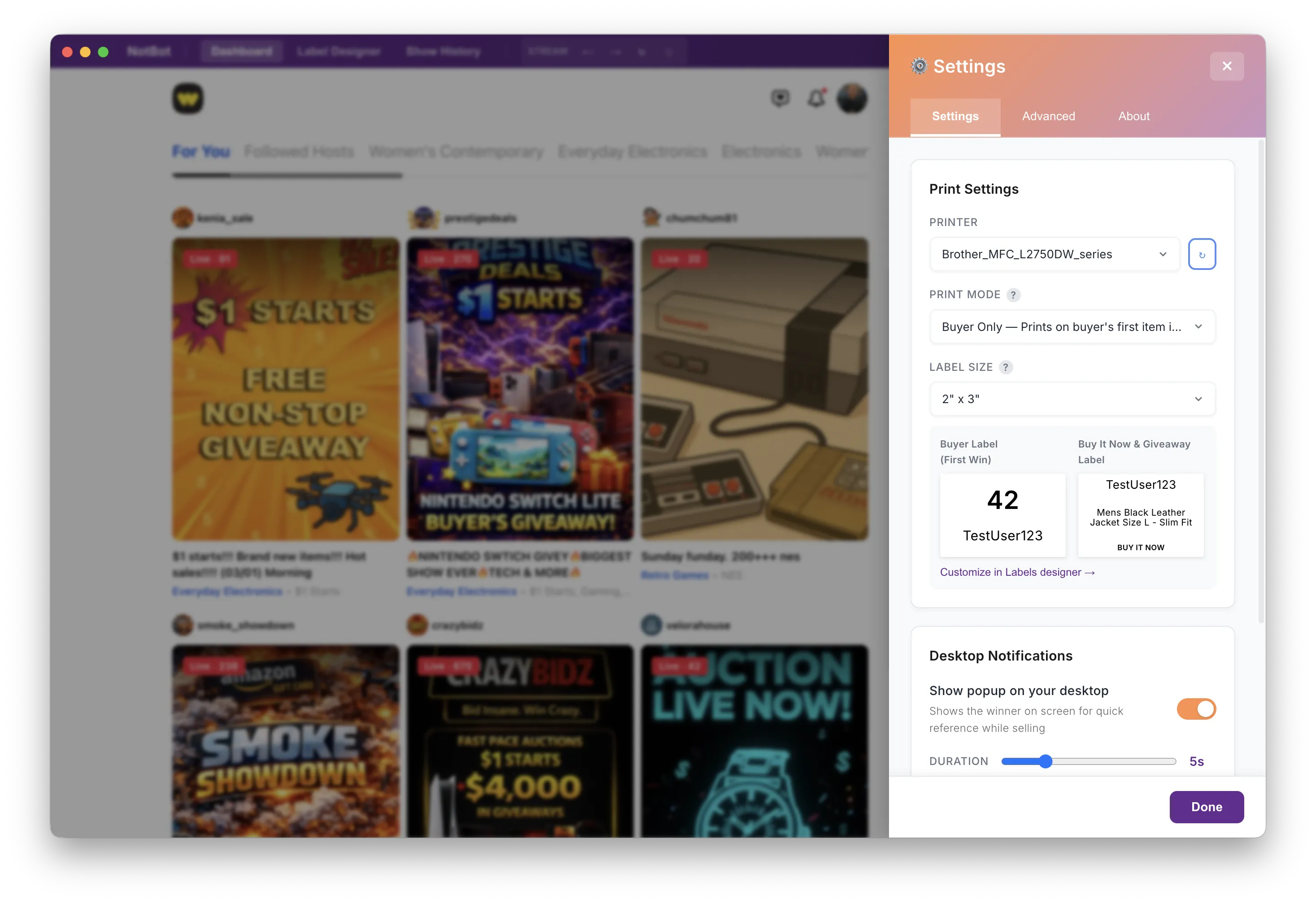
Download NotBot for Mac or Windows. Log into your selling platform inside NotBot, connect your thermal printer, and pick your label size. We recommend removable labels so they peel off cleanly.
Start Streaming
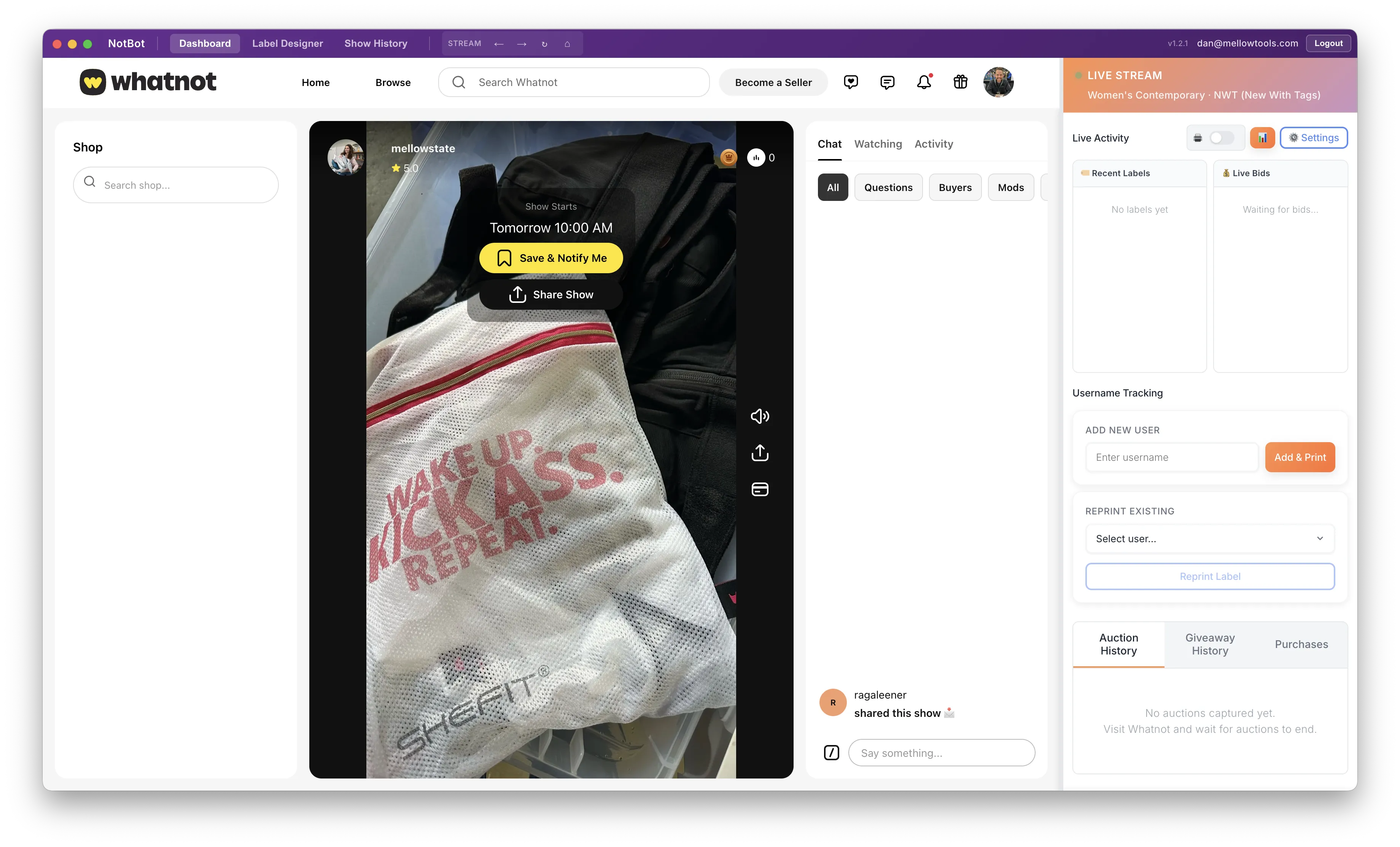
Go live from your phone or iPad like you normally do. On your computer, NotBot watches the same stream and picks up every win automatically.
Pack & Ship
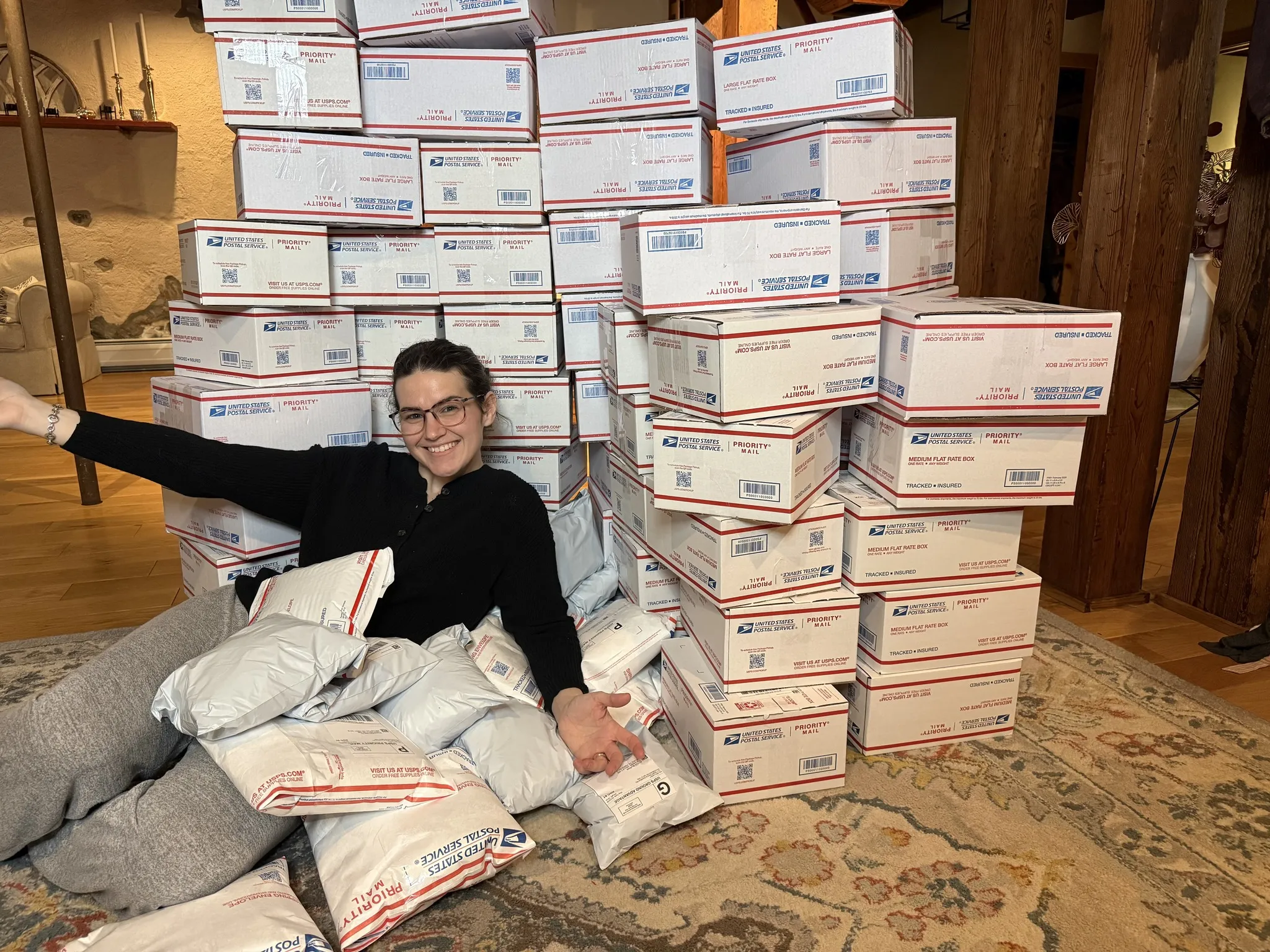
Labels print automatically as you sell. In buyer-label modes each buyer gets a number, so you match items to numbers, add shipping labels, and ship.
Watch a show happen.
This is what NotBot does, in real time, on every label.
Your Show's Mission Control
A live dashboard runs beside your stream. Every win, bid, and label in one place.
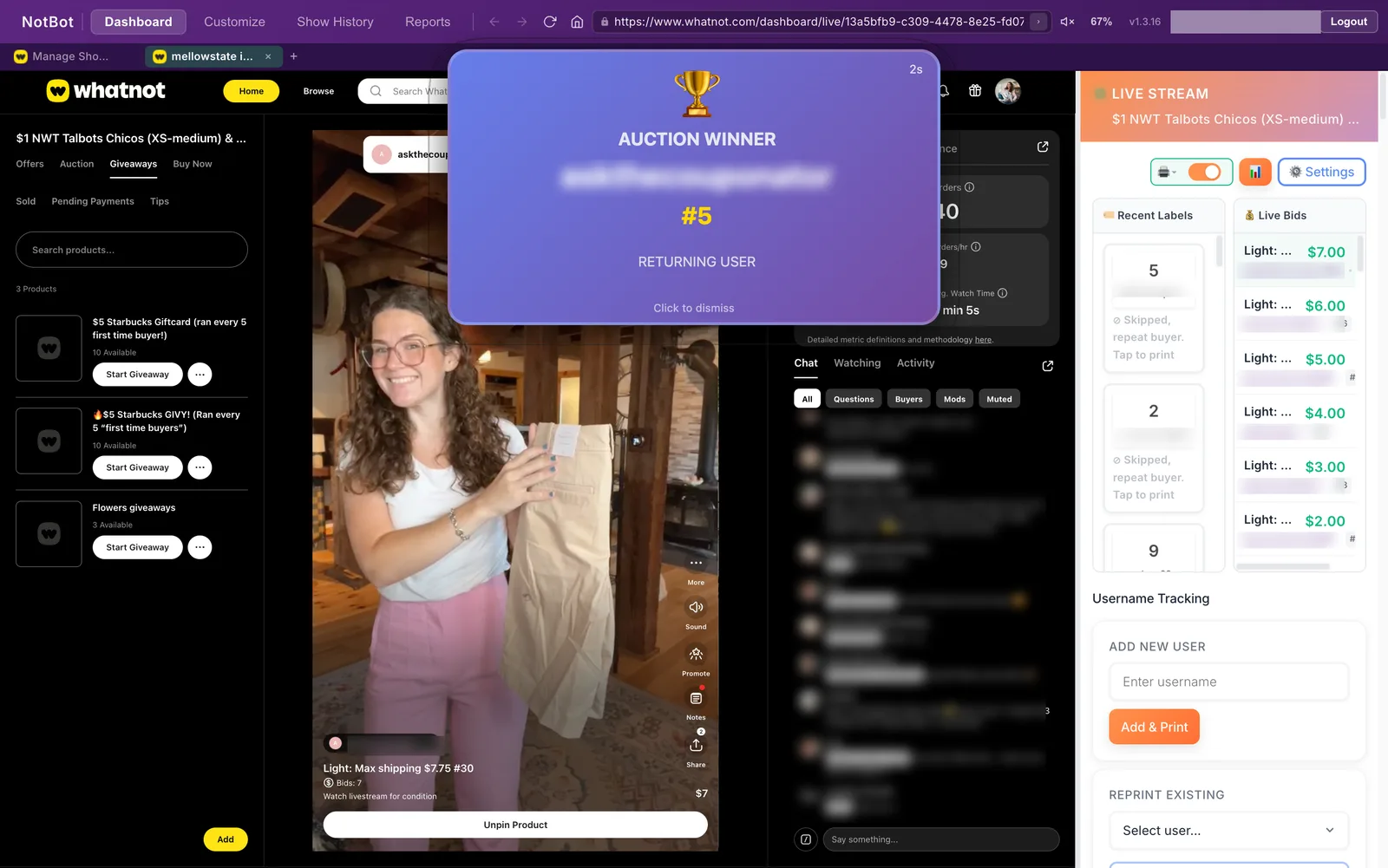
- Recent Labels feed. Every print job as it happens, with username, status, and buyer number when one is assigned.
- Live bid feed. Watch bids roll in on the active auction in real time.
- Auto-print toggle. Pause printing mid-show. NotBot keeps tracking so you can reprint auctions and purchases afterward.
- Full history tabs. Auctions, purchases, and giveaways for the show. Reprint auctions, Buy It Now, and accepted offers in one click.
- Manual buyer tracking. Type a username and print their label on the spot when the platform never sent the event.
Reprint in one click
Any auction, Buy It Now, or accepted offer in the show's history reprints with one click. A printer jam loses nothing.
Add missing auction
Connection blip during a sale? Enter the item, winner, and price. NotBot assigns the number and prints as if it never missed.
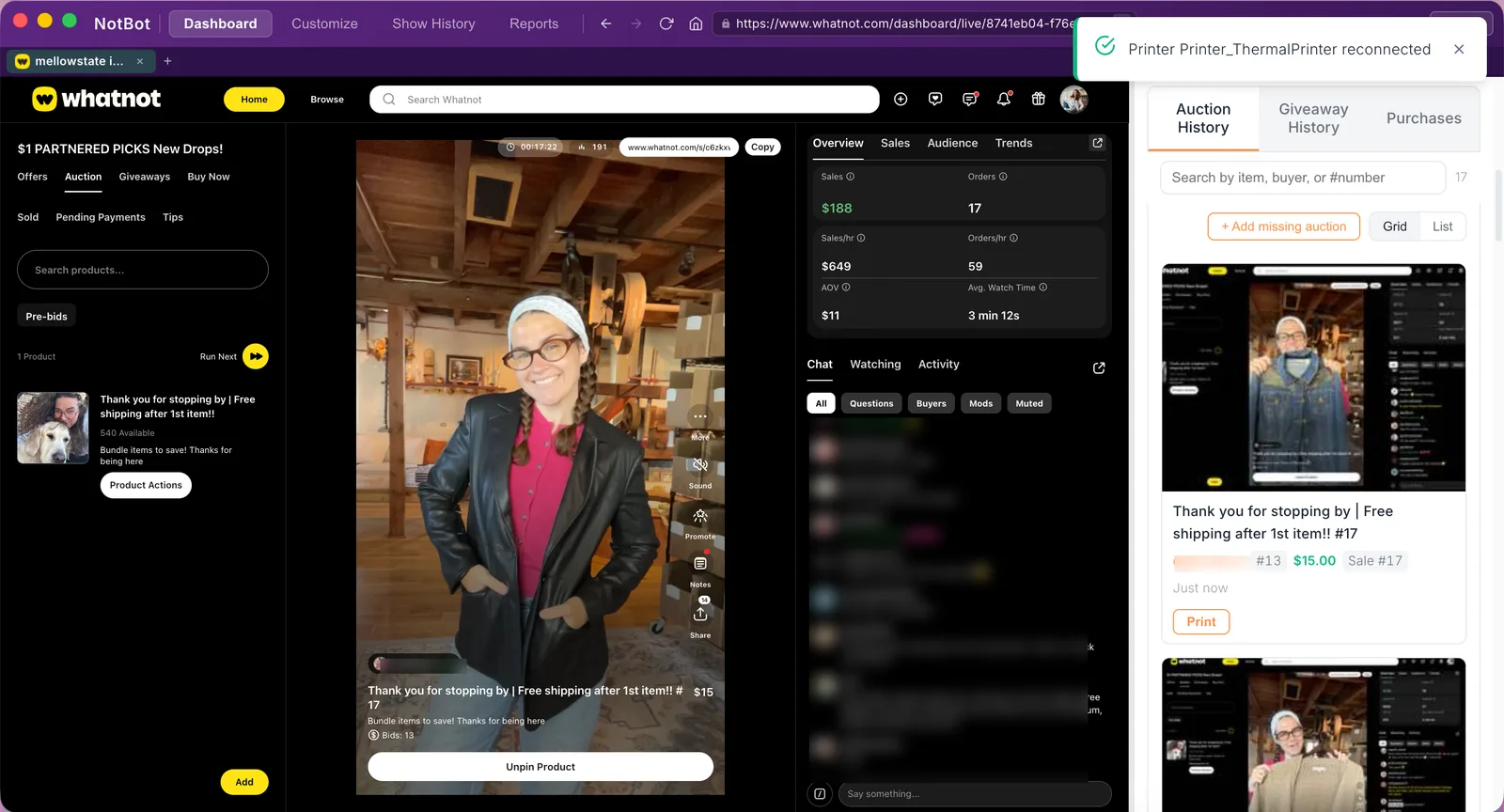
History at a glance
Auctions, purchases, and giveaways in browsable tabs.
Make Every Label Yours
A label editor in Customize › Labels, and a winner popup you place anywhere on your screen.
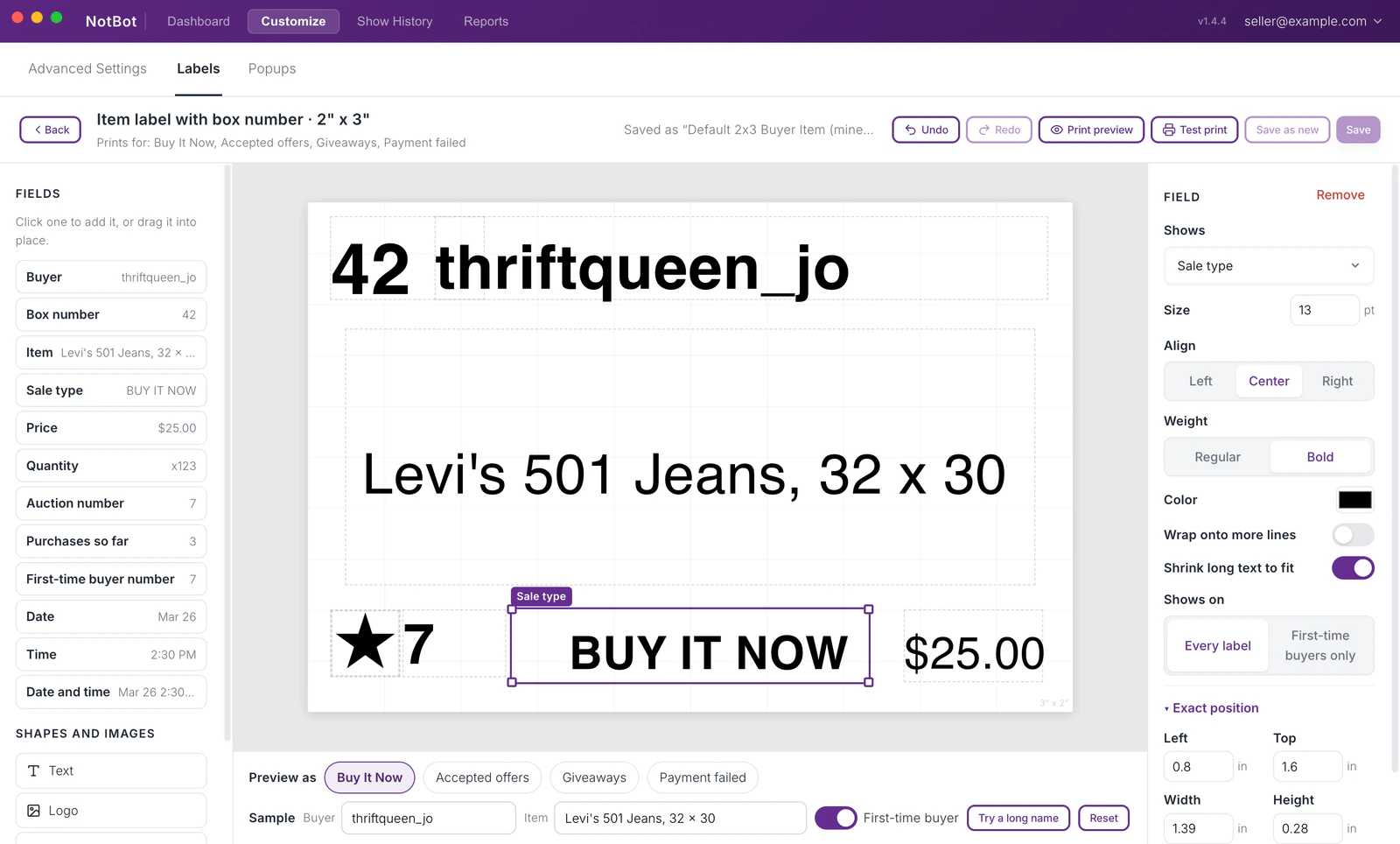
The label editor
- See what prints right now. Customize › Labels lists each label your current settings print, with a full-size preview. Click Edit to change it, or Change design to pick another. Every label size has a built-in design to start from.
- Fields by name, with sample data. Click or drag a field onto the label and it shows a real-looking value, never a code. Add your own text, your logo, lines, boxes, and a first-time buyer star.
- Text that fits. Set size, weight, alignment, and color, then let long text wrap onto more lines or shrink to fit. Parts snap to the center and edges, and arrow keys nudge them.
- Check it before the show. Preview as shows the label for each kind of sale, Try a long name checks the longest usernames, and Test print prints your draft without saving it.
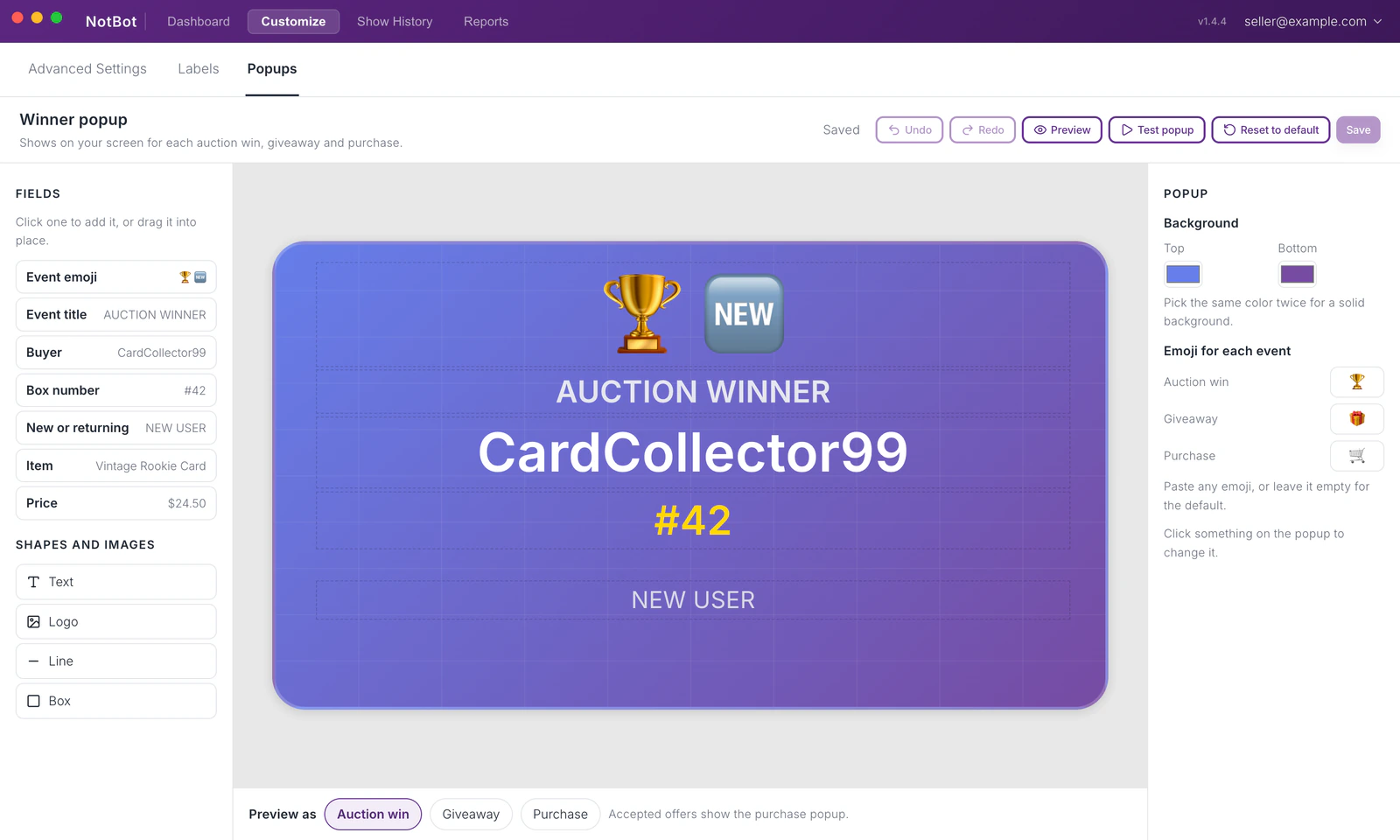
The winner popup
- Design it. Customize › Popups uses the same editor as your labels.
- Place it by clicking. In Customize › Advanced Settings › Winner popups, click a spot on a picture of your screens. Auction wins, giveaways, and purchases each get their own popup, with size, time on screen, and how it arrives.
- Try it. See the real popup where it will appear before you go live.
Every Show, Remembered
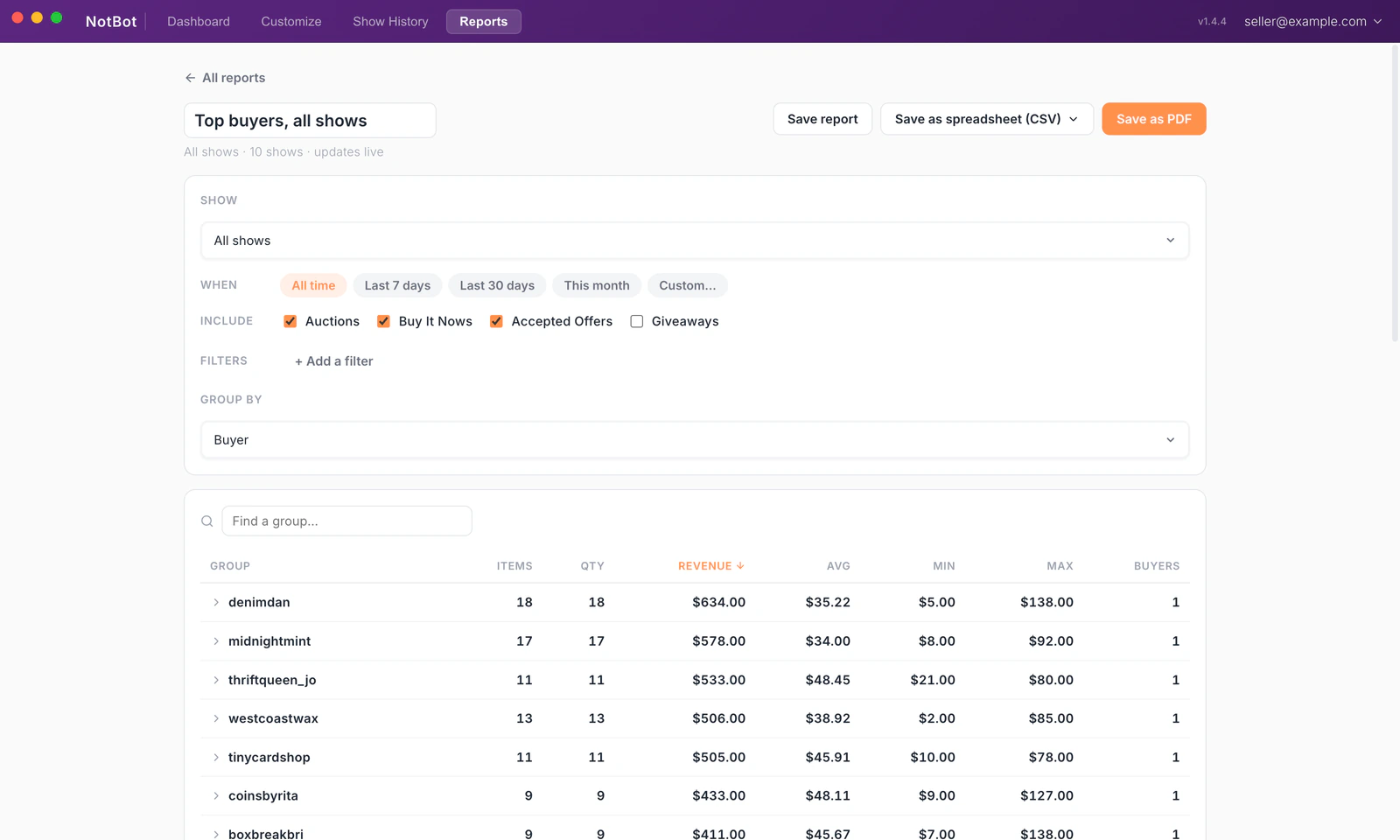
Show History saves your shows automatically. Reports turn them into paperwork you'd otherwise do by hand.
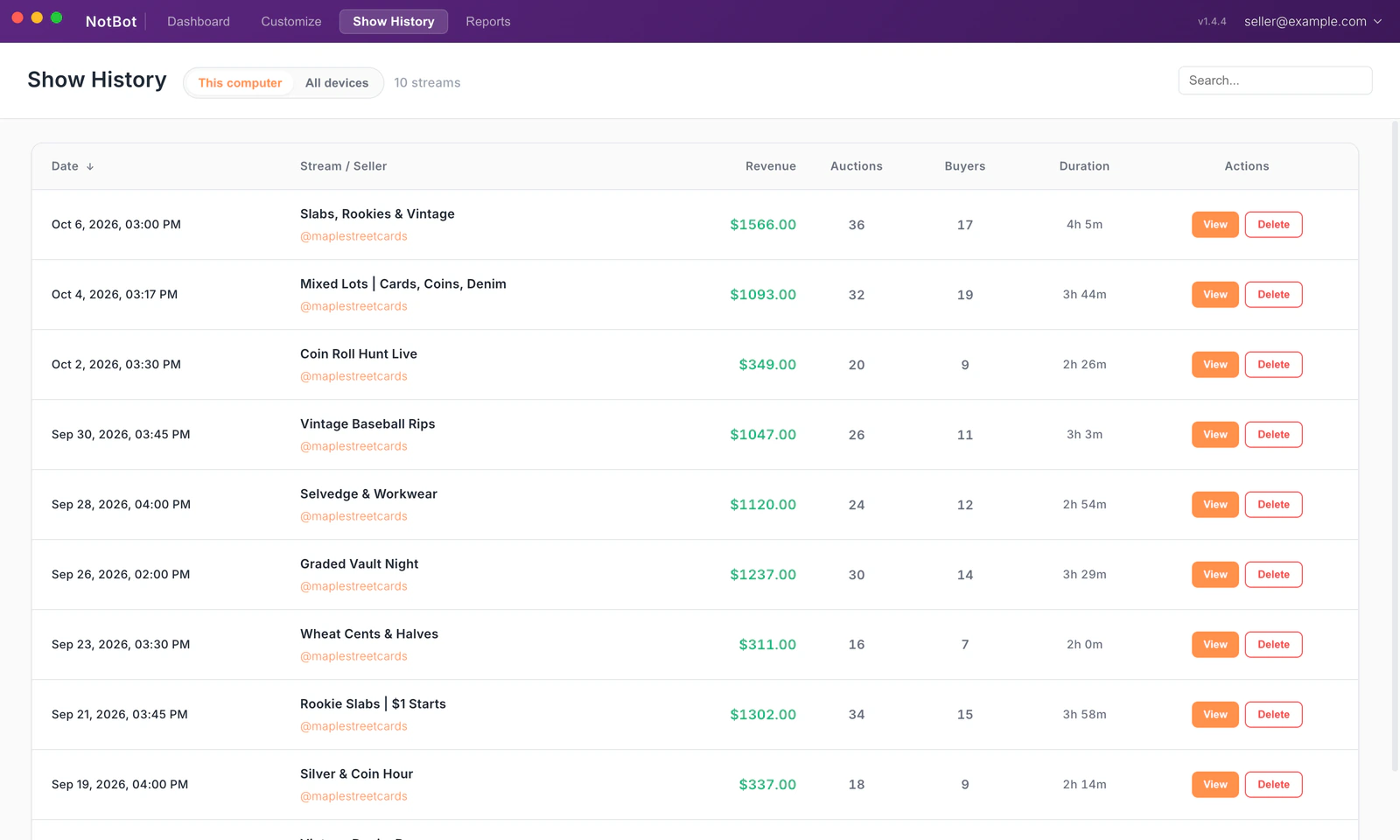
- Automatic show tracking. Every show saved with a searchable list and a full detail view.
- Win photos. On by default. A photo of the show at each auction win, attached to the sale.
- Who shared your show. On Whatnot, the Summary shows how many times a show was shared and who shared it.
- Report library. Run on any show or date range, export CSV or PDF.
Your show history and sale photos are stored on your computer. Turn on saving in Customize › Advanced Settings › Sync & devices and your shows are also saved to your account, so you can see them from any computer and on the website. It is off until you turn it on. NotBot still talks to MellowState to sign you in, deliver updates, and send diagnostics. The privacy docs spell out exactly what's sent.
Every Kind of Sale, Covered
Auctions are just the start. NotBot labels the whole show.
Auction wins
Auction wins follow your print-mode rules the moment the hammer falls.
Buy It Now
Direct purchases print with a BUY IT NOW badge, including pinned shop listings.
Accepted offers
Offers you accept print like any sale, badged OFFER ACCEPTED.
Giveaways
Winners get labels too, and every giveaway is logged with its winner and entry count.
Card breaks
Labels are held until the break fills, then printed as a set in spot order, or per spot as assigned. A live progress card tracks the fill.
Payment-aware
A PENDING PAYMENT label prints when a payment fails, on by default, so you can pull the order before shipping.
What NotBot tracks varies by platform. The platform support matrix has the details.
Works With Your Thermal Printer
NotBot sends labels through your computer's standard print system, so it works with any thermal printer your computer can see.
Compatible Label Sizes
Choose the size that fits your workflow
1 x 1"
Smallest. Tag tiny items like coins or cards.
2 x 1"
Compact. Best for small items.
1 x 3"
Wide format. Easy scanning at a glance.
2 x 3"
Most popular, all-around size.
4 x 6"
Shipping label size stock. The biggest, most readable option.
Three Print Modes
Choose how labels print during your stream
Every Item
Prints an item label for every sale. Each label shows the username, item name, and a badge like "Auction Win" or "Buy It Now." No box numbers in this mode. Best when you want to tag each item individually.
Buyer Only
The default. Prints one box label the first time a buyer wins an auction in the show, with a large box number and their username. Buy It Now and giveaways each have their own choice in Label types.
The box method: stick the label on a box or bag, then toss in each item as that buyer keeps winning. One container per buyer, no sorting later.
Every Item + Buyer
Both at once. Prints an item label with the box number for every sale, plus a box label the first time a buyer wins. Tag individual items and sort by buyer at the same time.
Built for Live Sellers
Everything you need to streamline your shipping process
Instant Label Printing
Labels print automatically when sales are detected. No manual input needed.
Sequential Numbering
In buyer-label modes each buyer gets a number for the whole show. Simple system to keep packages organized.
Repeat Buyer Detection
Knows who already won. In buyer-label modes the same buyer keeps the same number all show long.
Hands-Free Printing
Labels print automatically while you focus on selling. No typing, no writing. Just sell and let NotBot handle it.
Auto-Updates
App stays current with automatic updates. Always have the latest features.
Cross-Platform
Works on Mac (Intel & Apple Silicon) and Windows. Use your preferred setup.
Label Types
Auctions, Buy It Now, offers, giveaways, payment failures, raids, bonus labels, and reprints each have their own on/off switch. A sale you skip is still recorded.
Skip by Item Name
Rules that skip the label when an item name starts with or contains a word you choose, so filler and placeholder listings never print.
Restart-Proof Shows
Buyer numbers and show tracking survive an app restart mid-show. Reopen and keep selling.
Milestone Labels
Bonus labels at win milestones you set, and refreshed box labels for repeat buyers in buyer-label modes.
Win Photos
A photo of the show at each auction win, on by default and kept with your show history. Set a storage limit and the oldest photos go first.
Verified Printing
The print queue tracks every queued label all the way to the printer and flags anything stuck.
First-Time Buyer Star
Box labels get a numbered star when Whatnot marks the winner as a first-time buyer, so welcome cards are easy.
Printers & Routing
Send each label type to its own printer and size. Box labels stay on one printer, so a buyer's labels never split.
Test Print
Send sample labels through the same print path used during a show, with clear pass or fail feedback.
Every Setting, Searchable
Advanced Settings puts every setting on one screen, one topic per page. Type what you want in your own words, or press Cmd+K or Ctrl+K from anywhere, even mid-show.
Raid Labels
On Whatnot, a label with the raiding seller's name, how many viewers they brought, and the time, so you can thank them on air. Off until you turn it on.
Shows Saved to Your Account
Turn it on per computer and each show is saved to your account as it happens. See every show from every computer in one place, on the website too.
Frequently Asked Questions
For the complete reference, see the NotBot documentation.
How does NotBot know when someone wins?
You sign into your selling platform inside NotBot's built-in browser, and it watches your stream. On Whatnot it picks up auction wins, giveaways, Buy It Now purchases, and accepted offers automatically. On Poshmark Live it picks up auction wins and giveaways. On eBay Live and District it picks up auction wins and Buy It Now purchases. On TikTok Shop, sign in and open your TikTok LIVE Manager inside NotBot, and it picks up auction wins and Buy It Now purchases. Nothing extra to set up.
Do I need my phone and my computer?
Most sellers do. Sell from your phone or iPad like you normally do, and NotBot runs on your computer alongside your show, printing labels as buyers win. You can also go live from inside NotBot's built-in browser on the computer alone by turning on Allow camera and microphone in Customize › Advanced Settings › Show behavior.
What do I need to use NotBot?
A seller account on a supported platform (Whatnot, Poshmark Live, eBay Live, District, or TikTok Shop), a thermal label printer, and a Mac or Windows computer. We recommend removable labels so they peel off cleanly without leaving residue.
How fast is setup?
Under 5 minutes. Download the desktop app, connect your printer, and choose your label size. You're ready to sell.
Does it work on Mac and Windows?
Yes! Mac requires macOS 12 (Monterey) or later, and works on both Intel and Apple Silicon (M1/M2/M3/M4). Windows 10 and 11 are both supported. If you're on macOS 11 (Big Sur), v1.2.6 is the last version that will run on your machine.
What printers work?
If your computer can print to it, NotBot can use it. We recommend a USB thermal printer for the best experience, but network and Bluetooth printers work too.
What label sizes can I use?
1x1", 2x1", 1x3", 2x3", and 4x6". You can change how your labels look in the label editor, under Customize › Labels. We recommend removable labels so they peel off cleanly.
Supported Platforms
One app across every show you run.
Live Now
Whatnot
Poshmark Live
eBay Live
District
TikTok Shop
Ready to Skip the Sorting Pile?
Pack faster, not harder
7-day free trial · then $30/month · cancel anytime
- No per-label fees, print as many as you need
- Desktop app for Mac and Windows
- Sequential numbering for organization
- Automatic updates included
Cancel anytime.