Step-by-Step Guides
Handle payment failures
See which buyers' payments failed during a show, set those items aside, and mark each one resolved.
Last updated 2026-10-08 · Applies to NotBot 1.4.4+
Sometimes a buyer wins an item but their payment doesn't go through, for example when their card is declined. When Whatnot or eBay Live reports a failed payment, NotBot prints a label marked PENDING PAYMENT so you know to hold that item, and keeps a list of every failed payment in the show's details.
NotBot only keeps track. It can't contact the buyer or collect the money. The buyer fixes their payment with the marketplace, and anything else, such as canceling the order, happens in your marketplace seller tools.
Before you start
- NotBot is signed in, your printer is set up and auto-print is on. If not, see Connect and test your printer.
- You are running a show on Whatnot or eBay Live with NotBot open. See Run your first show with NotBot.
During the show
The pictures in this guide come from a practice show.
Step 1: Look for the PENDING PAYMENT label
When a buyer's payment fails, NotBot prints one more label for that item. It shows the buyer's name, the item, and PENDING PAYMENT. If the buyer already has a box number in this show, the label shows it too.
The label also appears at the top of Recent Labels in the NotBot panel. In a narrow panel the words may be cut short to PENDING PA.... Put the item and this label aside until the buyer pays. You don't need to do anything in NotBot during the show.
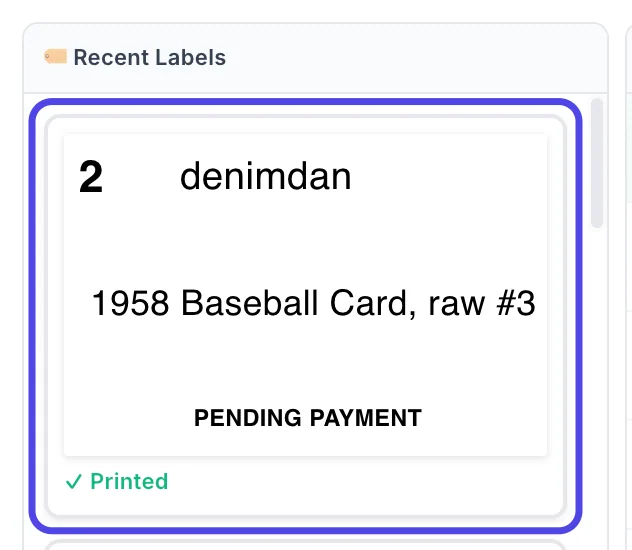
Tip: If the labels in Recent Labels look small, make the NotBot panel wider: drag the thin gray line on its left edge toward the left.
See every failed payment for the show
Check the list at a break in the show or once it is over.
Step 2: Open the show details
At the top of the NotBot panel, click the purple 📊 button, next to ⚙️ Settings.
The show details page opens.
Step 3: Click Payments
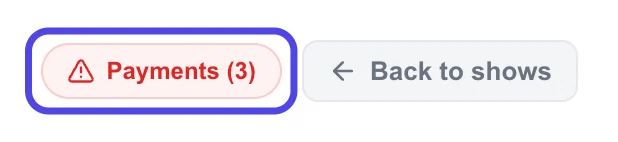
In the top right corner, next to Back to shows, click the red Payments button.
The number on it is how many payments have failed in this show, including ones that were fixed later. When no payment has failed, the button is gray and says only Payments, with no number.
Step 4: Read the Payment Issues list
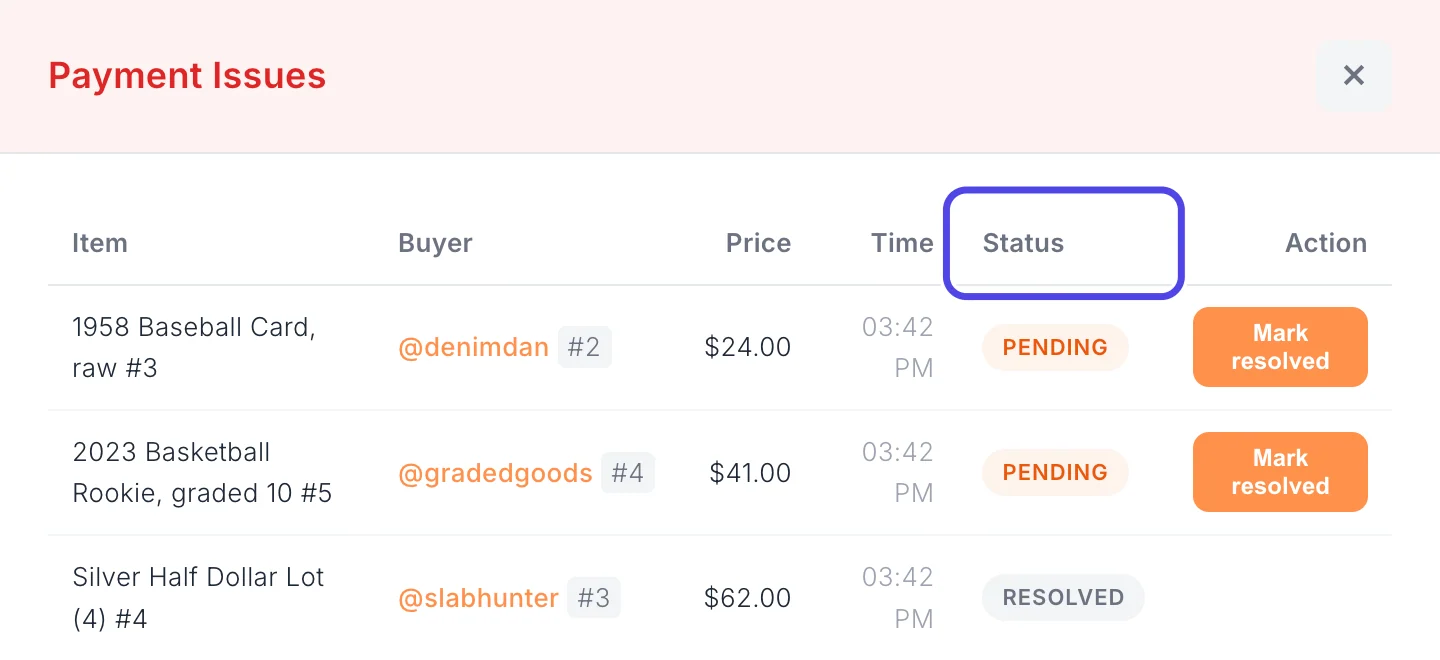
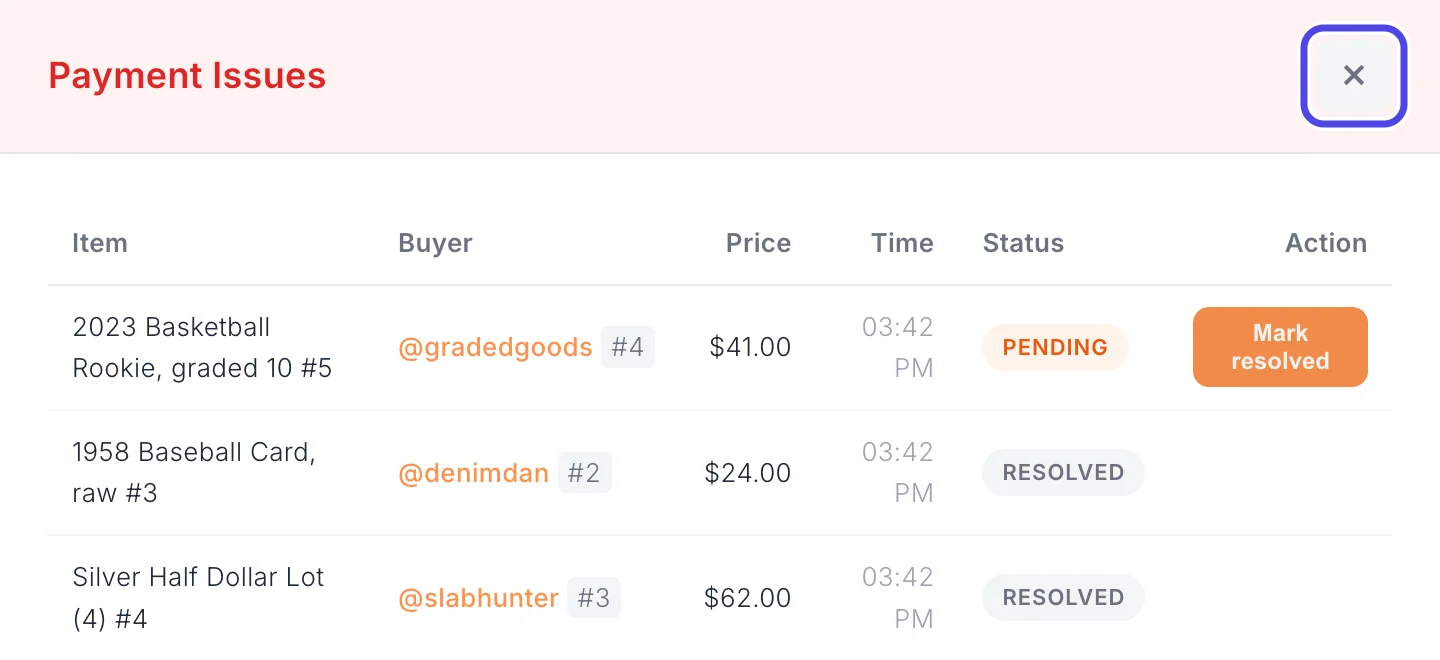
The Payment Issues window lists each failed payment with the item, the buyer (and their box number, if they have one), the price, the time, and a Status:
- PENDING means the payment has not gone through yet. These are listed first.
- RESOLVED means it is sorted out. When the marketplace tells NotBot that the buyer's payment went through, NotBot marks it RESOLVED on its own, like the half dollar lot here.
Step 5: Click Mark resolved when it is sorted out
Once you have dealt with a failed payment on the marketplace, for example the buyer paid another way or you canceled the order, click Mark resolved at the end of its row.
This only changes the list in NotBot. It does not change anything on Whatnot or eBay.

Step 6: Close the Payment Issues window
The row's status changes to RESOLVED, its button goes away, and the row moves below the ones still pending.
Click the × in the top right corner of the window to close it.
Step 7: Check the Summary tab
Click the Summary tab under the show name.

Step 8: Find the Pending Payment box
Scroll to the bottom of the Summary tab. While any payment in the show is still pending, an orange PENDING PAYMENT box lists those items with the buyer, price and time. It goes away once every failed payment is resolved.

Turn the PENDING PAYMENT label on or off
The extra label is on unless you turned it off. The list of failed payments is kept either way. You can change this at any time, even during a show.
Step 9: Click Customize
In the purple bar at the very top of NotBot, click Customize.

Step 10: Click Advanced Settings
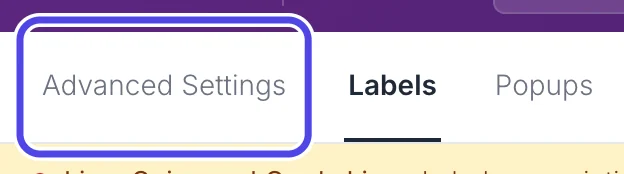
Near the top left of the Customize page, click Advanced Settings.
Step 11: Click Label types
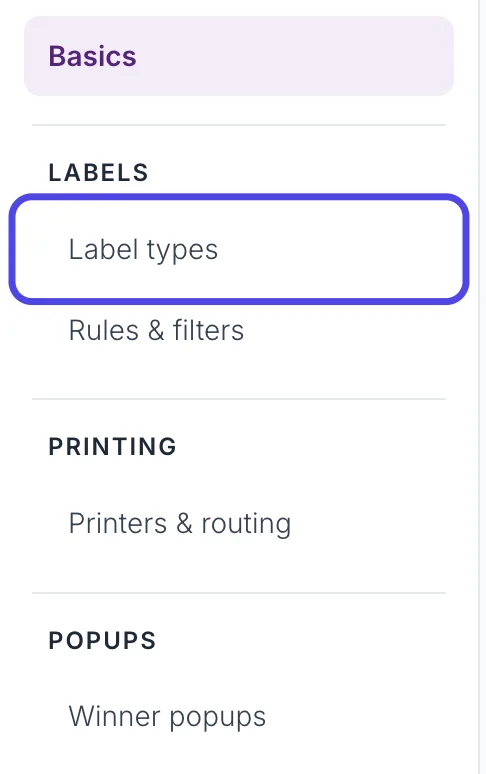
In the list on the left, under LABELS, click Label types.
This page lists every moment NotBot can print a label for.
Step 12: Click the Payment failed switch
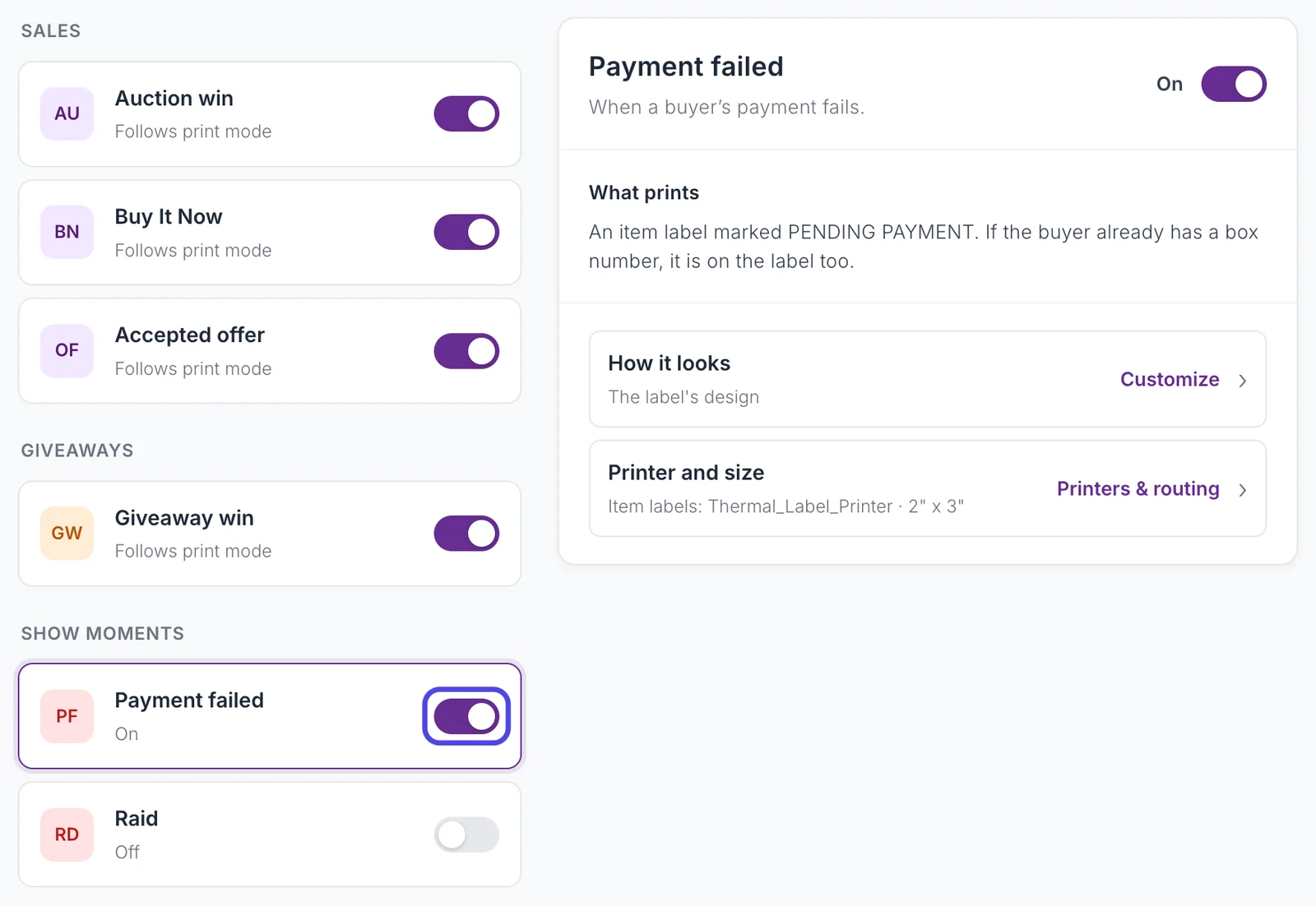
Under SHOW MOMENTS, find Payment failed. Click its switch to change it.
- Purple (on): NotBot prints a PENDING PAYMENT label when a payment fails.
- Gray (off): no label prints, but the failure still shows under Payments in the show details.
Click the name Payment failed to see what the label shows and which printer it goes to. The change is saved as soon as you click. There is no Save button.
If something looks different
A payment failed but no PENDING PAYMENT label printed
Check that Payment failed is on (Customize › Advanced Settings › Label types) and that auto-print is on in the NotBot panel. NotBot also prints this label only when the marketplace tells it who the buyer was. The failure still appears under Payments in the show details.
The buyer paid, but NotBot still says PENDING
NotBot marks a payment resolved on its own only when the marketplace reports it. If the buyer paid another way, or you settled it yourself, open the show details, click Payments, and click Mark resolved on that row.
The Payments button has no number on it
No payment has failed in this show. The button is always there so you can check.
I need to check payments for a show from another day
Click Show History at the top of NotBot, open the show, and click Payments in the top right corner. See Look back at a show in Show History.
I clicked Mark resolved by mistake
There is no button to undo it. Marking resolved only changes NotBot's list; nothing changes on the marketplace. Check the order in your marketplace seller tools to see whether it was paid.