Step-by-Step Guides
Skip labels by name
Stop NotBot printing a label for sales whose item name starts with or contains a word you choose, such as HOLD or Shipping.
Last updated 2026-10-08 · Applies to NotBot 1.4.4+
Some sales should not get a label: items you are holding for someone, shipping add-ons, or break spots you label by hand. Give those listings a word in their name, such as HOLD, and add a rule in NotBot. Sales whose name matches get no label and no box number. NotBot still records the sale, so it still shows in your show's history and totals.
Before you start
- You are signed in to NotBot. If not, follow Sign in to NotBot.
- You know which word you will put in those listings' names on your selling platform. NotBot only sees the name the listing has when it sells.
Add a rule
Step 1: Click Customize
In the purple bar at the top of the NotBot window, click Customize.

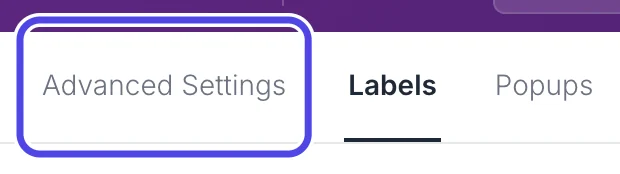
Step 2: Click Advanced Settings
Customize opens on the Labels tab. Click Advanced Settings, the first tab at the top left.
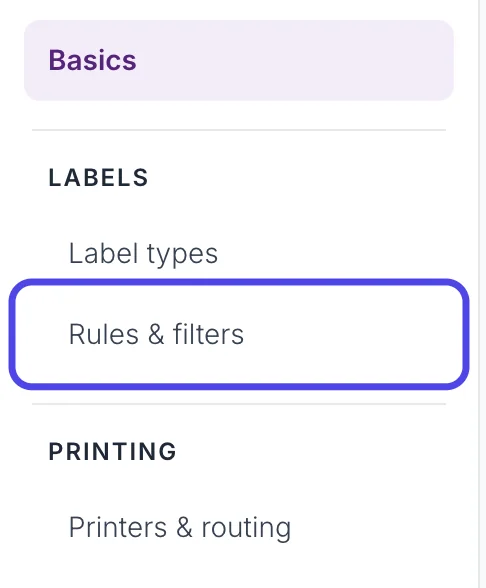
Step 3: Click Rules & filters
In the list of pages on the left, under LABELS, click Rules & filters.
Step 4: Click Add rule
The first card is Skip by item name. Until you add a rule it says No rules yet. Everything prints as set in Label types.
Click Add rule at the top right of the card.

Step 5: Type the word
A new rule appears, already switched on: When the name starts with and an empty box. Click the box (the cursor is already in it) and type the word, here HOLD. NotBot saves it as you type.
Until the box has a word in it, the rule says Add a word or phrase; until then this rule skips nothing.
Capitals do not matter: HOLD, Hold and hold all match.

Step 6: Choose starts with or contains
The box before the word decides where the word must be:
- starts with: the item name must begin with the word. HOLD for Dana: 1921 Morgan Dollar matches; Morgan Dollar HOLD does not. This is the safer choice, because a word in the middle of a real item name never matches by accident.
- contains: the word can be anywhere in the name. Use it only for a word that never appears in your normal listings.
We keep starts with.

Step 7: Check which sales the rule applies to
Under the word, Applies to has three boxes: Auctions, Buy It Now and Offers. A new rule has all three ticked. Untick the kinds of sale the rule should leave alone. Giveaways are not in the list: a rule never skips a giveaway.
The switch at the left of the rule turns it off without deleting it (1). Remove at the right deletes it (2). You can add more rules with Add rule; a sale is skipped when any rule that is on matches it.

See it work in a show
The pictures below come from a practice show with the rule above. Two auctions end: one for an item named HOLD for Dana: 1921 Morgan Dollar, and one for a normal item.
Step 8: Watch Recent Labels
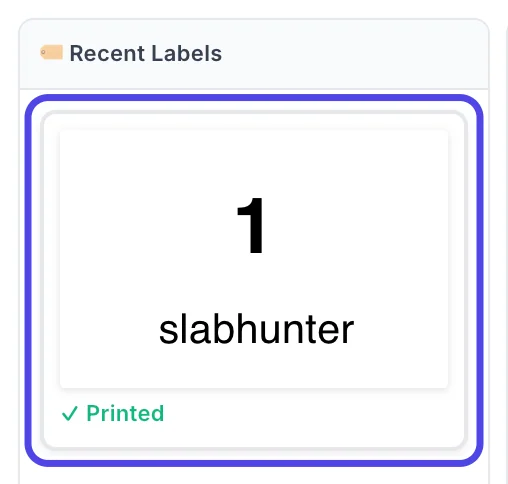
Go back to the Dashboard and run your show as usual. When coinsbyrita wins HOLD for Dana: 1921 Morgan Dollar, nothing prints and no label appears in Recent Labels. When slabhunter wins 1964 Kennedy Half Dollar, silver, NotBot prints their box label as usual, numbered 1: the skipped sale did not use up a box number.
Step 9: Find the skipped sale in Auction History
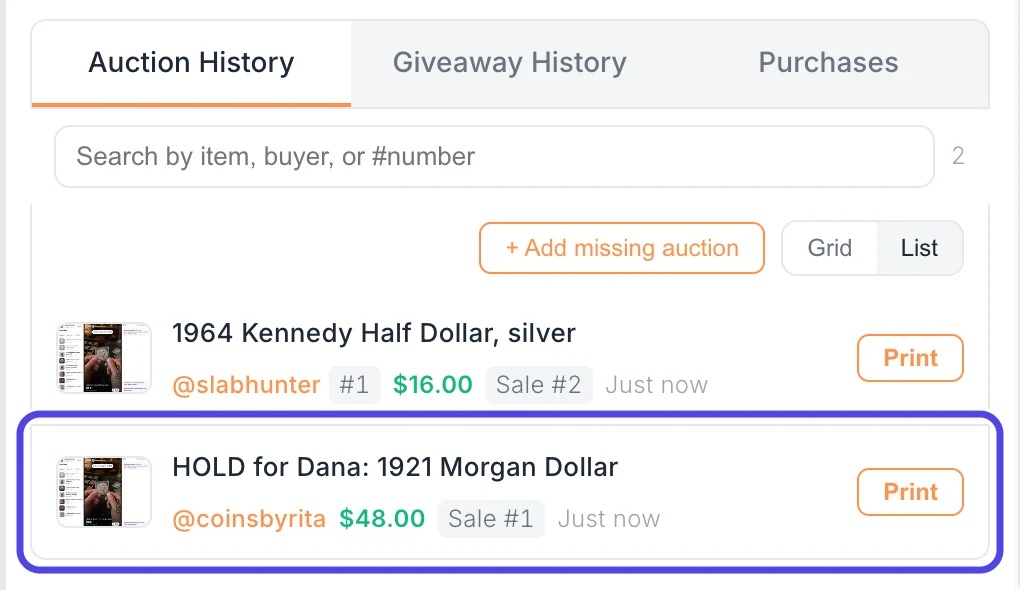
Scroll down the NotBot panel to Auction History. Both sales are there with their prices: the skipped sale is recorded like any other, so it counts in your show's totals and appears in Show History and your reports. It has no box number: there is no # next to the buyer's name. To print a label for it after all, click Print on its row. In Buyer Only and Every Item + Buyer, that also gives the buyer a box number.
If something looks different
A sale I wanted skipped still printed
Check the spelling of the word, and that the listing's name on your selling platform really starts with it (with starts with, a word in the middle does not match). Check that the rule's switch is on and that the kind of sale (Auctions, Buy It Now or Offers) is ticked under Applies to. Giveaways are never skipped by a rule.
Normal sales stopped printing
A rule with contains may be matching words in your normal item names. Change it to starts with, or pick a word that never appears in a normal listing. To find the rule quickly, switch rules off one at a time.
I need a label for a sale that was skipped
Reprint it from the show: see Reprint labels.
Can I stop printing a whole kind of sale instead?
Yes. Turn that kind of sale off in Label types: see Choose which labels print.