Step-by-Step Guides
Sign in to NotBot
Connect the NotBot app on your computer to your account, one screen at a time.
Last updated 2026-09-29 · Applies to NotBot 1.4.4+
NotBot signs in through your web browser, the same way you sign in to our website. You do this once per computer. After that NotBot remembers you, even when you close it or restart the computer.
Before you start
- NotBot is installed on this computer. If it isn't yet, follow Download and install NotBot first.
- You know how you sign in to your account: with your email and password, with Google, or with Apple. Use the same way you used when you signed up.
- Your subscription or free trial is active. You can check it on the Subscriptions page.
Step 1: Open NotBot
Open NotBot the way you open any other program. On a Mac, it's in your Applications folder. On Windows, it's in the Start menu.
NotBot opens in one window. The large area on the left is where your show will appear. The pictures in this guide show our practice show site there instead of a real marketplace. The narrow panel on the right is the NotBot panel. Until you sign in, it says Welcome to NotBot.
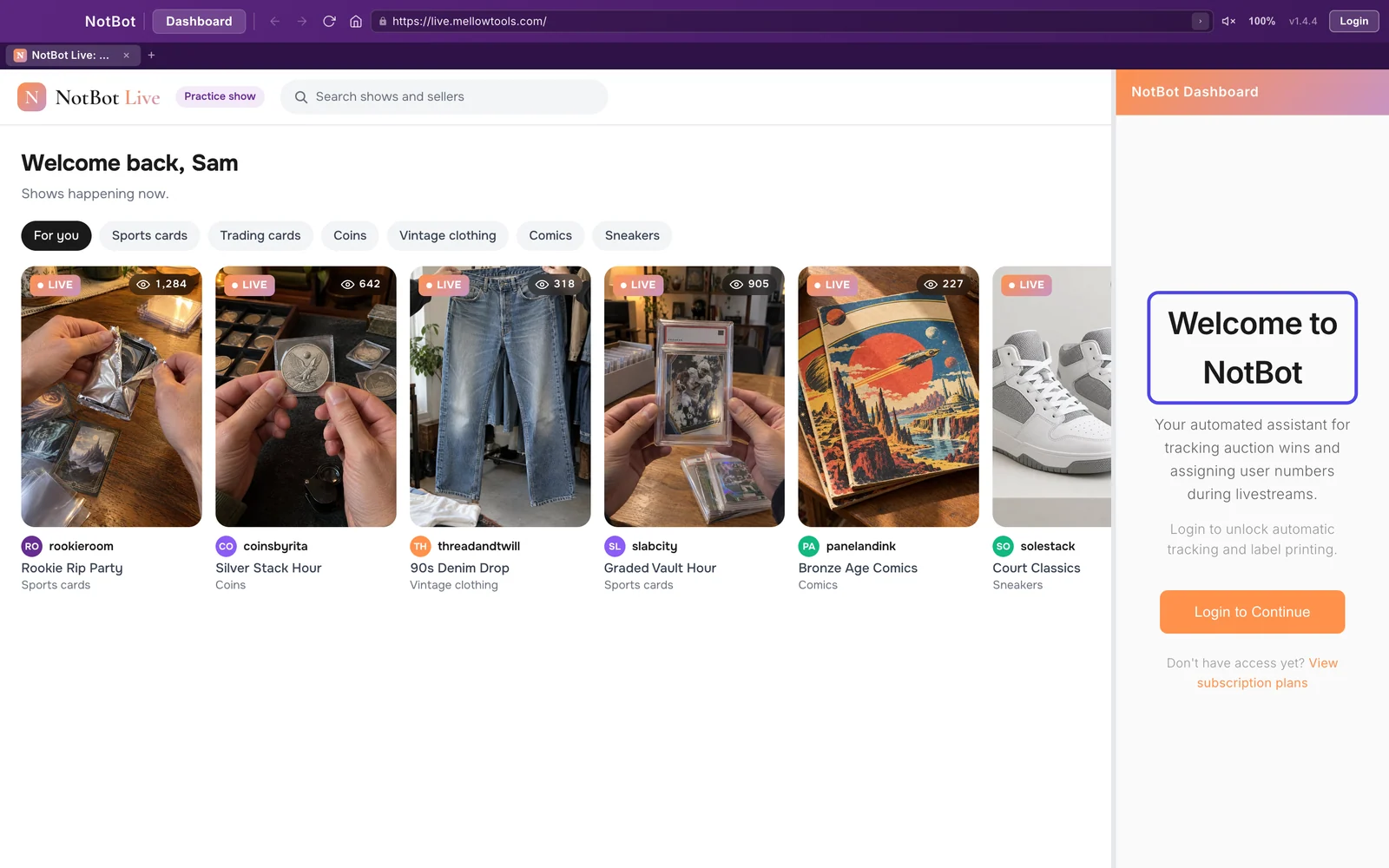
Step 2: Click Login to Continue
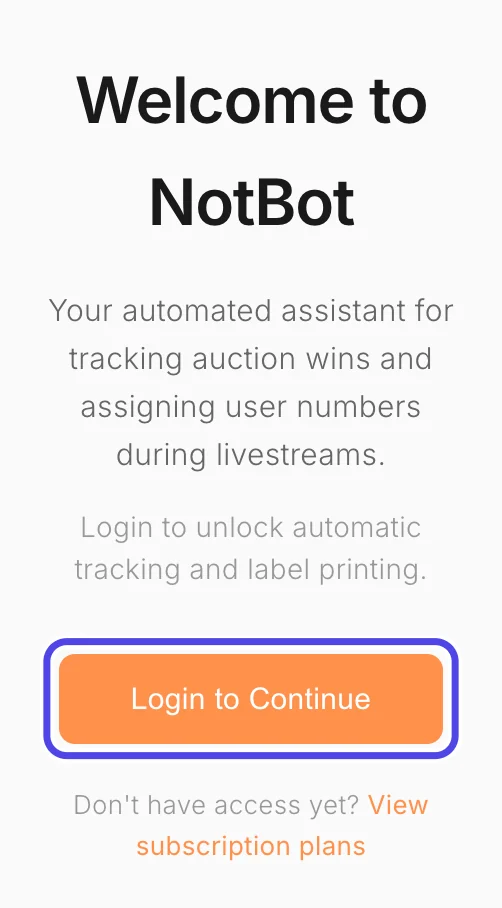
In the NotBot panel on the right, click the orange Login to Continue button.
Your web browser opens a new tab with our sign-in page. If you don't see it, look for your browser in the taskbar (Windows) or the Dock (Mac); it may have opened behind NotBot.
Step 3: Sign in on the web page
The sign-in page opens in your browser.
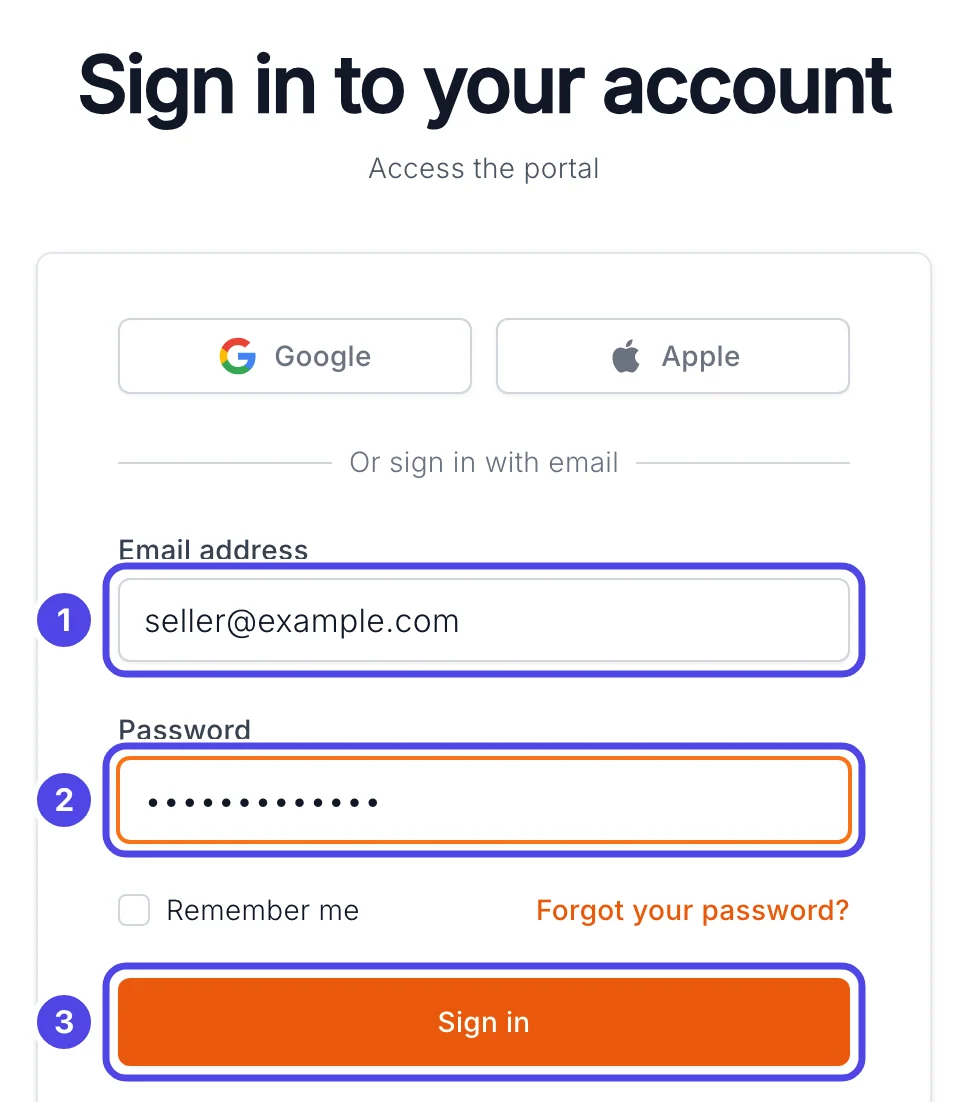
- If you signed up with email and password, type your email address in the first box and your password in the second, then click the orange Sign in button.
- If you signed up with Google or Apple, click that button at the top instead and pick your account.
Forgot your password? Click Forgot your password? under the password box, and we'll email you a link to set a new one.
Step 4: Wait for "You're signed in"
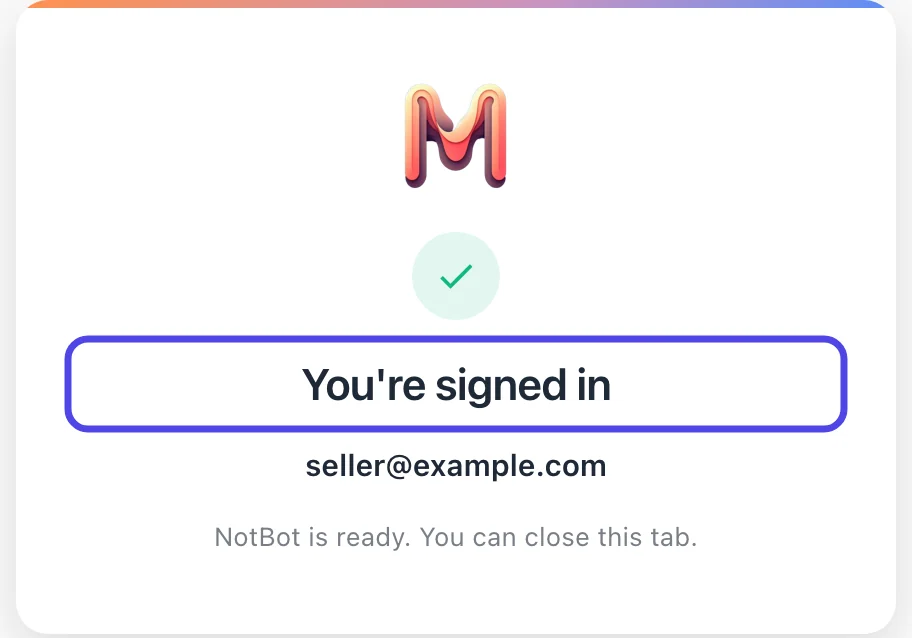
After a moment the page changes to You're signed in, showing the email address you signed in with. Check that it's the right account.
You can close this browser tab now. NotBot has everything it needs.
Step 5: Go back to NotBot
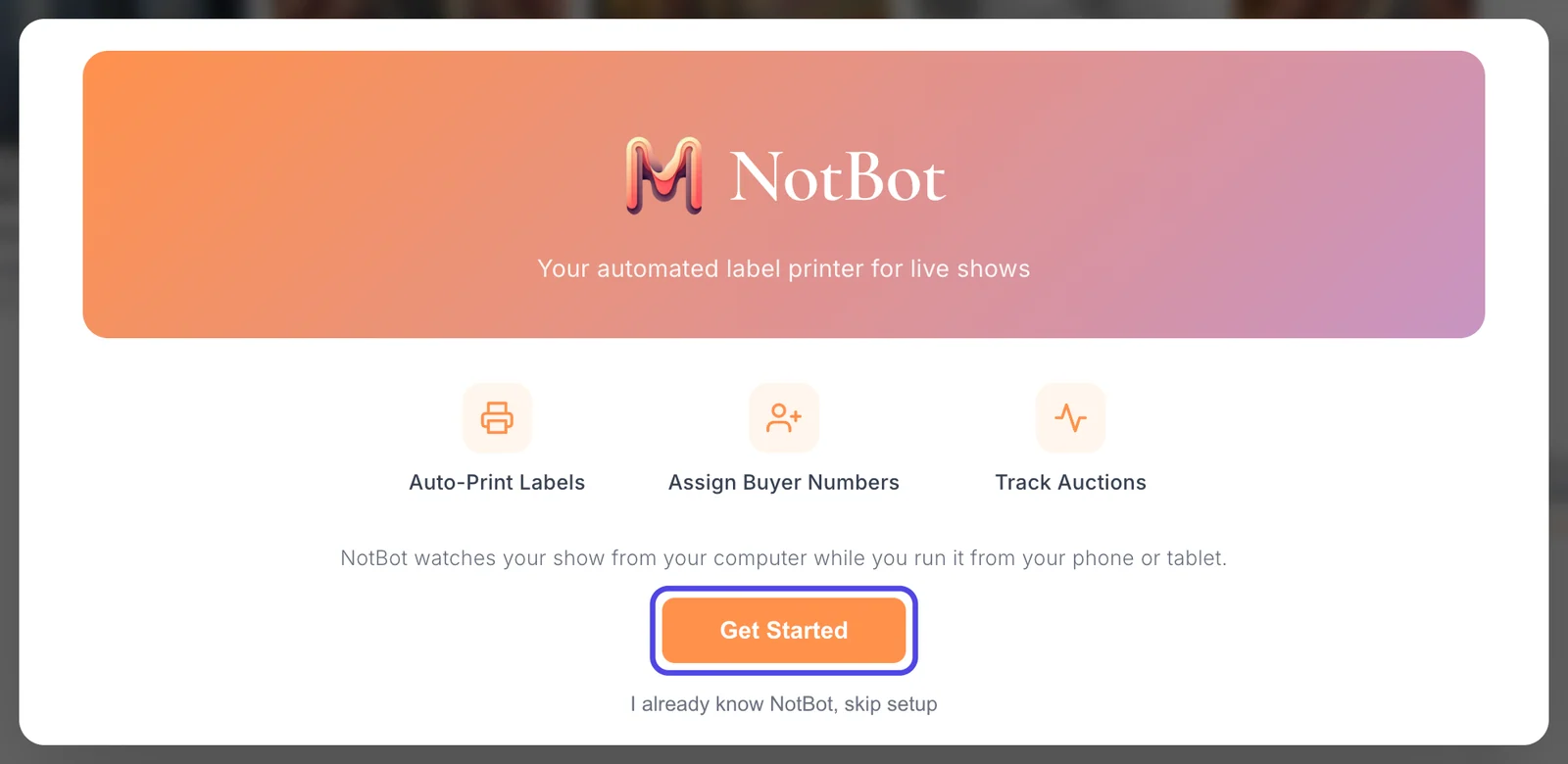
Switch back to the NotBot window. It's now signed in, and the Getting Started window opens on top of it. It shows the NotBot name and Your automated label printer for live shows.
Getting Started walks you through your printer, print mode and label size. Click Get Started to begin, and follow Set up NotBot with the Getting Started window for each screen.
If something looks different
Nothing happens when I click Login to Continue
Your browser may have opened behind NotBot. Look for it in the taskbar (Windows) or the Dock (Mac). If no browser opened at all, make sure your computer has a default web browser set, then click Login to Continue again.
The page says I signed in, but NotBot still shows Welcome to NotBot
Close NotBot completely and open it again, then click Login to Continue once more. The browser remembers you, so this second time usually takes one click.
NotBot says my account needs a NotBot subscription to continue
The account you signed in with has no active subscription or trial. Check that you used the same sign-in method (email, Google or Apple) as when you signed up, and look at your plan on the Subscriptions page on our website.