Reference
Settings Reference
Every NotBot setting, organized like Advanced Settings, with its default and what it changes.
Last updated 2026-10-08 · Applies to NotBot 1.4.4+
Every NotBot setting, its default, and what it changes, organized the way Advanced Settings is.
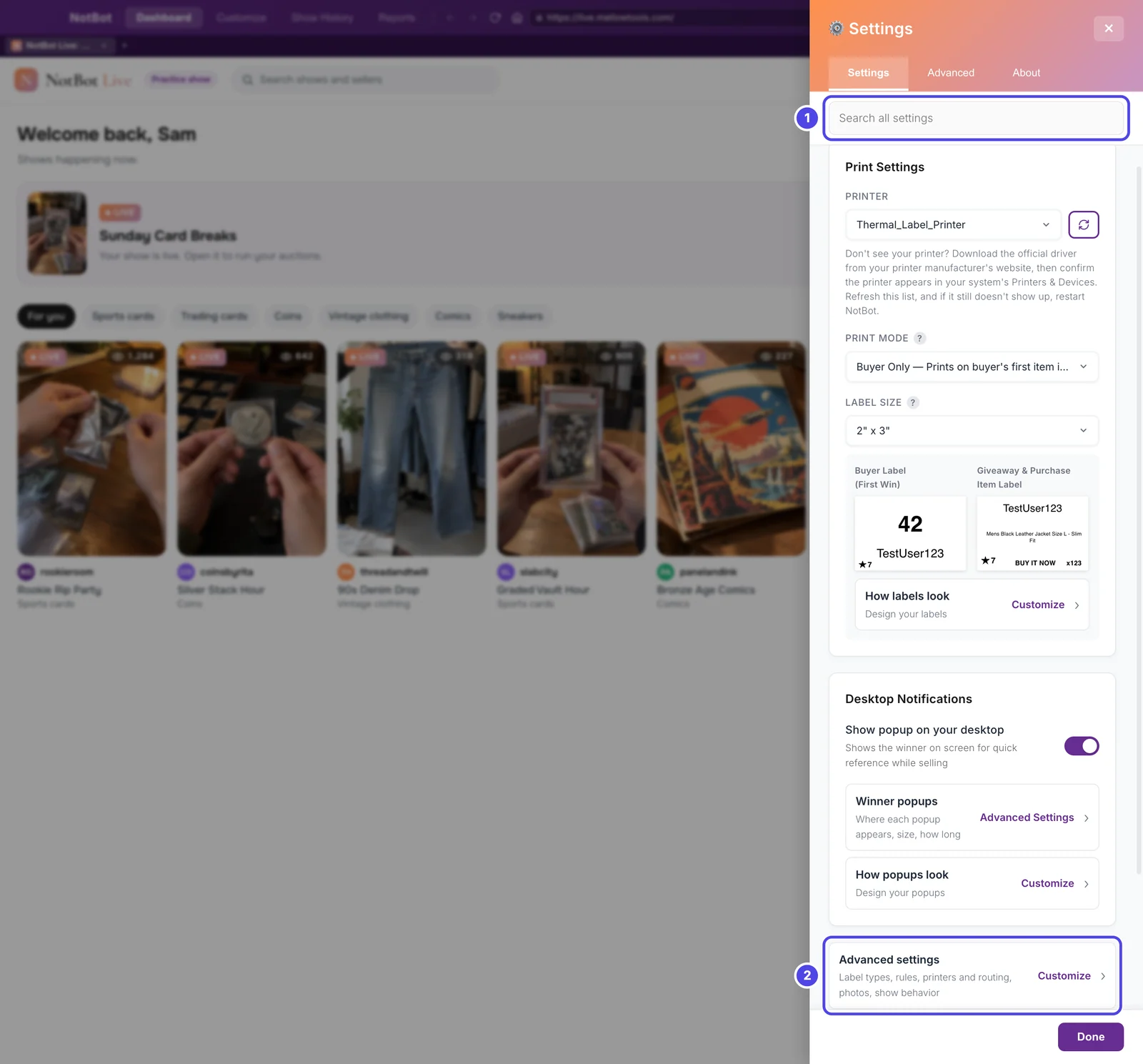
NotBot has two places for settings. Both read and write the same stored values, so a change in one shows in the other right away, and every change saves automatically.
- The Settings drawer. Click ⚙️ Settings at the top of the panel on the right. It slides in over the show and holds the everyday settings: printer, print mode, label size, winner popups, and test prints. Its About tab has your version, the update channel, and privacy choices. Change everyday settings in the Settings drawer goes through it step by step.
- Advanced Settings. Click Customize in the top bar, then Advanced Settings. Every setting is here, full screen, one topic per page, with a search box.
To find one setting fast, see Find any setting.
Searching for a setting
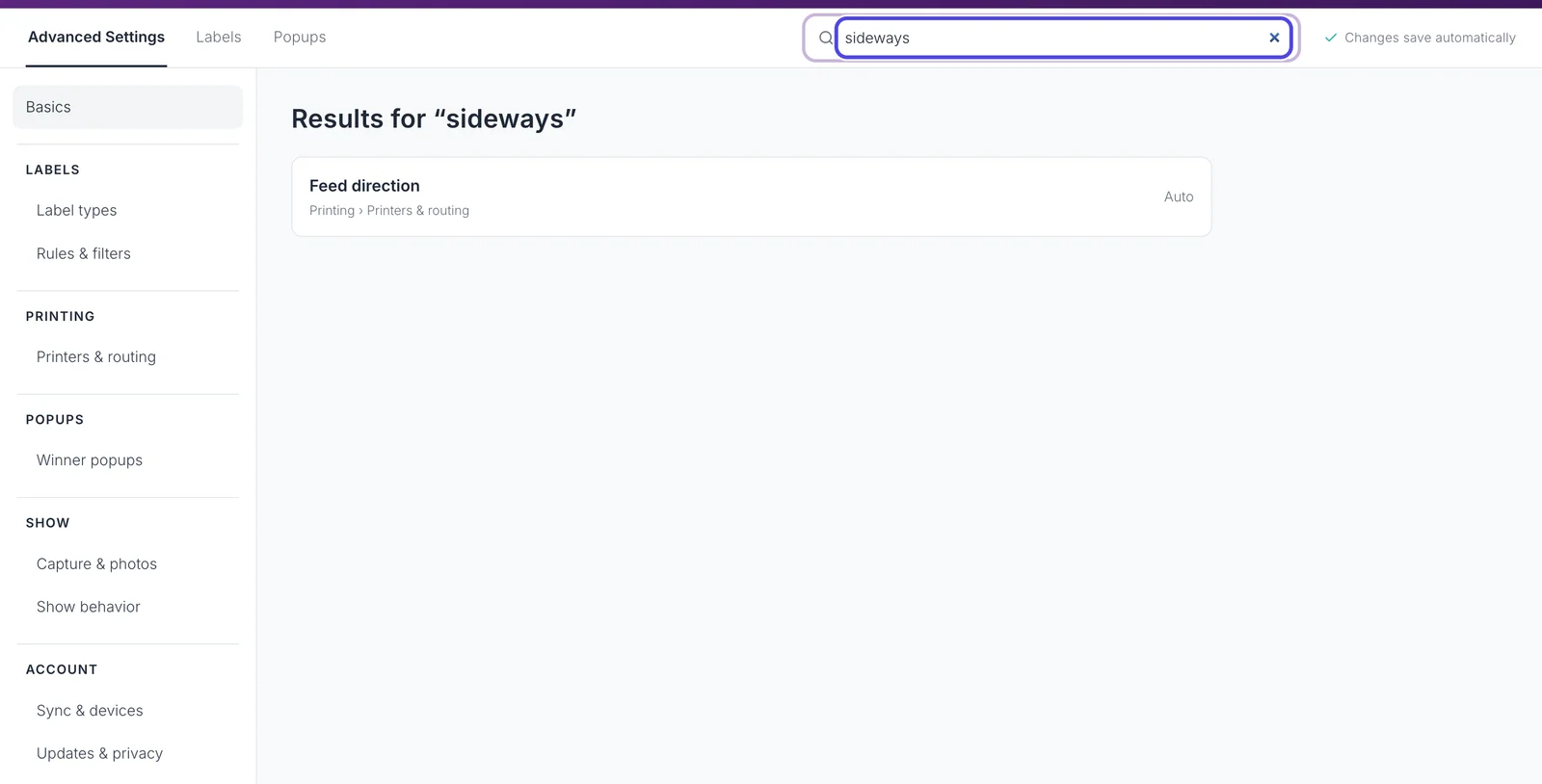
- Search all settings sits at the top of both the drawer and Advanced Settings. Type what you are looking for in your own words ("sideways", "second printer", "bonus"). Each result shows where the setting lives and its current value. Click a result to open its page with the setting highlighted.
- Cmd+K on a Mac or Ctrl+K on Windows opens Advanced Settings with the cursor in the search box, from anywhere in NotBot, including while the show page has focus. On a Mac it is also in the menu bar under NotBot › Search Settings….
- A setting that only applies under another setting (for example Photo quality, which only matters when win photos are on) still shows when search finds it, with a note saying when it applies.
- Some rows have a Learn more link that opens the matching page of these docs in a NotBot tab.
While a show is live, a bar at the top of Customize names the show and reminds you that changes apply from the next sale.
Basics
The everyday settings. They are the same settings as the drawer's Settings tab.
| Setting | Default | What it does |
|---|---|---|
| Print mode | Buyer Only | What prints when someone wins or buys: Every Item, Buyer Only, or Every Item + Buyer. See Print Modes. |
| Box label for new buyers | On | Shown only in Every Item + Buyer. Off stops the separate box label for a new buyer; item labels still carry the box number. In the drawer it is called Print box label for new buyers. |
| Printer | None | The printer labels go to. The list comes from your computer's printers. In the drawer, the refresh button next to the list scans again. With no printer, NotBot still records every sale but cannot print. |
| Label size | 2" x 3" | The size of the labels loaded in your printer: 1" x 1", 2" x 1", 1" x 3", 2" x 3", or 4" x 6". See Label Sizes. |
| Winner popups | On | Shows a popup on your screen for each sale. In the drawer it is Show popup on your desktop. Everything else about popups is on the Winner popups page. |
| Test print | Sends a sample label through the same path a sale uses and reports what happened. Basics has Test buyer label and Test item label; the drawer's Test Print card has Test Buyer Label and Test Auction Label. The buyer button shows only when your settings print box labels. |
Label types
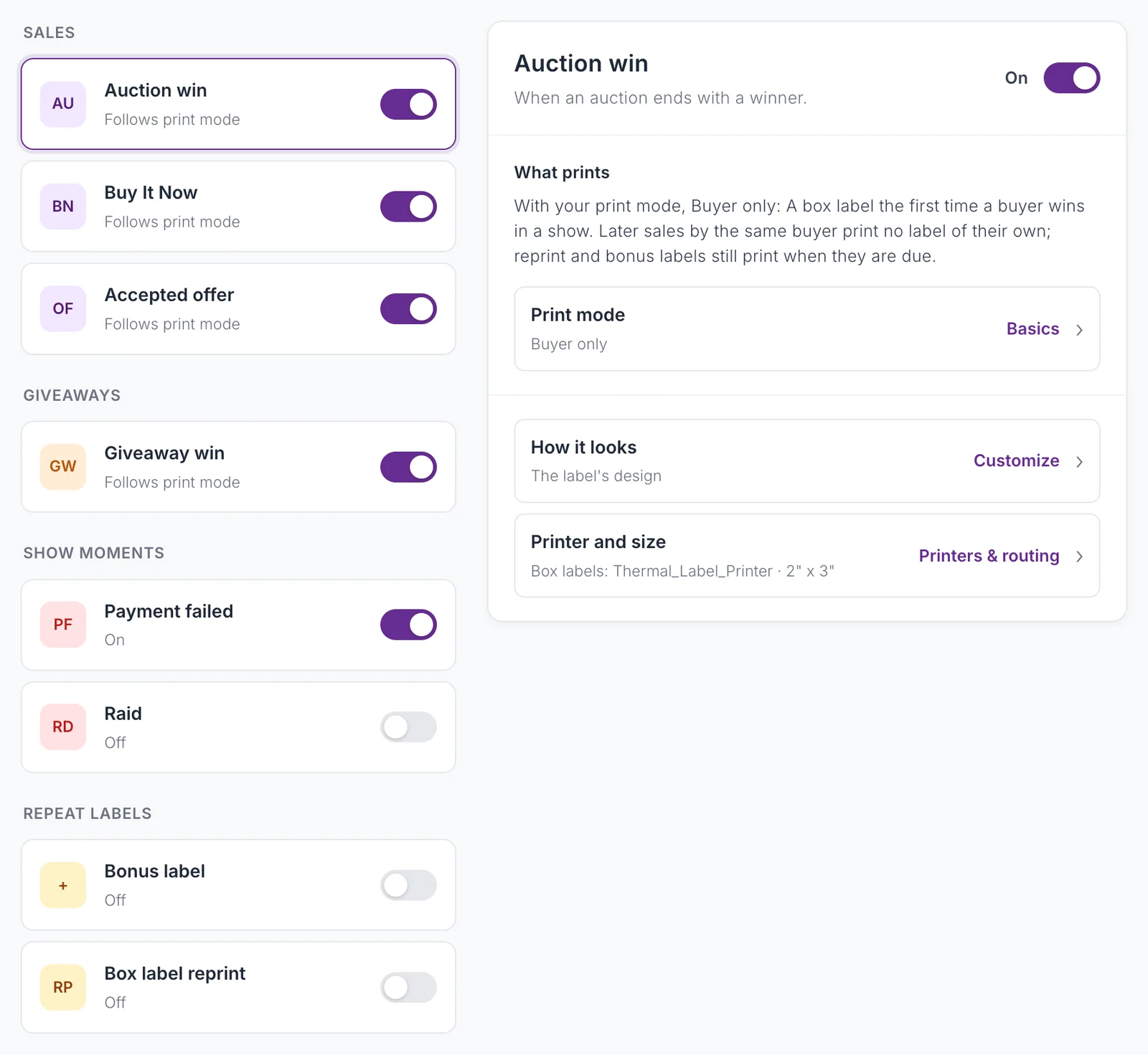
Every moment NotBot can print a label for, in one list. Pick a type on the left to see what it prints with your current print mode, where it prints, and its own options. The switch beside each type turns it on or off. See Choose which labels print.
| Type | Default | When it prints |
|---|---|---|
| Auction win | On | An auction ends with a winner. |
| Buy It Now | On | A buyer purchases a shop listing, flash sales included. |
| Accepted offer | On | You accept a buyer's offer. Whatnot only. |
| Giveaway win | On | A giveaway picks a winner. |
| Payment failed | On | A buyer's payment fails. Prints an item label marked PENDING PAYMENT, with the box number if the buyer has one. Whatnot, and eBay Live auctions. |
| Raid | Off | Another seller raids your show (Whatnot). Prints the raiding seller's name, how many viewers they brought, and the time. A raider is not a buyer, so there is no box number. The same seller raiding again within 10 minutes prints once. |
| Bonus label | Off | A reward label at purchase milestones. |
| Box label reprint | Off | Reprints a buyer's box label as they keep winning. |
Turning a sale type off (auction, Buy It Now, accepted offer, giveaway) means no label and no box number for that sale. The sale is still recorded in your show history and totals, it still counts toward bonus labels when that kind of sale is ticked, and a bonus it earns still prints.
Options inside a type:
| Type | Option | Default | What it does |
|---|---|---|---|
| Buy It Now | Include flash sale purchases | On | Off skips flash sale labels and still prints regular Buy It Now. |
| Buy It Now | In Buyer only mode, Buy It Now purchases print | An item label | A box label for new buyers, An item label, or Both. Accepted offers follow this too. Only used in Buyer Only. |
| Giveaway win | In Buyer only mode, giveaway wins print | An item label | The same three choices, for giveaways. Only used in Buyer Only. |
| Bonus label | Print a bonus label every N purchases | 7 | A bonus prints when a buyer's count reaches N, 2N, 3N, and so on in a show. 1 to 100. |
| Bonus label | Counts toward it | Auction wins, Buy It Now | Which sales count: Auction wins, Buy It Now (accepted offers count with it), Giveaway wins. |
| Bonus label | Text on the label | BONUS LABEL | Up to 50 characters. |
| Box label reprint | Reprint the buyer's box label every N wins | 7 | 1 to 100. |
| Box label reprint | Counts toward it | Auction wins | Which sales count toward the reprint. |
Each type also has two rows at the bottom: How it looks opens the design in Customize › Labels, and Printer and size shows where that label prints and opens Printers & routing. The full decision rules are on When NotBot Prints.
Rules & filters
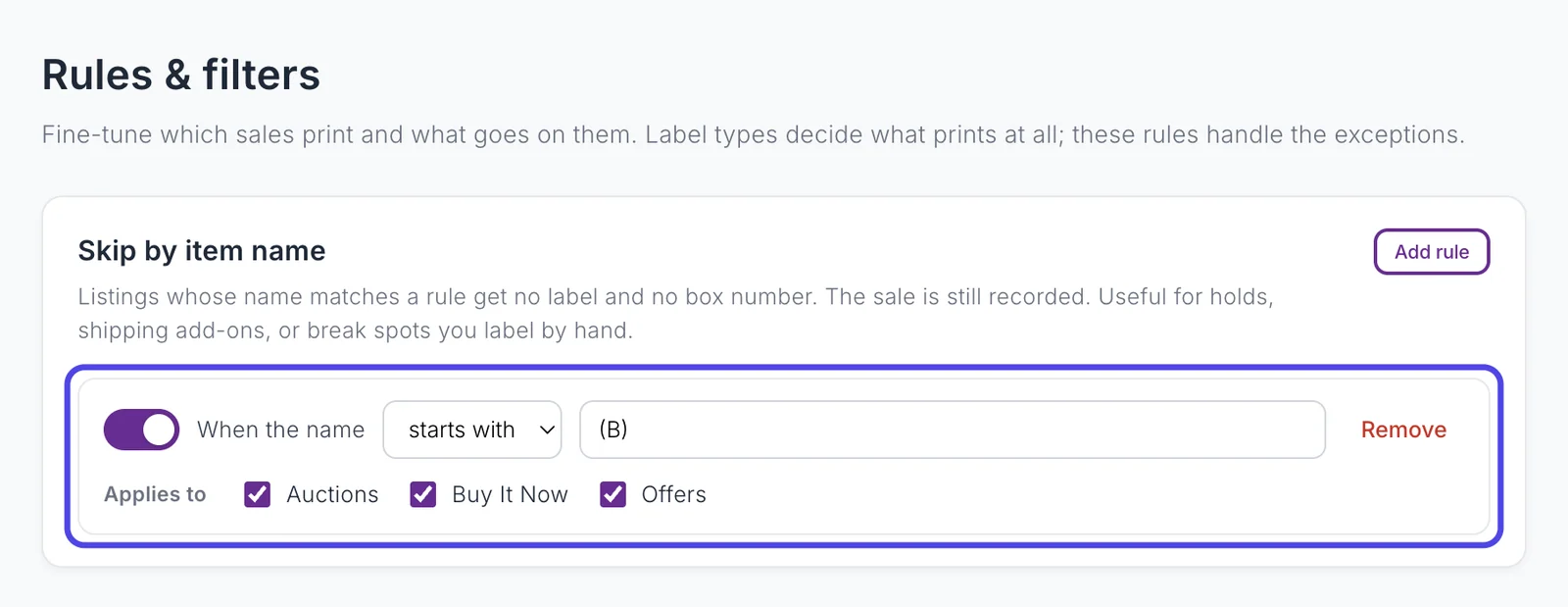
The exceptions to Label types. See Skip labels by name.
| Setting | Default | What it does |
|---|---|---|
| Skip by item name | No rules | A list of rules. Each rule has its own on/off switch, matches when the item name starts with or contains a word or phrase, and applies to any of Auctions, Buy It Now, and Offers. A matching sale gets no label and no box number and is still recorded. Click Add rule to add one and Remove to delete it. A rule with no word or no sale type ticked skips nothing. |
| Treat pinned shop listings as Buy It Now | On | When you pin a shop listing and run it like an auction, the sale prints as a Buy It Now label and follows your Buy It Now settings. Off: it prints as an auction win. |
| Star first-time buyers | On | Prints a star on the box label, with a number beside it, when Whatnot marks the winner as a first-time buyer. Applies to auction wins. Off also hides every design part set to show on first-time buyers only. |
Printers & routing
Set up each printer once, then decide which labels go where. Most sellers use one printer and never need the routing table. See Use two printers.
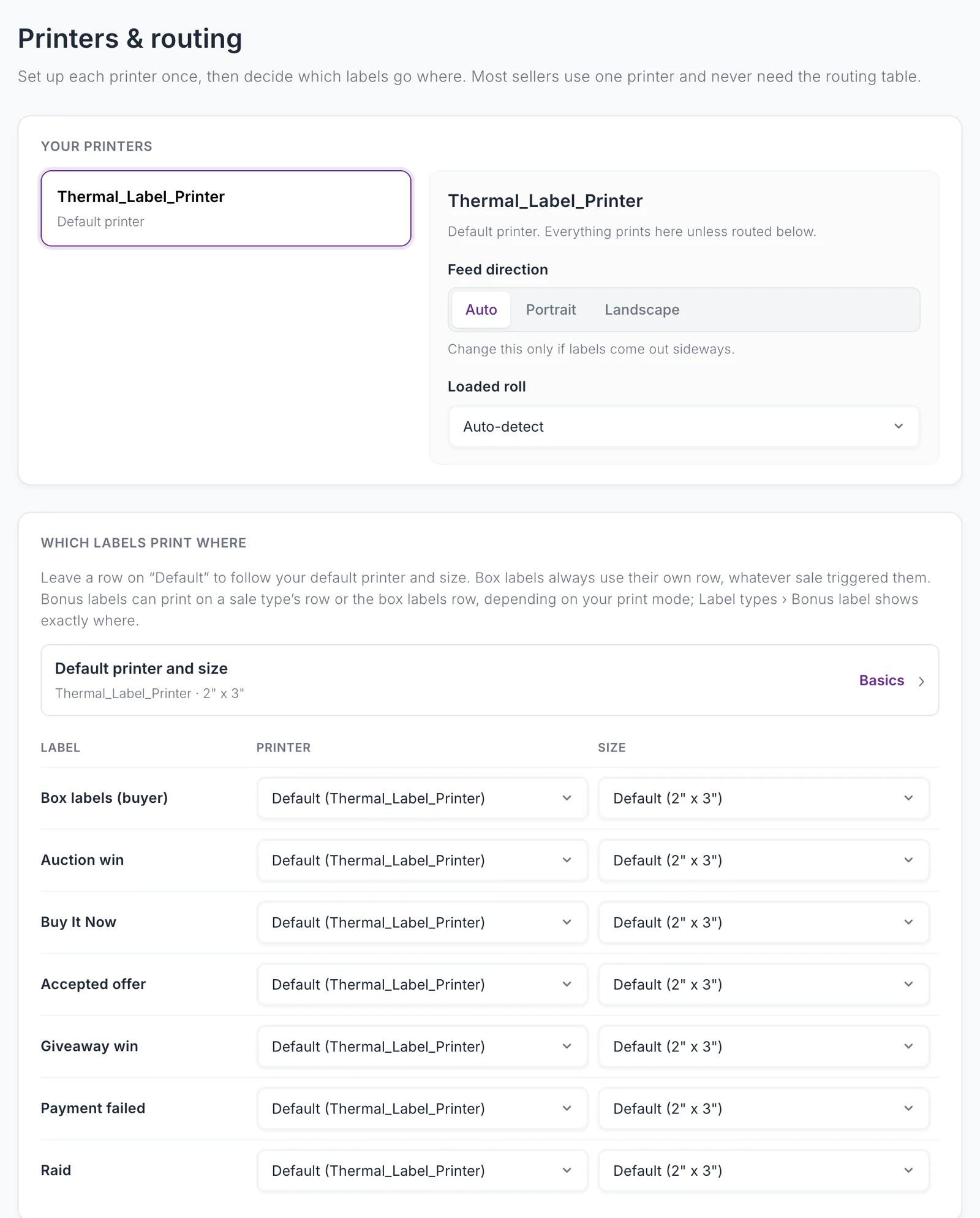
Your printers lists every printer your computer has, with what each one is used for. Pick one to set it up:
| Setting | Default | What it does |
|---|---|---|
| Feed direction | Auto | Auto, Portrait, or Landscape. Change it only if labels come out sideways. Auto is landscape for every size, except 4" x 6" on a Mac, which is portrait. Set per printer. |
| Loaded roll | Auto-detect | The label roll loaded in this printer, from the sizes the printer reports. Pick the exact roll if labels print at the wrong size or get cut off. Set per printer. |
Which labels print where is one table. Each row has a printer and a size; leave a row on Default to follow the printer and size on Basics.
| Row | What it routes |
|---|---|
| Box labels (buyer) | Every box label, whatever sale triggered it, so one buyer's box labels never land on two printers. |
| Auction win, Buy It Now, Accepted offer, Giveaway win, Payment failed, Raid | The item label (or raid label) for that type. |
Bonus labels follow a sale type's row or the box labels row depending on your print mode; Label types › Bonus label shows exactly where.
| Setting | Default | What it does |
|---|---|---|
| Preview mode | Off | Opens each label as a PDF instead of printing. Handy for checking a design without using labels. It is not a printer test; use a test print for that. |
Winner popups
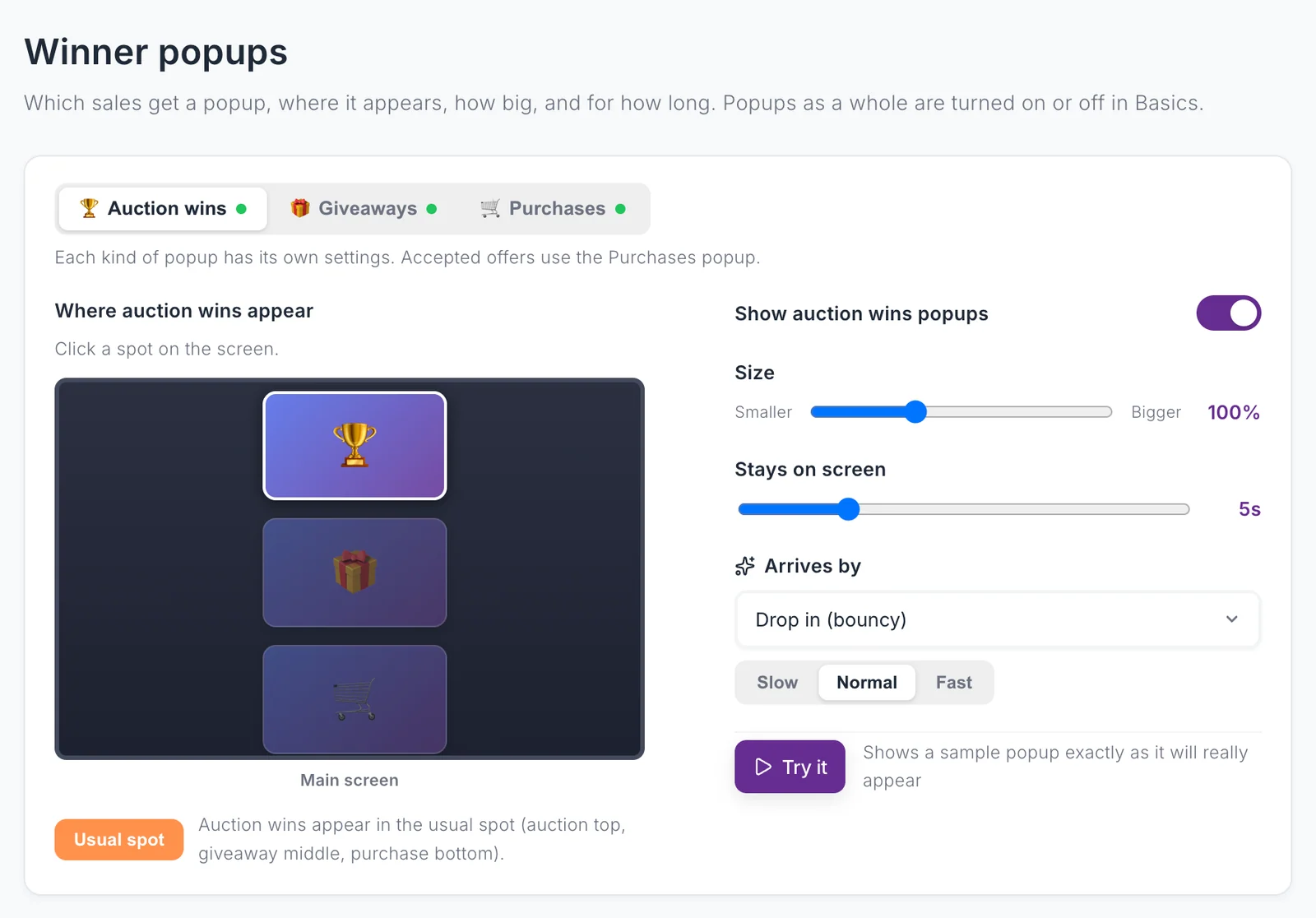
Which sales get a popup, where it appears, how big, and for how long. Popups as a whole are turned on or off with Winner popups on Basics. See Winner popups.
| Setting | What it does |
|---|---|
| Popups for each kind of sale | Separate settings for Auction wins, Giveaways, and Purchases, each with its own on/off. |
| Where popups appear | Click a spot on a picture of your screens to place each kind of popup. |
| Size | A slider from Smaller to Bigger, 50% to 200%, set for each kind. |
| Stays on screen | How long the popup stays, 2 to 15 seconds (5 to start), set for each kind. |
| Arrives by | Set for each kind: Just appear, Fade in, Pop (grow in), Drop in (bouncy), Slide in from the left, or Slide in from the right, at Slow, Normal, or Fast. |
| Try it | Shows a sample popup where it will appear. |
| Plain popups (default off) | A simple card instead of your design. Turn it on if winner popups do not appear on screen during your shows. |
| How the popup looks | Opens the popup design in Customize › Popups. |
Capture & photos
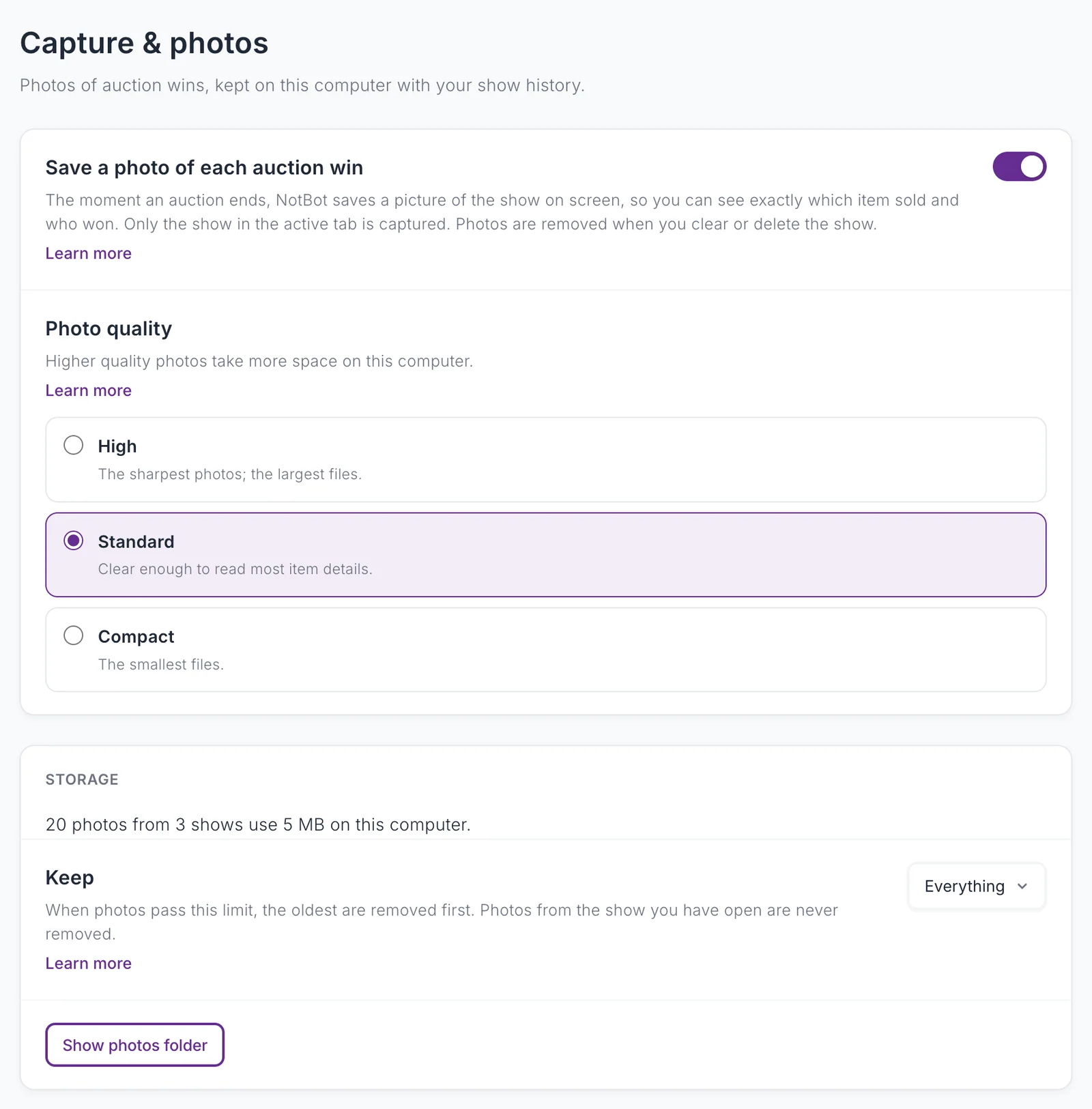
Photos of auction wins, kept on this computer with your show history. See Keep win photos from filling your disk.
| Setting | Default | What it does |
|---|---|---|
| Save a photo of each auction win | On | The moment an auction ends, NotBot saves a picture of the show on screen. Only the show in the active tab is captured. Photos are removed when you clear or delete the show. If you turned this off in an earlier version, it stays off. |
| Photo quality | Standard | High (sharpest, largest files), Standard, or Compact (smallest files). |
| Photo storage | How many photos are saved, from how many shows, and how much space they use. | |
| Keep | Everything | Everything, Up to 1, 2, 5, 10, or 20 GB, or Photos from the last 10, 25, 50, or 100 shows. Past the limit, the oldest photos are removed first. Photos from the show you have open are never removed. A choice that would remove photos right away asks first and says how many. |
| Show photos folder | Opens the photo folder in Finder or File Explorer. |
Show behavior
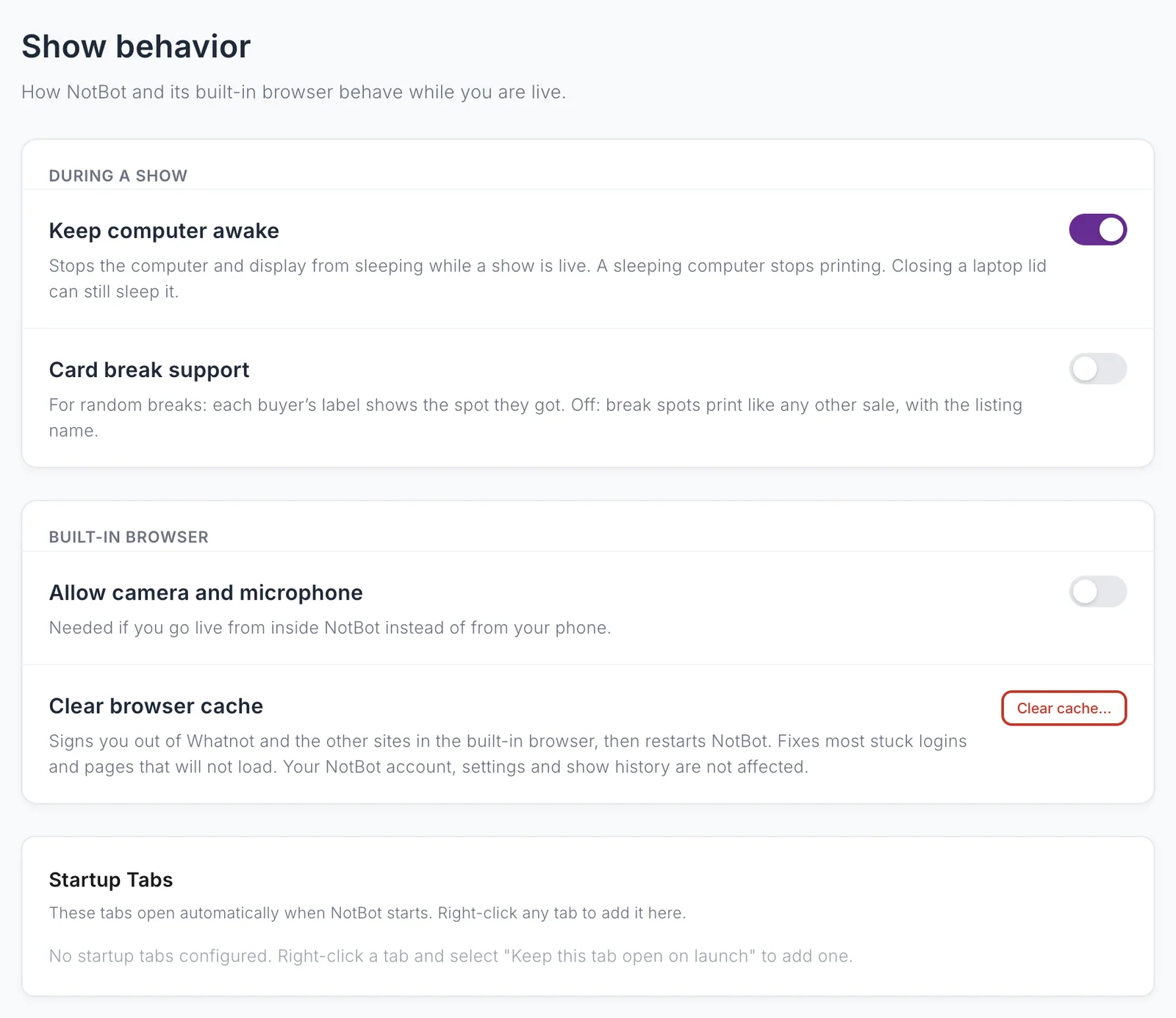
How NotBot and its built-in browser behave while you are live.
| Setting | Default | What it does |
|---|---|---|
| Keep computer awake | On | Stops the computer and display from sleeping while a show is live. A sleeping computer stops printing. Closing a laptop lid can still sleep it. |
| Card break support | Off | For random breaks: each buyer's label shows the spot they got. Off: break spots print like any other sale, with the listing name. See Card breaks. |
| When break labels print | Print when the break ends | Shown when card break support is on. Print when the break ends: labels wait until every spot is assigned, then print together in spot order. Print each spot as it is assigned: each label prints the moment its spot is assigned, and a re-spin prints a corrected label. Turning support off during a break prints any waiting labels right away. |
| Allow camera and microphone | Off | Needed only if you go live from inside NotBot instead of from your phone. |
| Clear browser cache | Clear cache… signs you out of Whatnot and the other sites in the built-in browser, then restarts NotBot. Your NotBot account, settings, and show history are not affected. See Clear the built-in browser. | |
| Tabs to open at startup | The tabs that reopen when NotBot starts, in order. Add a tab by right-clicking it in the tab bar and choosing Keep this tab open on launch. |
The browser's sound is not a setting: use the speaker icon next to the address bar. It is muted by default.
Sync & devices
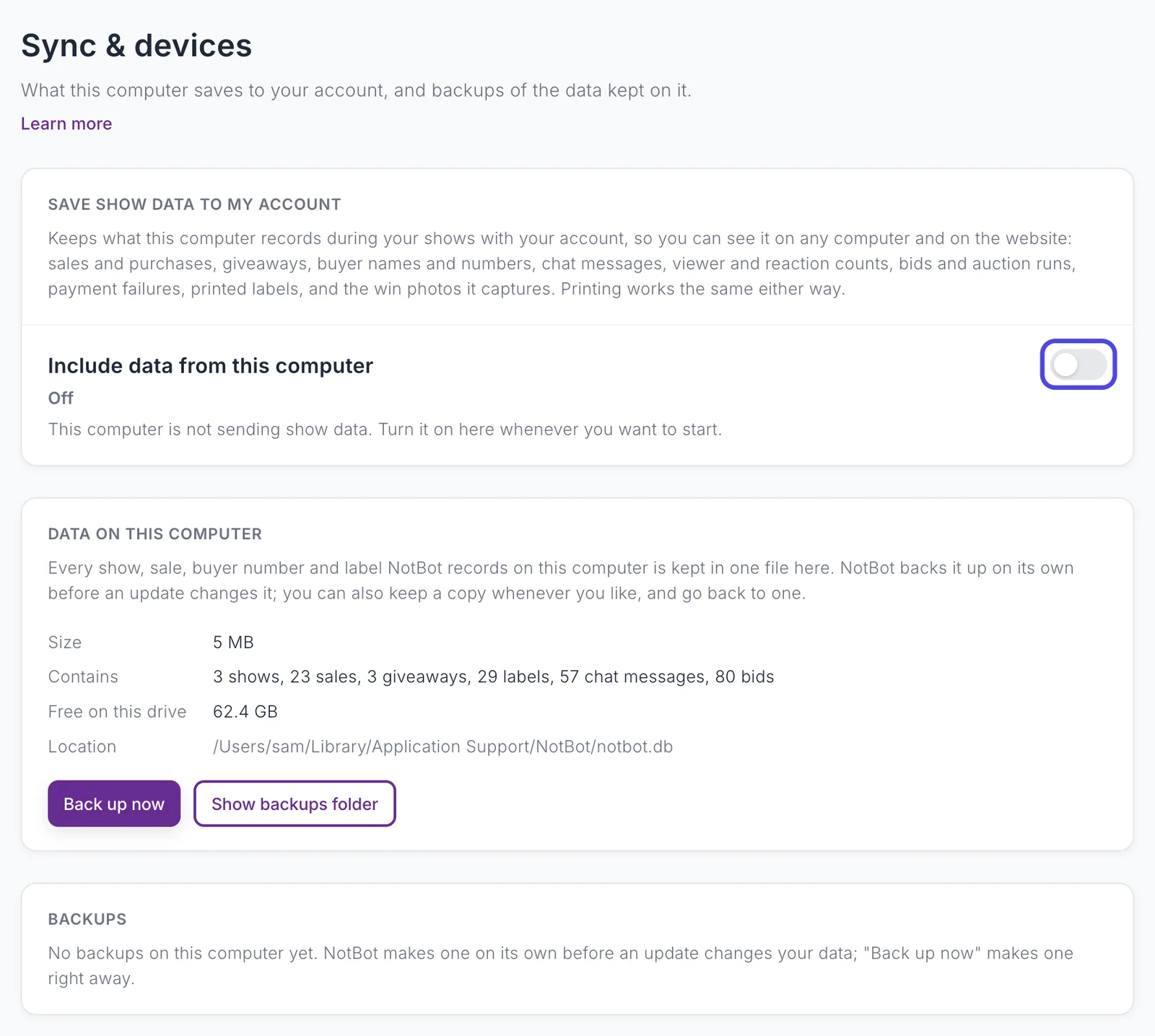
What this computer saves to your account, and backups of the data kept on it. See Save your shows to your account.
| Setting | Default | What it does |
|---|---|---|
| Include data from this computer | Off | Under Save show data to my account. Saves what this computer records during your shows to your account, as each show happens. Set per computer. Printing works the same either way. Turning it off stops saving from this computer; shows already saved stay in your account. |
| Ask before saving each show to my account | Off | Your own shows (the shop names under Your shops) are saved automatically; any other show waits until you save it. A cloud icon next to LIVE STREAM shows whether the show you are watching is being saved. |
| Past shows | Appears once saving is on. Tick earlier shows that are only on this computer and upload them. Uploads resume if you close NotBot and pause while you are live. | |
| Data on this computer | How much show data is here, where it is, and the free space on the drive. Back up now makes a copy, Show backups folder opens it, and each backup can be restored (Restore and restart) or deleted. A restore keeps what was there as a Before a restore backup. Restores are not available while a show is running. NotBot also backs up on its own before an update changes your data (Before an update). |
What is saved is listed on Privacy.
Updates & privacy
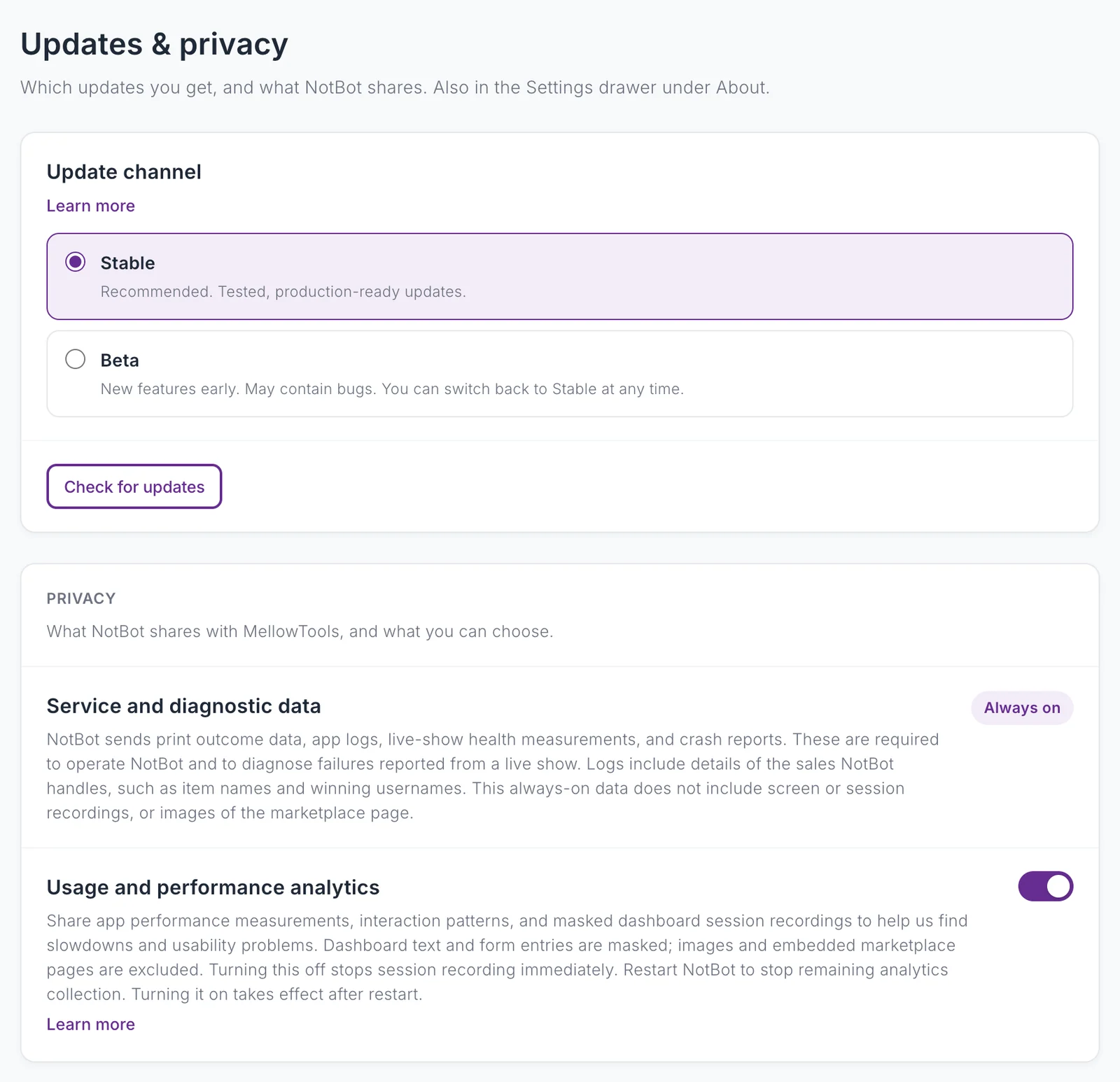
Also in the drawer's About tab. See Updates and Privacy.
| Setting | Default | What it does |
|---|---|---|
| Update channel | Stable | Stable (tested releases) or Beta (new features early, may contain bugs). While an update is downloading or waiting to install, the channel cannot change until it finishes. |
| Check for updates | Checks now and says whether you are up to date. | |
| Service and diagnostic data | Always on | Print outcomes, app logs, live-show health measurements, and crash reports. |
| Usage and performance analytics | On | App performance measurements, interaction patterns, and masked session recordings of the NotBot panel. Turning it off stops session recording at once; restart NotBot to stop the rest. |
The drawer's About tab also has View What's New, Run Setup Wizard (the Getting Started window again), links to the terms and privacy policy, and the support address.
Settings that are not in Settings
- Auto-print is the switch in the printer control at the top of the panel on the right. It is on when NotBot starts. Turn it off to stop printing without losing anything: sales are still recorded and you can print them later. See When NotBot Prints.
- Label designs are in Customize › Labels. See Labels and the Label Editor.
- Popup design is in Customize › Popups.