Step-by-Step Guides
When the show connection drops
What the orange connection bar means, what to do while it shows, and how to add back a sale NotBot missed.
Last updated 2026-10-08 · Applies to NotBot 1.4.4+
NotBot hears about each sale through the live connection between your show and your computer. If that connection drops for a moment, an orange bar appears across the top of NotBot. Most drops last a few seconds and nothing is lost. If an auction ended during the drop, NotBot never heard about it, so that sale has no label. This guide shows how to spot that and put the sale back.
The pictures use a practice show on NotBot Live, a practice marketplace. The bar and the buttons look the same during your real show.
Before you start
- You are in the middle of a show with NotBot open, or you want to know what to do before it happens.
- You can open your platform's list of sold items or orders for this show, to compare against NotBot.
When the bar appears
Step 1: Read the orange bar
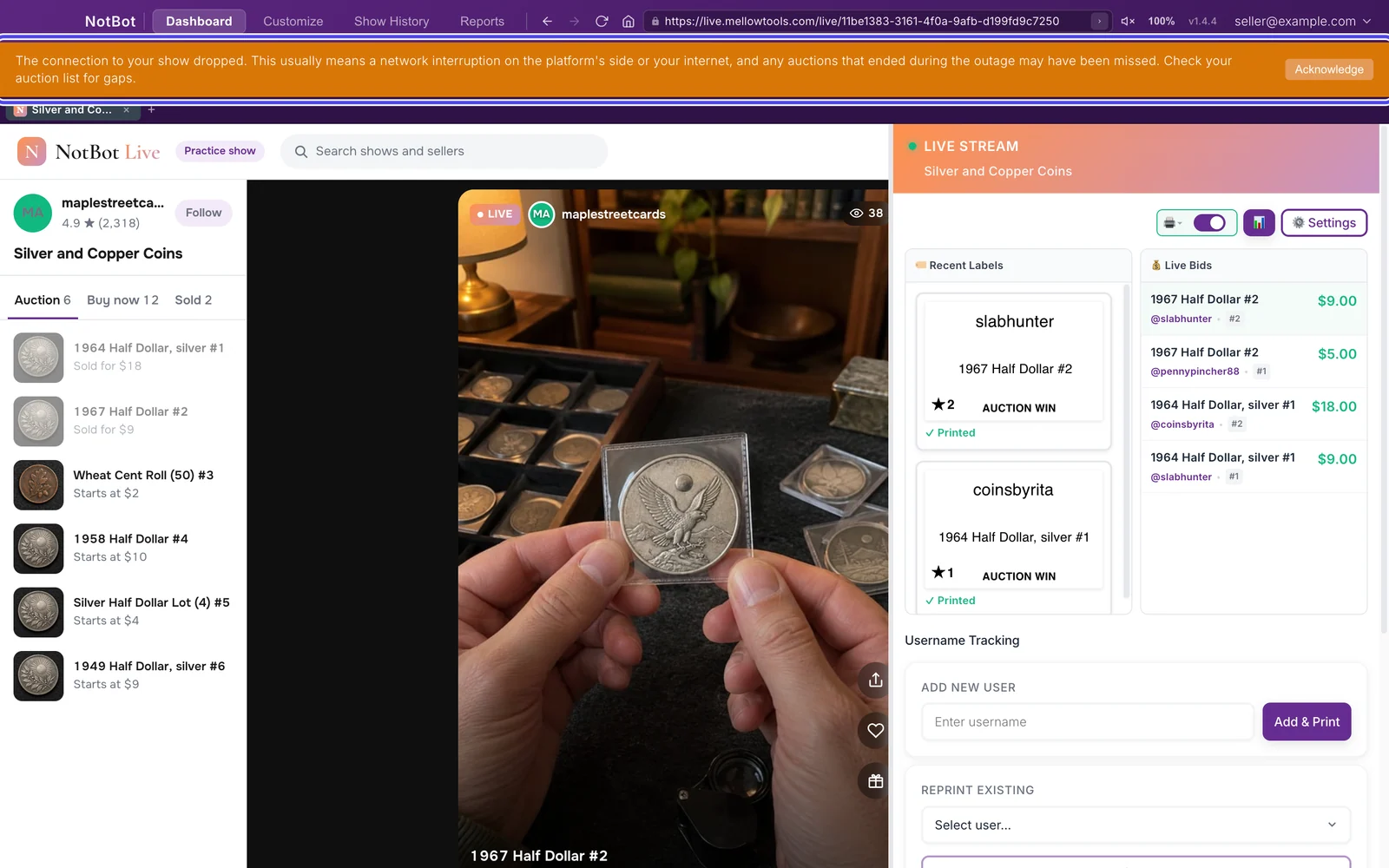
An orange bar across the top of NotBot means the connection to your show closed without warning:
The connection to your show dropped. This usually means a network interruption on the platform's side or your internet, and any auctions that ended during the outage may have been missed. Check your auction list for gaps.
NotBot shows this bar once your show has had at least one sale or giveaway. Keep your show going. The bar stays until you click Acknowledge, so you won't miss it.

Tip: If you can, wait for the bar to turn green before you close the next auction. A sale that ends while the bar is orange may not reach NotBot.
Step 2: Wait for the bar to turn green
When the connection comes back, the bar turns green and says The connection to your show is back. Please check your auction list for any gaps that may have happened during the outage.
This usually takes a few seconds. New sales print again as normal from this point on.
If the bar stays orange for more than a minute, check that your internet is working, then click the round arrow (reload) button in the bar at the very top of NotBot to reload your show.

Find sales that were missed
NotBot can only list the sales it heard about. To find a missed one, compare NotBot's list with the platform's own list of sold items or orders for this show.
Step 3: Open Auction History in NotBot
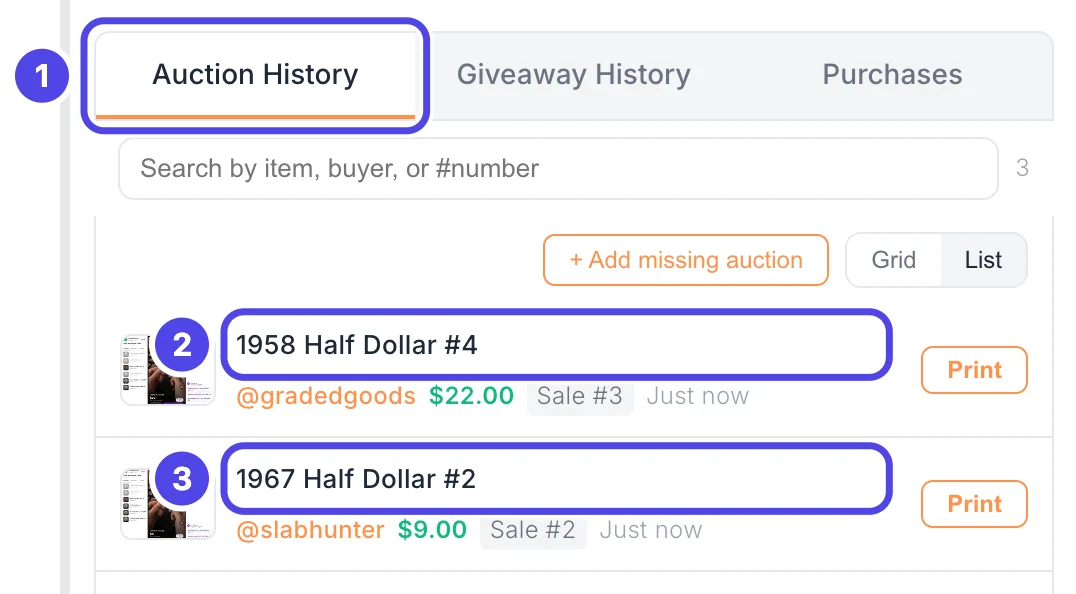
Scroll down the NotBot panel on the right, past Username Tracking, to Auction History (1). It lists every auction NotBot recorded in this show, newest at the top.
Look for a sale that is on the platform's sold list but not here. If you number your lots in the item title, a skipped number is the quickest tell. Here 1958 Half Dollar #4 (2) comes right after 1967 Half Dollar #2 (3): lot #3 ended while the connection was down.
The grey Sale numbers have no gap, because NotBot only counts the sales it heard about. Look at the lot numbers in the item names instead.
Step 4: Add the missed sale
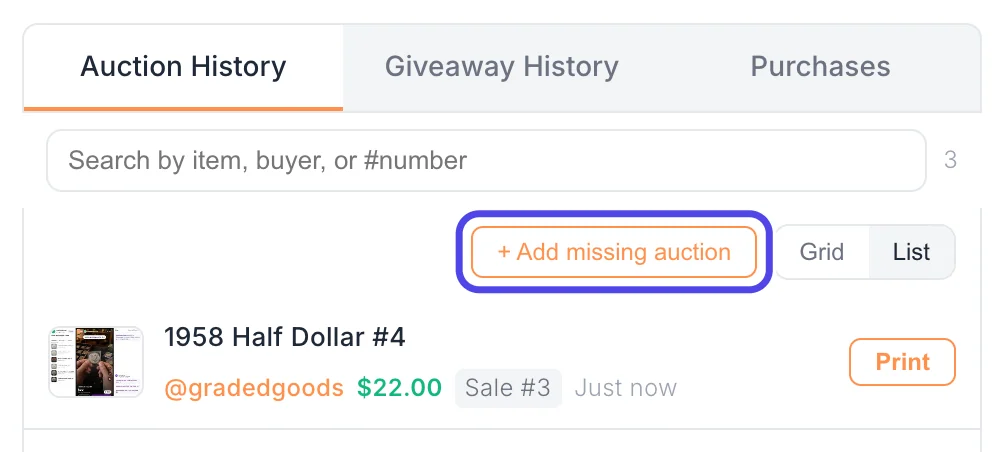
Click + Add missing auction at the top of Auction History. A small window opens where you type the item name, the winner's username and, if you like, the price. NotBot adds the sale to your show and prints its label the way your print mode says.
Add a sale NotBot missed walks through that window one box at a time.
Good to know: Only a sale that ended during the drop can be missing. Sales before the bar appeared and after it turned green are in the list as usual.
Step 5: Click Acknowledge
When you have checked for gaps, click Acknowledge on the right end of the green bar at the top of NotBot. The bar closes.
If the connection drops again later, the bar comes back.

Make drops less likely
Most drops start on the computer's side: weak Wi-Fi, a busy home network, or the computer going to sleep. These make a big difference:
- Use a network cable. Plug the computer into your router with an Ethernet cable for shows. If you must use Wi-Fi, sit close to the router.
- Keep the computer plugged in to power during a show, so it doesn't slow itself down to save battery.
- Keep the computer awake. While a show is live, NotBot stops the computer and screen from sleeping, unless you turned off Keep computer awake (Customize › Advanced Settings › Show behavior). Closing a laptop lid can still put it to sleep, so leave the lid open.
- Pause big downloads and video streaming on the same network while you are live.
If something looks different
The orange bar keeps coming back every few minutes
Your internet connection is dropping over and over. Switch to a network cable if you can, restart your router before the show, and make sure the computer is plugged in and set not to sleep. If it still happens on a steady connection, update NotBot (Update NotBot, see what is new, and get help), and if that doesn't help, uninstall it and install it again (Download and install NotBot). Your settings and shows are kept.
The bar never turned green
Check that the internet works on this computer (open any website). Then click the round arrow (reload) button in the bar at the very top of NotBot to reload the show. The bar turns green once the show is connected again.
A buyer says they won, but there is no label and no sale in NotBot
That sale ended while the connection was down. Add it with + Add missing auction, as in the steps above. To give the buyer a number and print their label without adding the sale, you can also use Add & Print under Username Tracking; see Buyer numbers and adding a buyer by hand.
The bar appeared, but nothing is missing
That is the most common case: no auction ended during the few seconds the connection was down. Click Acknowledge and carry on.
The sale is in Auction History, but its label never printed
The sale reached NotBot, so the connection is not the problem. Follow Labels are not printing: step-by-step fixes.