Reference
Dashboard
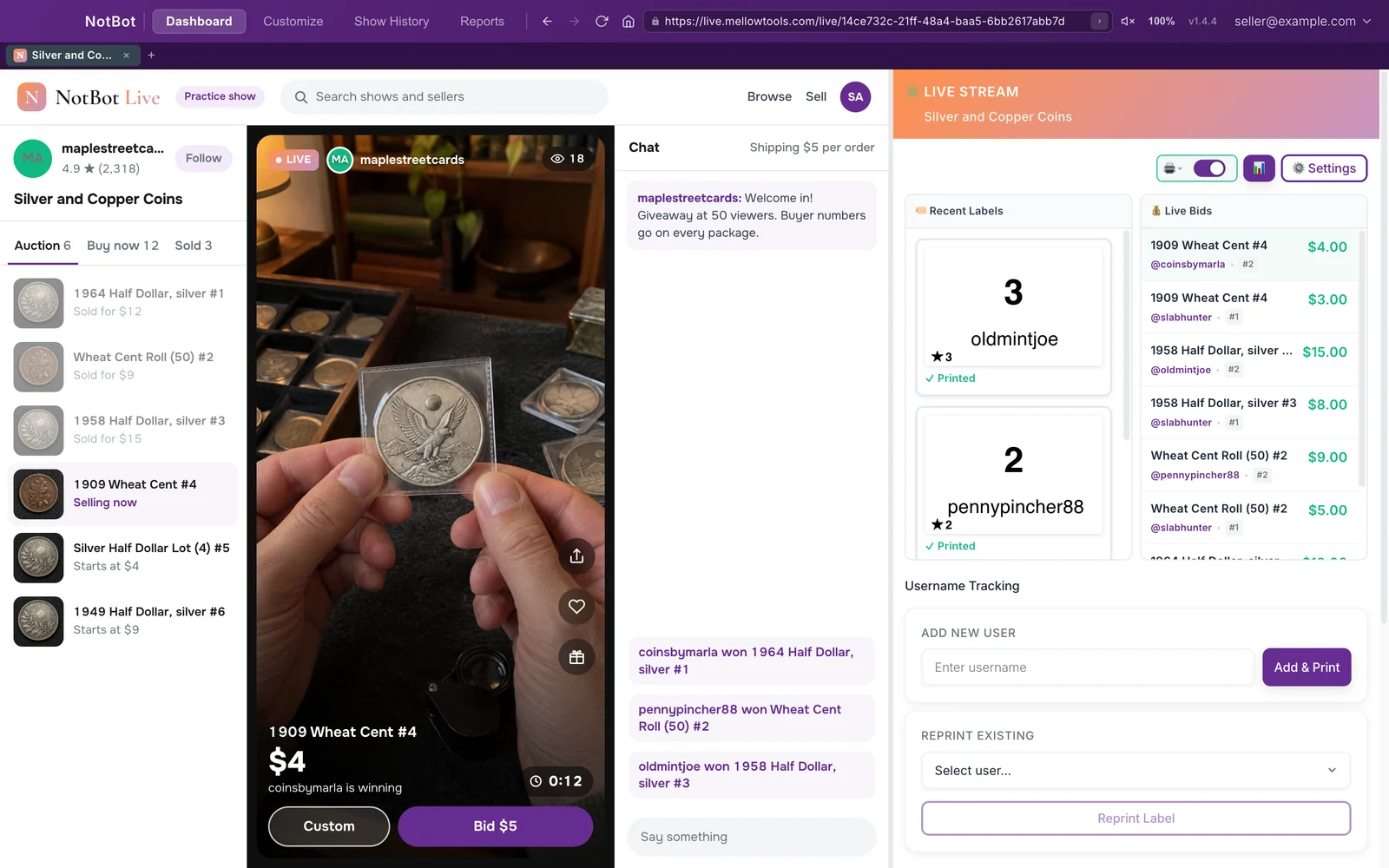
The top bar, the account menu, the built-in browser, and the live panel: Recent Labels, live bids, buyer numbers, and history.
Last updated 2026-10-08 · Applies to NotBot 1.4.4+
The Dashboard is where you run a show: the show on the left, and NotBot's live panel on the right showing every label, bid, and sale as it happens. For a walk through it during a show, see Use the live dashboard.
The top bar
- Dashboard, Customize, Show History, Reports: the four views. Customize, Show History, and Reports appear once you are signed in.
- Customize has three tabs: Advanced Settings (every setting, see Settings Reference), Labels (see Labels and the Label Editor), and Popups (how the winner popup looks).
- Show History: see Show History.
- Reports: ready-made and your own reports for any show or date range, with CSV and PDF export. See Build and export reports.
- On the Dashboard, the browser's address bar and buttons sit in the top bar too.
- An update button appears when a new version is ready. See Updates.
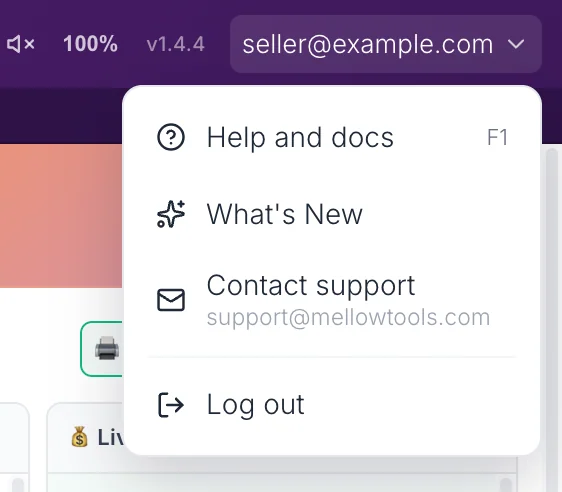
- Your email at the top right opens the account menu: Help and docs (also F1), What's New, Contact support, and Log out.
The built-in browser
The left side is a full web browser with its own tabs. Your show runs here. Only one tab is the active show at a time; sales on other show tabs are recorded but do not print.
- The browser is muted by default, so it does not echo your phone or tablet. The speaker icon next to the address bar turns sound on.
- Zoom is remembered per site: set it once on Whatnot and every Whatnot tab uses it.
- Drag the divider between the browser and the live panel to resize them.
- Right-click a tab and choose Keep this tab open on launch to reopen it every time NotBot starts.
The live panel
The top row
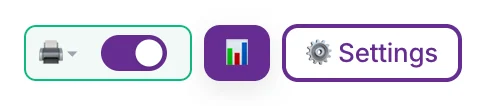
- The printer control: a printer icon and the Auto-print switch together. The icon shows printer health and pulses when something is wrong; click it for each printer's status. The switch turns automatic printing on or off. With it off, a red Printing is disabled bar says sales are still tracked; click the bar to turn printing back on.
- 📊 opens the full details of the show you are watching.
- ⚙️ Settings opens the Settings drawer. See Settings Reference.
Recent Labels and Live Bids
- Recent Labels (left): the latest labels for this show, each with a small picture of the label and its status. Click one to print it again. See Print Queue for each status.
- Live Bids (right): the show's bids as they arrive, newest first, with the item, bidder, bid count, and amount.
Username Tracking
- Add New User: type a username and click Add & Print. NotBot gives the next box number and prints a box label (in Every Item + Buyer, your item label design with the number). Use it for a buyer NotBot did not see win.
- Reprint Existing: pick a buyer and click Reprint Label to print their box label again (in Every Item + Buyer, the item label design with their number).
See Buyer numbers.
Card break progress
With card break support on, a gray bar with a BREAK tag sits under Username Tracking while a break is filling, with the break's name and how many spots have sold. See Card breaks.
History
Three tabs list this show's sales, newest first, with a search box:
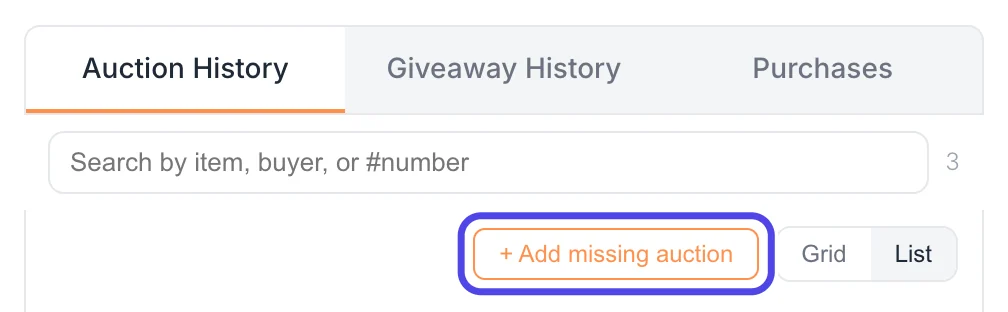
- Auction History: every auction win.
- Giveaway History: every giveaway, its winner, and its entries.
- Purchases: every Buy It Now purchase and accepted offer. Accepted offers carry an OFFER ACCEPTED badge.
Click an auction or purchase to see it larger (auctions with their win photo) and to print its label again. + Add missing auction enters an auction NotBot did not catch (usually because the connection dropped at that moment); NotBot gives the box number and prints the label as if it had arrived. See Add a sale NotBot missed.
The connection banner
If NotBot's connection to the show drops, an orange banner says so and asks you to check your auction list for gaps. When it reconnects, the banner turns green; click Acknowledge to close it. The cause can be the platform or your internet. See When the show connection drops.
See also
- Print Queue for label statuses.
- Show History for past shows.
- Settings Reference for every setting.