Troubleshooting
Troubleshooting
Symptom-indexed guide for common NotBot issues, starting with labels that won't print.
Last updated 2026-10-08 · Applies to NotBot 1.4.4+
Most NotBot problems fall into a few patterns. Find your symptom below. The first sections come from real support cases. The printer calibration and sleep sections are general starting points; your printer maker's instructions are the final word on those.
My labels won't print
The problem we hear about most. Work through this section from the top; most of it you can do without a live show. The guide Labels are not printing walks through it with screenshots.
Print a test label first
Open ⚙️ Settings and use the Test Print card (Test Auction Label, plus Test Buyer Label when you print box labels), or Test item label on Customize › Advanced Settings › Basics. A test label goes through the same path a sale does, and the button says what happened.
- The test label prints. NotBot and your printer are working together. Your problem is about when labels print. See It prints a test label but nothing during my show.
- The test label does not print. The link between NotBot and the printer is broken. Keep reading.
Do not use Preview mode to test. It opens a PDF instead of printing, so it never proves your printer works.
Check your computer's print queue
While you print a test label, open your computer's own print queue for the printer and watch it. This one check tells you which side the problem is on.
- Mac: System Settings › Printers & Scanners › your printer › Open Print Queue.
- Windows: Settings › Bluetooth & devices › Printers & scanners › your printer › Open print queue.
Then:
- A job appears but never prints (or the queue says Paused, Offline, or Error): NotBot did its part. The problem is between your computer and the printer. See Jobs pile up in the queue.
- No job ever appears: NotBot is not reaching the printer. This is almost always the wrong printer selected or the wrong driver. See Nothing reaches the printer.
Nothing reaches the printer
No job shows up in your computer's print queue when you print a test label. In order:
- Check the right printer is selected. Printer on Customize › Advanced Settings › Basics, or in the Settings drawer. With more than one printer (or a duplicate entry), the test may be going to another one. If you route labels to more than one printer, check Customize › Advanced Settings › Printers & routing too.
- Refresh the list. NotBot only sees printers your computer already has. If yours is missing, click the refresh button next to Printer in the Settings drawer.
- Make sure your computer can print to it. Print a normal document from TextEdit (Mac) or Notepad (Windows). If that fails too, fix it first; NotBot uses the same printer list.
- Install the manufacturer's driver. The most common cause by far. Generic drivers ("Generic / Text Only", "Generic Text Printer", AirPrint) do not work with NotBot on Mac or Windows. Download the driver from the printer maker's website, install it, and print a test label again. A Windows test page printing with a generic driver does not mean NotBot will work.
- Use USB if you can. Wi-Fi and Bluetooth printers work, but drop out more often during long shows.
- Quit NotBot fully and reopen it, then print a test label again.
- Windows only: check your antivirus. Some antivirus tools quarantine NotBot's printing helper, which stops anything reaching the printer. Restore anything NotBot-related from the quarantine list, mark the NotBot folder as safe, and reinstall NotBot if needed.
Jobs pile up in the queue
A job appears in your computer's print queue but does not come out, or the queue says Paused, Offline, or Error. The problem is on the printer side:
- Delete the stuck jobs in that print queue.
- Resume the printer if it is paused. On Windows, turn off Use Printer Offline if it is on.
- Turn the printer off and on. Wait ten seconds between. Check the USB cable is firmly in at both ends.
- Print a test label again and watch the queue.
On a Mac, the "Too many active jobs" error is the same situation; see below.
Blank labels come out
Labels feed but come out blank. Thermal printers have no ink; they print by heating one side of the label. So:
- The roll is upside down. Scratch a label with a fingernail; the side that marks is the printing side, and it must face the print head.
- The labels are not direct-thermal. Regular sticker paper does not work in a thermal printer.
- Darkness is too low. Turn up the darkness or density in the printer's own software or driver.
- The printer needs calibrating. See My printer feeds extra labels or skips after a paper change.
It prints a test label but nothing during my show
The printer is fine; this is about when NotBot prints.
- Buyer Only mode (the default) is working as designed. It prints a box label the first time a buyer wins an auction, then nothing for that buyer's later wins. For a label every time, switch to Every Item or Every Item + Buyer. See Print Modes.
- Check auto-print is on. If the live panel shows Printing is disabled, click it to turn printing back on. See I see "Auto-print disabled" mid-show.
- Check the label type is on. In Customize › Advanced Settings › Label types, each kind of sale has its own switch.
- Check the show is open in NotBot, in the active tab. NotBot only prints for the show open in its built-in browser.
See When NotBot Prints for every rule.
Labels print sideways or at the wrong size
All of these are per printer, in Customize › Advanced Settings › Printers & routing under Your printers:
- Sideways labels: change Feed direction. Landscape printers (Rollo, Munbyn) feed the long side first; portrait printers (DYMO, Brother) feed the short side first. On a Mac, 4" x 6" labels default to portrait on purpose.
- Wrong size or cut off: change Loaded roll from Auto-detect to the exact roll in the printer. This is the most common fix for misaligned labels.
- If labels are rotated the other way after changing feed direction, change it back and check Loaded roll matches your labels.
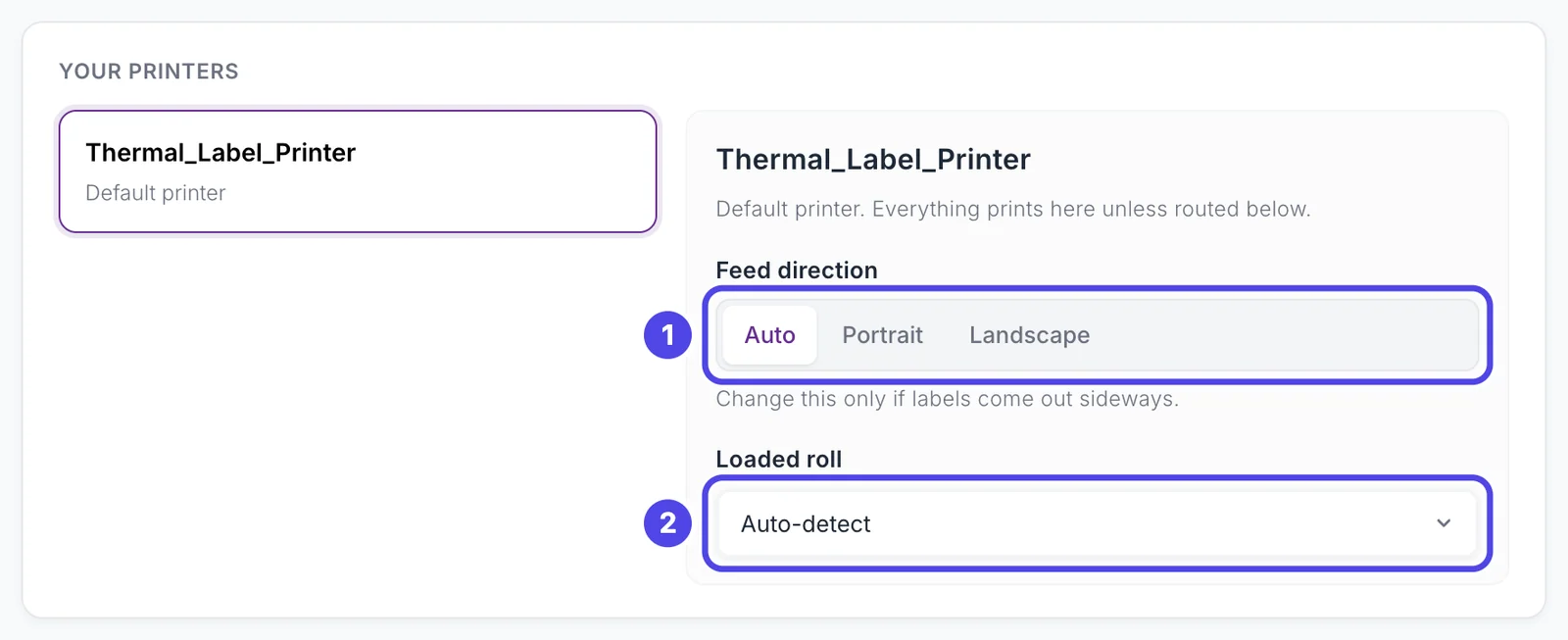
Also check Label size on Basics matches the labels loaded, and that no row in Which labels print where sends that label at another size. See Label Sizes.
My printer feeds extra labels or skips after a paper change
Most thermal printers need calibrating after you change roll sizes. The method depends on the maker; check the printer's manual or support page. Common ways: hold the feed button for a few seconds while the printer is on (Rollo, Munbyn), or press the power button quickly a few times (Jadens-style).
My printer prints a few labels, waits, then prints them all at once
Some thermal printers go into a deep sleep after a short idle time. The next label wakes the printer, and it prints that label together with any that built up. If your printer has a sleep or power-saving timeout in its settings, turning it off or making it longer fixes this.
"Too many active jobs" error on Mac
Your Mac's print queue for the printer is full. This happens when the printer stalls (sleep, unplugged USB, jam, out of labels) and jobs pile up.
- Open System Settings › Printers & Scanners.
- Select the printer and open its print queue.
- Delete every job.
- Resume or restart the printer if it is on hold.
If a show is running and you can pause selling while you do this, do; otherwise NotBot's retries fill the queue again.
I see "Auto-print disabled" mid-show
When NotBot moves from one show to a different one, it turns auto-print off and shows Auto-print disabled for new stream, so a show you are only watching does not print. A brief connection drop can look like a show change and cause this too. Sales from before are not affected. Turn Auto-print back on with the switch at the top of the live panel, or click the red Printing is disabled bar.
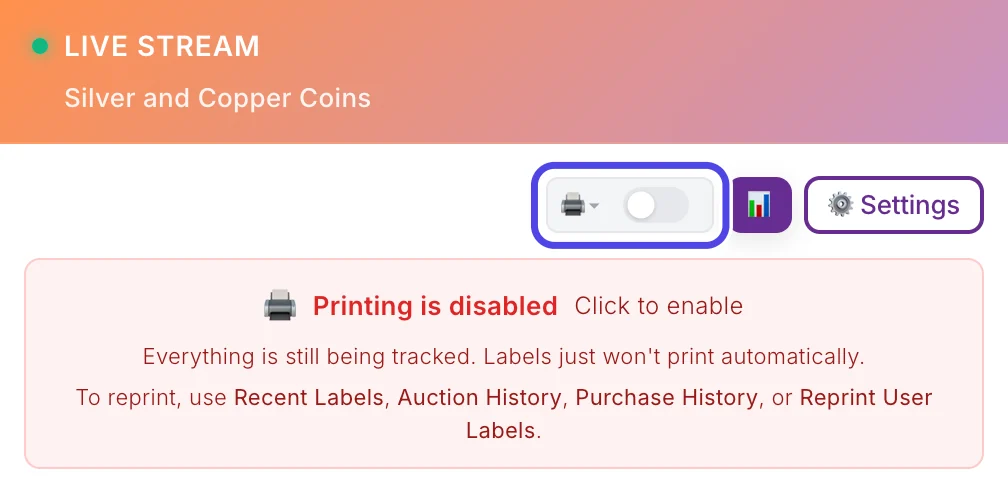
A steady internet connection (wired if you can) makes drops less likely.
I see the orange "connection lost" banner
NotBot's connection to the show dropped. The cause can be the platform or your internet.
- If only the show is broken and everything else on your computer works, the platform is having trouble. Wait for it to reconnect.
- If other things on your computer are broken too, your internet is the problem. Switch to a wired connection, or restart your router.
See When the show connection drops.
Auctions are missing from a show
A gap in auction numbers (#3, then #5, no #4) almost always means the win happened during a brief connection drop. Platforms do not send dropped events again when the connection comes back, so NotBot cannot pick them up later.
- Look up the winner in your platform's seller dashboard.
- Click + Add missing auction at the top of the auction history and enter the item, winner, and price. NotBot gives the box number and prints the label as if the win had arrived.
See Add a sale NotBot missed. A steady wired connection makes drops much less likely.
The Whatnot Auction and Giveaway seller tabs are missing
The built-in browser switched to Whatnot's phone layout because it is too narrow.
- Make the NotBot window wider; full screen is best.
- Drag the divider between the browser and the live panel to the right, so the browser gets more room.
- If the tabs still do not appear, check your display scaling. 150% or higher can force the phone layout even in a large window. Lower it and reload the Whatnot page.
A platform login is stuck or won't sign me out
Clear cache… in Customize › Advanced Settings › Show behavior signs you out of Whatnot and the other sites in the built-in browser, then restarts NotBot. Sign back in to your platform afterward. Your NotBot account, settings, and show history are not affected. See Clear the built-in browser.
Lots of labels say "Check printer"
A label shows Check printer. Tap to reprint when your computer held it in its print queue for more than two minutes without finishing. Usually:
- the printer is off, out of labels, or jammed;
- the printer was unplugged, or its USB cable got bumped;
- the printer's Wi-Fi or Bluetooth connection dropped.
Fix the printer, then tap each label in Recent Labels to print it again. See Print Queue.
Labels go to different printers
If some labels come out on one printer and some on another, that is Which labels print where in Customize › Advanced Settings › Printers & routing. Each label type, and box labels, can have its own printer. Set every row to Default to print everything on one printer, or set the rows on purpose. See Use two printers.
No label for a returning buyer's auction win in Buyer Only mode
That is how Buyer Only works: one box label the first time a buyer wins an auction, then nothing for their later auction wins, because their box already has its label. Recent Labels shows those as Skipped, repeat buyer. Tap to print. For a label every time, switch to Every Item or Every Item + Buyer.
For a fresh box label every few wins, turn on Box label reprint in Customize › Advanced Settings › Label types.
No box label for giveaway winners or Buy It Now buyers in Buyer Only mode
Also expected. In Buyer only mode, Buy It Now purchases and giveaways print an item label by default, not a box label. To change it, open Customize › Advanced Settings › Label types, pick Buy It Now or Giveaway win, and set In Buyer only mode, ... print to A box label for new buyers or Both. See Print Modes.
My computer went to sleep mid-show
A sleeping computer drops the show and misses every sale until it wakes. Keep computer awake (on by default, in Customize › Advanced Settings › Show behavior) stops sleep while a show is live, but closing a laptop lid can still sleep it. If your computer still sleeps:
- Mac: System Settings › Lock Screen › set "Turn display off when inactive" to Never, and System Settings › Battery › Options › turn on "Prevent automatic sleeping on power adapter when the display is off". Keep a laptop plugged in.
- Windows: Settings › System › Power & battery › Screen and sleep (Power & sleep on Windows 10) › set Screen and Sleep to Never when plugged in, and on battery for a laptop.
Win photos are using a lot of disk space
Win photos are on by default. Customize › Advanced Settings › Capture & photos shows how much space they use and lets you keep everything, keep up to a set size, or keep only your last shows; the oldest photos are removed first. You can also lower Photo quality or turn photos off. See Keep win photos from filling your disk.
I can't find a setting
Press Cmd+K (Mac) or Ctrl+K (Windows) anywhere in NotBot and type what you are looking for in your own words. See Find any setting.
I want to test labels without a real show
Print a test label (the Test Print card in the Settings drawer, or Test print in the label editor for a design you are working on). These go through the real print path.
Preview mode opens labels as PDFs instead of printing. It is useful when designing, but it does not test your printer.
Something else
Choose Contact support from the menu under your email at the top right, or email support@mellowtools.com. Include roughly when the problem happened and your NotBot version (shown in the top bar, and in the Settings drawer's About tab), and we can usually find the cause quickly.
See also
- Settings Reference for every setting.
- Print Queue for label statuses.
- Privacy for what is in the diagnostic data we look at.