Core Features
Label Sizes
The five label sizes, giving a label its own size, feed direction, and the loaded roll.
Last updated 2026-10-08 · Applies to NotBot 1.4.4+
NotBot prints five standard thermal label sizes. Pick the size that matches the labels loaded in your printer. To set up a printer from the start, see Connect and test your printer.
Available sizes
| Size | Best for |
|---|---|
| 1" x 1" | A small sticker. Few sellers use it. |
| 2" x 1" | Small box labels: number and username. |
| 1" x 3" | A narrow strip: number and username side by side. |
| 2" x 3" (default) | The standard. Fits username, item name, number, and the sale type. |
| 4" x 6" | Shipping-label size. Plenty of room for long item names. |
Most sellers run every show on 2" x 3".
Setting the size
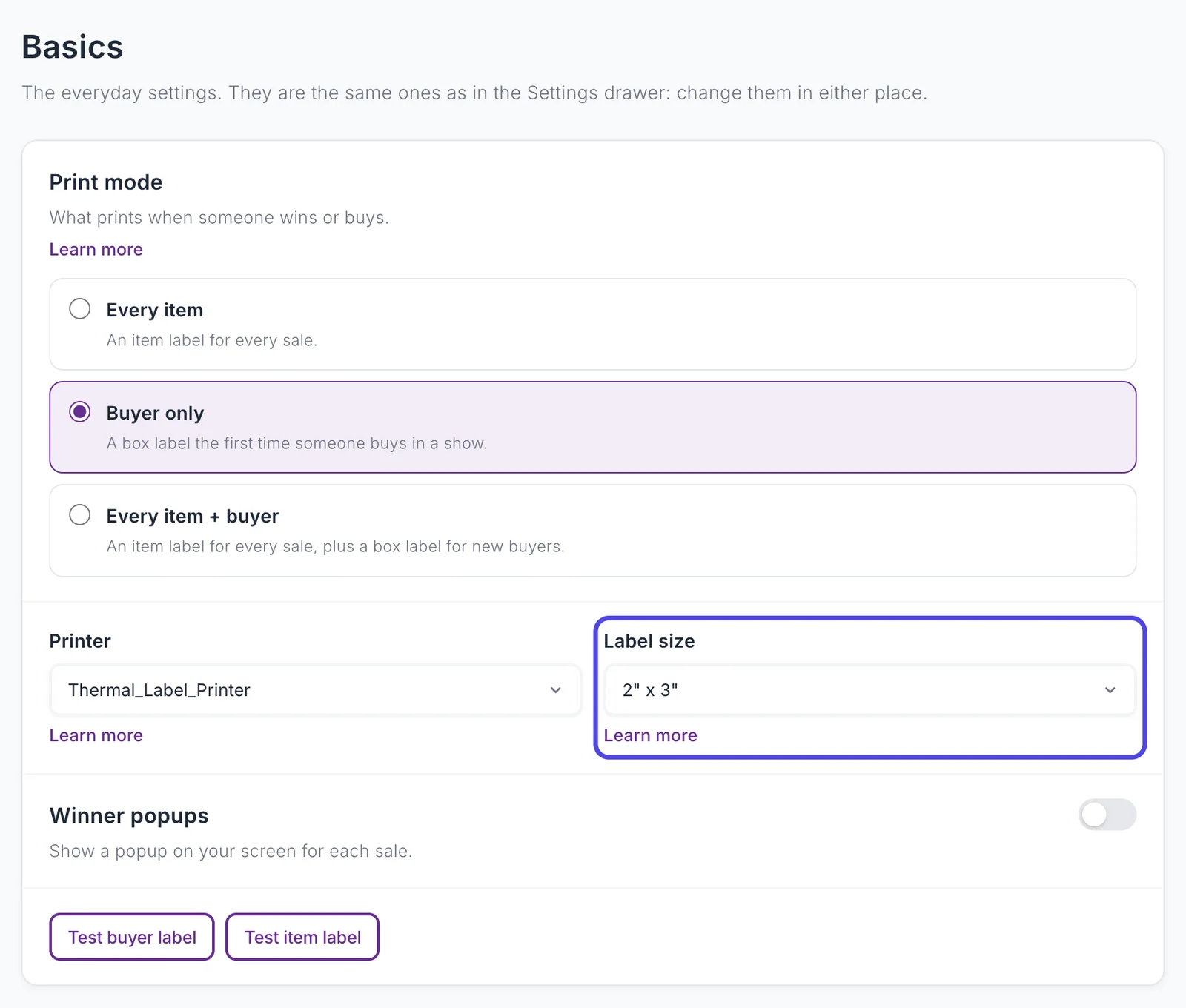
Label size is on Customize › Advanced Settings › Basics, and in the Settings drawer as Label Size. It is one setting in both places. It sets the size for every label unless you give a label its own size.
To print one kind of label at a different size, use the Which labels print where table in Customize › Advanced Settings › Printers & routing. Each row (Box labels (buyer), Auction win, Buy It Now, Accepted offer, Giveaway win, Payment failed, Raid) has its own size; Default follows Label size. A common setup is box labels on one size and item labels on another, often on two printers: see Use two printers.
Customize › Labels shows a design for each label your sizes print. A size you add here gets the built-in design until you change it. See Labels and the Label Editor.
Feed direction
Thermal printers feed labels one of two ways:
- Landscape: the long side of the label comes out first. Examples: Rollo, Munbyn, Jadens.
- Portrait: the short side comes out first. Examples: DYMO LabelWriter, Brother QL.
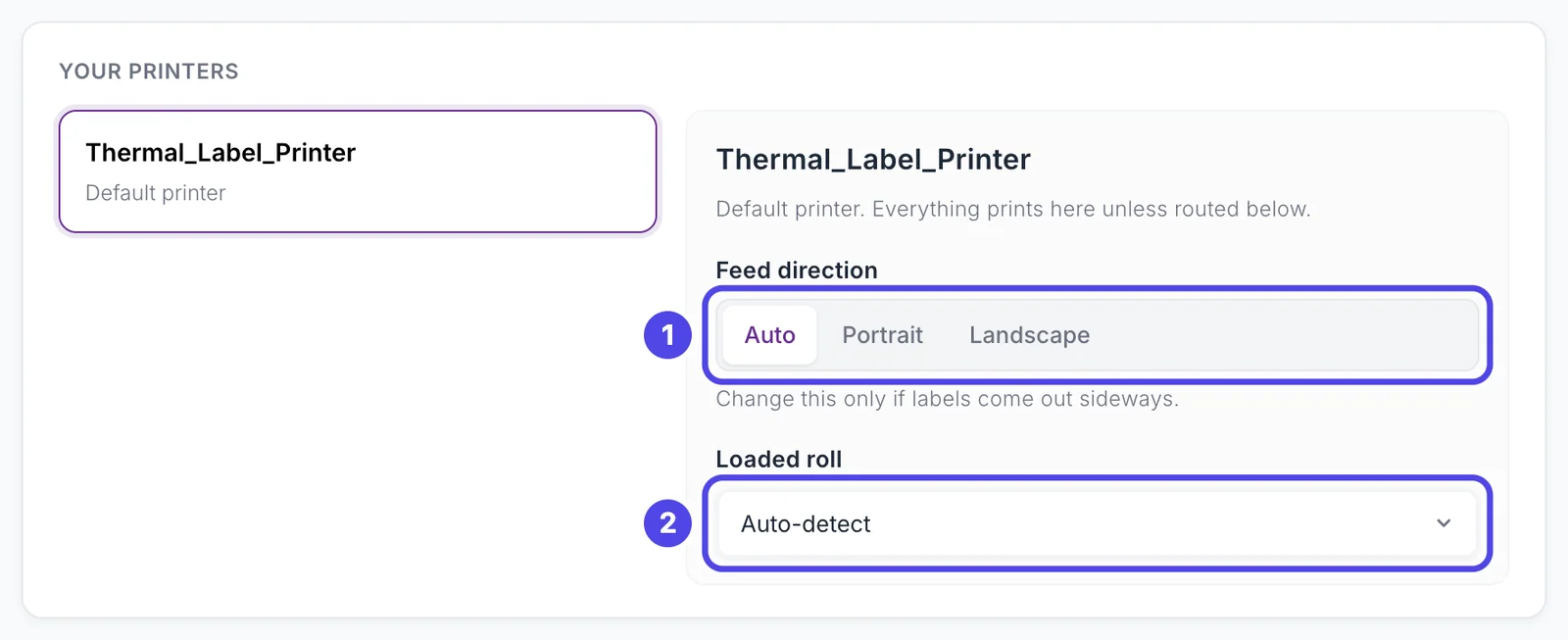
Feed direction is set per printer in Customize › Advanced Settings › Printers & routing: pick the printer under Your printers, then Auto, Portrait, or Landscape. Auto is landscape for every size, except 4" x 6" on a Mac, which is portrait because that is how 4" x 6" rolls feed on a Mac.
If labels come out sideways or cut off, change the feed direction first.
Loaded roll
Most thermal printers tell your computer which label sizes they take. Loaded roll, under the same printer in Printers & routing, lists them. Leave it on Auto-detect unless labels print at the wrong size; then pick the exact roll loaded. This also covers non-standard roll sizes your printer reports. It is set per printer.
Buying labels
Buy removable labels, not permanent ones. Removable labels peel off cleanly. Permanent labels can tear, stain, or damage what they are stuck to, especially fabric.
Stick labels on the box, mailer, or bag, not on the product. A sticker on the outside of a shirt reaches the buyer stuck to their item, and buyers complain about it. The box method (one box label per buyer, items inside) already works this way. If an item needs its own label, use a removable label on a hang tag or inside a clear bag.
See also
- Recommended Printers for which printer takes which sizes.
- Labels and the Label Editor for what each size shows.
- Troubleshooting for sideways or cut-off labels.