Step-by-Step Guides
Clear the built-in browser to fix sign-in problems
Wipe the saved platform logins inside NotBot when a sign-in gets stuck, then sign back in.
Last updated 2026-10-08 · Applies to NotBot 1.4.4+
NotBot shows your selling platform (Whatnot, eBay, Poshmark and others) in its own built-in browser, and that browser remembers your platform sign-in the way any web browser does. Sometimes that saved sign-in gets stuck. Clearing the built-in browser throws away everything it remembers about the platforms, so you can start fresh.
Use it when:
- the platform keeps asking you to sign in, or goes back to the sign-in page right after you sign in;
- signing in with Google goes straight into the wrong account and never lets you pick another one;
- the wrong shop or account opens every time;
- the platform page stays blank or never finishes loading, even after you reload it.
The pictures in this guide use NotBot Live, a practice marketplace, in the platform tab. Your own platform's page looks different, but the NotBot buttons are the same.
Before you start
- You are not in the middle of a live show. NotBot closes and opens again as part of this.
- You know how you sign in to your platform (email and password, Google, or Apple). You will sign in to it again afterward.
- Try the quick fix first: sign out of the platform inside NotBot and sign in again. Clear the browser only if that doesn't work.
- Your NotBot account, your settings and your show history are not affected. Only the platform sign-ins are cleared.
Step 1: Click Customize
In the purple bar at the very top of NotBot, click Customize.

Step 2: Click Advanced Settings
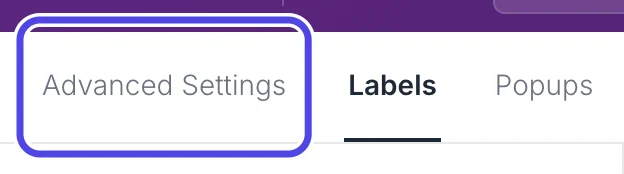
Near the top left of the Customize page, click Advanced Settings.
Step 3: Click Show behavior
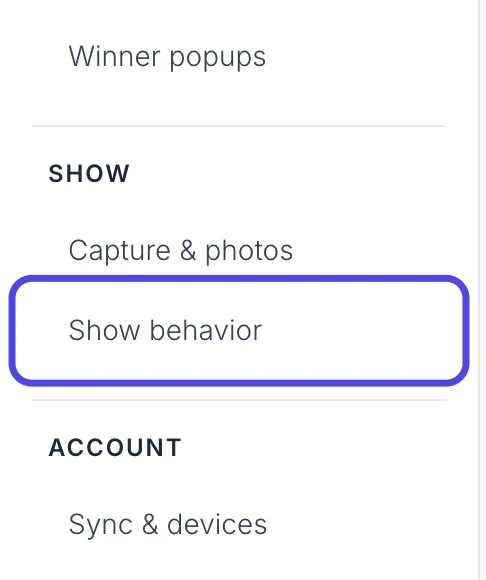
In the list on the left, under SHOW, click Show behavior.
Step 4: Click "Clear cache…"
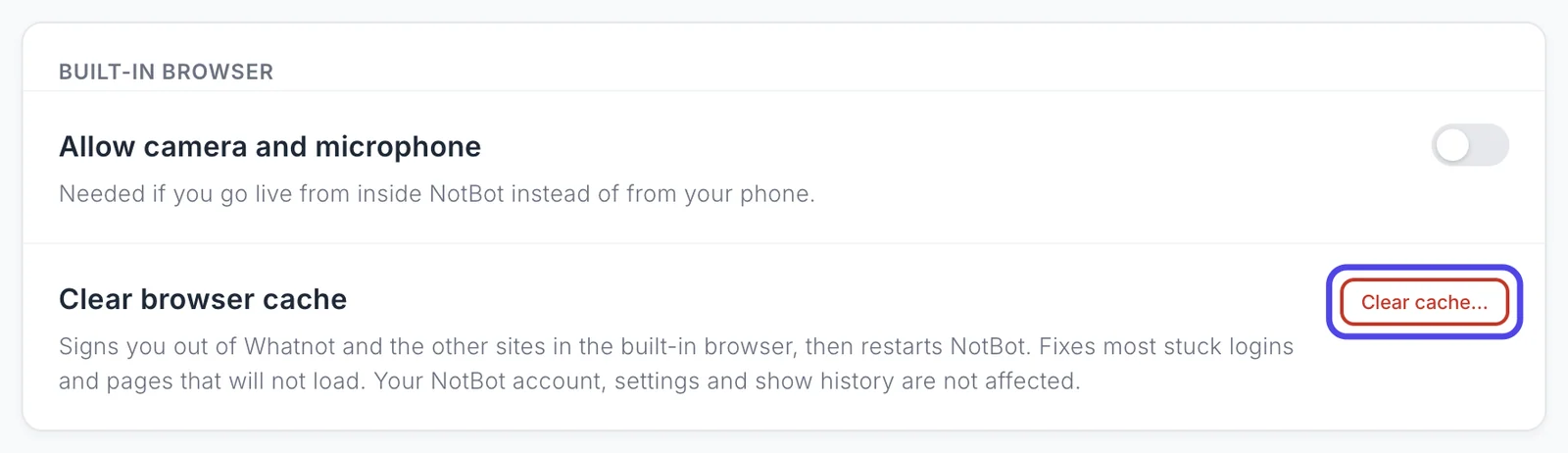
In the Built-in browser box, find Clear browser cache and click the red Clear cache… button next to it.
If you are live right now, stop here and come back after the show: NotBot restarts as part of this.
Step 5: Click "Clear and restart"
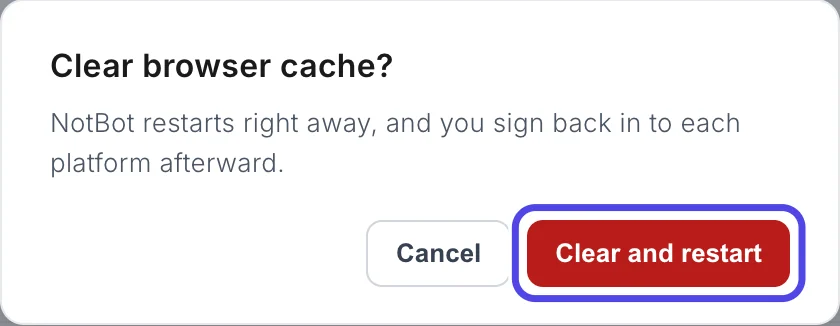
A window asks Clear browser cache? and says NotBot restarts right away, and you sign back in to each platform afterward.
Click the red Clear and restart button. (Click Cancel if you changed your mind; nothing is cleared.)
Step 6: Wait for NotBot to open again
A message says Clearing cache and restarting NotBot…, and then NotBot closes. After a few seconds it opens again by itself. Don't open it yourself while this happens.
When NotBot is back, you are still signed in to NotBot. Your email shows at the top right.
Step 7: Sign in to your platform again
Click your platform's tab. It is the first tab on the left, right under NotBot's purple top bar, and shows the platform's small logo and the name of its page. In the picture it is the practice marketplace, NotBot Live.
Your platform no longer remembers you, so it opens signed out. The practice marketplace in the picture has no sign-in, so your platform's page looks different here.
Click the platform's Log In or Sign In button and sign in the way you always do. If you use Google, you now get the list of Google accounts again: pick the right one, or click Use another account.
Once you are signed in, open your show as usual.

If something looks different
NotBot closed but didn't open again
Wait a minute, then open NotBot yourself: from the Applications folder on a Mac, or the Start menu on Windows. If the platform still remembers your old sign-in, do the steps again.
Google still signs me in to the wrong account
When the Google page opens, look for Use another account at the bottom of the list and pick it, then type the right Google email. If Google skips the list completely, clear the browser once more and try again.
The platform page is still blank after clearing
Click the round arrow (reload) button in the top bar to reload the page. If it stays blank, check that the platform opens in a normal web browser on this computer. If it doesn't load there either, the problem is with the internet or the platform, not NotBot.
Did I lose my shows or settings?
No. Clearing the browser only removes what the built-in browser remembers about the platforms: sign-ins, cookies and saved pages. Your NotBot account, printer, label settings, startup tabs and Show History stay as they were.