Core Features
Recommended Printers
Which thermal printers work well with NotBot, based on real usage data across millions of labels, and which ones to avoid.
Last updated 2026-10-08 · Applies to NotBot 1.4.4+
Which thermal printers work well with NotBot? Every model on this page is one that real NotBot sellers run during live shows. NotBot has printed millions of labels for live sellers, and the rankings below come from the most recent three months of that real show data: how widely each printer is used, and how cleanly it prints.
The short answer
If you are buying a printer for NotBot today and do not want to read further:
- Jadens C10 or JD-268BT if you want the inexpensive, proven choice. Jadens is the most widely used brand with NotBot on both Mac and Windows, the JD-268BT is the single most widely used model, and the C10 is the one we run ourselves.
- Rollo X1040 if you want the fastest one. It costs more and prints noticeably quicker.
Both connect by USB, both take label rolls from any brand, and both show up in NotBot as soon as the manufacturer's driver is installed.
What makes a printer work with NotBot
NotBot prints through your computer's regular print system, the same one every other app uses. That means the brand matters less than three things:
- A manufacturer driver for your computer. The printer has to appear in your Mac's Printers & Scanners or your Windows Printers & Scanners list, installed with the driver from the printer maker's website. The generic driver Windows or macOS offers on its own does not work reliably with NotBot.
- A USB connection, ideally. Almost every printer below also offers Bluetooth or Wi-Fi, and those work, but they drop out more often during long shows. USB is the connection we recommend.
- A label size NotBot prints. NotBot prints 2x3, 2x1, 1x3, 1x1, and 4x6 inch labels. Most printers below take any of those from any label brand. The exceptions are called out.
If a printer meets those three, it will almost certainly work even if it is not listed here.
Tier 1: Most popular and reliable
These are the most widely used printers with NotBot, and they print cleanly at live show volume. Where one model in a brand is weaker on Mac or Windows, the Notes column says so. Start here.
| Brand | Models | Labels | Notes |
|---|---|---|---|
| Jadens | C10, JD-268BT, JD-468BT, JD-668BT | Any brand, up to 4x6 | The most widely used printer with NotBot. The C10 and JD-268BT are the clean ones on both platforms. The JD-468BT and JD-668BT show noticeably more stuck jobs on Mac. |
| Rollo | X1040, original Rollo Printer | Any brand, up to 4x6 | Among the most widely used, and the fastest printer on this page. |
| Phomemo | PM-241-BT, D520, D450 | Any brand, up to 4x6 | Very widely used, very few stuck jobs on Windows. On Mac, install Phomemo's driver and connect by USB. The printer entry macOS adds on its own over Bluetooth sticks often, and the D520 shows more stuck jobs on Mac than on Windows. |
| Munbyn | ITPP130, ITPP941 (sold as P941), RW402B, RW403B, RW405B | Any brand, up to 4x6 | Widely used on both platforms and the most common choice among Australian sellers, mostly on Macs. Skip the ITPP941AP, the Wi-Fi and AirPrint model. It sticks often on Mac. |
All four are 4 inch desktop thermal printers in the $80 to $200 range. They feed labels in landscape (long side first).
Tier 2: Works reliably, lower volume
These also run reliably with NotBot. Some are less common than Tier 1, and some are common but come with a catch worth knowing about. Safe to buy if you already own one or have a strong preference. Read the Notes column before buying.
| Brand | Models | Labels | Notes |
|---|---|---|---|
| Zebra | GK420d, GX420d, ZP 450, ZD220, ZD421 | Any brand, up to 4x6 | The lowest stuck-job rate of any brand on this page. Pricier and industrial. The ZD410 and ZD411 also work but are 2 inch printers: 2x1 and 1x1 as normal, 2x3 and 1x3 only fed in portrait, no 4x6. |
| POLONO | PL60, PL70e-BT, PL80E | Any brand, up to 4x6 | Clean numbers. |
| Rongta | RP425 | Any brand, up to 4x6 | Clean numbers. The RP420 works but shows more stuck jobs. |
| Knaon | Y813BT, Y41BT | Any brand, up to 4x6 | Very common budget printers. Clean on Windows. Mac users see more stuck jobs on the Y813BT. |
| Core Innovations | CTP800BD | Any brand, up to 4x6 | Common, clean numbers. Sold at Staples and on Amazon. |
| 4BARCODE | 4B-2054A, 4B-2054K, 4B-2054N, 4B-2063C, 4B-3044B | Any brand, up to 4x6 | The 4B-2054K is also sold as the Arkscan 2054K. |
| iDPRT | SP410BT, SP460BT (4 inch); SP310, SP320 (3 inch) | Any brand. 4x6 on the SP410BT and SP460BT only. | Works. Slightly more stuck jobs than Tier 1. The SP310 and SP320 take labels up to about 3 inches wide, so 2x3 and smaller. |
| Clabel | CT221D, CT221B | Any brand | Works on both platforms. |
| DYMO | LabelWriter 450, 450 Turbo, 550, 550 Turbo, 4XL, 5XL | DYMO label sizes only | Works, with a catch: DYMO printers take DYMO's own label sizes, and the 550 series and 5XL accept only genuine DYMO rolls, so you buy DYMO rolls for whichever size you settle on. Sellers on DYMO mostly print 2x1 and 1x3. Only the 4XL and 5XL print 4x6. The 550 and 5XL show more stuck jobs than the 450 series. Feeds in portrait. |
| Brother | QL-800, QL-810W, QL-1100 | Brother rolls. 4x6 on the QL-1100 only; the QL-800 and QL-810W take labels up to 2.4 inches wide. | Works, but has the highest stuck-job rate of the printers listed here. Feeds in portrait. |
| Niimbot | B1, B21S, K3 | Niimbot rolls. 2 inches wide on the B1 and B21S, 3 inches on the K3. No 4x6. | Windows only, with Niimbot's Windows driver installed and the printer on USB. On the B1 and B21S, 2x3 and 1x3 feed in portrait. See the Mac note below. |
Feed direction
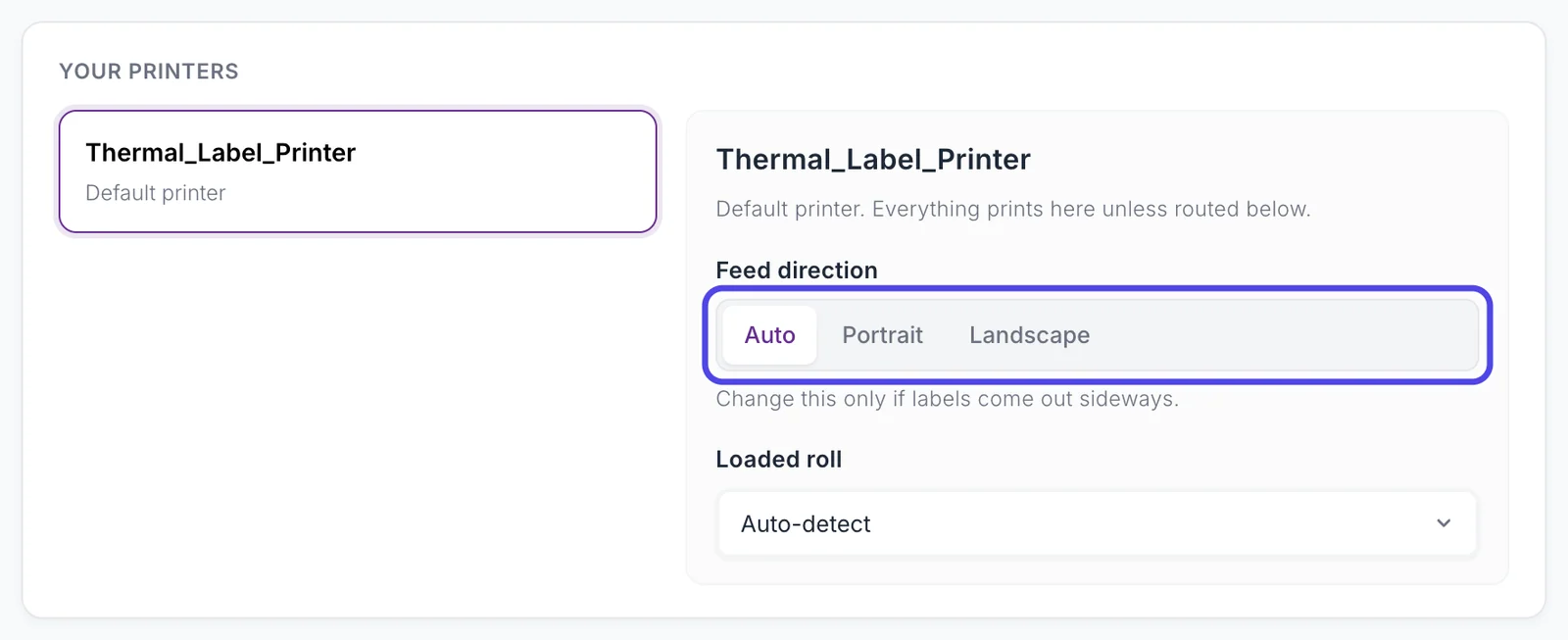
Brother and DYMO printers feed labels in portrait orientation (short side first), and so do 2 inch printers such as the Zebra ZD410 and ZD411 and the Niimbot B1 and B21S when printing 2x3 or 1x3. Every other printer on this page feeds in landscape (long side first). NotBot's Feed direction starts on Auto, which is landscape for every size except 4x6 on a Mac (portrait, because that is how 4x6 rolls feed on a Mac). For a portrait printer, set Feed direction to Portrait in Customize › Advanced Settings › Printers & routing, under the printer in Your printers. If your labels come out rotated, this is the setting to change.
Printers we do not recommend
Niimbot on a Mac
Niimbot's Mac download is their own label app, not a printer driver, so the printer never appears in the Mac's print system where NotBot looks for it. Mac users who install a generic driver to work around this get a few labels out and then the queue stalls on "Sending data to printer" with every later label stuck behind it. Results are mixed at best and we do not recommend relying on it for a live show. The same Niimbot printers run fine on Windows with Niimbot's Windows driver.
Pocket Bluetooth "phone printers"
The small 2 inch and 3 inch portable models sold to print from a phone app do not work well with NotBot. Their drivers typically do not expose the printer to your computer's regular print system, which is the path NotBot uses. If a listing only talks about printing from the app on your phone, and never mentions a Windows or Mac driver, it will not work with NotBot.
Bluetooth and Wi-Fi as the main connection
Many desktop printers on this page offer Bluetooth or Wi-Fi as well as USB. Those connections work, but they drop out more often during long shows, and a dropped wireless link is the first thing we look for when a seller's labels stop. Run the USB cable for shows and keep wireless for convenience printing.
Virtual printers
If the only entries in NotBot's printer list are things like "Microsoft Print to PDF" or "OneNote", the printer's driver is not installed yet. Nothing physical will print to those. Install the driver from the manufacturer's website and the real printer appears in the list on its own.
Buying outside the US
Availability varies by country. In Australia, for example, the Jadens C10 is hard to find, and the sellers there run Munbyn ITPP130 and ITPP941 printers instead, mostly on Macs, with clean results. Phomemo and DYMO are the next most common there. Any Tier 1 printer you can buy locally is a good choice; the driver and USB rules above are what matter.
Not on this page?
If you are using a printer that is not listed here, that does not mean it will not work. We do not have a strong enough signal to recommend it specifically. Try it with the manufacturer's driver installed, and print a test label (the Test Print card in the Settings drawer, or Test item label on Customize › Advanced Settings › Basics) before going live. See Connect and test your printer.
See also
- Connect and test your printer for setting your printer up in NotBot.
- Label Sizes for picking the right size for your printer.
- Troubleshooting for fixes when prints don't come out right.