Reference
Labels and the Label Editor
Customize › Labels: the labels that print right now, choosing designs, the label editor, and every field.
Last updated 2026-10-08 · Applies to NotBot 1.4.4+
How each label looks is set in Customize › Labels: click Customize in the top bar, then Labels. This page explains how designs are chosen, what the label editor can do, and what each field prints. For the steps, see Change which design a label uses and Edit a label in the label editor.
Labels that print right now
Customize › Labels opens on Labels that print right now: one entry for each label your current settings can print. You never pick an "active" design by hand; the list follows your settings.
- Each entry is one kind of label at one size, for example Box label · 2" x 3", with what it prints for (Auction wins, Buy It Now, Bonus labels, Reprints from Show History, and so on).
- The line above the list says why: it comes from your print mode and label size, plus any size you set for box labels or for one sale type in Printers & routing. Click a value to change that setting.
- Change your print mode or label size and the list changes with it.
The kinds of label:
| Kind | What it is |
|---|---|
| Box label | The buyer's box number and username, printed the first time they win. |
| Item label with box number | An item label that carries the buyer's box number. |
| Item label | An item label without a box number. |
| Raid label | The raiding seller and the viewers they brought. Listed only when raid labels are on. |
Click an entry to see it full size, with the name of the design it uses and two buttons:
- Edit opens that design in the label editor.
- Change design lists the designs that fit this label (same size and kind). Pick one and new labels use it.
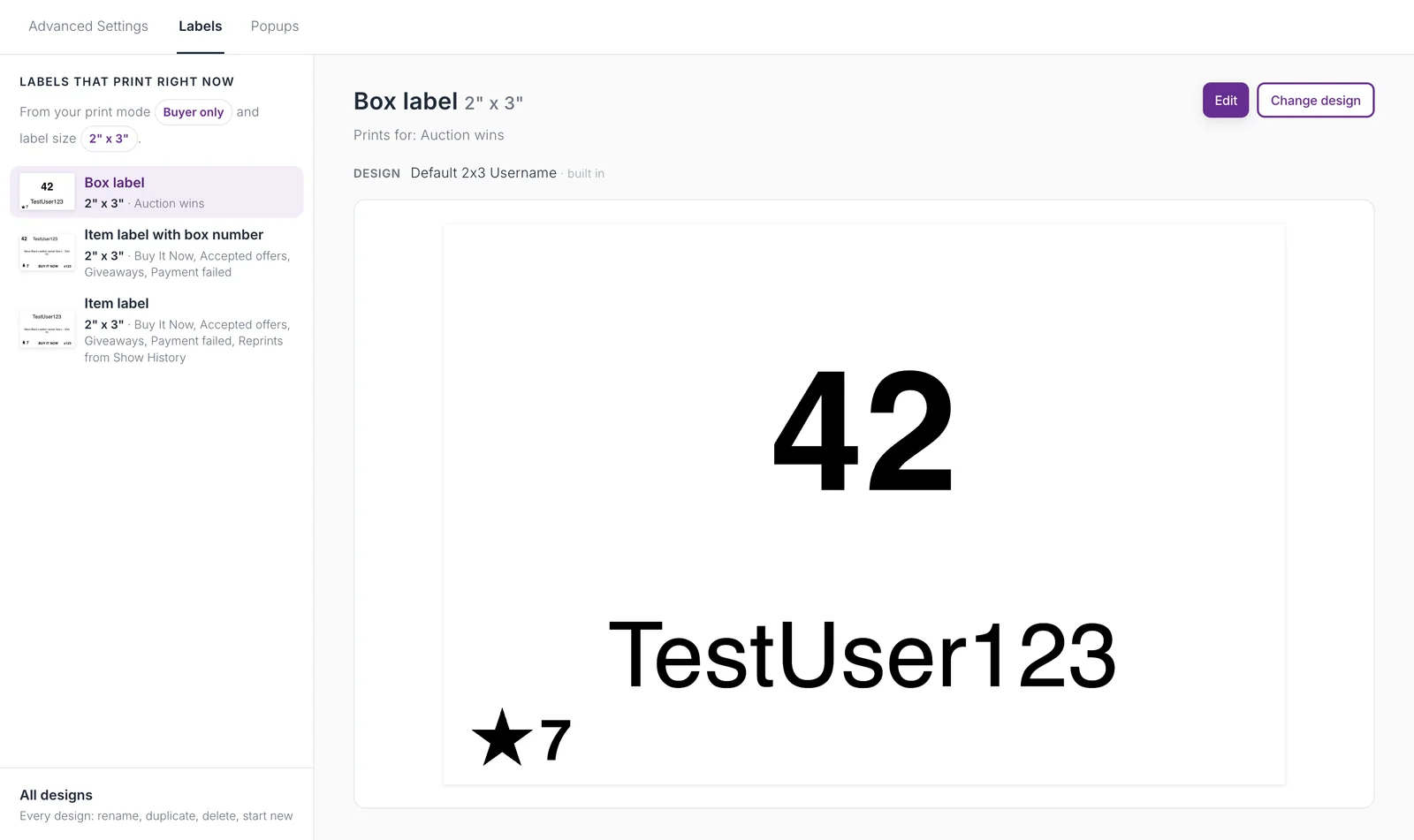
If labels are waiting to print (queued, or held for a card break), the page says how many. Edits to your own designs reach those waiting labels. Choosing a different design, or editing a built-in design (which makes a copy), applies to new labels only.
All designs
All designs, at the bottom of the list, is your design library: Your designs and the Built in designs.
- Search by name, and filter by Size, Kind, and Status (Printing now or Not printing).
- Each design shows its kind, its size, and whether it is printing now.
- Edit, Rename, Duplicate, and Delete your own designs. Built-in designs can be duplicated.
- New design is the only place that asks for a size and kind. Design something here and it is not printing until you choose it with Change design.
- Deleting a design that is in use asks which design those labels use instead. A design that waiting labels use cannot be deleted until they have printed.
- Built-in designs for sizes you do not print are behind Show every size.
NotBot has a built-in design for every size and kind: 1" x 1", 2" x 1", 1" x 3", 2" x 3", and 4" x 6".

The label editor
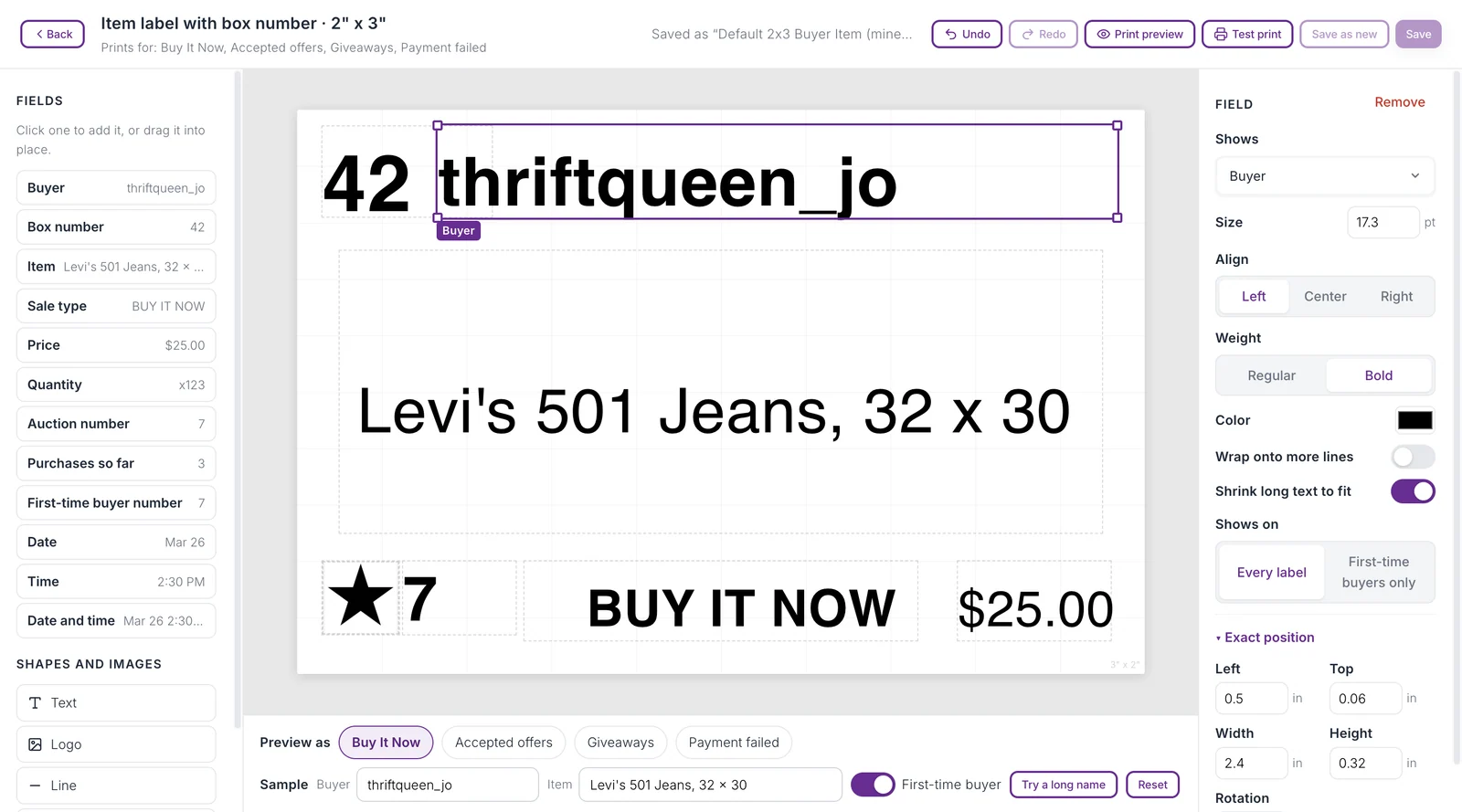
The editor shows the label with sample data, never codes. Its header names the label and what it prints for, and has Back, Undo, Redo, Print preview, Test print, Save as new (your own designs), and Save.
- Editing a built-in design works the same, and saving makes it your own copy, used for this label.
- Save as new keeps the design you started from and puts your changes in a new design for this label.
- Test print prints your draft, with the sample data, on the printer this label goes to, without saving it.
- Print preview shows the label as it will print.
- Leaving with unsaved changes asks Save, Don't save, or Keep editing.
- Keyboard: Cmd+Z or Ctrl+Z undoes, Shift with it redoes, Cmd+S or Ctrl+S saves.
Adding things
The left panel lists the Fields this kind of label can show, each with its sample value. Click a field to add it, or drag it onto the label. Under Shapes and images:
- Text: your own words, which can include fields. With a text box selected, Insert field puts a field where you are typing.
- Logo: a PNG or JPEG image, under 5 MB, from your logo library. Logos stay on your computer.
- Line and Box.
- First-time buyer star: prints only when the platform marks the winner as a first-time buyer.
Changing things
Click anything on the label to select it; the right panel shows what you can change. Nothing selected shows the label's Orientation (Landscape or Portrait).
| Part | Settings |
|---|---|
| Field | Shows (which field, or Your own text…), Size in points, Align, Weight (Regular or Bold), Color, Wrap onto more lines, Shrink long text to fit |
| Text | The text and any fields in it, plus the same size and style settings |
| Logo | Change image |
| Line, Box | Color or Outline, Thickness, and for a box, Fill or No fill |
| Any part | Shows on: Every label or First-time buyers only. Exact position: left, top, width, height, and rotation |
Drag a part to move it and drag its handles to resize it. While you drag, it snaps to the label's center and edges, with a guide line; hold Alt (Option on a Mac) to move freely. Arrow keys nudge the selected part. Delete or Backspace removes it, as does Remove in the panel.
When a field shows a date or time, Date and Time choices appear. Date: Mar 26, 03/26/2026, 26/03/2026, 2026-03-26, or March 26, 2026. Time: 2:30 PM, 14:30, or Hide time.
Preview as and sample data
Under the label:
- Preview as shows the label for each kind of sale it prints for, with that sale's badge.
- Sample lets you change the Buyer and Item shown, switch First-time buyer on or off, and Try a long name to check a long username fits. Reset puts the sample back. Sample data is never saved with the design.
Fields
| Field | Labels | What it prints |
|---|---|---|
| Buyer | Box, item | The buyer's username. |
| Box number | Box, item with number | The buyer's box number in this show. Blank when the sale has none. |
| Item | Item | The item name as the platform sends it. |
| Sale type | Item | AUCTION WIN, BUY IT NOW, OFFER ACCEPTED, GIVEAWAY, BONUS, or PENDING PAYMENT. |
| Price | Item | The sale price. |
| Quantity | Item | The number of units, as "x3", when more than one sold. Blank otherwise. |
| Auction number | Item | NotBot's running count of auctions in this show. |
| Purchases so far | Box, item | The buyer's count of auctions and Buy It Now purchases in the show. On a bonus label, the count that earned it. |
| First-time buyer number | Box, item | The buyer's place among the show's first-time buyers (7 means the 7th). Prints only for first-time buyers. |
| Raider, Viewers brought | Raid | The raiding seller and how many viewers they brought. |
| Date, Time, Date and time | All | When the label was queued. A reprint from history gets a new date and time. |
A field with no value for a sale prints blank.
First-time buyers
Whatnot marks a buyer who has never bought from you before. On auction wins, NotBot uses that mark:
- The built-in box labels show a star with the First-time buyer number beside it.
- Any part you set to Shows on: First-time buyers only prints only for them, for example a WELCOME line.
- All of it is controlled by Star first-time buyers in Customize › Advanced Settings › Rules & filters. With it off, none of these parts print.
See also
- Print Modes for which kinds of label your mode prints.
- Label Sizes for sizes and feed direction.
- Settings Reference for every setting.