Reference
Print Queue
What each Recent Labels status means, retries, stuck labels, and what never reaches the queue.
Last updated 2026-10-08 · Applies to NotBot 1.4.4+
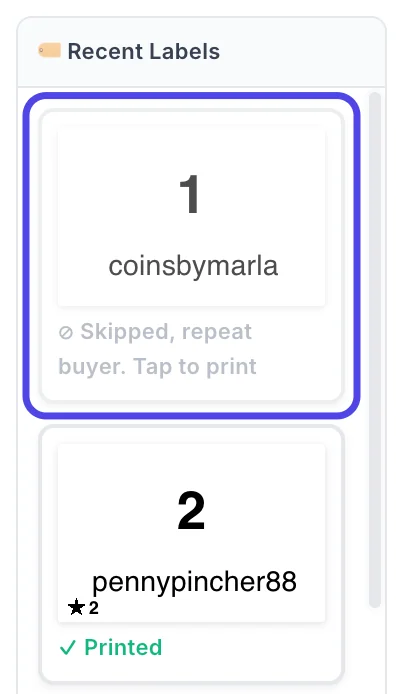
Every label NotBot decides to print goes into the print queue, and NotBot follows it until your computer confirms it printed. You see the queue in Recent Labels, on the left of the live panel on the Dashboard: the newest labels for the show, each with a small picture of the label and its status.
Statuses
| What the tile says | What it means |
|---|---|
| Queued | Waiting its turn to go to the printer. |
| Sending to printer | Being sent now. |
| Sent to printer | Handed to your computer's print system. NotBot is checking it printed. |
| In queue, Spooling, Printing, Paused | Your computer's print queue is working on it; the word is what your computer reports. |
| Printed | Done. |
| Check printer. Tap to reprint | The label sat in your computer's print queue for more than two minutes without finishing. The printer is usually off, jammed, out of labels, or disconnected. |
| Failed. Tap to retry | NotBot tried three times and could not send it. |
| Skipped. Tap to print | Not printed on purpose: auto-print was off, preview mode was on (the label opened as a PDF instead), or the sale was on a tab that is not the active show. |
| Skipped, repeat buyer. Tap to print | Buyer Only mode: the buyer already has their box label, so no new one printed. |
Click any tile to print it again. Hover a tile to see what clicking it does.
The printer control
At the top of the live panel, the printer icon and the Auto-print switch sit together. The icon changes color and pulses when a printer has a problem; click it to open a panel with each printer's status. With no printer selected, clicking it opens Settings at the printer list.
With auto-print off, a red Printing is disabled bar appears. Click it to turn printing back on.
What never reaches the queue
Some sales never become a label, so they never appear in Recent Labels as a tile. They are still in show history.
- The label type is off in Customize › Advanced Settings › Label types.
- A Skip by item name rule matched.
- A break spot is waiting for the randomizer (with card break support on). It joins the queue when the break's labels print.
See When NotBot Prints for every case.
When a label is stuck
Check printer almost always means the printer cannot be reached. Fix the printer (power, paper, cable, its queue on your computer), then tap the tile to reprint. See Labels are not printing and Troubleshooting.
See also
- Dashboard for the rest of the live panel.
- Reprint labels for every way to print a label again.
- When NotBot Prints for what creates labels in the first place.