Step-by-Step Guides
Update NotBot, see what is new, and get help
How NotBot updates itself, how to restart into a new version, what What's New shows, where to find every release, and how to open the docs or contact us from NotBot.
Last updated 2026-10-08 · Applies to NotBot 1.4.4+ · Identical to the stable docs
NotBot looks for new versions on its own and downloads them in the background while you work. You only choose when to restart into the new version, so an update never interrupts a show. This guide shows each thing you will see along the way, where to find every release on our website, and how to get help from inside NotBot.
Before you start
- You are signed in to NotBot. It only looks for updates while you are signed in. See Sign in to NotBot.
- Your computer is connected to the internet.
See which version you have
Step 1: Look at the top right of the window
The version you are running is in the purple bar across the top of NotBot, on the right, right before your email address. It starts with a v, for example v1.4.3.
When we ask which version you have, this is the number to tell us.

When an update arrives
NotBot looks for a new version a few seconds after it opens and again every 6 hours while it is open. You do not have to do anything to start an update.
Step 2: Let it download
When NotBot finds an update, it downloads it by itself while you keep working.
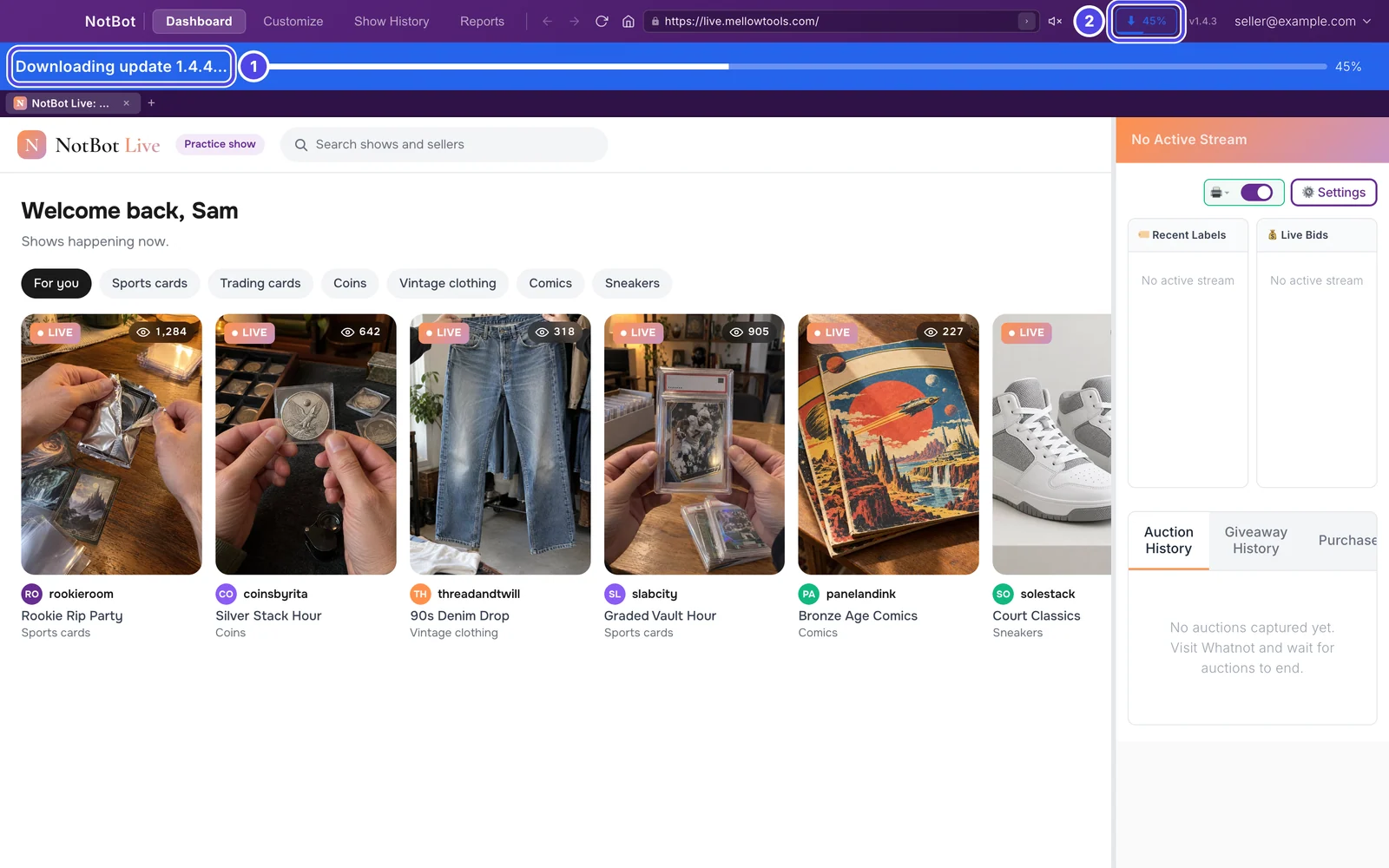
- A blue bar appears under the top bar: Downloading update 1.4.4…, with a progress bar and a percentage at the right end.
- In the top bar, left of the version number, a small blue button shows the same percentage. Point at it to see Downloading v1.4.4... and how much is done.
The pictures in this guide were taken with our practice marketplace, NotBot Live, open on the left. Your window shows your own show there.
Step 3: Click Restart & Update when you are between shows
When the download finishes, the blue bar changes to NotBot 1.4.4 is ready. Restart to update.
Click Restart & Update. NotBot closes and opens again on the new version, usually within a few seconds. Your settings, show history and sign-in are kept.
If a show is live, the bar warns Restarting to update will end your current show. and the button reads Restart anyway. Wait until the show is over. NotBot never restarts by itself.

Step 4: Or click Update Ready in the top bar
The small button in the top bar turns green and says ✓ Update Ready. Point at it to see Update v1.4.4 ready and Click to restart and install. Clicking it does the same as Restart & Update.

Step 5: Not a good time? Click Later
Click Later at the end of the blue bar to hide it for 4 hours. The update stays downloaded and waiting.
If you quit NotBot instead of restarting, the update is put in place as NotBot closes, and the next time you open it you are on the new version.

Step 6: If you keep putting it off, the bar turns orange
If you click Later three times, or leave the update waiting for two days, the bar turns orange and says An update (1.4.4) is ready and not yet applied. with Recent fixes aren't active until you restart. next to it. It has the same Restart & Update and Later buttons.
It still never restarts NotBot for you. Restart when your show is over.

After the update
Step 7: Read What's New, then click Done
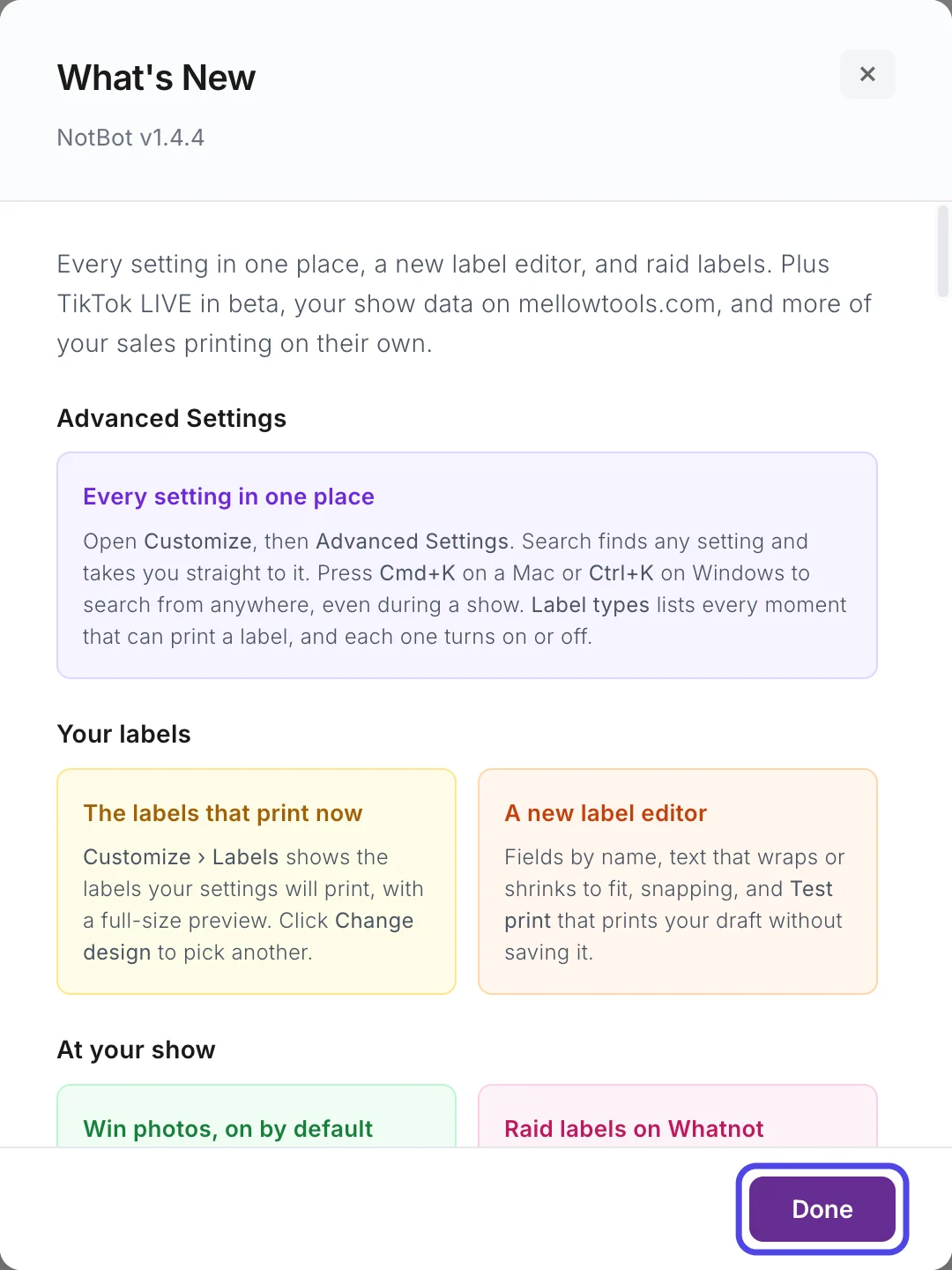
The first time NotBot opens on a new version, the What's New window appears with the version at the top and what changed: a short summary, then each change with a heading and a few lines about it. If you skipped some versions, it lists the changes in each one you missed.
Scroll to read it all, then click the purple Done button (or the × at the top right). It does not come back until the next update.
Step 8: Check the new version number
The number at the top right of NotBot now shows the new version, here v1.4.4, and the update bar is gone.

Get help and contact us
The email address at the top right of NotBot is a menu. It is the quickest way to the docs, What's New and our support address.
Step 9: Click your email address
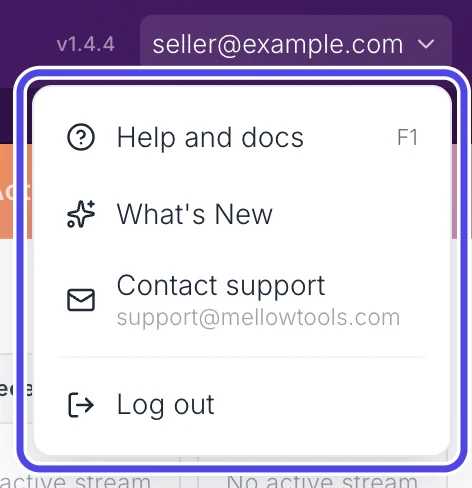
At the top right of NotBot, click your email address. A menu opens:
- Help and docs opens these guides in a new tab inside NotBot. You can also press F1 (or Command + / on a Mac, Ctrl + / on Windows) from anywhere in NotBot.
- What's New shows the What's New window for the version you have.
- Contact support opens your email program with a new message to support@mellowtools.com.
- Log out signs NotBot out on this computer.
Tip: Many settings in Customize › Advanced Settings have a Learn more link under them that opens the guide for that setting.
Check for an update yourself
You rarely need this, because NotBot checks on its own. It is useful when we tell you a fix is out and you want it now.
Step 10: Click Customize
In the purple bar at the very top of NotBot, click Customize.

Step 11: Click Advanced Settings
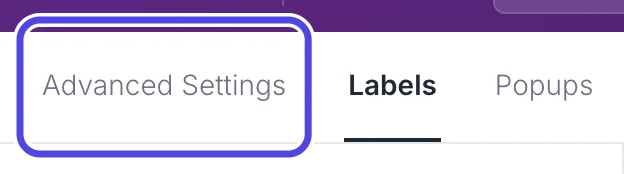
Near the top left of the Customize page, click Advanced Settings.
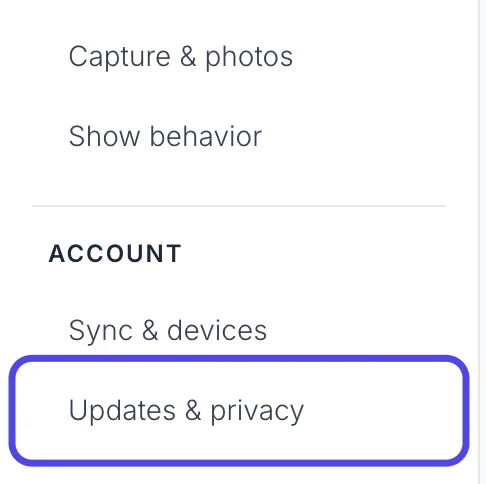
Step 12: Click Updates & privacy
In the list on the left, under ACCOUNT, click Updates & privacy. The same settings are also in the ⚙️ Settings panel on the Dashboard, on its About tab.
Step 13: Click Check for updates
Click the Check for updates button. It says Checking… for a few seconds, then a line next to it gives the answer:
- You are running the latest version.: there is nothing newer, as in the picture.
- Update available. Downloading…: a newer version was found and is downloading. Carry on; the blue bar described above appears under the top bar.
- A red line: NotBot could not check. See the troubleshooting section at the end of this page.

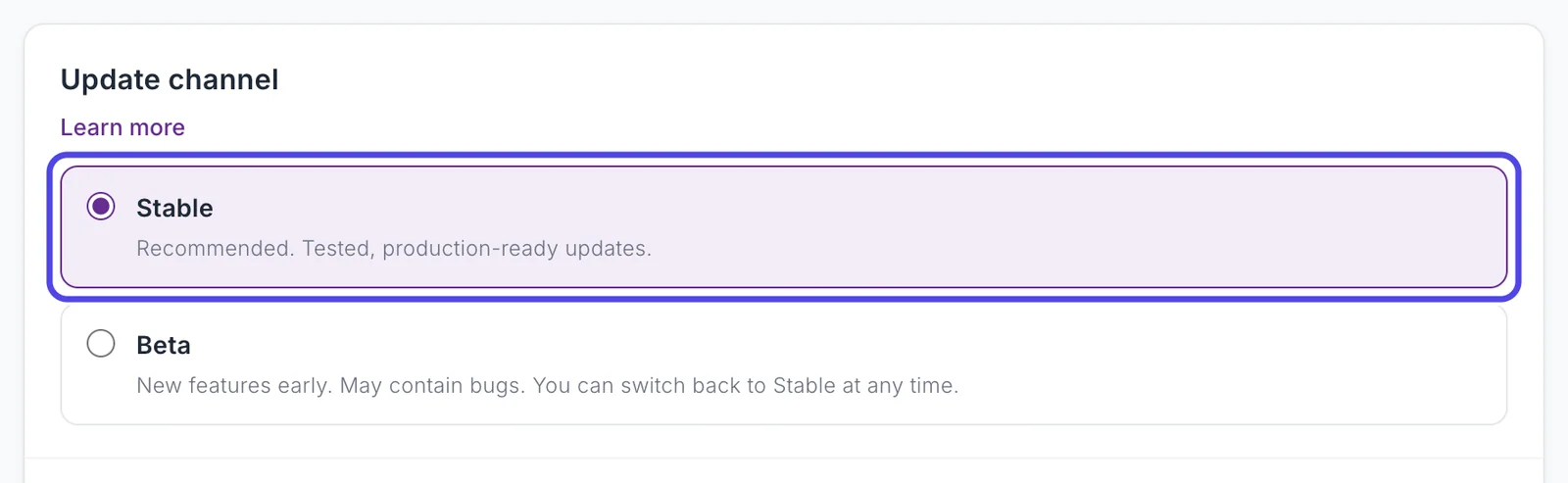
Step 14: Choose Stable or Beta updates
Above it, Update channel decides which updates you get:
- Stable (the starting choice, and the one we recommend): tested versions.
- Beta: new features sooner, but they may have problems. You can switch back to Stable at any time.
If you move from Beta back to Stable, you stay on the version you have until a newer Stable version comes out. While an update is downloading or waiting to install, the channel cannot change; NotBot says so under the choices.
See every release on our website
Our website lists every NotBot version with what changed in it, and lets you download any of them.
Step 15: Open the NotBot page on our website
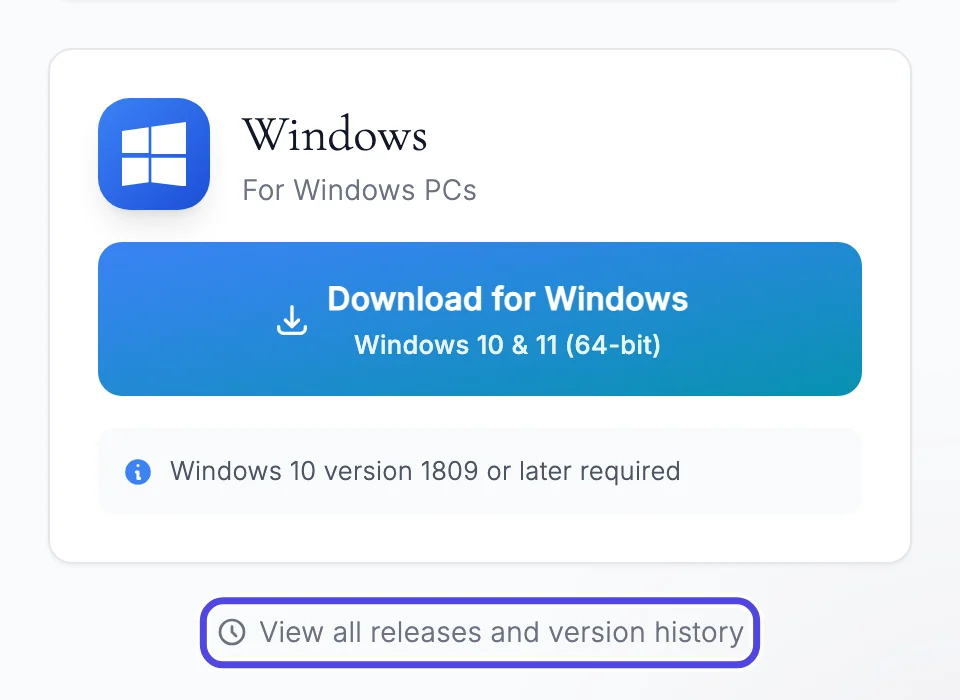
Sign in on our website and click NotBot in the menu on the left. Under the download buttons, click View all releases and version history.
Step 16: Read a release
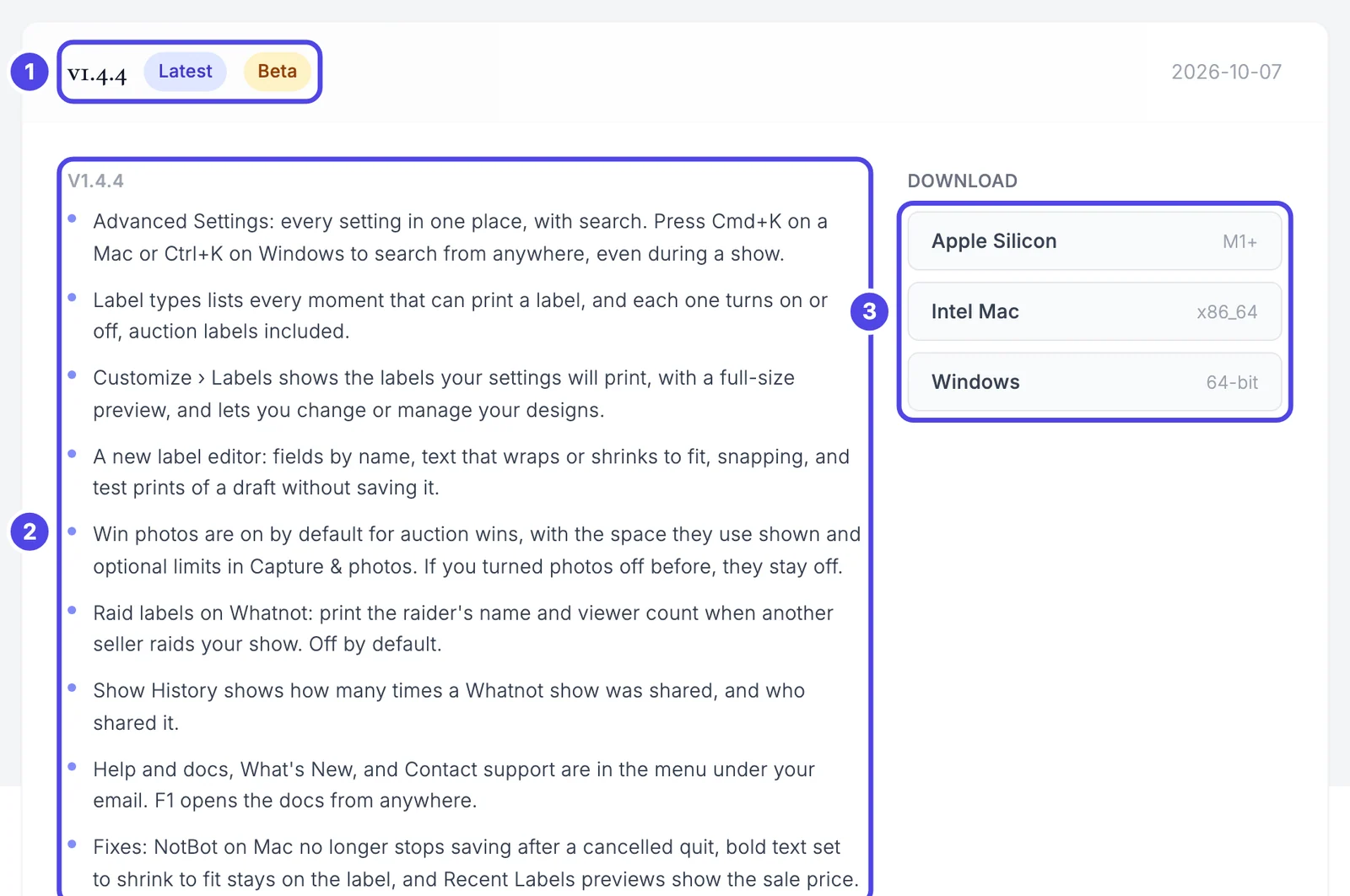
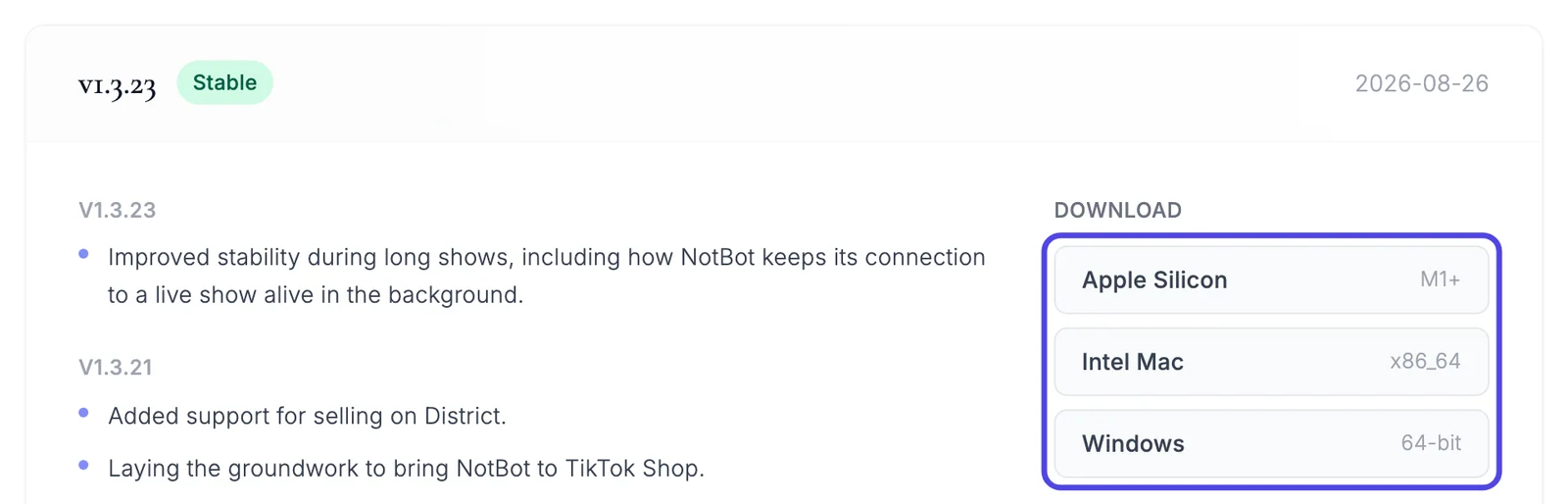
The Release History page lists every version, newest first. Each version has its own box:
- The version number, with Latest on the one at the top, Stable or Beta for its channel, and the date on the right.
- The changes, under the version number. A box that covers several versions lists each version's changes under its own number, so scroll down to read them all.
- Download: the installer for Apple Silicon Macs (M1 and newer), Intel Mac, or Windows.
If the version in your NotBot is newer than the one at the top of this list, you already have the newest version.
Step 17: Go back to an older version (only if we ask you to)
If a new version gives you trouble and we suggest going back, find the older version in the list and click the download button for your computer in its box. Then close NotBot and install the file you downloaded, the same way as in Download and install NotBot.
NotBot will find the newest version again the next time it checks and offer it to you. Tell us about the problem at support@mellowtools.com so we can fix it.
If something looks different
A red bar says Update error
NotBot could not download the update, often because the internet dropped. Click Retry on the red bar. If it keeps failing, download the newest version from the Release History page on our website and install it over the top.
On a Mac, an orange bar says NotBot can't update from its current location
NotBot is running from your Downloads folder or from the installer window, where updates cannot install. Click Move to Applications on the bar. NotBot moves itself to your Applications folder and opens again. If a show is live, moving ends it, so wait until the show is over.
Check for updates shows a red line, or a box says Failed to Check for Updates
NotBot could not reach our update server, most often because the internet connection dropped. Click OK on the box if one is open, check your connection, and click Check for updates again. If the box asks you to log in again, click your email address at the top right of NotBot, click Log out, sign in again, and check again.
I restarted but the version number did not change
Quit NotBot completely (on a Mac, click NotBot in the menu bar at the top of the screen, then Quit NotBot; on Windows, click the × at the top right), wait a few seconds, and open it again. The update is put in place as NotBot closes.
The What's New window never appeared
Click your email address at the top right of NotBot and click What's New.