Step-by-Step Guides
Reprint labels
Print any label again during or after a show, and have NotBot print a fresh box label every few wins for buyers who fill more than one box.
Last updated 2026-10-08 · Applies to NotBot 1.4.4+ · Identical to the stable docs
A label jams, smudges or goes missing, or a buyer fills a second box. You can print any label again in a click, and you can have NotBot print a buyer's box label again on its own every few wins. The pictures come from a practice show.
Before you start
- NotBot is signed in and your printer works. If not, see Connect and test your printer.
- You know how buyer numbers work. If not, read Buyer numbers and adding a buyer by hand first.
Print one label again
Step 1: Click the label in Recent Labels
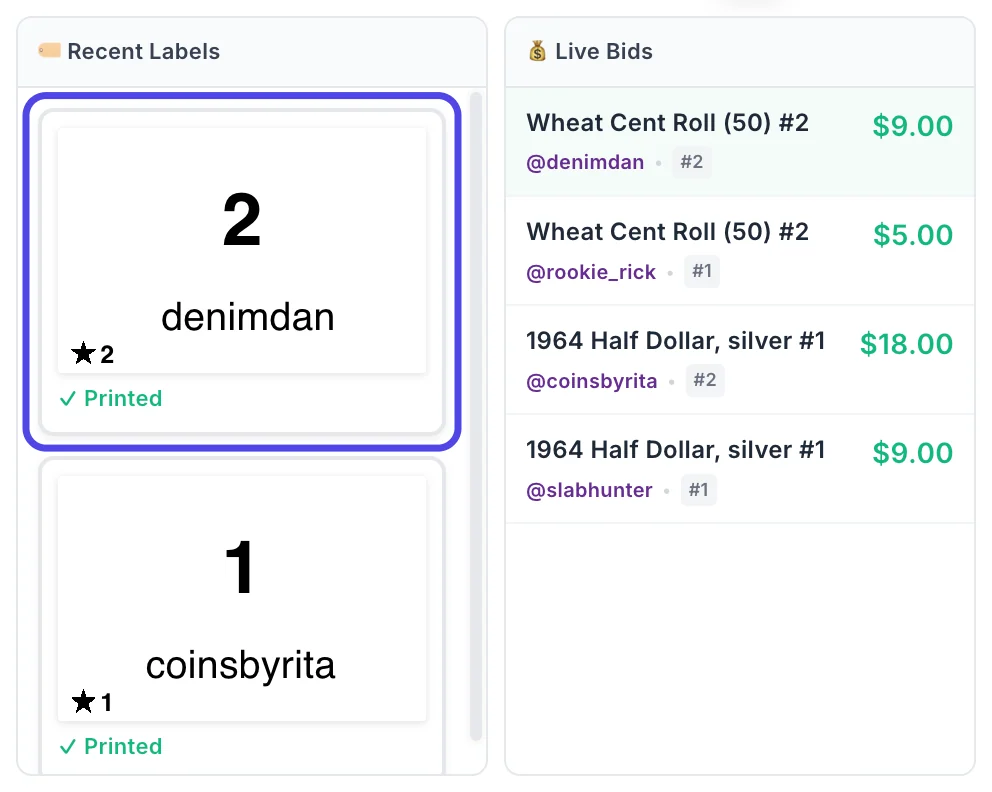
During a show, the quickest way is Recent Labels, at the top of the NotBot panel. Click the label you need. It goes back to Sending to printer, then Printed.
A label that is still on its way to the printer (Sending to printer, Sent to printer, Printing, In queue, Spooling or Paused) does nothing when clicked, so it never prints twice by accident. Recent Labels keeps the last 25 labels of the show.
Step 2: Or click Print on a sale
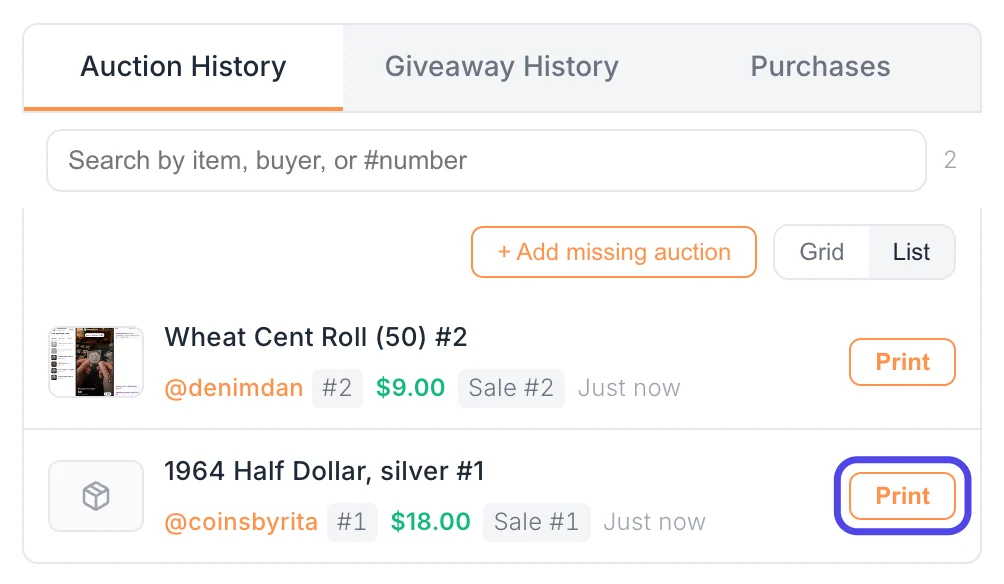
Scroll down the NotBot panel to Auction History. Each sale has an orange Print button that prints that sale's label again. Purchases has the same button for Buy It Now sales.
Type part of the item name, the username or a buyer number (like #1) in the search box to find the sale first.
Step 3: Or print a buyer's box label by name
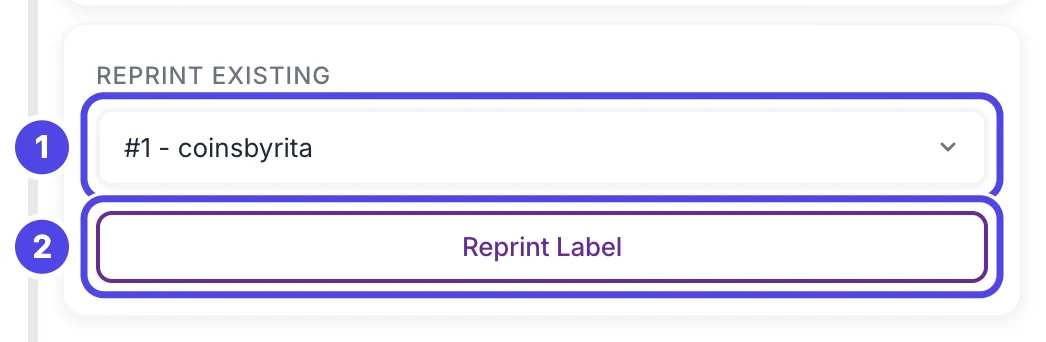
Above Auction History, under REPRINT EXISTING, click the Select user... list and pick the buyer (1). Then click Reprint Label (2). NotBot prints that buyer's box label again with the same number. In Every Item + Buyer mode it prints your item label design with their number instead.
This label does not show up in Recent Labels. Look at your printer to check it printed.
Tip: After the show, open it in Show History: every sale there has a Print button too, and so does each buyer on the Buyers tab. See Look back at a show in Show History.
Print a fresh box label every few wins
In Buyer Only mode NotBot prints a buyer's box label on their first win only, so when their items fill a second box, that box has no label. Box label reprint prints the same box label again every few wins, so each new box gets one. It works in Buyer Only, and in Every Item + Buyer when Box label for new buyers is on.
Step 4: Click Customize
In the purple bar at the very top of NotBot, click Customize.

Step 5: Click Advanced Settings
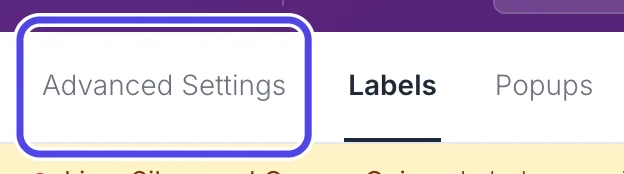
Near the top left of the Customize page, click Advanced Settings.
Step 6: Click Label types
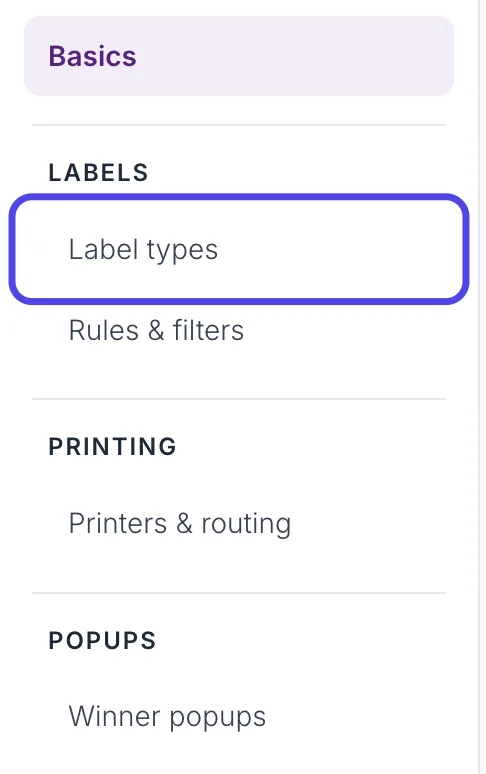
In the list on the left, under LABELS, click Label types.
Step 7: Turn on Box label reprint
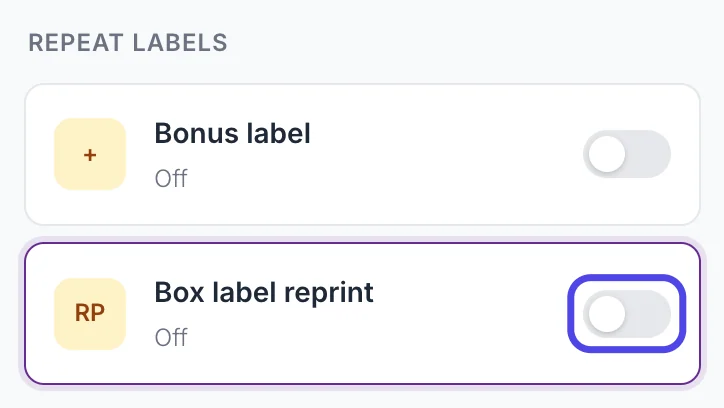
Under REPEAT LABELS, find Box label reprint. It says Off. Click its switch so it turns purple.
Step 8: Choose how often it prints
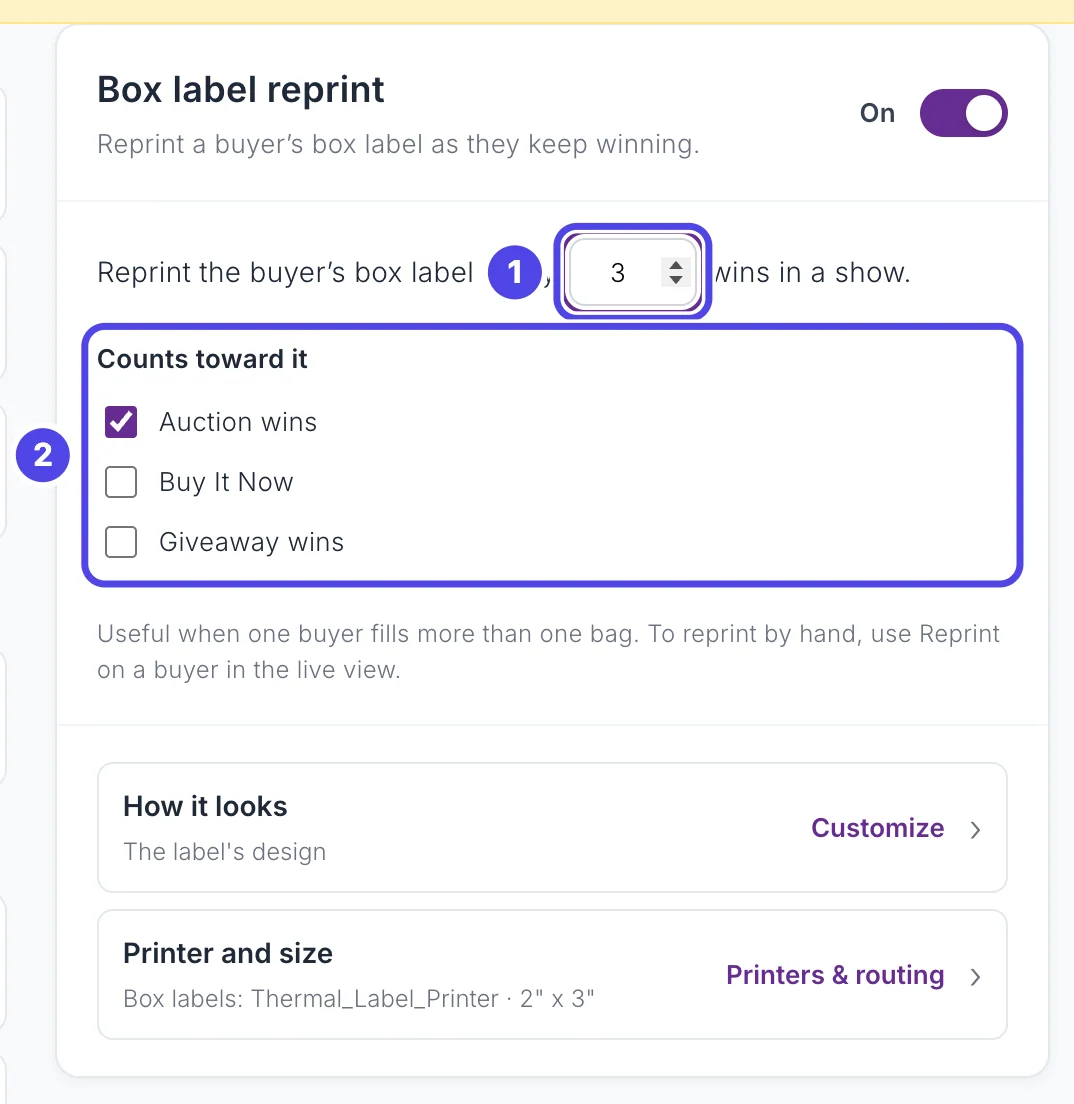
In the box on the right:
- Reprint the buyer's box label every ... wins in a show: type how many wins fit in one box. NotBot counts each buyer's wins in the show, starting with their first, and prints their box label again each time the count reaches that number (with 3: on their 3rd, 6th, 9th win, and so on).
- Counts toward it: which sales count. Auction wins is ticked to start with; tick Buy It Now or Giveaway wins to count those too.
This guide uses 3. NotBot saves the number when you click somewhere else.
Step 9: Go back to the Dashboard
Click Dashboard at the top of the window to go back to your show.

Step 10: Watch the box label print again
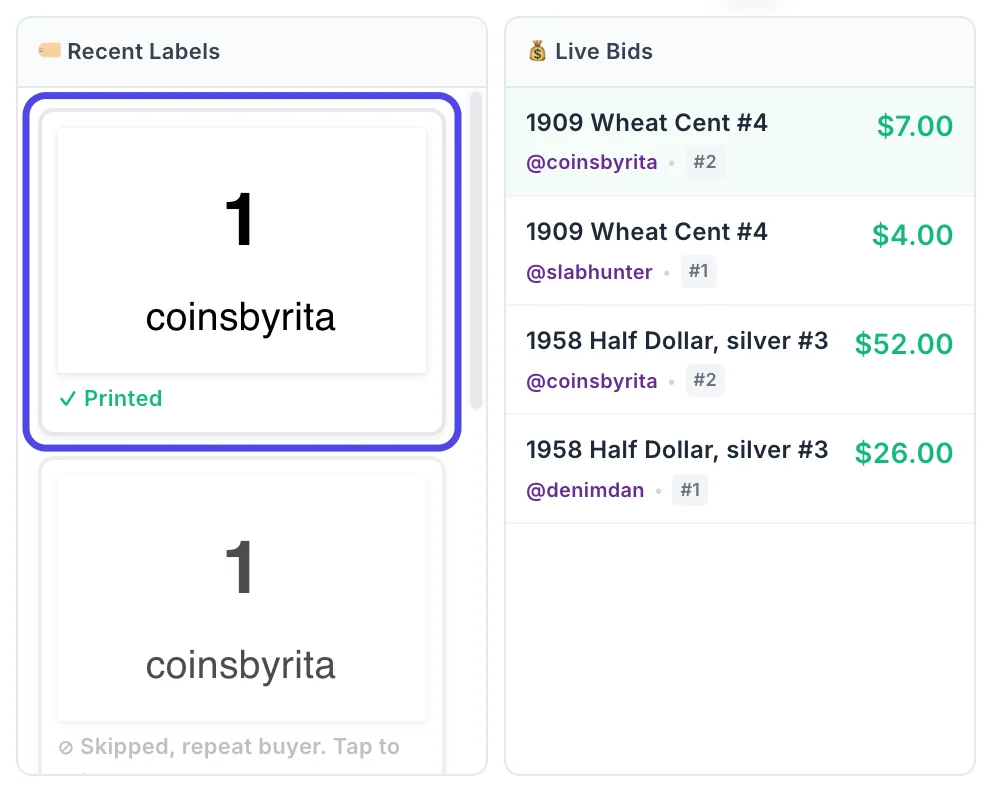
Here coinsbyrita, buyer 1, wins two more items. Their 2nd win prints nothing, as usual in Buyer Only (Skipped, repeat buyer. Tap to print). Their 3rd win prints their box label again (circled), ready for the next box.
If something looks different
Nothing happens when I click a label in Recent Labels
The label is still on its way to the printer. Wait until it says Printed, Check printer or Failed, then click it again.
Box label reprint is on but no extra box label printed
Check your print mode. Reprints are box labels, so none print in Every Item, or in Every Item + Buyer with Box label for new buyers off. In Buyer Only, Buy It Now and giveaway sales that print item labels never trigger a reprint; the Label types page says so when that applies.
A buyer got a box label on a win that was not the count I set
NotBot also prints the box label whenever the platform marks the buyer as buying from you for the first time. That can line up with a reprint or come on its own.
I clicked Reprint Label and nothing showed in Recent Labels
That is expected: buyer labels printed from Reprint Existing are not listed there. Check your printer.