Get Started
Getting Started
System requirements, install, sign in, printer setup, and your first label.
Last updated 2026-10-08 · Applies to NotBot 1.4.4+ · Identical to the stable docs
Setup takes about five minutes if your printer is already installed. This page covers what you need and the first-run flow; each part links to its step-by-step guide.
What you need
- A Mac with macOS 12 (Monterey) or later, Intel or Apple Silicon, or a 64-bit Windows 10 or Windows 11 computer.
- A full-power laptop or desktop processor. Low-power processors found in budget and ultra-thin laptops (Intel Celeron, Pentium, and the low-voltage "U" and "Y" series) run NotBot far slower during a live show, no matter how much memory the computer has.
- A MellowState account. Sign in with email and password, Google, or Apple, whichever you used to create the account. See Create your account.
- A thermal label printer with the manufacturer's own driver installed. Generic drivers ("Generic Text Printer", "Generic / Text Only") do not work with NotBot, on Mac or Windows. USB is the most reliable connection. See Recommended Printers.
- A way to go live on Whatnot, Poshmark Live, eBay Live, District, or TikTok Shop. Most sellers go live from a phone or tablet and run NotBot beside it on a computer.
1. Install NotBot
Download the installer from mellowtools.com/notbot.
- macOS: open the downloaded file and drag NotBot to Applications. Run it from Applications; a copy run from Downloads or the disk image cannot update itself.
- Windows: run the installer. If Windows shows "Microsoft Defender SmartScreen prevented an unrecognized app from starting", click More info, then Run anyway.
See Install NotBot.
2. Sign in
Click Login to Continue. Your web browser opens the MellowState sign-in page, so you can use saved passwords and your Google or Apple sign-in. Once you approve, the browser hands you back to NotBot, which stays signed in across restarts. Your sign-in is kept in your computer's secure credential storage.
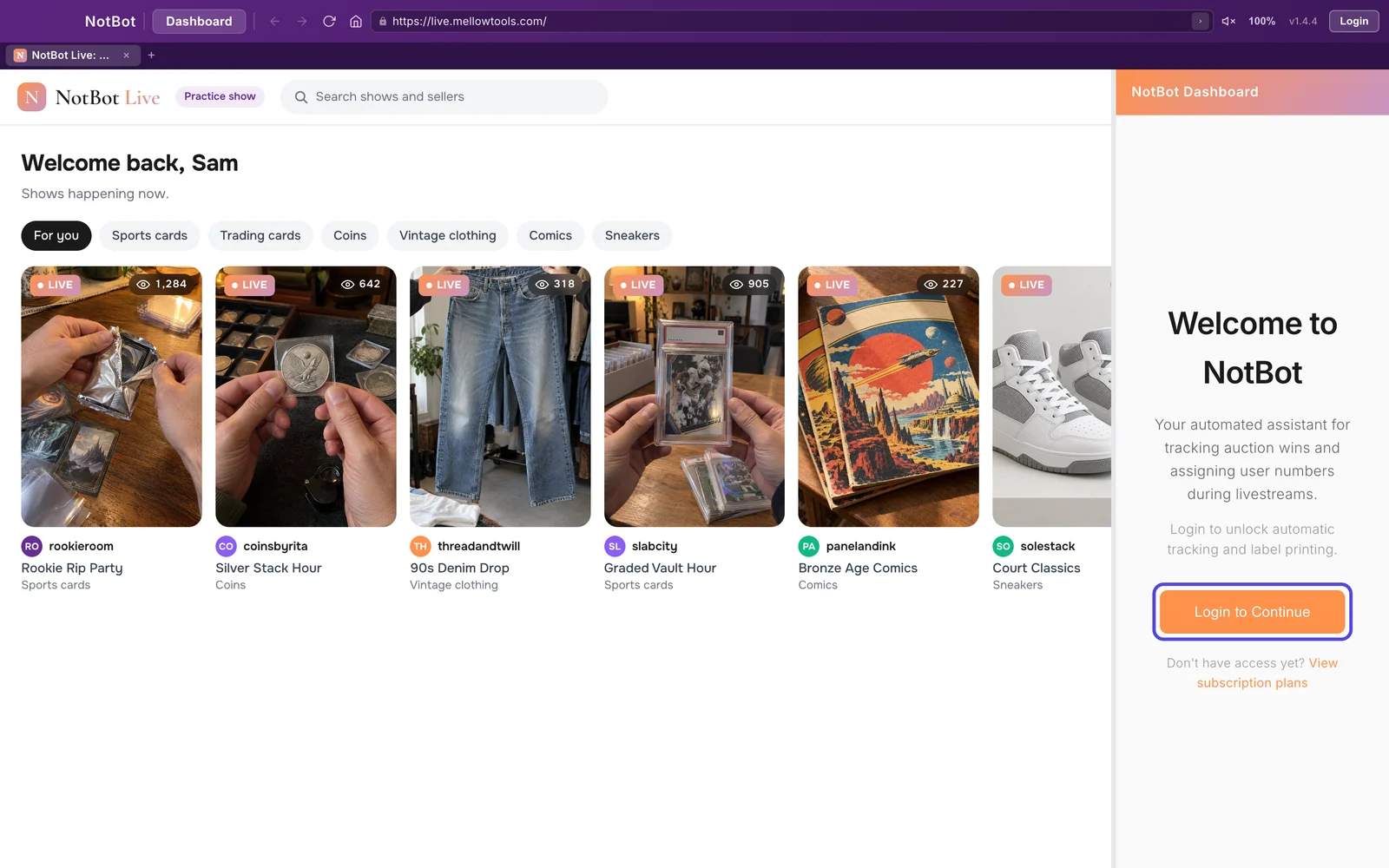
See Sign in to NotBot.
3. The Getting Started window
The first time you sign in, a Getting Started window walks you through:
- Welcome.
- Choose When to Print: Every Item, Buyer Only (the default), or Item + Buyer (Every Item + Buyer), with a moving example of each. See Print Modes.
- Select Your Label Size: match the labels in your printer. See Label Sizes.
- Connect Your Printer: pick your printer from Detected Printers (refresh if it is missing), set Feed Direction and Media / Roll if needed, and click Print Test Label.
- Using NotBot During a Live Show: a quick look at a typical show.
- You're All Set!
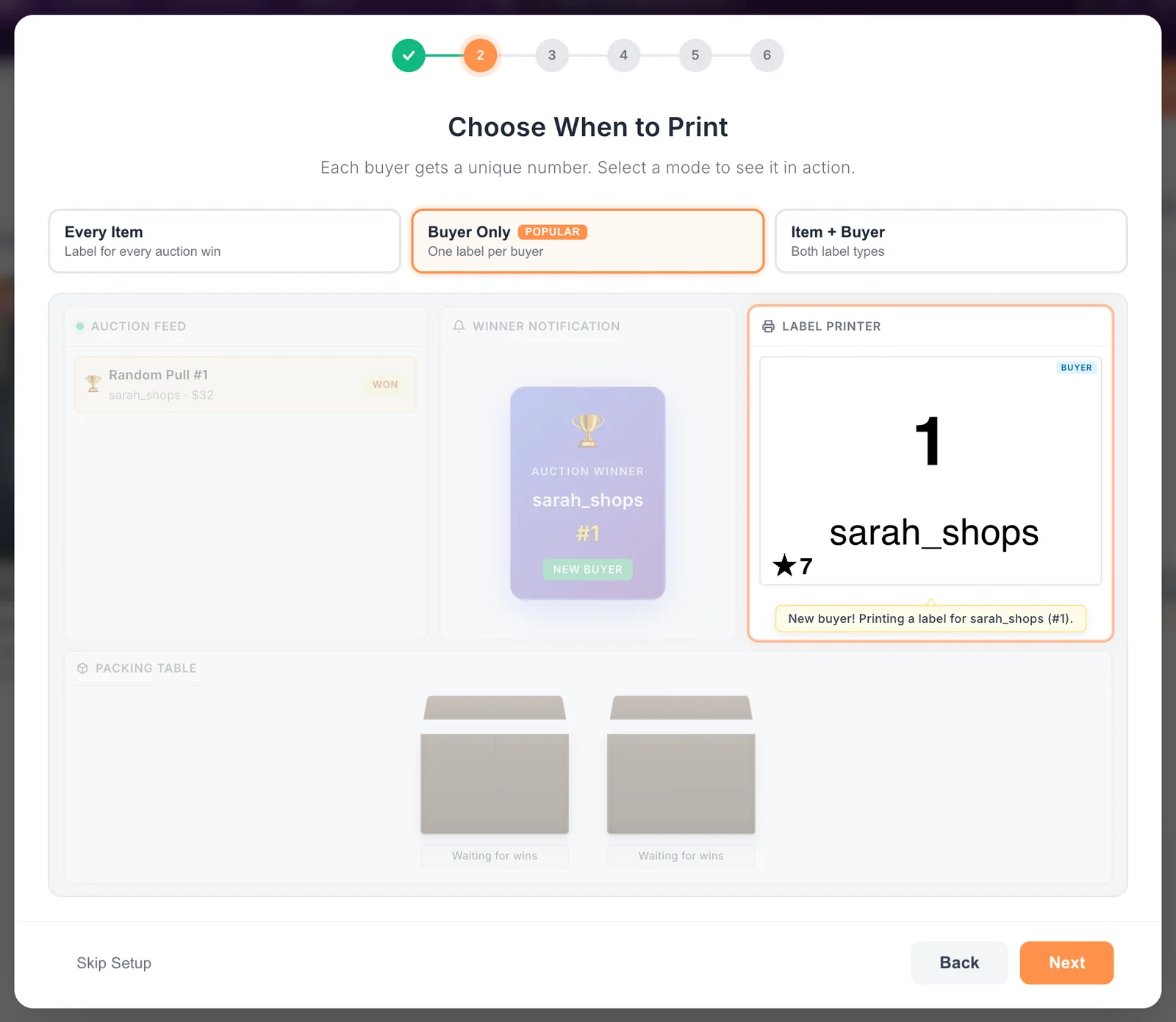
To skip it, choose I already know NotBot, skip setup. To run it again later, open the Settings drawer's About tab and click Run Setup Wizard. Every choice here can be changed later in Settings. See Set up with the Getting Started window and Connect and test your printer.
4. Keep the computer awake
If your computer sleeps during a show, NotBot loses the show and misses every sale until it wakes. Keep computer awake (on by default, in Customize › Advanced Settings › Show behavior) stops the computer and display from sleeping while a show is live. Closing a laptop lid can still sleep it, so keep the lid open and the laptop plugged in.
5. Go live
NotBot's built-in browser opens Whatnot. For Poshmark Live, eBay Live, or District, go to that site in the built-in browser. For TikTok Shop, open your TikTok LIVE Manager there. Sign in to your seller account and open your show. Start the show the way you normally do, usually from your phone or tablet. To go live from inside NotBot instead, turn on Allow camera and microphone in Customize › Advanced Settings › Show behavior.
Make sure Auto-print (the switch at the top of the panel on the right) is on. As sales happen, NotBot gives each new buyer the next box number, prints labels for your print mode, and shows everything in the live panel. After the show, everything is in Show History.
See Run your first show.
Where to next
- Print Modes to pick the right mode for how you pack.
- Settings Reference for every setting.
- Troubleshooting if something is off.