Step-by-Step Guides
See your shows on the website (NotBot Data)
Open NotBot Data on our website to see every saved show, its sales and buyers, run a report, download it as a spreadsheet, and search everything.
Last updated 2026-09-29 · Applies to NotBot 1.4.4+ · Identical to the stable docs
NotBot Data is a page on our website that shows every show NotBot saved to your account, from every computer you use. You can see what each show made, every sale and its buyer number (with a photo of each auction win), which buyers come back show after show, and you can turn any show into a buyer list or spreadsheet. Nothing here changes your shows or your labels; it only reads what NotBot saved.
The pictures in this guide come from practice shows on NotBot Live, our practice marketplace, so the sale photos show our practice show screen instead of your platform. The website works the same for every platform.
Before you start
- Show saving is on in NotBot on the computer you run shows on. Follow Save your shows to your account and back up to switch it on and to upload older shows.
- You have run at least one show with saving on. See Run your first show with NotBot.
- You can sign in to our website with the same account you use in NotBot. See Create your account and start your free trial.
Open NotBot Data
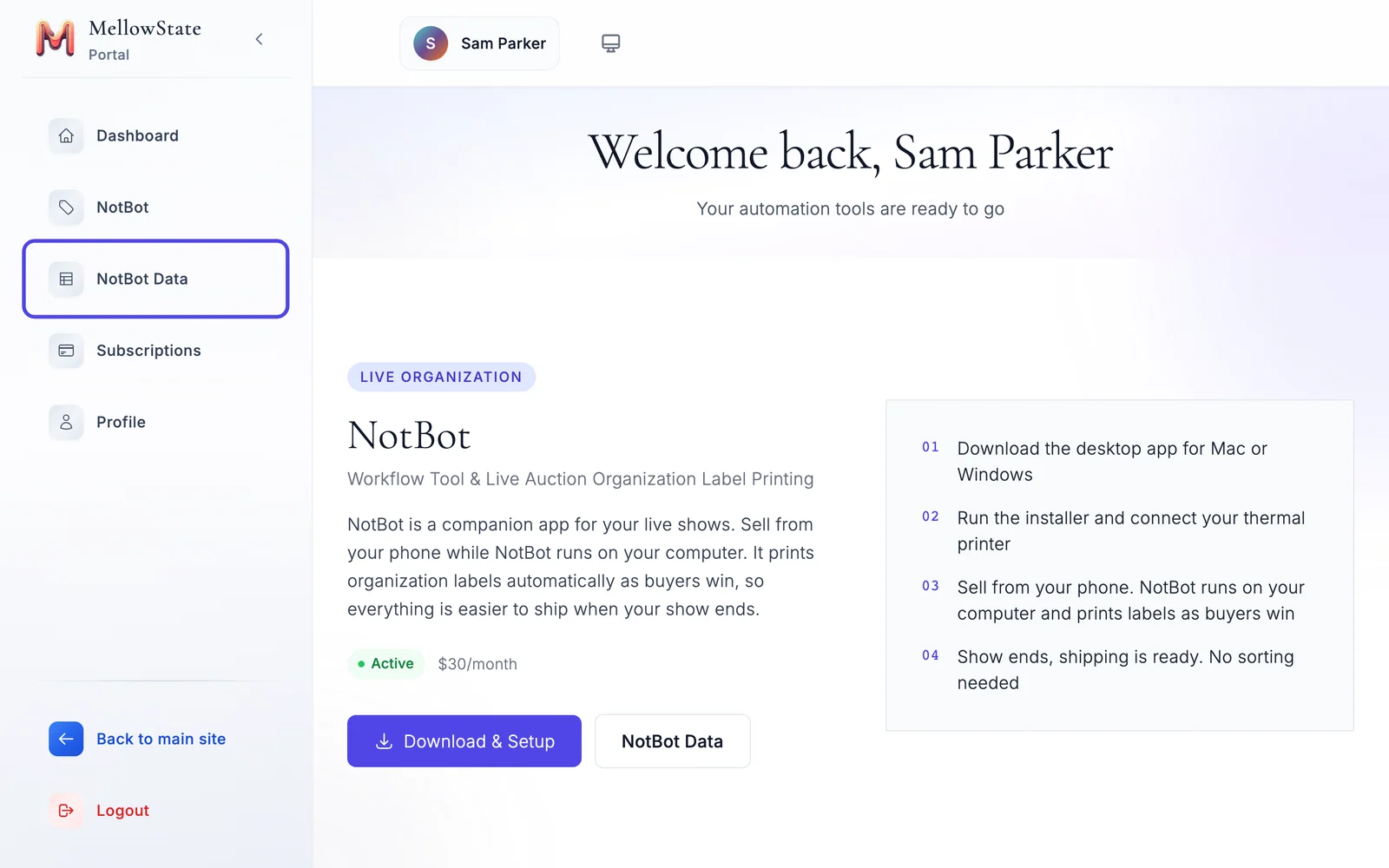
Step 1: Click NotBot Data in the menu
Sign in to our website with your email and password (or Google or Apple), the same way you sign in to NotBot.
In the menu on the left side of the page, click NotBot Data.
Step 2: Look at your totals
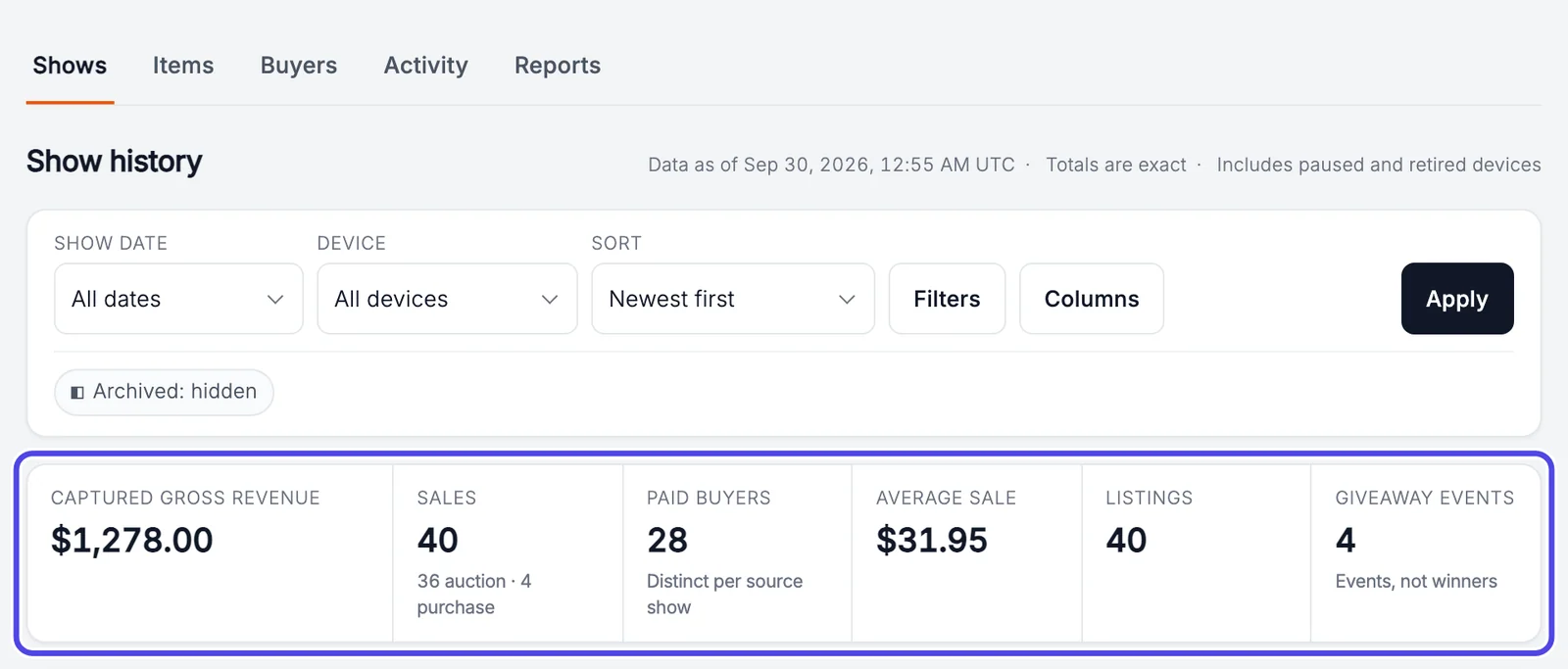
The page opens on the Shows tab. The row of boxes at the top adds up every show in the list below it:
- Captured gross revenue: what your sales added up to, as NotBot saw them during the shows. Platform fees and shipping are not taken off.
- Sales: how many things sold, split into auction wins and purchases (Buy It Now).
- Paid buyers: how many buyers paid. A buyer who bought in two shows counts once in each show.
- Average sale: revenue divided by sales.
- Listings: how many items came up.
- Giveaway events: how many giveaways you ran (not how many winners).
A note at the very top of the page says NotBot Data is coming soon and is an early preview. That is expected.
Step 3: See your revenue by day
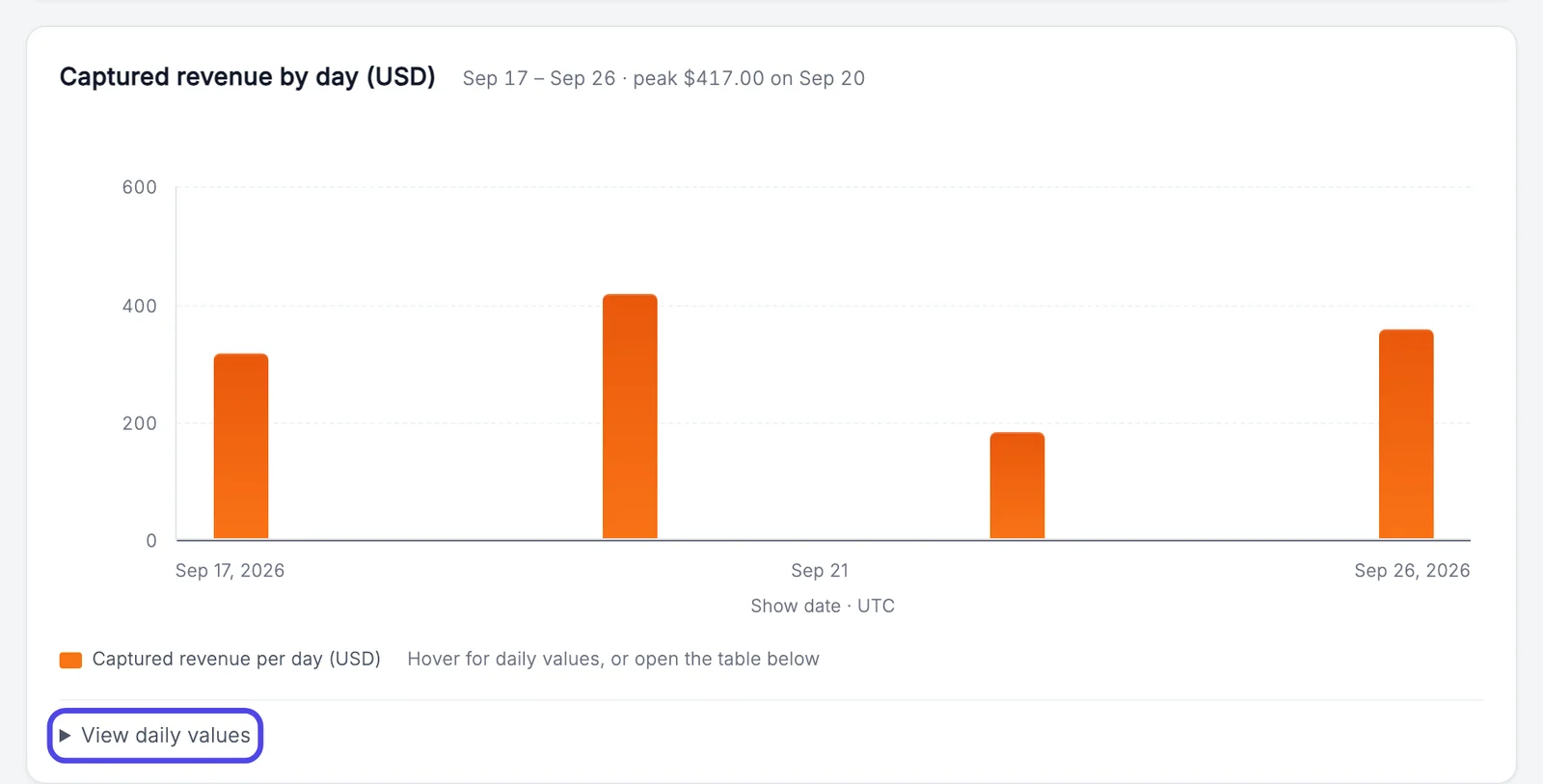
Under the totals, the chart has one orange bar for each day you had a show. A taller bar means that day made more.
Hold your mouse over a bar to see that day's amount. To see every day as a list instead, click View daily values under the chart.
Dates on this page follow UTC time (the chart says Show date · UTC). An evening show in the United States can land on the next day's bar.
Step 4: Choose which dates to count
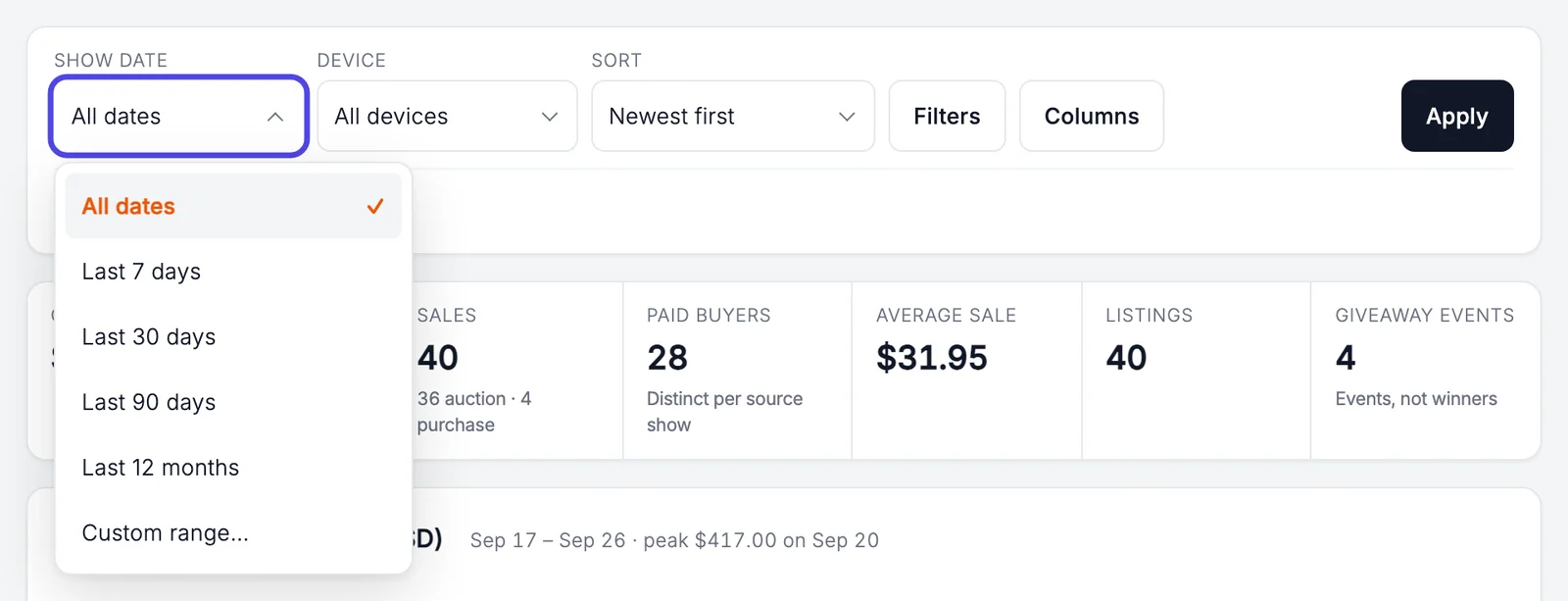
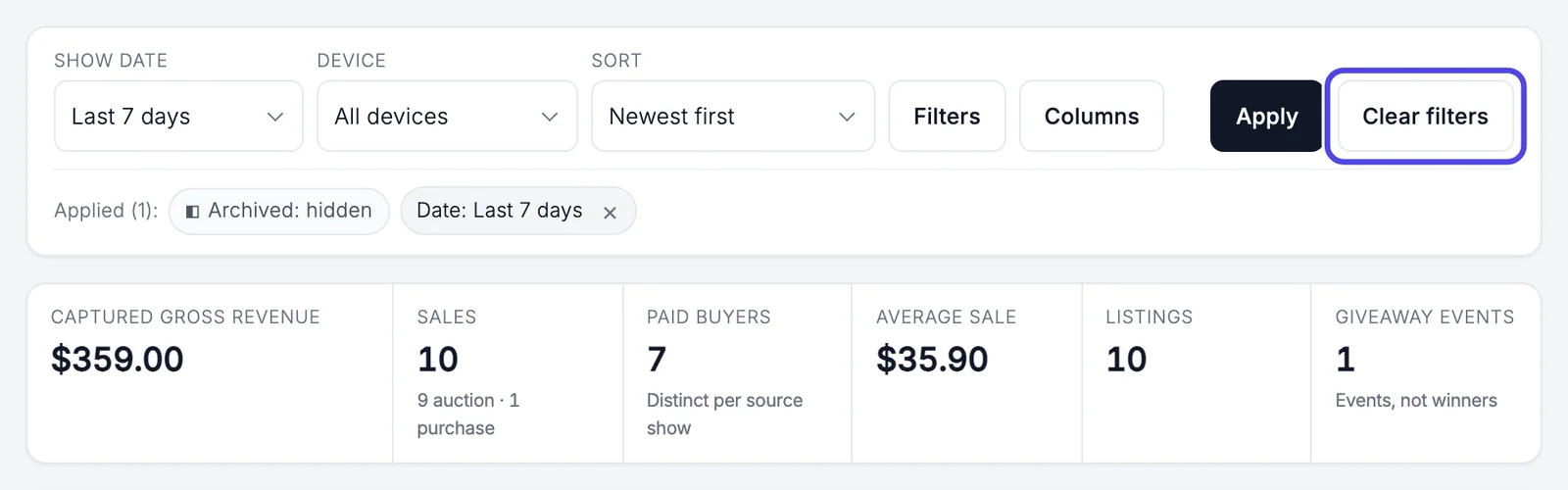
To count only recent shows, click the Show date box under Show history and choose a range, such as Last 7 days.
For your own dates, choose Custom range… and fill in the From and To boxes that appear next to it.
Step 5: Click Apply
Click the black Apply button at the right end of the same bar. Nothing changes until you click it.
The totals, the chart and the list of shows all change to the dates you chose. If you run NotBot on more than one computer, the Device box next to Show date works the same way and shows one computer's shows at a time.

Step 6: Clear the dates when you are done
Now only the shows from the last 7 days are counted, and the list under the chart has only those shows. A gray tag under the filters says Date: Last 7 days.
To count every show again, click Clear filters next to Apply.
Step 7: Click a show to open it
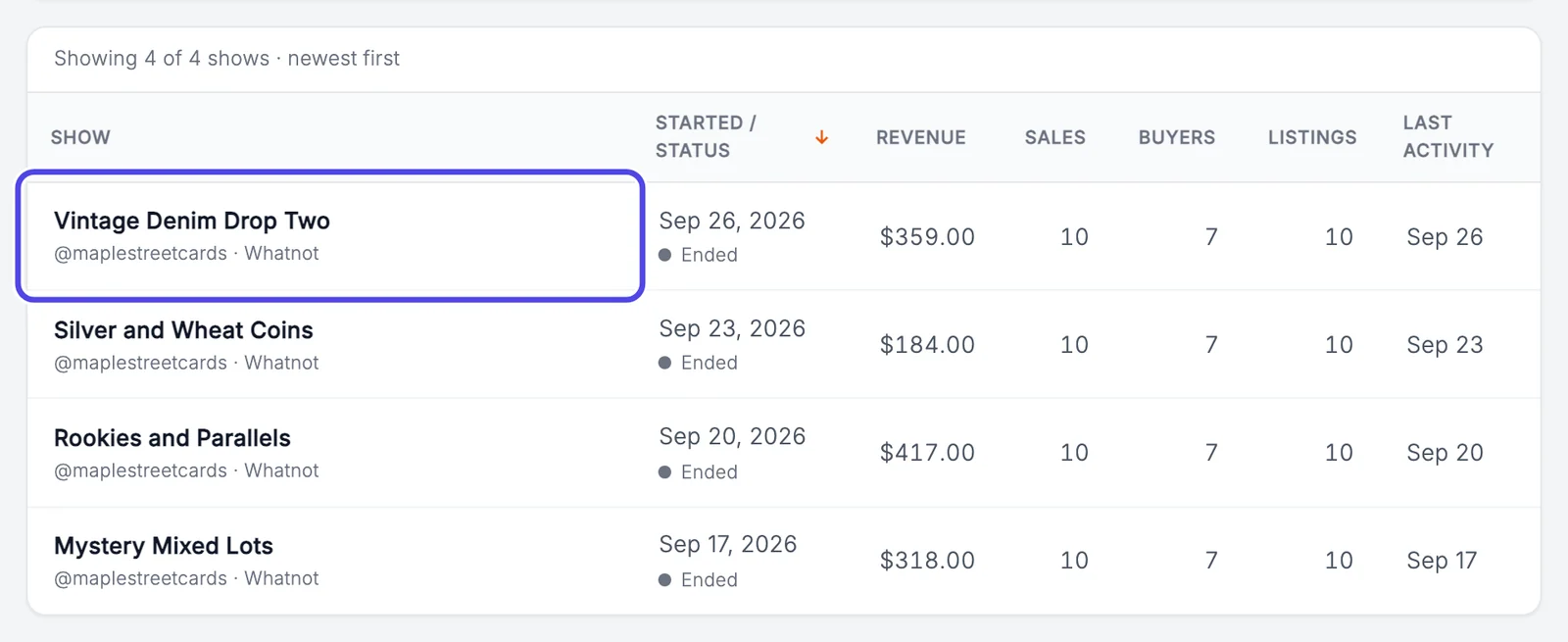
Scroll down to the list of shows. Each row has the show's name, the day it started, whether it has Ended, and its revenue, sales, buyers and listings. The newest show is at the top.
Click the name of the show you want to look at.
Look inside one show
Step 8: Read the show at a glance
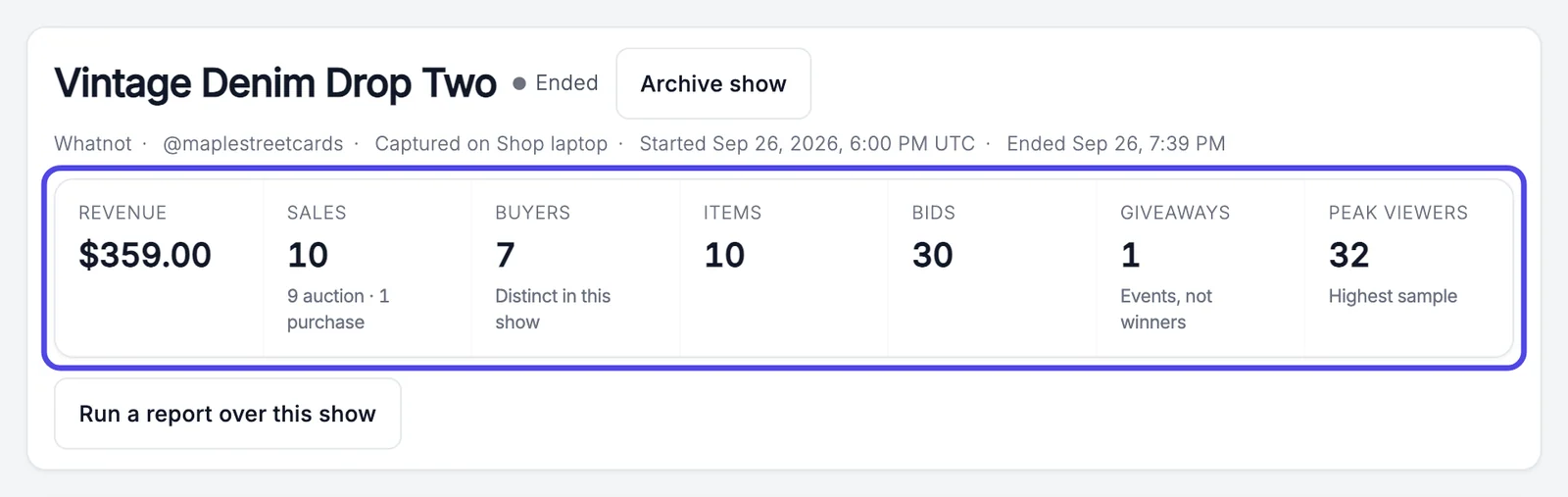
The show's page opens. The box at the top has the show's name and, under it, where it came from: the platform, your seller name, the computer that saved it (Captured on Shop laptop here), and when it started and ended.
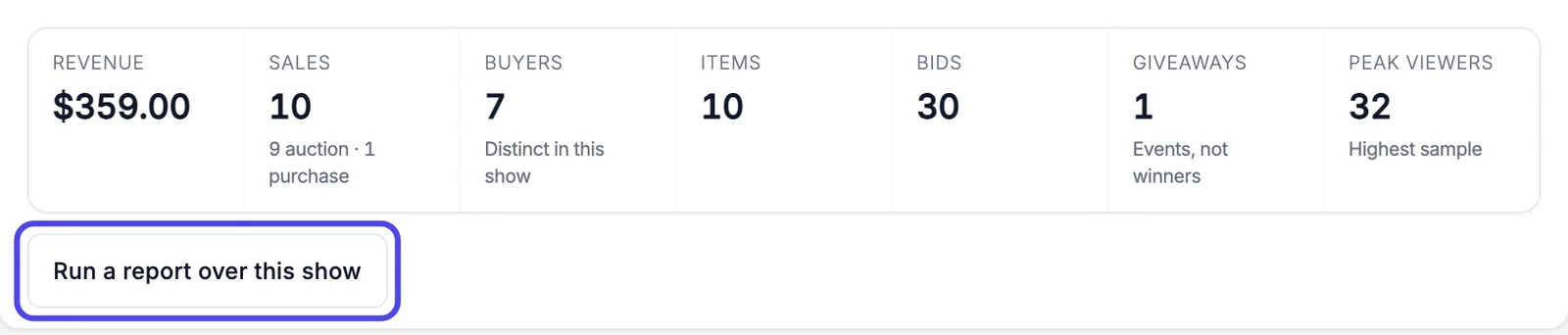
The row of numbers (circled) is this show only: Revenue, Sales, how many different Buyers, Items, Bids, Giveaways and Peak viewers (the most people watching at once).
Step 9: Go through the sales
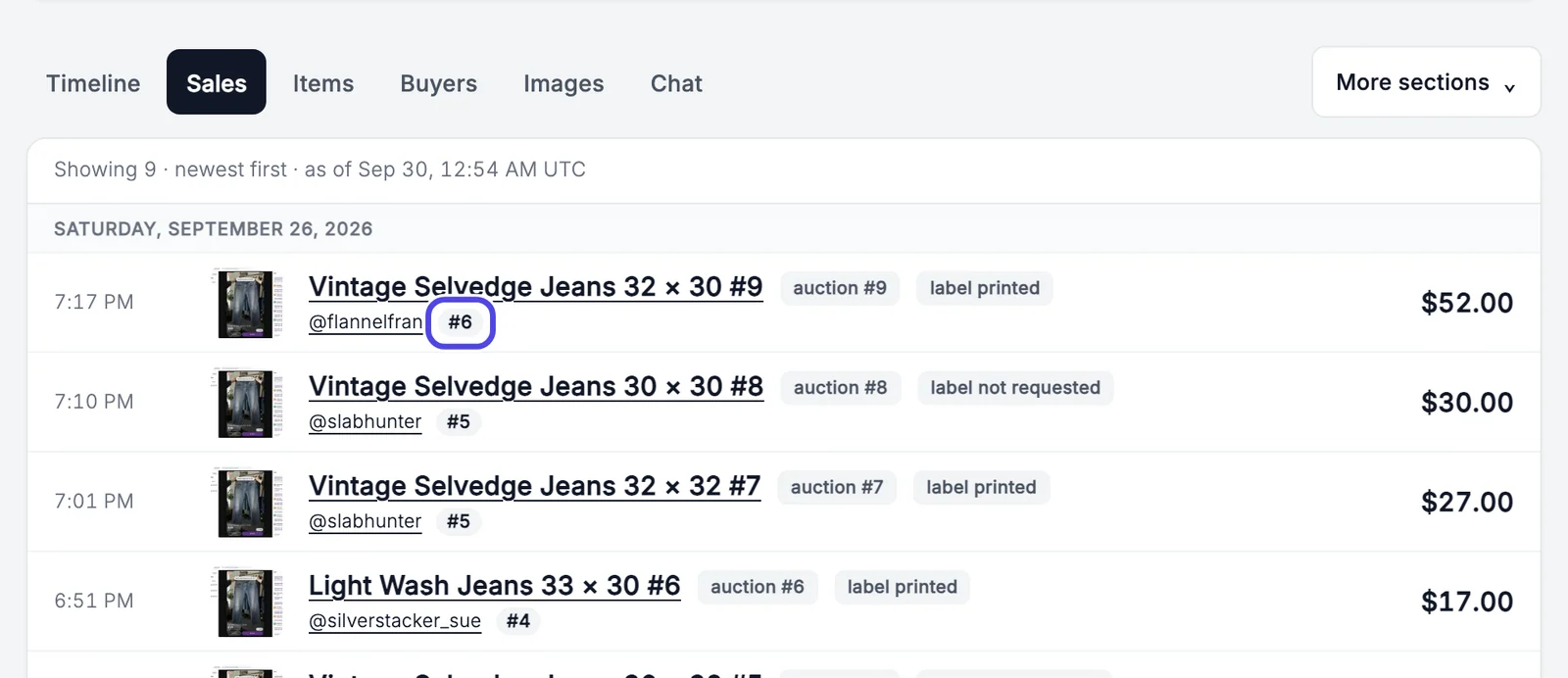
Scroll down. The page opens on the Sales list: every auction win in the show, newest first, grouped by day. Each row shows:
- the photo NotBot took when the auction ended (click it to see it larger),
- the item's name,
- the buyer's username and, next to it, their buyer number for this show (circled on the first row),
- first-time buyer when the platform marked the winner as new to your shop,
- label printed when NotBot printed its label, or label not requested when NotBot did not print one on purpose (auto-print was off, Label types or Rules & filters skipped that sale, or it was a repeat buyer's win in Buyer Only mode),
- the price, on the right.
Buy It Now purchases are not in this list. To see them, click More sections on the right and then Purchases. The other buttons show the same show in other ways: Timeline (everything in order), Items, Buyers, Images and Chat. More sections also has bids, giveaways and payment problems.
Step 10: Click Buyers to see everyone who bought
Click Buyers in the row of buttons above the list.

Step 11: Check each buyer's number and total
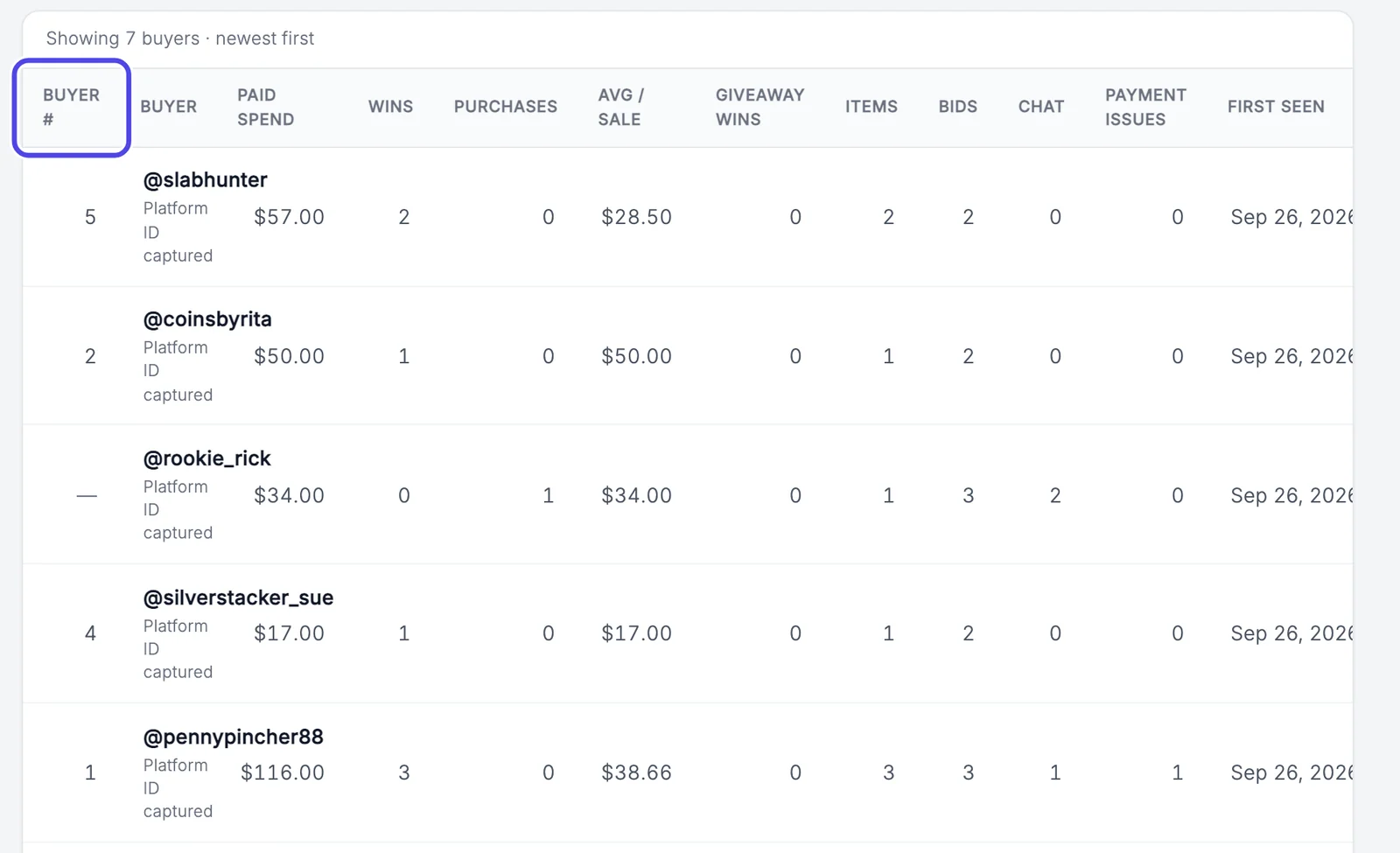
The list has one row per buyer in this show. Buyer # (circled) is the number NotBot gave them in this show, the same number that printed on their labels. Next to it are what they paid in total (Paid spend), how many auctions they won, what they bought outright, and more.
A dash in Buyer # means no buyer number was saved for that buyer in this show (in the picture, a buyer whose only purchase was Buy It Now).
Step 12: Find who has a buyer number
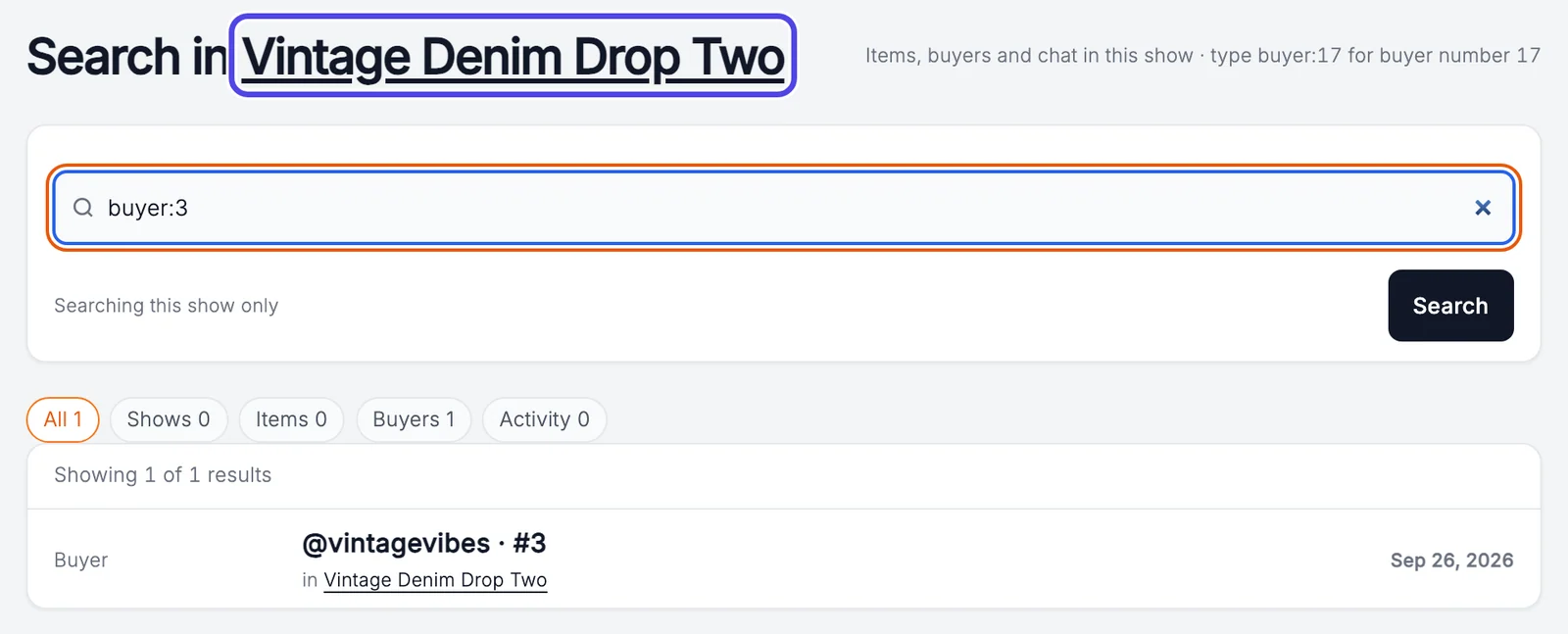
To find a buyer by their number, use the long search box above the row of buttons (before you type in it, it starts with Search this show). Type buyer: and the number, with no space. For example, buyer:3 finds buyer number 3. Then press Enter (Windows) or Return (Mac).
The same box finds item names, usernames and words from the chat in this show.

Step 13: Read the search results
The results page says Search in and the show's name. The result @vintagevibes · #3 tells you buyer number 3 in this show is @vintagevibes. Click it to open that buyer's page for this show, with what they paid, won and bid on.
To go back to the show, click the show's name at the top (circled).
Make a buyer list or spreadsheet
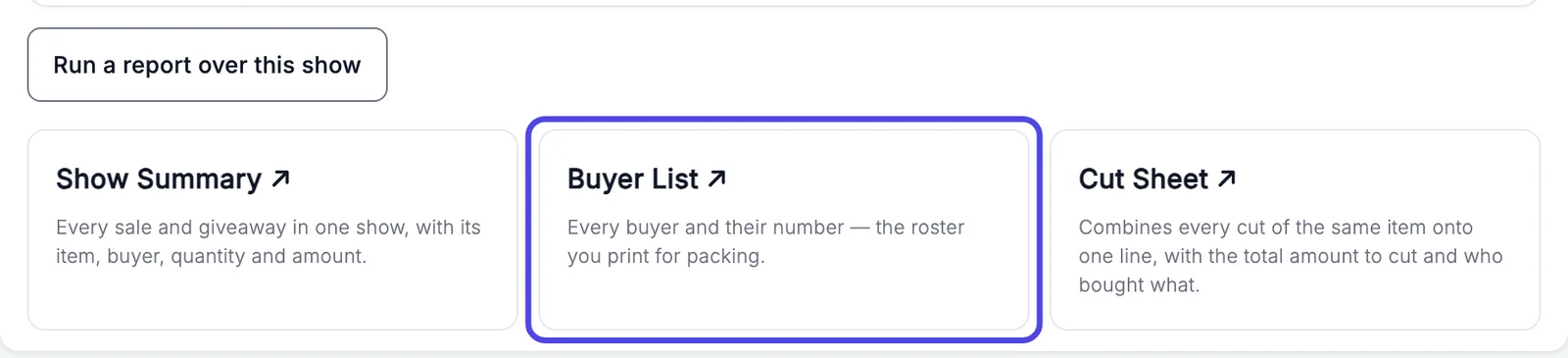
Reports turn one show into something you can print or open in a spreadsheet: a Show Summary (every sale), a Buyer List (every buyer and their number, for packing), or a Cut Sheet (every cut of the same item on one line, with the total to cut and who bought what).
Step 14: Click Run a report over this show
On the show's page, click Run a report over this show under the row of numbers.
Step 15: Choose Buyer List
Three reports appear. Click Buyer List: every buyer and their number, the list you print for packing orders.
The report opens on its own page after a moment.
Step 16: Read the Buyer List
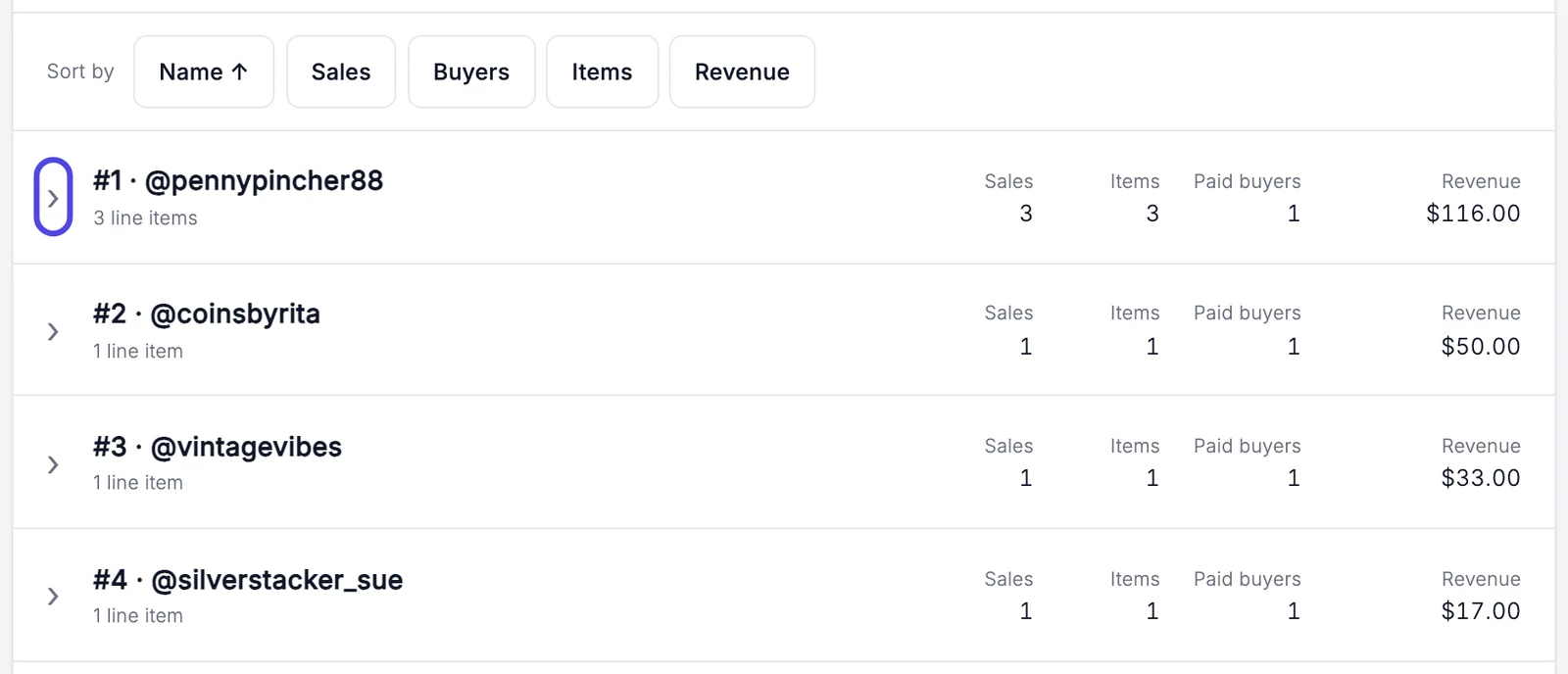
The report has one line per buyer number: #1, #2 and so on, with the username, how many things they bought and what they paid. Click the arrow at the start of a line (circled) to see the items that buyer got.
Sales that have no buyer number are grouped at the bottom under No buyer number. To change the order, click Name, Sales, Buyers, Items or Revenue next to Sort by.
Step 17: Click Export report
Scroll back to the top of the report and click the black Export report button on the right.

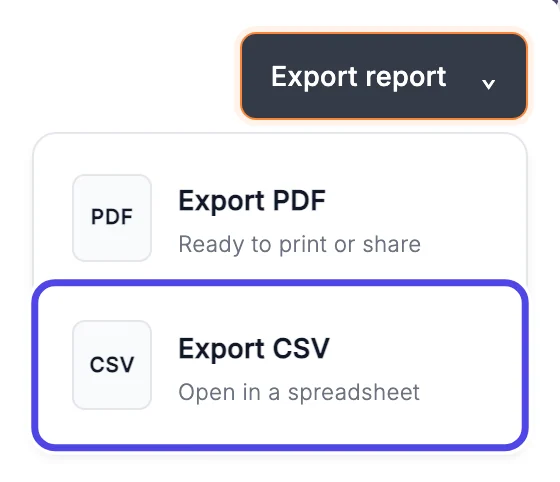
Step 18: Choose Export CSV
Click Export CSV to get a spreadsheet file that opens in Excel, Numbers or Google Sheets. Click Export PDF instead if you want a page to print or share.
The page changes to the Reports tab with the note Your export is being prepared.
Step 19: Click Download
After a few seconds the file is ready. Refresh the page if it still says Queued. When the line says Ready, click Download on the right. Your browser saves the file to your Downloads folder.
Files stay here for 24 hours. After that, run the report again and export it again. Under Recent runs you can open any report you ran recently.

Items and buyers across all your shows
Step 20: Click Items to see everything you sold
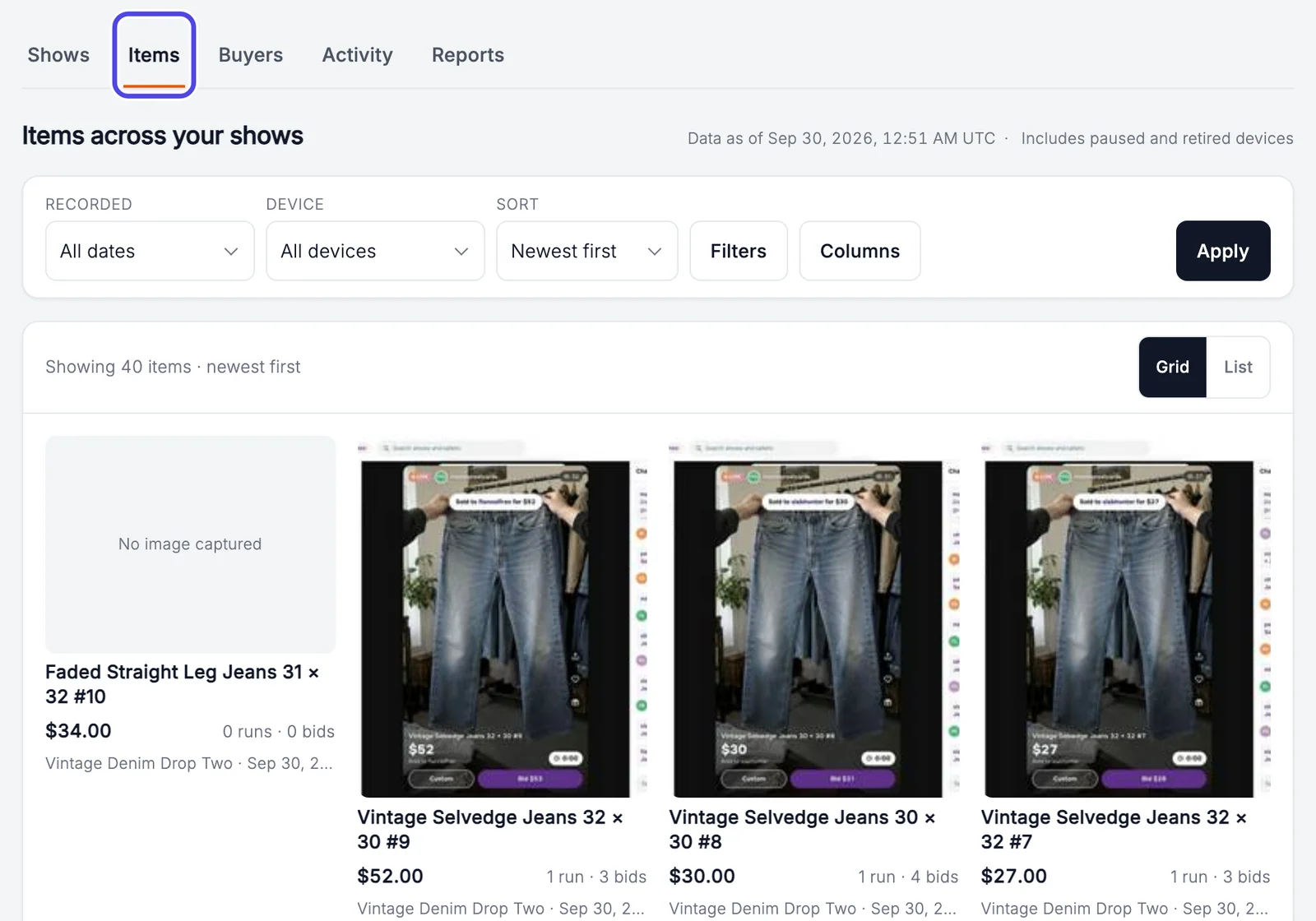
Click the Items tab near the top of the page. It shows every item from every show, newest first, with the photo NotBot took when it sold, the price, and the show it was in.
Items sold with Buy It Now have no photo and say No image captured. Click List (next to Grid) for a plain table instead of pictures. Click any item to see its sales and bids.
Step 21: Click Buyers to see your regulars
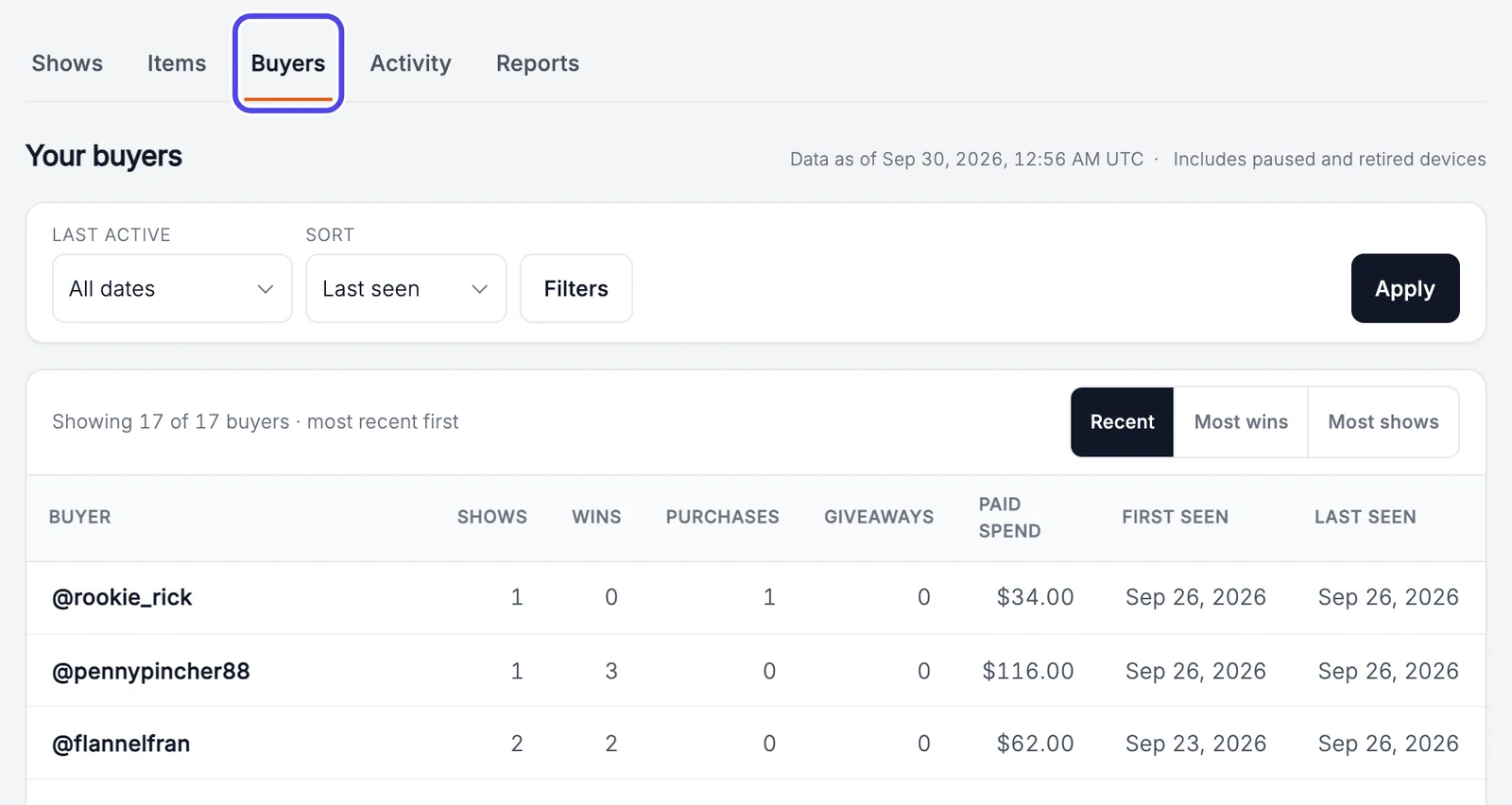
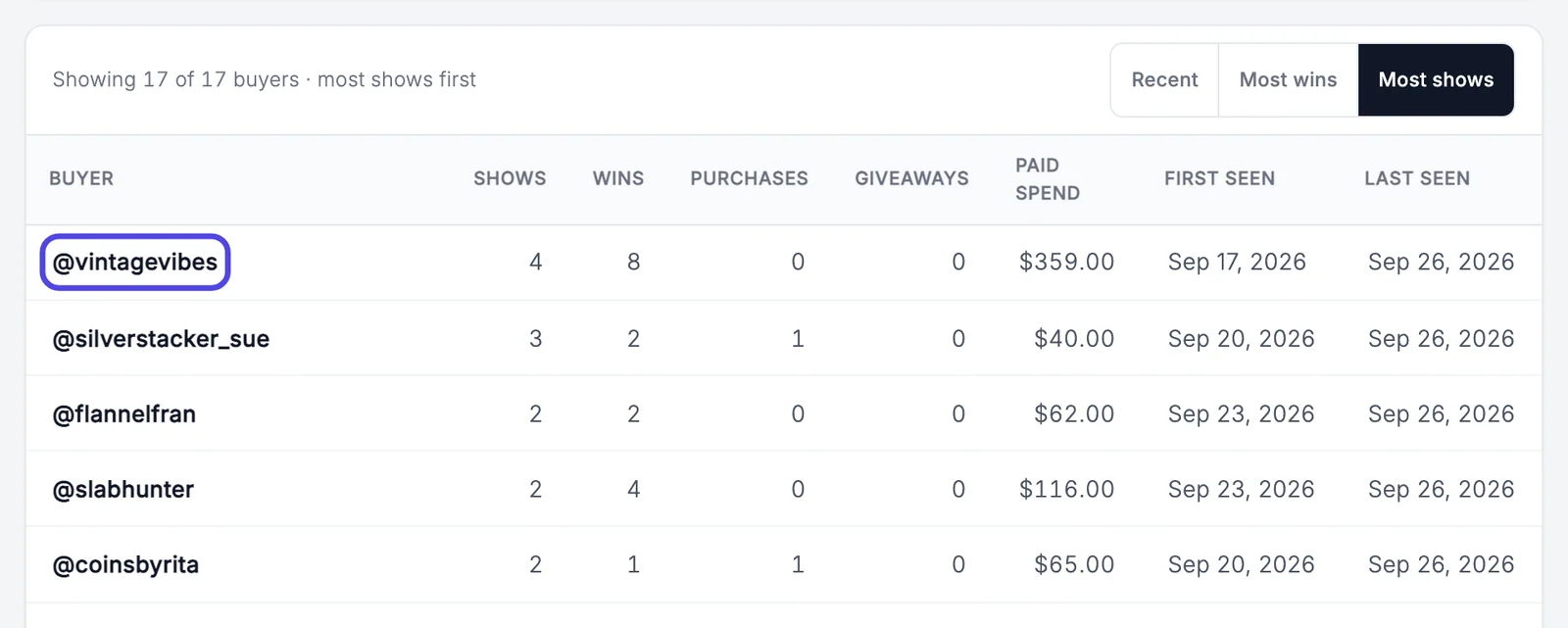
Click the Buyers tab near the top. Each buyer appears once, however many shows they bought in: how many Shows they bought in, their Wins, Purchases, what they paid in total (Paid spend), and when you first and last saw them.
Step 22: Click Most shows
Above the table on the right, click Most shows. The buyers who came to the most shows move to the top. Most wins puts the buyers with the most wins first, and Recent puts the buyers you saw most recently first.

Step 23: Open a buyer
Now the buyers who came to the most shows are at the top. Click a buyer's username to open their page.
Step 24: See every show a buyer came to
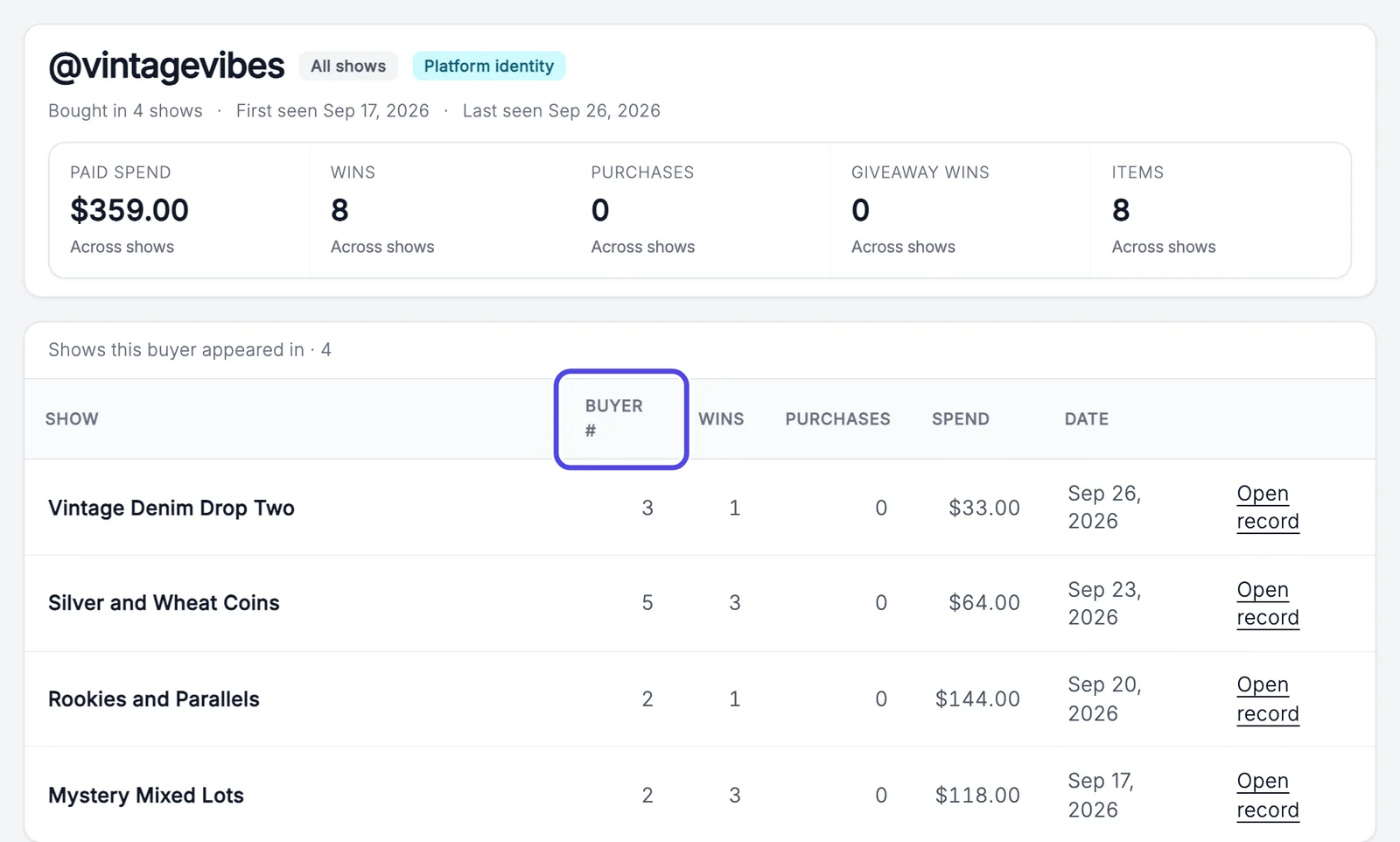
The buyer's page adds up everything they did across your shows. The table below lists each show they bought in, with the buyer number they had in that show (numbers start over every show), what they won and what they paid.
Click Open record on a line to open this buyer's page for that show only, with what they won and paid there.
Search everything
Step 25: Type in Search all NotBot data
To find an item, a buyer or a show without remembering when it was, use the search box at the top right of the NotBot Data page. Type part of the name, for example half dollar, and press Enter (Windows) or Return (Mac).

Step 26: Narrow the results
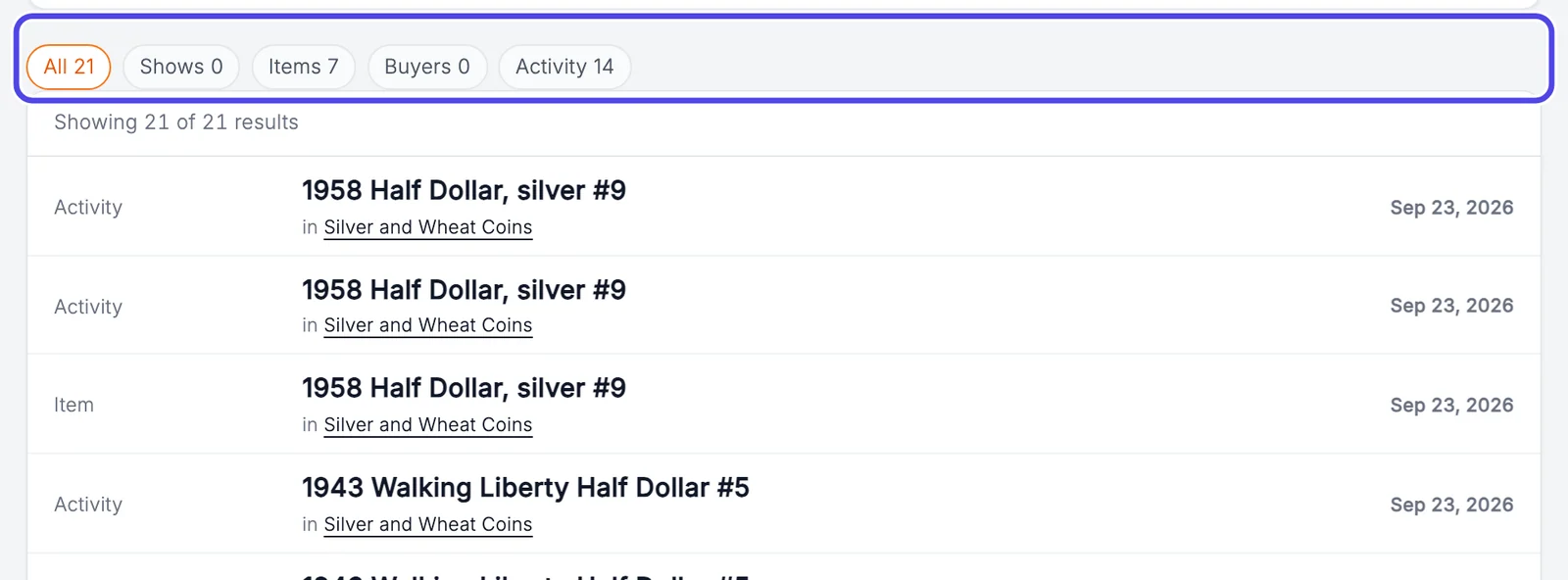
The results come from every show. The buttons above them (circled) show how many matches there are of each kind: All, Shows, Items, Buyers and Activity. Click Items to see only items.
Click a result to open it.
Hide a show you do not want counted
If NotBot saved a show you do not want in your totals, such as a test show or a show you opened by mistake, you can archive it. Archiving hides it and takes it out of every total. Nothing is deleted, and you can bring it back.
Step 27: Click Archive show
Open the show from the Shows tab. Next to the show's name, click Archive show.

Step 28: Bring it back with Restore show
The page says Show archived and the show gets a gray Archived tag. It no longer appears in the list or in your totals.
To undo it, click Restore show on the same page. To find an archived show later, go to the Shows tab and click the Archived: hidden button under the filters. Click it once to list archived shows along with the others, and again to list only archived shows.

See saved shows in NotBot on another computer
NotBot can also show the shows your other computers saved, without opening the website. The pictures below are from a second computer, "Office desktop", that has not run these shows itself.
Step 29: Click Show History in NotBot
In NotBot, click Show History in the purple bar at the top.

Step 30: Click All devices
Next to the Show History title are two buttons. This computer lists the shows this computer ran. Click All devices to list the shows saved to your account from every computer.

Step 31: Click a show from another computer
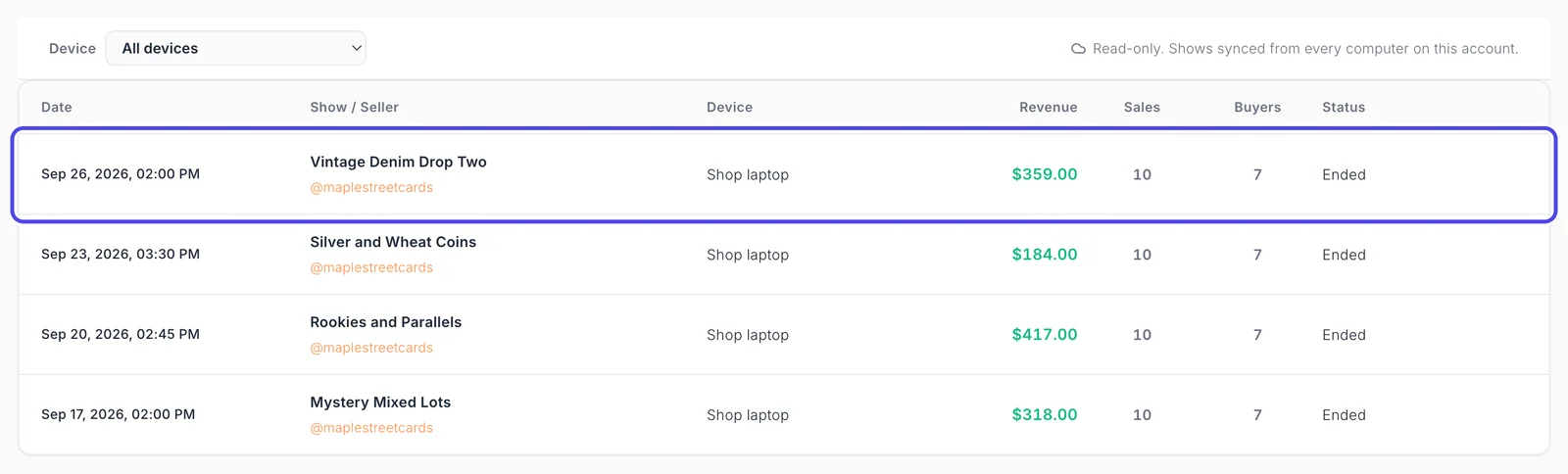
The list shows each saved show with its date, name, the computer that saved it (Device), revenue, sales, buyers and status. The Device box at the top shows one computer at a time.
Click a show to open it.
Step 32: Look through the show (read only)
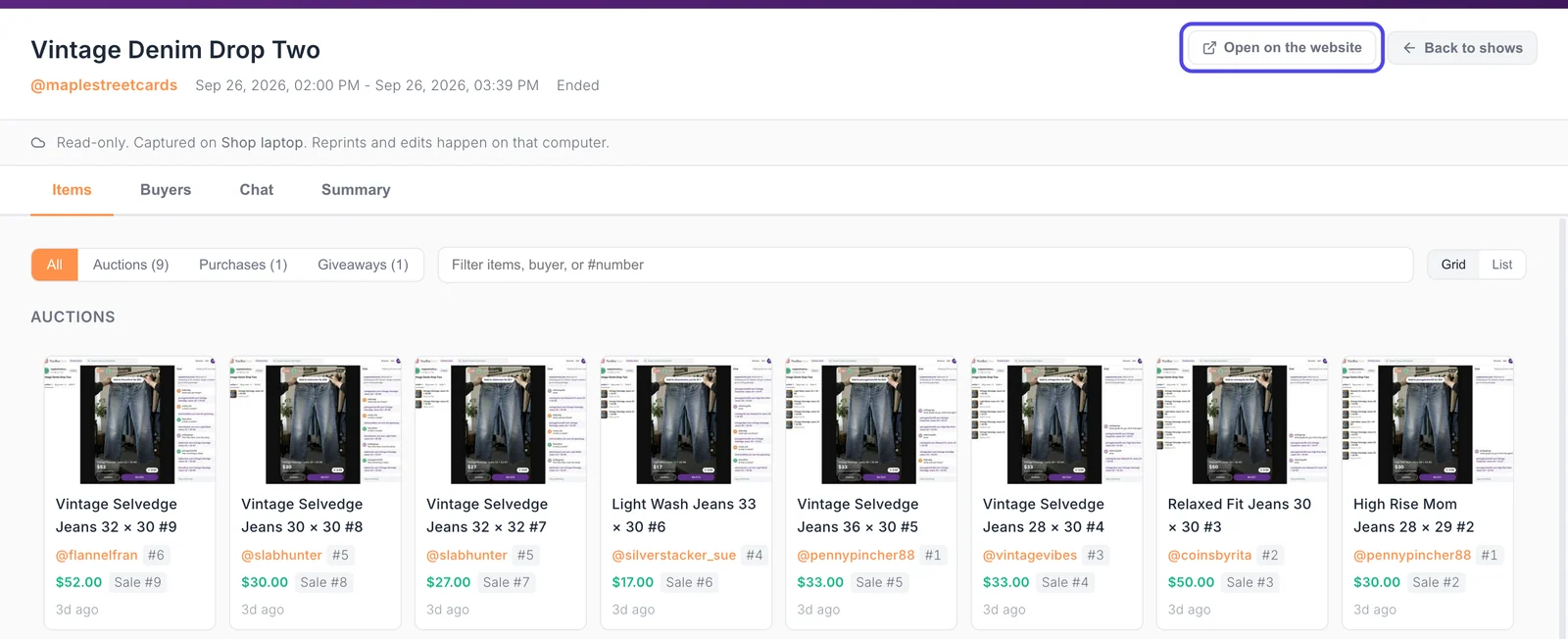
The show opens with the Items, Buyers, Chat and Summary tabs, like a show on this computer, with the photo of each auction win. The note at the top says Read-only, names the computer that saved it, and says reprints and edits happen on that computer.
Click Open on the website (circled) to open the show's page on NotBot Data, with its bids, reports and exports. Click Back to shows to return to the list.
If something looks different
NotBot Data says "No shows yet"
Shows only appear after a computer running NotBot saves them. On the computer you run shows on, open Customize › Advanced Settings › Sync & devices in NotBot and check that Include data from this computer is on. Shows that ran before you switched it on can be uploaded from the same place. See Save your shows to your account and back up.
I don't see NotBot Data in the menu
The menu item appears for accounts with an active NotBot subscription or free trial. Check that you signed in to the website with the same account you use in NotBot, and look at your plan on the Subscriptions page.
My latest show is not there yet
NotBot saves the show while it runs and finishes a short time after it ends, as long as the computer stays on and connected. A show that is still running says Still receiving. Refresh the page after a minute. If NotBot was closed right after the show, open it again on that computer so it can finish saving.
A show is on the wrong day, or the times look off
The website shows dates and times in UTC, and says so next to them. An evening show in the United States can appear on the next day.
The revenue is different from what my platform shows
Captured gross revenue is the sale prices NotBot saw during the show. It does not take off platform fees, shipping or refunds. If a sale happened while NotBot was closed or lost its connection, it is not in the total. See When the show connection drops.
The same show is in the list twice
Two computers were both open on the show and each saved it. A note above the list says so, and each copy names its computer on its page. Use the Device box to look at one computer at a time, or archive the copy you do not want counted.
My export still says Queued
The file is being made. Wait a few seconds and refresh the page. When it says Ready, the Download button appears. Files are kept for 24 hours; after that, run the report again.