Step-by-Step Guides
Use two printers
Send box labels to one label printer and item labels to another, check both are ready, and know what happens when one is unplugged.
Last updated 2026-10-08 · Applies to NotBot 1.4.4+ · Identical to the stable docs
With two label printers you can keep two kinds of labels apart: for example box labels on one printer and item labels on the other, so you never peel the wrong one. NotBot sends each kind of label to the printer you pick for it. Everything you do not route prints on your default printer, as before.
This guide uses Every Item + Buyer, which prints both a box label and an item label, and sends the box labels to a second printer.
Before you start
- Both printers are plugged in, turned on, and installed on this computer with their makers' drivers. Each one prints a test label on its own. See Connect and test your printer.
- Your print mode prints the labels you want to split. See Choose which labels print.
Open Printers & routing
Step 1: Click Customize
In the purple bar at the top of the NotBot window, click Customize.

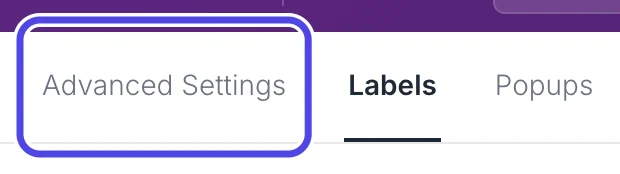
Step 2: Click Advanced Settings
Click Advanced Settings, the first tab at the top left of Customize.
Step 3: Click Printers & routing
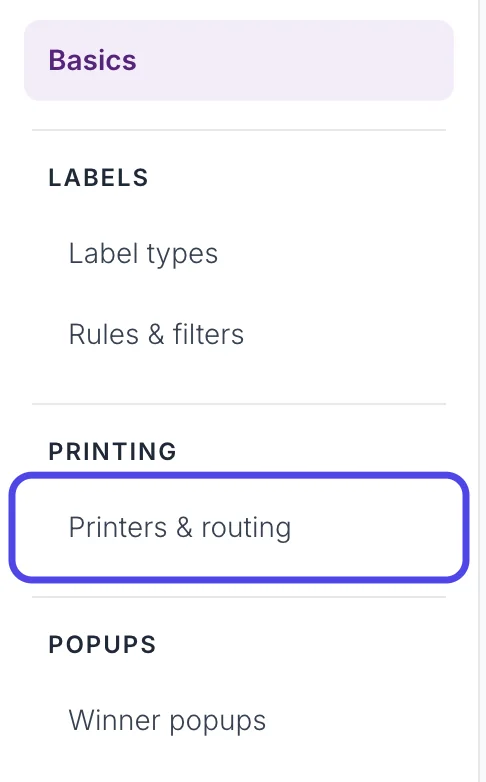
In the list of pages on the left, under PRINTING, click Printers & routing.
Step 4: Check that both printers are listed
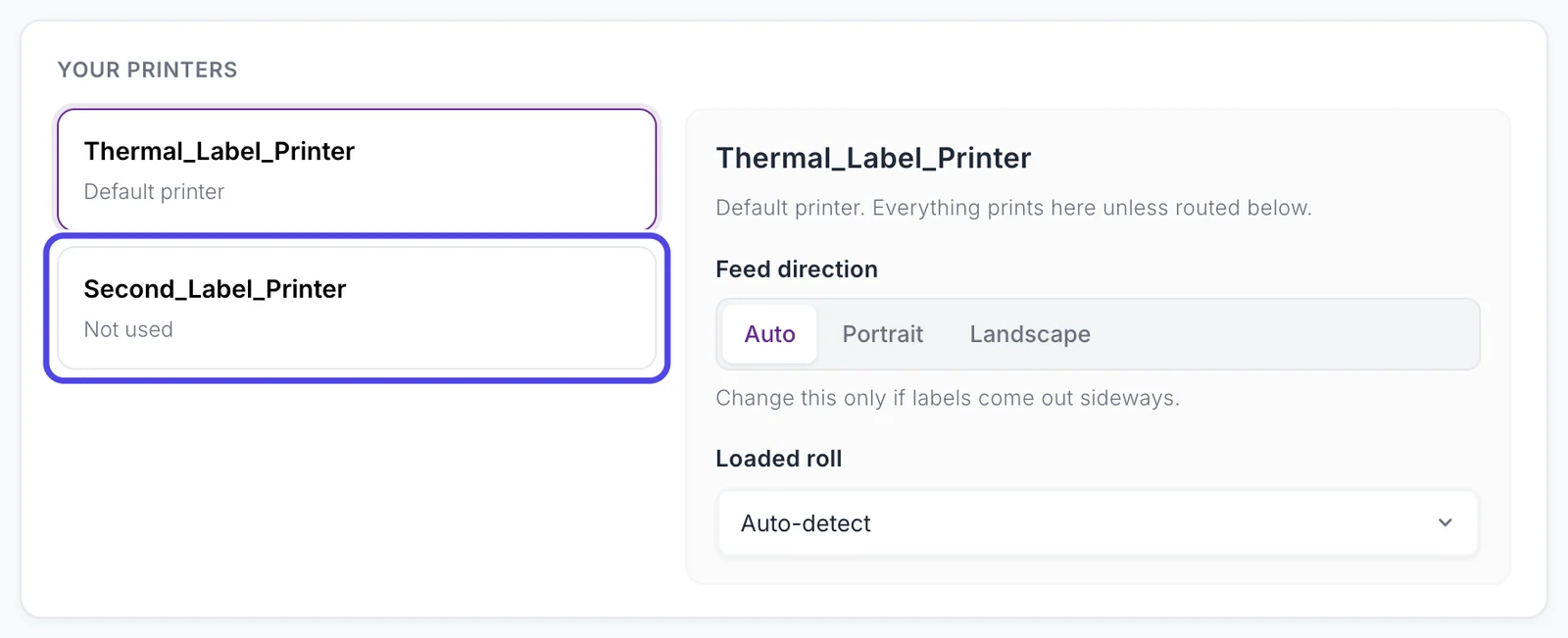
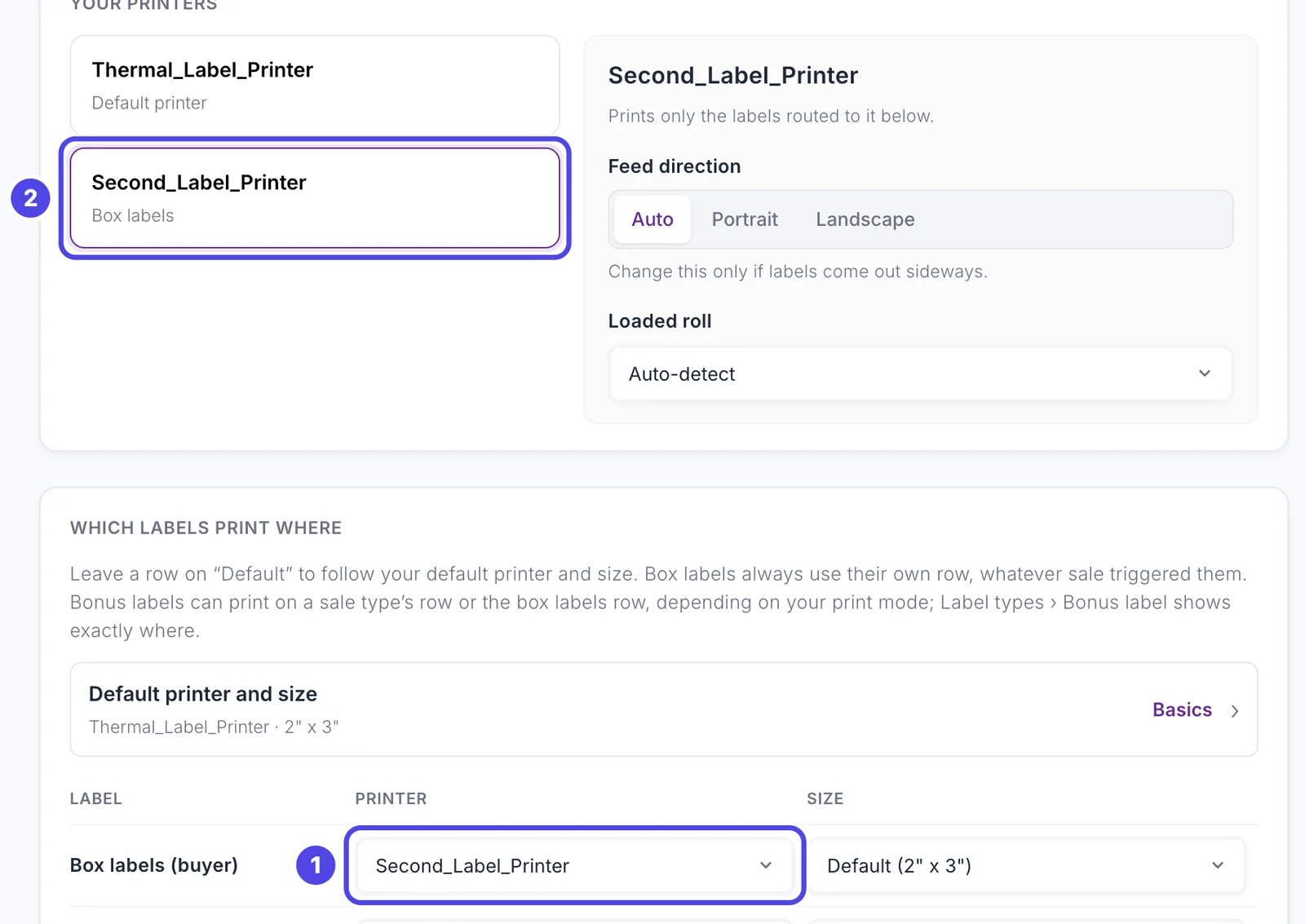
The Your printers card lists every printer NotBot can see. Under each name it says what the printer is used for. Your default printer says Default printer; the second one says Not used until you send labels to it.
Click the second printer (circled) to see its own settings on the right: Feed direction and Loaded roll are set for each printer separately, so two different printers can each be set up the way they feed. It also says Prints only the labels routed to it below.
In these pictures the printers are called Thermal_Label_Printer and Second_Label_Printer. Yours have the names your computer gave them.
Tip: Second printer missing? Plug it in and turn it on, then refresh the printer list with the round arrows next to the Printer box on Basics (or in the Settings panel). If it is still missing, close NotBot and open it again.
Send a kind of label to the second printer
Step 5: Click the Printer box on the Box labels row
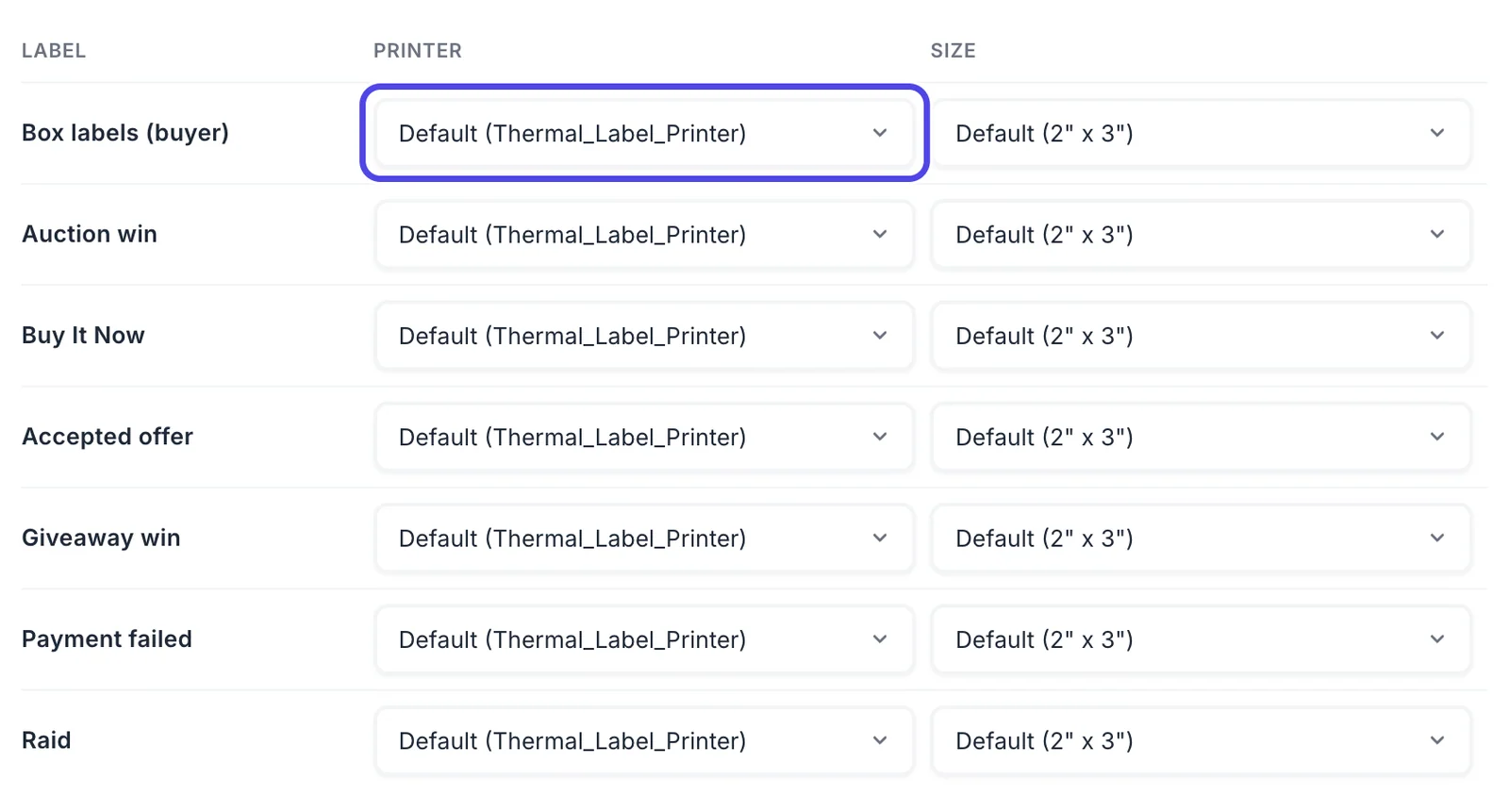
Scroll down to Which labels print where. It has one row for each kind of label: Box labels (buyer), then Auction win, Buy It Now, Accepted offer, Giveaway win, Payment failed and Raid. Every row starts on Default, which means your default printer and label size.
On the Box labels (buyer) row, click the box in the Printer column.
Step 6: Pick the second printer
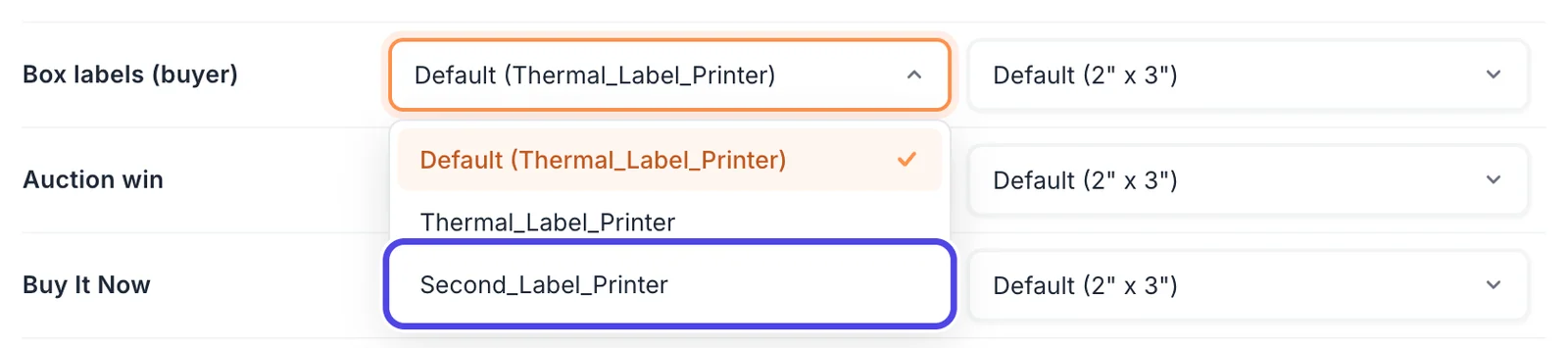
The list shows Default (Thermal_Label_Printer) and every printer NotBot can see. Click Second_Label_Printer. NotBot saves it right away.
From now on every box label prints on Second_Label_Printer, whatever sale it comes from. The other rows still say Default, so item labels keep printing on Thermal_Label_Printer.
Tip: The Size column next to it works the same way, for a second printer loaded with a different size of label.
Step 7: Check the routing
The Box labels (buyer) row now says Second_Label_Printer (1). Up in Your printers, the second printer now says Box labels (2), so you can see at a glance what each printer is for.
Check both printers before a show
Step 8: Click the printer icon
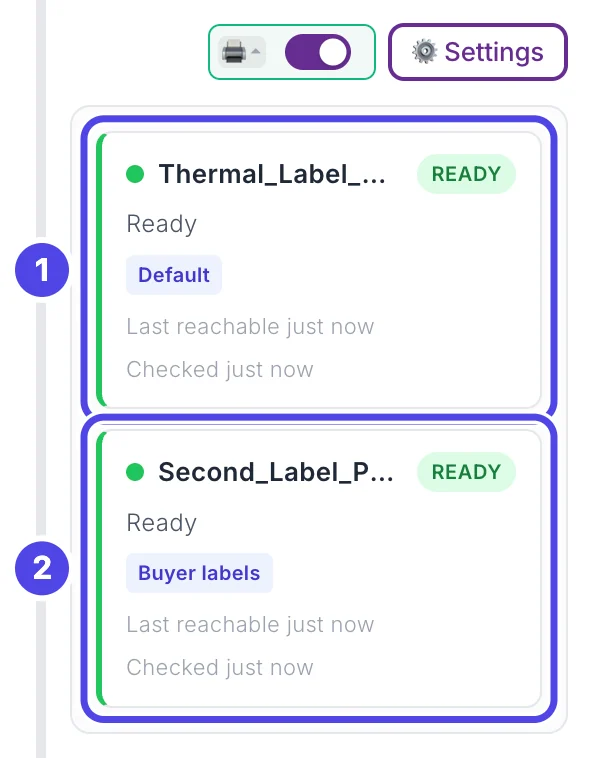
Go back to the Dashboard. At the top of the NotBot panel, click the small printer icon to the left of the auto-print switch.

Step 9: Check that both printers say READY
Each printer NotBot uses has its own card (1 and 2). The tag under the name says what it prints: Default for Thermal_Label_Printer and Buyer labels for Second_Label_Printer. Both should say READY before you go live. If one says OFFLINE, check its power and cable.
Click the printer icon again to close the cards.
On Windows there is one Print service card for printing as a whole instead of one card per printer.
What prints where during a show
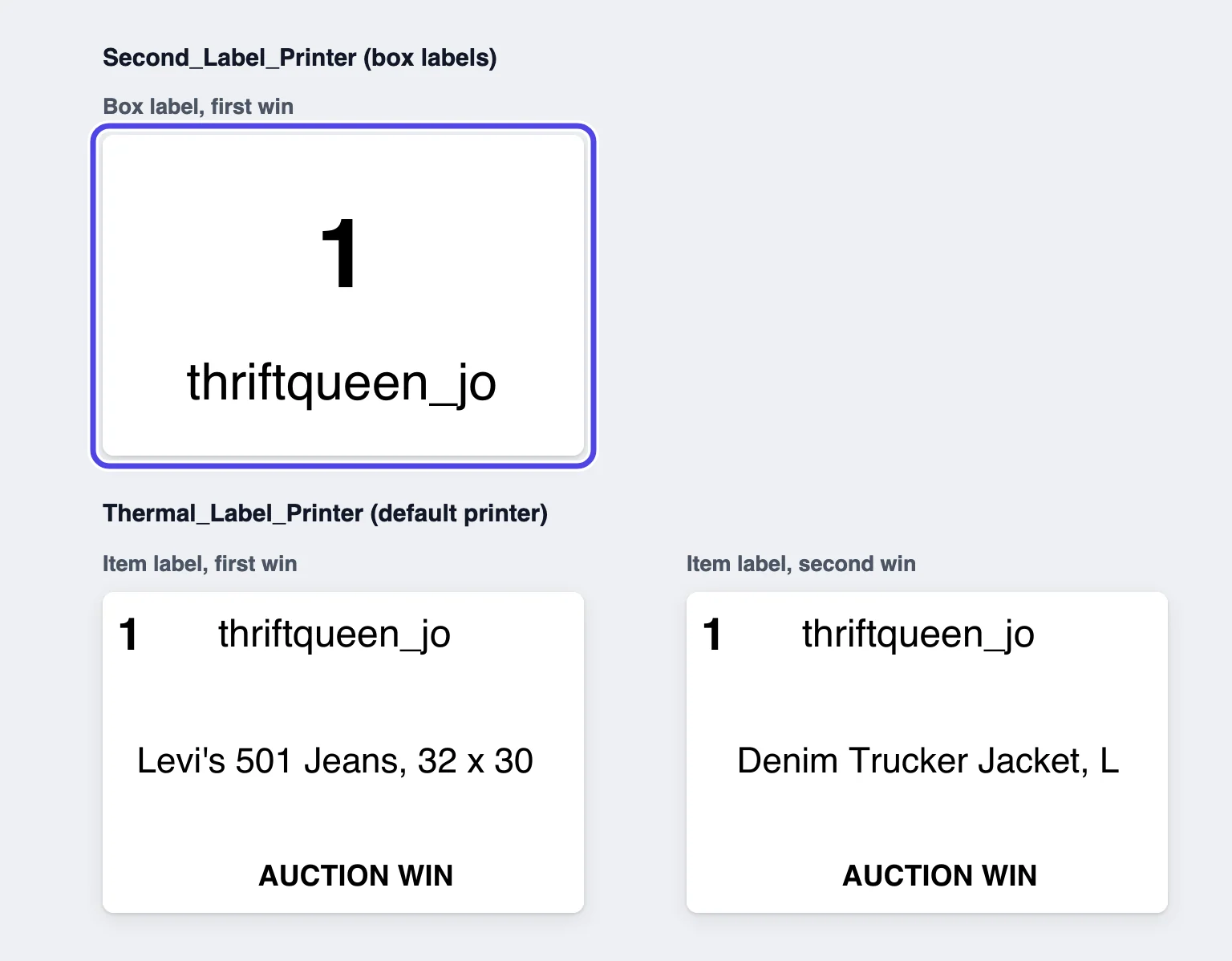
The pictures below come from a practice show with the routing above. thriftqueen_jo wins two auctions.
Step 10: Find each label on its printer
When thriftqueen_jo wins for the first time, two labels print at once: the box label (box 1) on Second_Label_Printer, and the item label on Thermal_Label_Printer. When they win again, only an item label prints, on Thermal_Label_Printer.
Recent Labels in the NotBot panel shows every label, whichever printer it went to.
If something looks different
One printer is unplugged or out of labels. Do its labels go to the other printer?
No. NotBot keeps sending each kind of label to the printer its row names, so those labels do not print while that printer is off. Its status card says OFFLINE. To send them to your other printer instead, set that row back to Default (or pick the other printer) on Printers & routing. Then click each missed label in Recent Labels to print it again: a reprint goes to the printer the row names now.
Box labels still print on my default printer
Check the Box labels (buyer) row on Printers & routing. Also check your print mode: Every Item prints no box labels at all.
Labels on the second printer come out sideways or the wrong size
Click the second printer in Your printers and set its Feed direction and Loaded roll, then check the Size column of its rows. Each printer has its own settings. See Connect and test your printer.
Can I send giveaways or Buy It Now sales to their own printer?
Yes. Every row of Which labels print where has its own Printer box: Auction win, Buy It Now, Accepted offer, Giveaway win, Payment failed and Raid.