Step-by-Step Guides
Create your account and start your free trial
Sign up on our website, start the 7-day free trial, and get to the NotBot download.
Last updated 2026-09-29 · Applies to NotBot 1.4.4+ · Identical to the stable docs
This guide takes you from no account to a running free trial, one screen at a time. It takes about five minutes. You need a credit or debit card, but you are not charged today: the first monthly payment ($30.00, plus sales tax where it applies) is taken when the 7-day trial ends, and only if you have not cancelled by then.
Before you start
- A computer with a web browser. You can sign up on a phone too, but NotBot itself runs on a Mac or Windows computer, so a computer is easier.
- An email address you can open. We send a welcome email and a link to confirm the address.
- A credit or debit card. Nothing is charged until the trial ends.
Create your account
Step 1: Open the sign-up page
Go to mellowtools.com in your web browser. At the top right of the page, click the blue Get Started button.
The Create your account page opens.

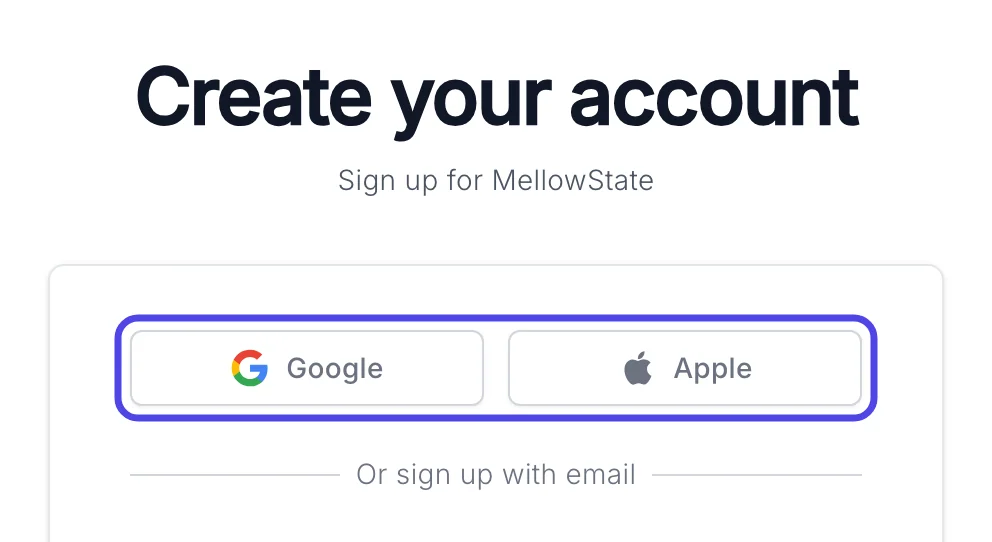
Step 2: Choose how you want to sign in
Decide how you want to sign in to your account from now on. You use the same way every time, on the website and in NotBot.
- To sign up with a Google account, click Google (circled, on the left) and pick your Google account.
- To sign up with an Apple account, click Apple (circled, on the right) and follow Apple's screens.
- To sign up with your email address and a password, fill in the form below the buttons. The next steps show how.
If you use Google or Apple, you skip the form. Continue at Step 8 below.
Step 3: Type your name
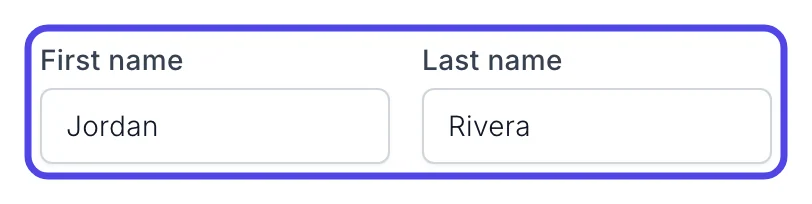
Click in the First name box on the left and type your first name. Then click in the Last name box on the right and type your last name.
Step 4: Type your email address
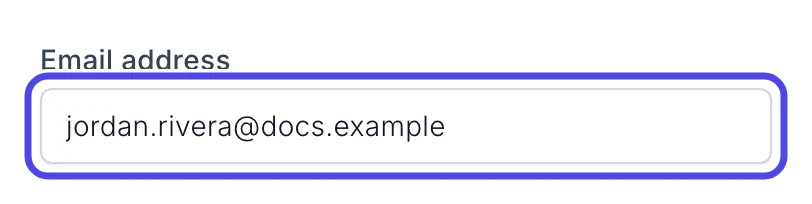
Click in the Email address box and type your email address. Check it carefully: this is the address you sign in with, and where your receipts go.
Step 5: Choose a password
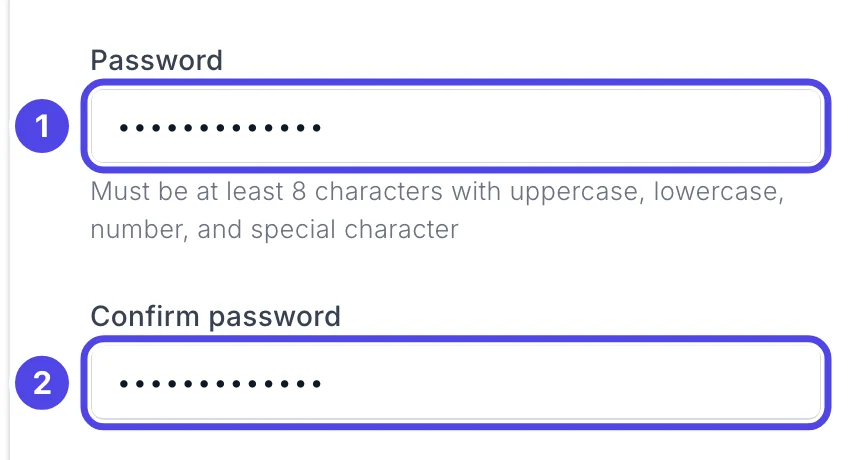
Type a password in the Password box (1). It must be at least 8 characters long and include:
- an uppercase letter (A to Z)
- a lowercase letter (a to z)
- a number (0 to 9)
- a special character, such as ! or #
Then type the same password again in the Confirm password box (2). The dots hide what you type, so type slowly. If the two do not match, Passwords do not match appears in red under the second box.
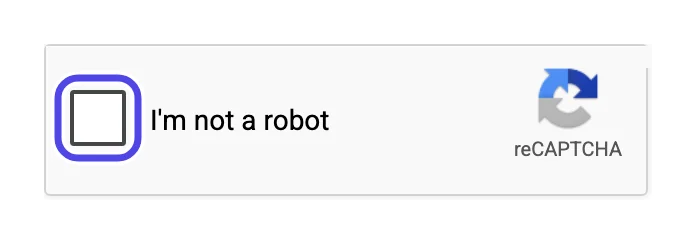
Step 6: Tick "I'm not a robot"
Scroll back up to the box that says I'm not a robot, directly under Or sign up with email. Click the small square in it.
A green check mark appears in the square. Sometimes a small window opens first and asks you to pick matching pictures (for example, every square with a bus). Follow its instructions and click Verify. The check mark appears when you are done.
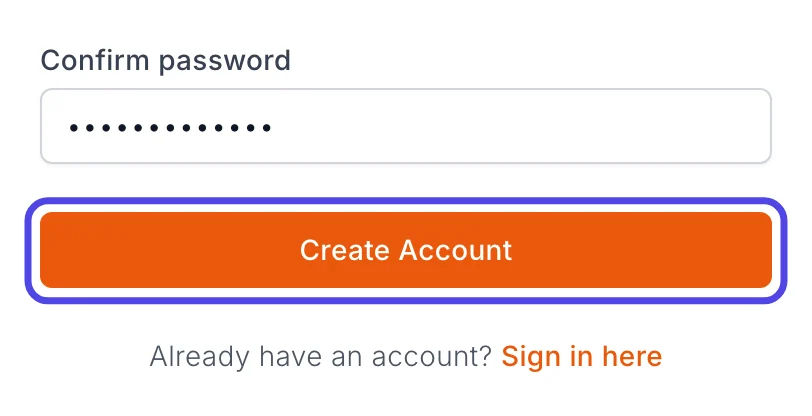
Step 7: Click Create Account
Click the orange Create Account button at the bottom of the form.
After a moment, the website signs you in and opens the page where you start your free trial. We also send you two emails: a welcome email, and one with a link to confirm your email address. You can confirm it later; it does not hold up your trial.
Start your free trial
You are now signed in to the website. Your name shows at the top of the page.
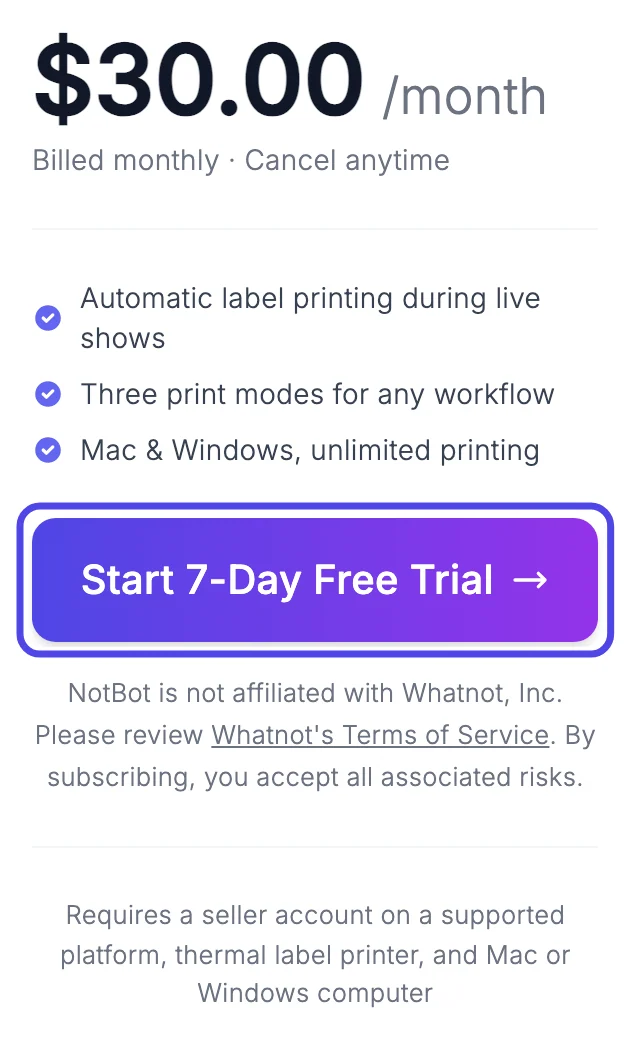
Step 8: Click Start 7-Day Free Trial
The Subscriptions page shows the NotBot plan: $30.00 /month, billed monthly, cancel anytime. If you land on a different page, click Subscriptions in the menu on the left.
Click the purple Start 7-Day Free Trial button.
Step 9: Click OK on the message about Whatnot
Your browser shows a small message box before it goes on. It says that NotBot is not affiliated with, endorsed by, or sponsored by Whatnot, Inc., that you have reviewed Whatnot's Terms of Service, and that you accept all risks of using third-party automation tools. It ends with Do you wish to continue?
Read it, then click OK. (If you click Cancel, nothing happens and you stay on the plan page.)
Good to know: This message box comes from your web browser, so it looks a little different in Chrome, Safari, Edge and Firefox. The words are the same.
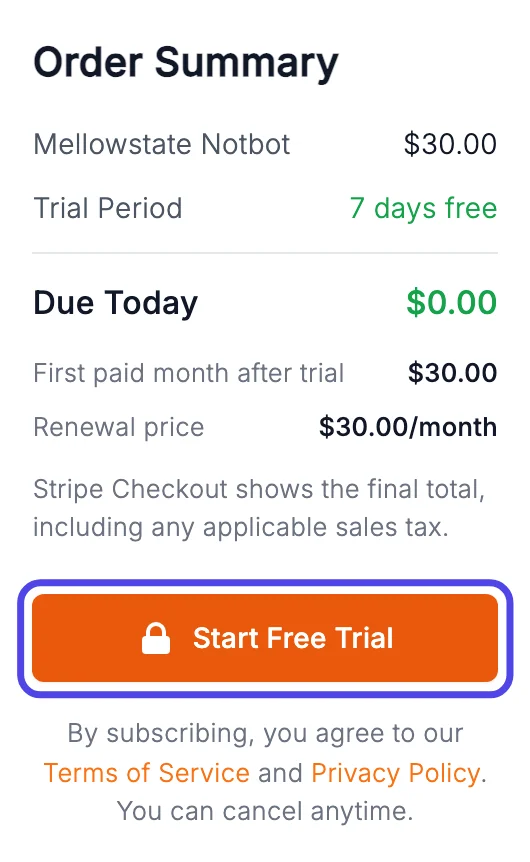
Step 10: Check your order and click Start Free Trial
The Complete Your Subscription page opens. On the right, the Order Summary shows:
- Trial Period: 7 days free
- Due Today: $0.00
- First paid month after trial: $30.00
Click the orange Start Free Trial button under it. The secure payment page opens.
Enter your card on the secure payment page
Payments are handled by Stripe, a payment company. The page address starts with checkout.stripe.com, and the top left of the page says MellowTools LLC. We never see your full card number.
Step 11: Choose Card
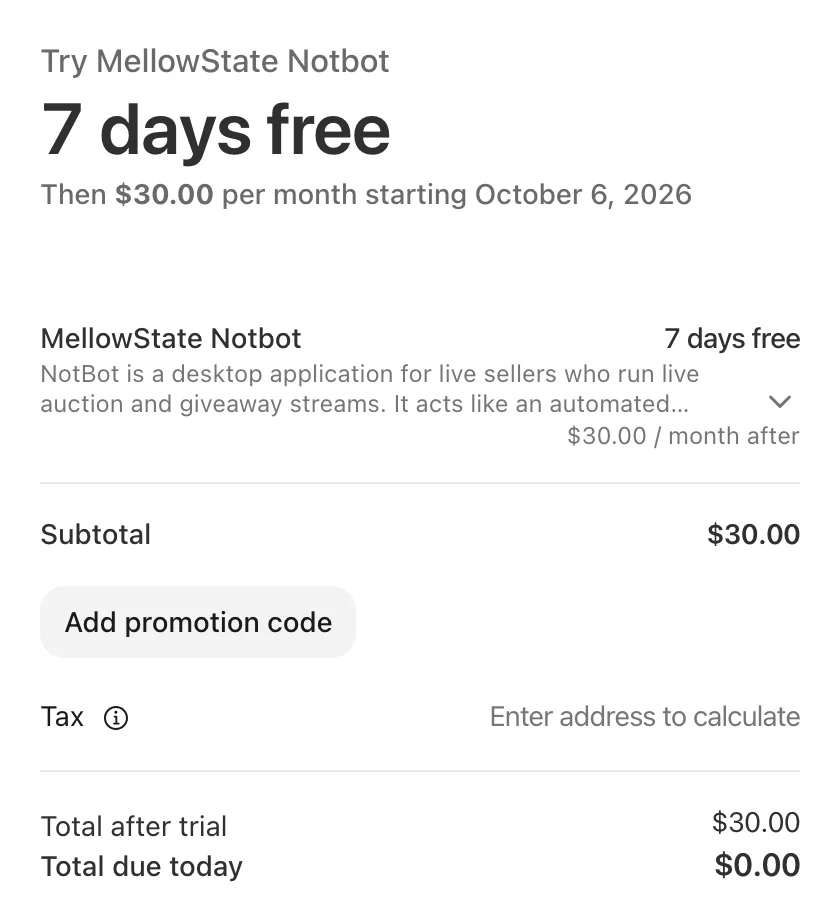
The left side of the page repeats your trial: Try MellowState Notbot, 7 days free, then $30.00 per month starting on the date shown, and Total due today $0.00. The Tax line says Enter address to calculate until you type your billing address; where sales tax applies, it is added to the monthly price.
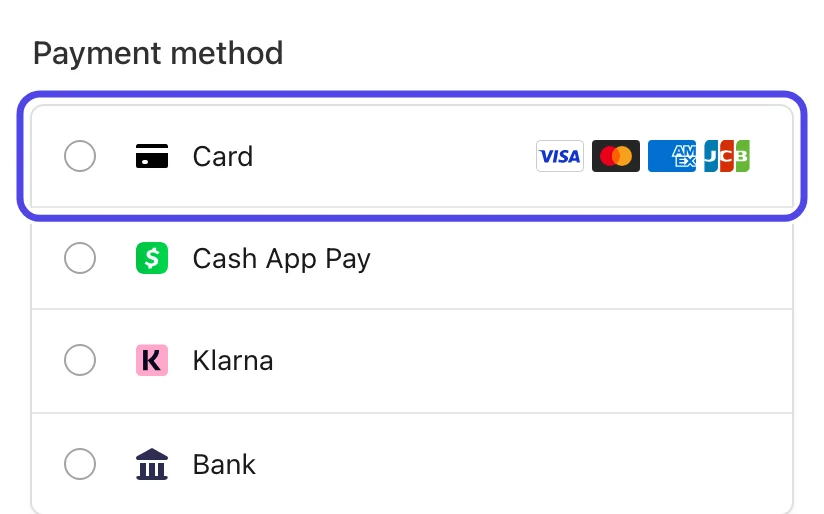
On the right, under Payment method, click Card. The card boxes open under it.
Step 12: Type your card details
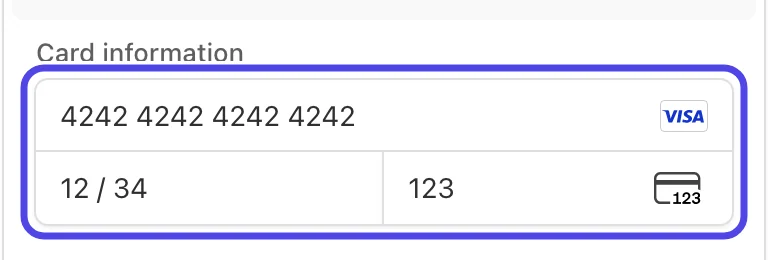
Under Card information there are three boxes:
- The long box on top is for the card number. Type the number from the front of your card.
- The box on the bottom left is for the expiry date. Type the month and then the year, for example 0928 for September 2028.
- The box on the bottom right is for the security code: the 3 digits on the back of the card (4 digits on the front for American Express).
The card brand logo appears in the number box once Stripe recognizes the card.
Step 13: Type your name and billing address
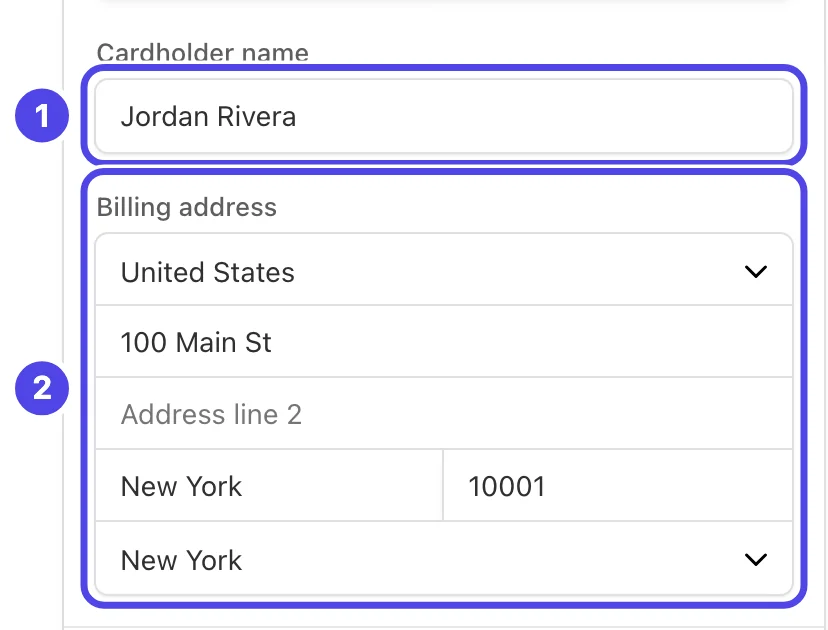
Type the name printed on the card in Cardholder name (1).
Under Billing address (2), pick your country, then type the address your card statements go to. As you type the street, Stripe may suggest matching addresses in a list; click yours to fill in the rest, or click Enter address manually and type each line yourself.
Step 14: Click Start trial
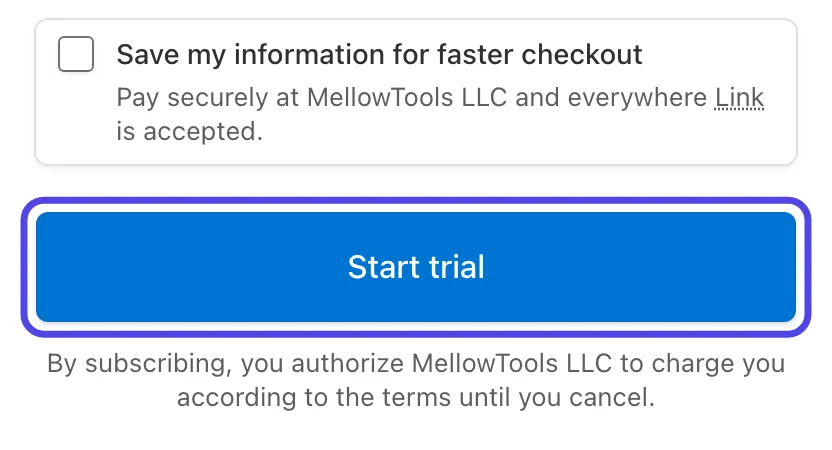
Under the card, Stripe may offer Save my information for faster checkout with a phone number box. This is optional and belongs to Stripe (it is called Link). To skip it, click the check mark in its square so the square is empty.
Then click the blue Start trial button. Wait a few seconds; the button shows a spinning circle while it works. Do not click it twice or close the page.
You're in
Step 15: Download NotBot
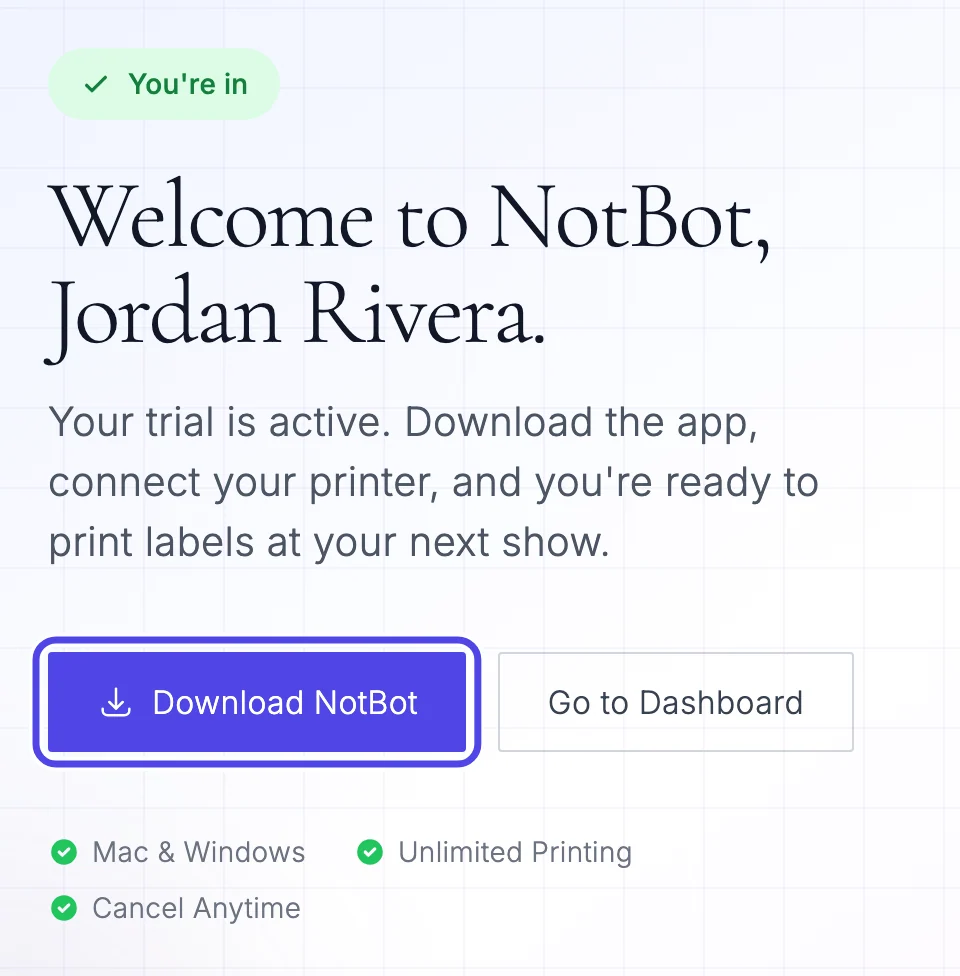
You're back on our website, on a page that says You're in and Welcome to NotBot with your name. Your trial is active.
Click the purple Download NotBot button. It opens the NotBot page of our website, where you download the app for your computer. Follow Download and install NotBot from there.
You can come back to this download any time: sign in on our website and click NotBot in the menu on the left.
If something looks different
The Create Account button is gray and says "Loading verification..."
The "I'm not a robot" check has not loaded yet. Wait a few seconds. If the button says "Verification failed to load", turn off any ad blocker or privacy extension for our website and reload the page.
It says "Please complete the reCAPTCHA verification"
The "I'm not a robot" square was not ticked, or the tick expired after a couple of minutes. Click the square again until the green check mark shows, then click Create Account.
It says "Email already exists"
There is already an account with that email address, maybe from an earlier try. Click Sign in here under the form and sign in instead. If you forgot the password, click Forgot your password? on the sign-in page.
A red message appears under the Password box
The password is missing something. Check that it has at least 8 characters, an uppercase letter, a lowercase letter, a number and a special character such as ! or #.
Nothing happens when I click Start 7-Day Free Trial
Look for the small message box about Whatnot; it may be hidden behind another window. Click OK in it. If you clicked Cancel, click the button again.
My plan page says Subscribe Now instead of Start 7-Day Free Trial
The free trial is for new accounts. If this account had a trial or subscription before, the plan starts right away and is charged today. Write to support@mellowtools.com if you think this is wrong.
The payment page says my card was declined
Check the card number, expiry date, security code and ZIP code, then try again. If it still fails, try a different card or call your bank; some banks block the first charge from a new company.
I closed the payment page by accident
Nothing was charged. Sign in on our website, click Subscriptions in the menu on the left, and click Start 7-Day Free Trial again.