Step-by-Step Guides
Card breaks and break-spot labels
Make NotBot wait for the randomizer so every break label shows the team your buyer got, not the spot number.
Last updated 2026-10-08 · Applies to NotBot 1.4.4+ · Identical to the stable docs
In a random card break, buyers pay for a spot first and the randomizer picks their team afterward. With card break support turned on, NotBot waits for the randomizer before it prints, so each label shows the team the buyer actually got instead of a spot number like #3. This works for random breaks on Whatnot. Card break support is off until you turn it on.
Before you start
- NotBot is signed in and your printer is set up. If not, see Sign in to NotBot and Connect and test your printer.
- Auto-print is on. You know where the NotBot panel is from Use the live dashboard during a show.
- Your break is a random break on Whatnot, where the randomizer assigns teams after the spots sell. Other kinds of breaks print each spot's label right when it sells, like any other sale.
- Your print mode is Every Item or Every Item + Buyer. Those labels show the item name, which is where the team appears. A Buyer Only label shows only the buyer number and username, so it never shows the team. See Choose which labels print.
Turn on card break support
You do this once. NotBot remembers the setting for every show after this.
Step 1: Click Customize
At the top of the NotBot window, click Customize. It's next to Dashboard.

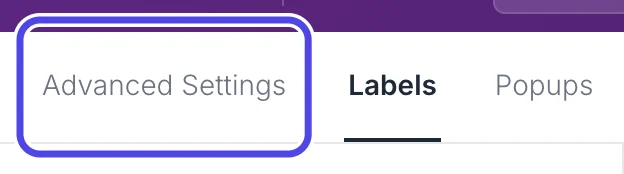
Step 2: Open Advanced Settings
Customize opens on the Labels tab. Click Advanced Settings, the first tab at the top left.
Step 3: Click Show behavior
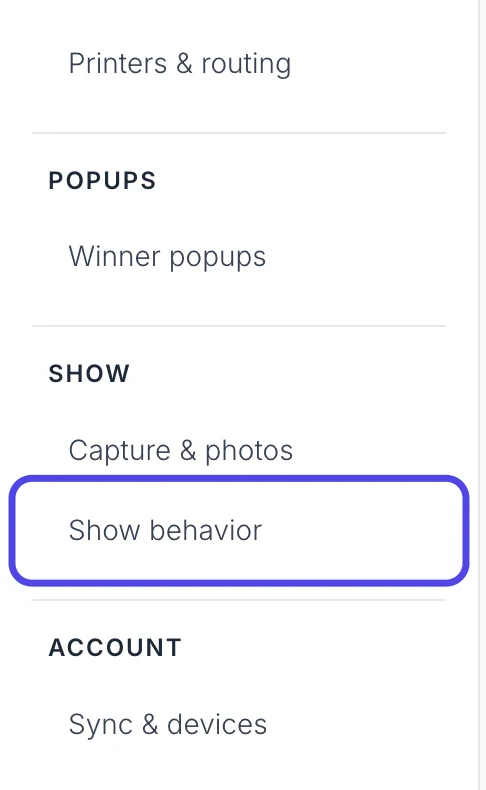
In the list on the left, under SHOW, click Show behavior.
Step 4: Turn on Card break support
In the During a show box, click the switch next to Card break support so it turns on.
NotBot saves the change right away. There is no Save button.

Step 5: Choose when break labels print
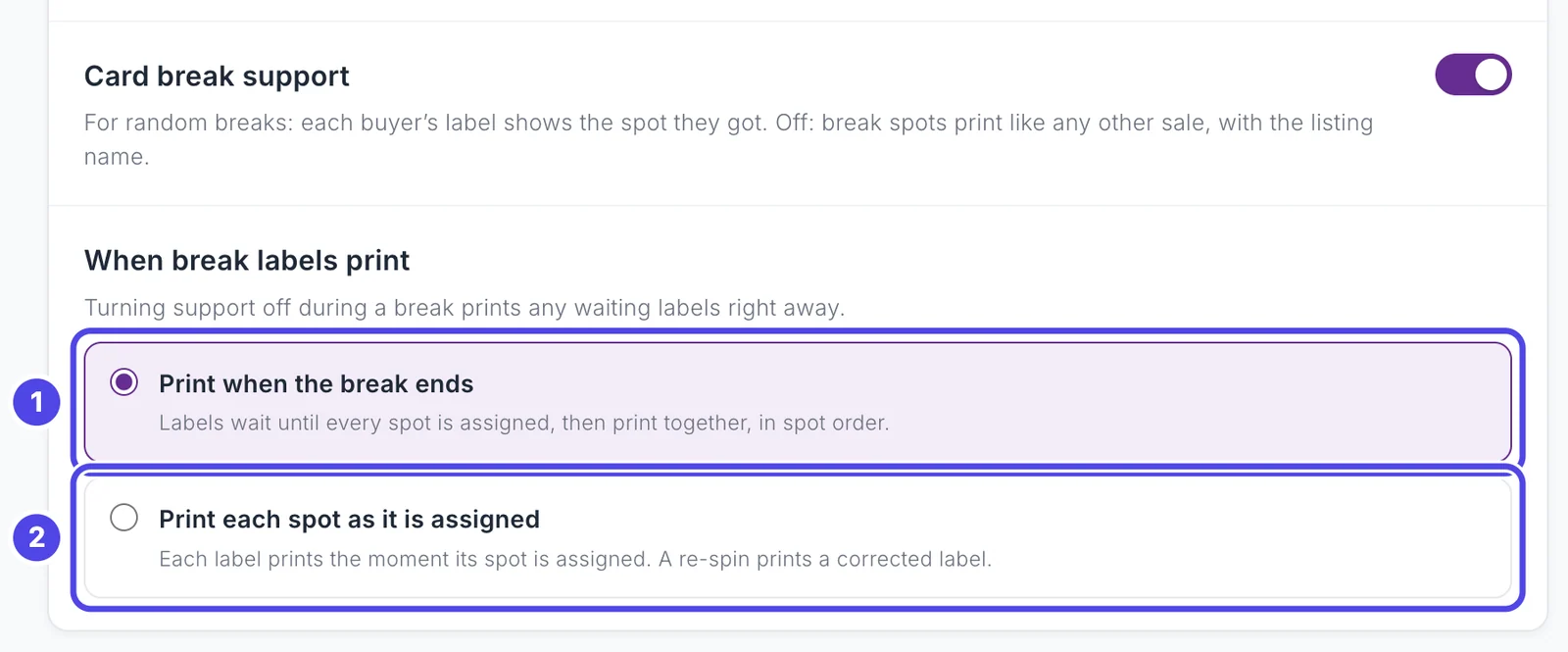
A new choice appears under the switch: When break labels print. Click one:
- Print when the break ends (the starting setting). NotBot holds every label for the break and prints them together, in spot order, once every spot is assigned. If the randomizer spins a spot again while the break is still filling, no label is wasted.
- Print each spot as it is assigned. Each label prints the moment the randomizer assigns that spot. If the randomizer spins a spot again after its label printed, NotBot prints a replacement marked CORRECTED. Throw away the first label for that spot.
Keep Print when the break ends unless you want labels to come out during the break.
Step 6: Go back to the Dashboard
Click Dashboard at the top of the window to go back to your show.

Run the break
Run your break on Whatnot the way you always do. You don't press anything in NotBot during the break. The pictures below come from a practice show.
Step 7: Watch the BREAK bar while spots sell
While your break is filling, a gray bar with a purple BREAK tag shows in the NotBot panel, under Username Tracking and directly above Auction History. Scroll down in the panel if you don't see it.
The bar shows the name of your break, how many spots have sold (for example 2/4 spots), and when the labels will print. With Print when the break ends chosen it says labels print when the break completes.
While the break is filling, no labels come out for the spots. That is expected. NotBot is waiting for every spot to sell.

Tip: If the words on the right of the bar are cut off, make the NotBot panel wider: drag the thin gray line on its left edge toward the left.
Step 8: Let the last spot sell
When the last spot sells, the BREAK bar goes away and NotBot prints the break's labels one after another, in spot order. The last ones can take about 15 seconds after their team is picked, because NotBot waits in case the randomizer spins that spot again.
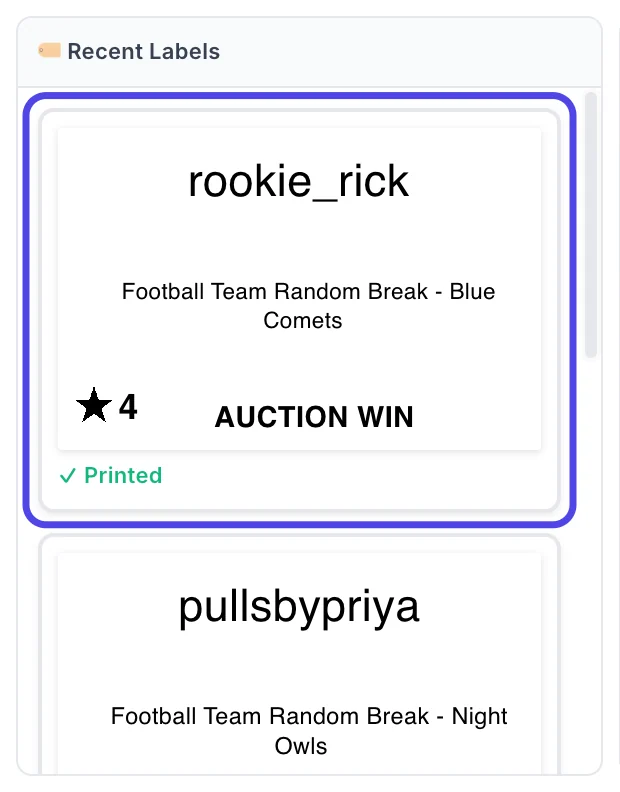
Each label shows the team the randomizer gave that buyer, for example Football Team Random Break - Night Owls. You can see them at the top of Recent Labels in the NotBot panel.
Check who got which team
After the break you can see every spot, its buyer and its team in the show details.
Step 9: Open the show details
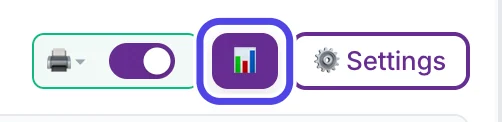
At the top of the NotBot panel, click the purple 📊 button, next to ⚙️ Settings.
The show details page opens on the Items tab.
Step 10: Find your break spots
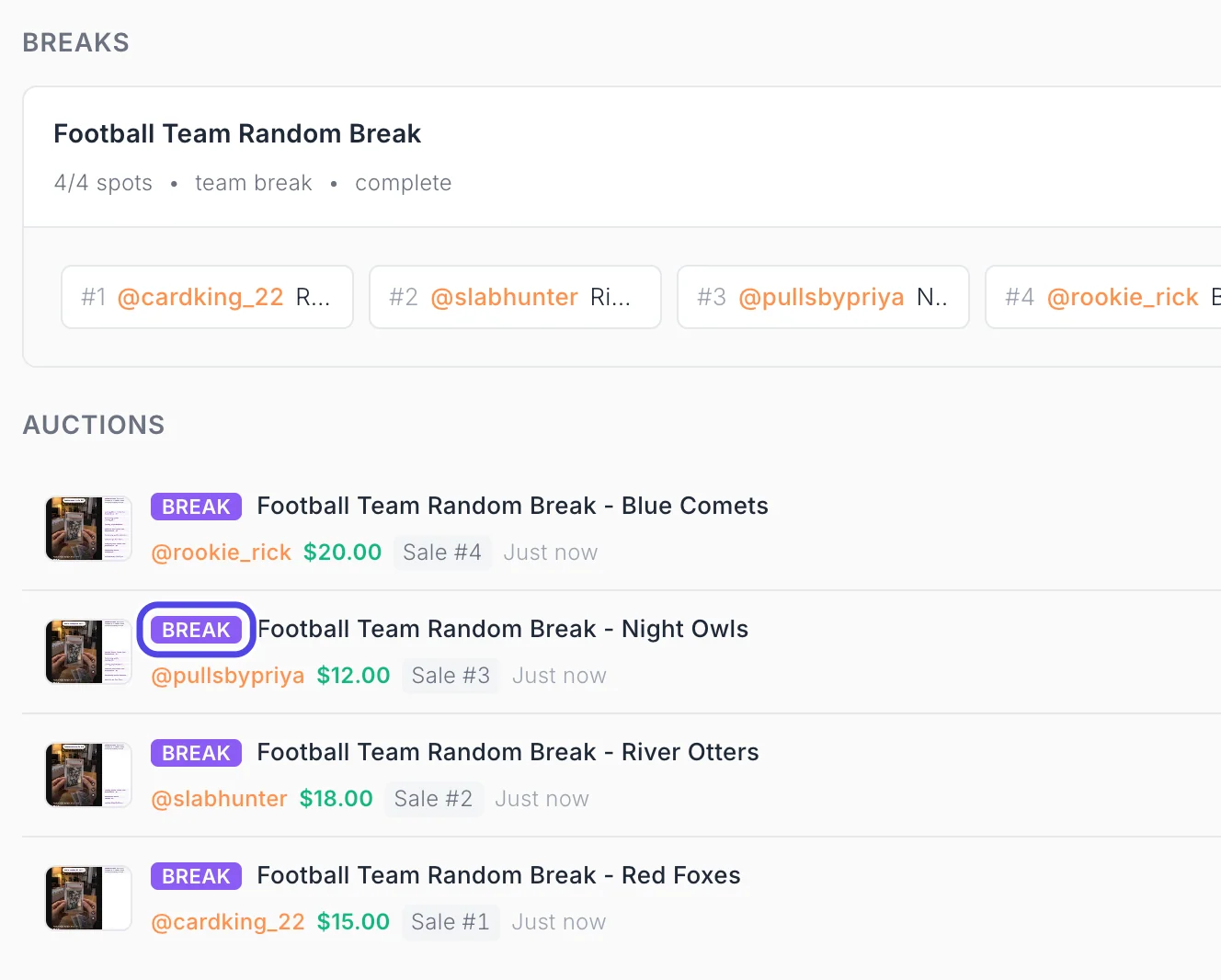
Under BREAKS, a box with your break's name shows how many spots sold and says complete once every spot sold. Below that, each spot is listed in order with its spot number, its buyer and the start of the team name. Hold the pointer over a spot to see its full name.
Under AUCTIONS, each spot has a purple BREAK tag (circled) and its full name with the team, followed by the buyer and the price.
To print a spot's label again, click the orange Print button at the right end of its row.
If something looks different
My break labels still print with the spot number, like "#3"
Card break support is off, or the break is not a random break. Click Customize, then Advanced Settings, then Show behavior, and check that Card break support is on. Only random breaks wait for the randomizer; in other breaks each label prints when the spot sells.
Nothing printed while my break was filling
That is how card break support works with Print when the break ends chosen. The labels print together when the last spot sells. If you want each label as soon as its team is picked, choose Print each spot as it is assigned under When break labels print on the Show behavior page.
A label says CORRECTED
The randomizer spun that spot again after its first label printed. Use the label marked CORRECTED and throw away the earlier one for the same spot. This happens most often with Print each spot as it is assigned chosen, because each label prints before the break is over.
The break never filled and some spots have no label
NotBot waits for the last spot before it prints, so a break that never fills keeps its labels waiting. To print them now, click Customize, then Advanced Settings, then Show behavior, and turn off Card break support. NotBot prints every waiting label right away, with the team if the randomizer already picked one and the spot number if not. Turn the switch back on before your next break.
I don't see the BREAK bar
The bar only shows while a break is filling, and only when card break support is on. It sits directly above Auction History, so scroll down in the NotBot panel.