Step-by-Step Guides
Use the live dashboard during a show
What every part of the NotBot panel shows while you are live, and what to click when something needs attention.
Last updated 2026-10-08 · Applies to NotBot 1.4.4+ · Identical to the stable docs
While your show is live, the panel on the right of the NotBot window shows everything NotBot is doing: which show it is following, whether labels will print, each label and what happened to it, the bidding, your buyers, and every sale so far. This guide goes through the panel from top to bottom.
The pictures show our practice show site. Your show looks like Whatnot (or the platform you sell on), but the NotBot panel is the same.
Before you start
- NotBot is set up and your show is open in NotBot. If you have not done that yet, follow Run your first show with NotBot first.
The top of the panel
Step 1: Make the panel wider
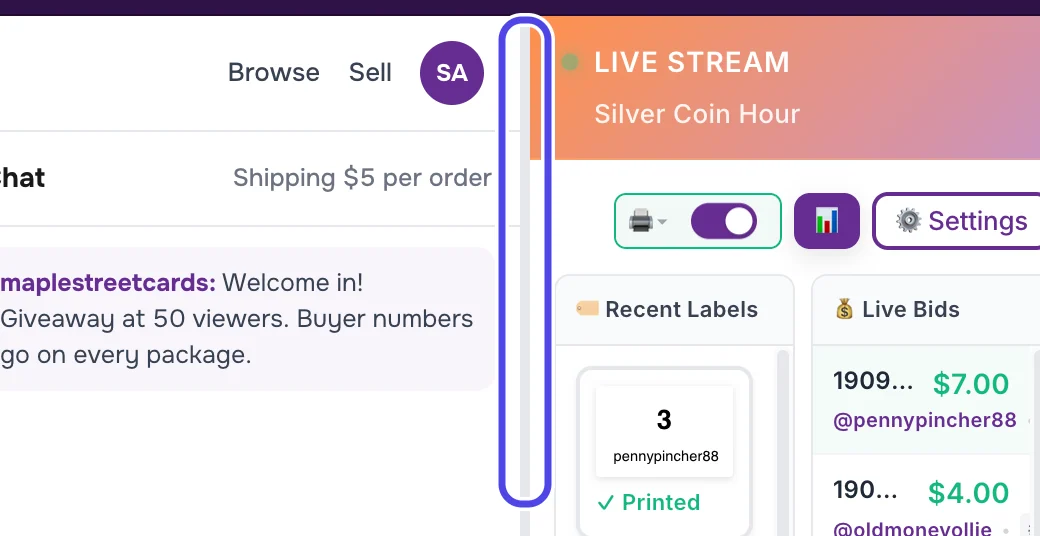
NotBot opens with the panel at its narrowest, so long names get cut off. To make it wider, point at the thin grey line between your show and the panel, hold the mouse button down, and drag to the left. Let go when the panel is the width you like.
The panel can take up to 70% of the window. NotBot goes back to the narrow panel the next time you open it.
Step 2: Check which show NotBot is following
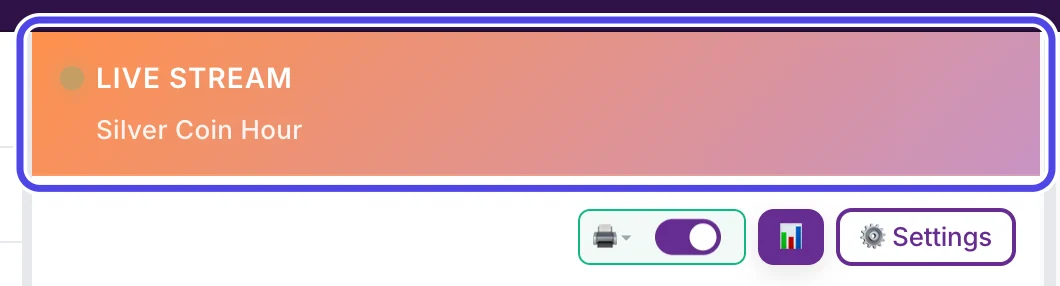
The orange bar at the top of the panel says LIVE STREAM with your show's name underneath. That is the show NotBot is printing labels for.
If it says No Active Stream, NotBot has not found a show. Make sure the show is open in the built-in browser on the left of the NotBot window.
Step 3: Keep auto-print on
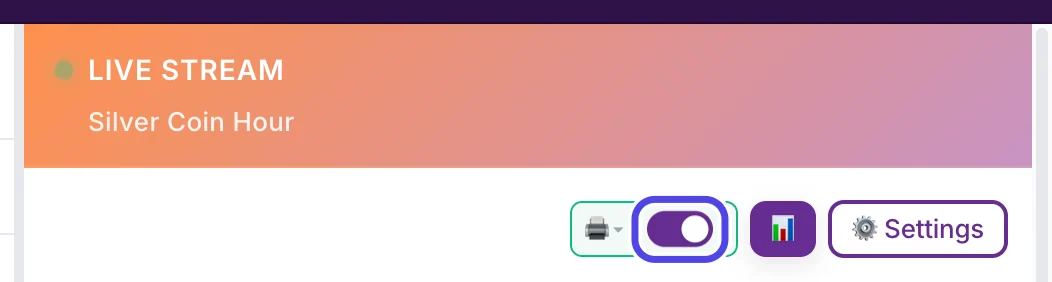
Under the bar, on the right, is a row of controls. The switch in the first box, next to the small printer picture, is auto-print. When it is on (purple, with the dot on the right), every sale prints a label on its own.
When it is off (grey), NotBot still records every sale but prints nothing, and a red Printing is disabled box appears. Labels made while it was off show Skipped. Tap to print in Recent Labels, so you can print them by clicking them.
NotBot turns auto-print off each time you move to a different show than last time, so check it at the start of every show.
Step 4: Watch the printer picture for problems
The box around the printer picture and the switch shows how your printer is doing:
- Green box: auto-print is on and the printer is ready.
- Grey box: auto-print is off and the printer is ready.
- Yellow box: no printer is chosen, or the printer needs attention.
- Red, blinking box: the printer is offline or not connected.
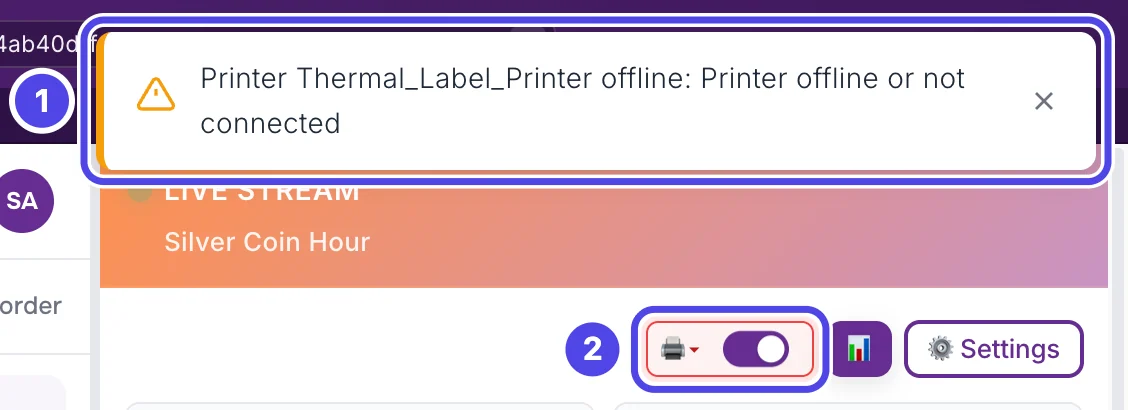
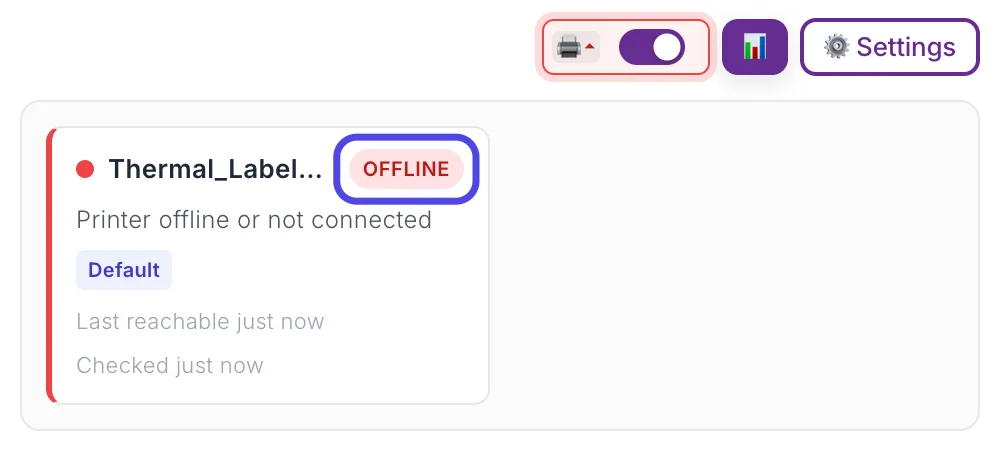
When the printer goes offline during a show, a message also appears in the top right corner of the window, for example Printer Thermal_Label_Printer offline: Printer offline or not connected (1), and the box turns red (2). When the printer comes back, a green message says it reconnected.
Click the printer picture (it has a small arrow beside it) to see what is wrong.
Step 5: Read the printer status
A box opens under the controls with one card for each printer NotBot uses. It shows the printer's name, its state (Ready, Warning or Offline), the reason, which labels it prints (Default is the main printer chosen in Settings), and when NotBot last reached it.
Offline with Printer offline or not connected means the computer cannot reach the printer. Check that it is switched on and its cable is plugged in, then click the printer picture again to close the box. Labels are not printing: step-by-step fixes goes through every fix.
On Windows you see one card called Print service instead of one card per printer.
Step 6: Open this show's details with the chart button
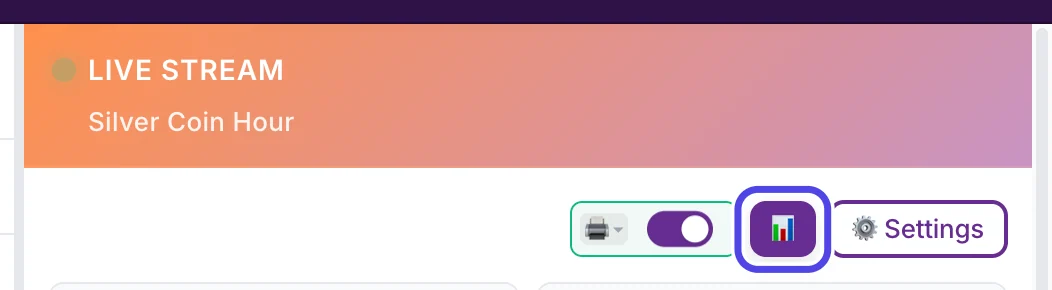
The purple button with a small chart on it opens this show's details page: every sale, every buyer and the totals so far. It is the same page you get from Show History, and NotBot keeps printing while it is open. Click Dashboard at the top of the window to come back.
Look back at a show in Show History explains the details page.
Step 7: Open Settings when you need to change something
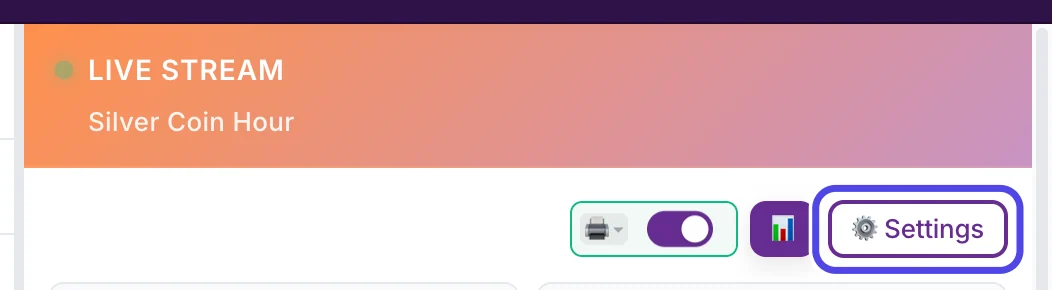
⚙️ Settings, at the end of the row, opens the Settings panel on the right side of the window. It has the settings you change most during a show: your printer, print mode, label size and winner popups. You can change them while you are live. Labels that are already on their way to the printer are not affected. Change everyday settings in the Settings drawer goes through the panel.
Everything else is in Customize › Advanced Settings, at the top of the window. The search box at the top of the Settings panel finds any setting. Find any setting shows how.
Recent Labels
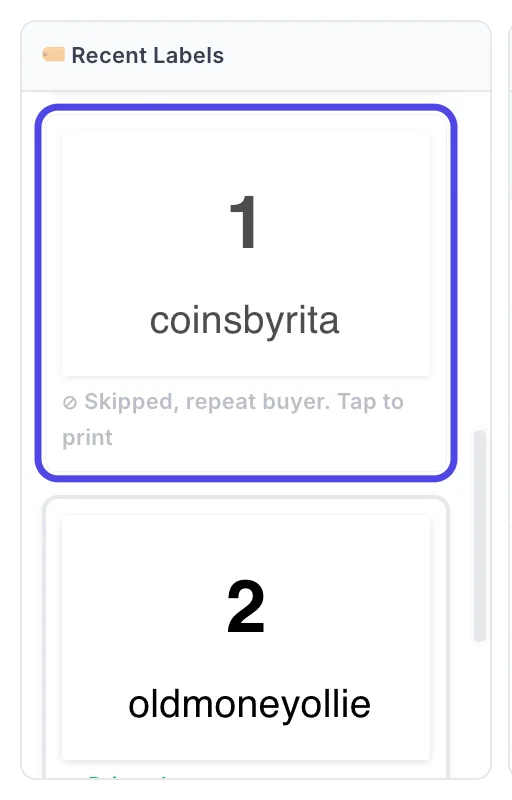
The left column in the middle of the panel shows the last 25 labels of this show, newest at the top. Each one is a small picture of the label with its status underneath.
Step 8: Read each label's status
The line under each label tells you what happened to it:
- Queued, Sending to printer and Sent to printer: NotBot is handing the label to the printer.
- Printing, In queue, Spooling or Paused: the printer has the label. Paused means the printer is paused on the computer.
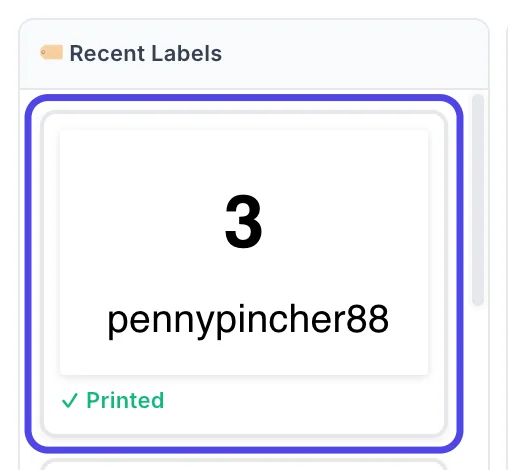
- Printed (green): the printer finished the label.
- Skipped, repeat buyer. Tap to print (faded): the buyer already has a buyer label this show, so NotBot did not print another one. This happens in Buyer Only mode, and to the buyer label in Every Item + Buyer mode (the item label still prints).
- Skipped. Tap to print: auto-print was off when the sale happened.
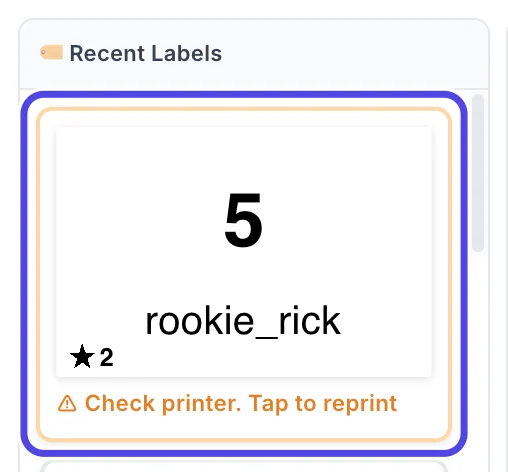
- Check printer. Tap to reprint (orange): the printer took the label but never confirmed it printed within 2 minutes.
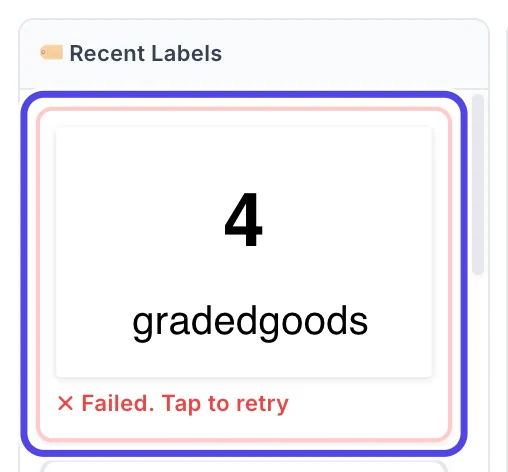
- Failed. Tap to retry (red): NotBot could not hand the label to the printer, or the printer reported a problem with it (for example, out of paper or offline).
In the picture, the circled label was skipped because that buyer had already won earlier in the show.
Step 9: Reprint a label
To print any label again (for example when a label jammed or you need a second box), click its picture in Recent Labels. The status goes back to Sending to printer and then Printed.
While a label says Sending to printer, Sent to printer, Printing, In queue, Spooling or Paused, clicking it does nothing, so a label never prints twice by accident.
Step 10: Retry a label that failed
A red border and Failed. Tap to retry mean the label did not print. Either NotBot could not hand it to the printer (it tries three times before it gives up), or the printer reported a problem with it. This usually happens when the printer is switched off, unplugged, out of paper, or is not the printer chosen in Settings.
Fix the printer first, then click the label. NotBot sends it again to the printer chosen in Settings now, and the status changes to Printed.
Step 11: Reprint a label that says Check printer
An orange border and Check printer. Tap to reprint mean the printer accepted the label, but did not confirm it printed within 2 minutes. The label may be stuck in the printer, the printer may be out of labels, or it may have printed without telling the computer.
Look at the printer first. If the label did not come out, fix the printer (paper, jam, lid), then click the label to print it again.
Tip: If you scroll down in Recent Labels and a new sale comes in, a purple bar says ↑ New labels. Click to scroll. Click it to jump back to the newest label.
Live Bids
Step 12: Follow the bidding
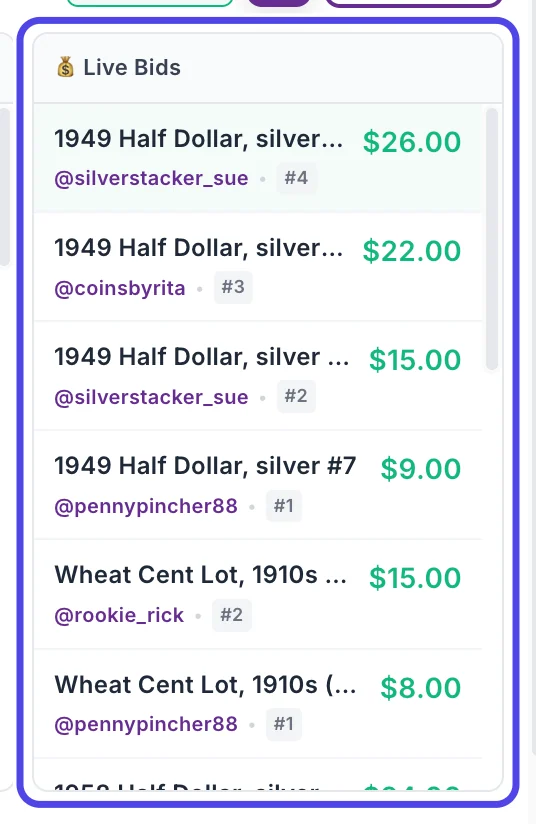
The right column in the middle of the panel is Live Bids. Every bid in your show appears here as it happens, newest at the top: the item, the bidder's username, the amount, and which bid on that item it was (#1, #2 and so on). The column keeps the last 50 bids.
Until the first bid comes in, it says Waiting for bids.... You do not need to click anything here.
Username Tracking
Below the two columns is Username Tracking, for buyers who need a label by hand.
Step 13: Add a buyer who is not on the list
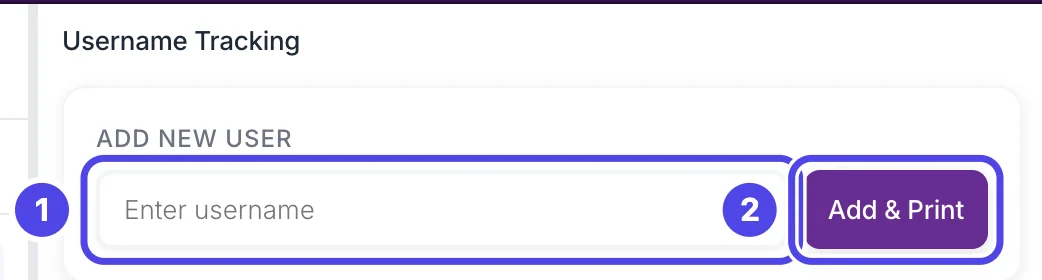
Use Add New User when someone bought something NotBot could not see, for example a sale you made by hand. Type their username in the box (1) and click Add & Print (2). NotBot gives them a buyer number (the next free one, if they are new) and prints their label.
Buyer numbers and adding a buyer by hand explains how buyer numbers work.
Step 14: Reprint a buyer's label
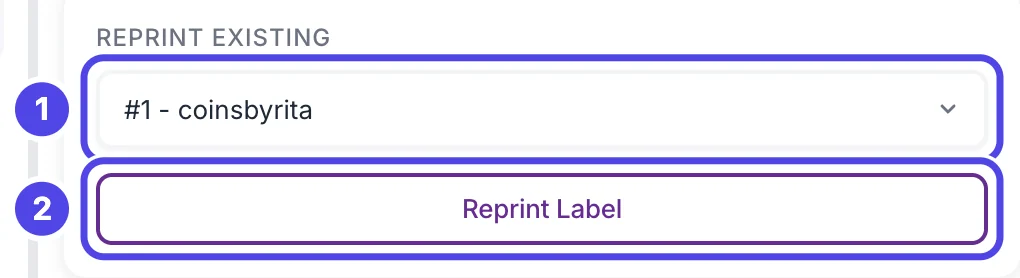
Use Reprint Existing to print a buyer's numbered label again, for example for a second box. Click the list (1) and pick the buyer. The list shows each buyer's number and username, highest number first. Then click Reprint Label (2). It stays faded until a buyer is picked.
For more ways to print a label again, see Reprint labels.
Sales so far
At the bottom of the panel, three tabs list every sale of this show: Auction History, Giveaway History and Purchases.
Step 15: Find a sale in Auction History
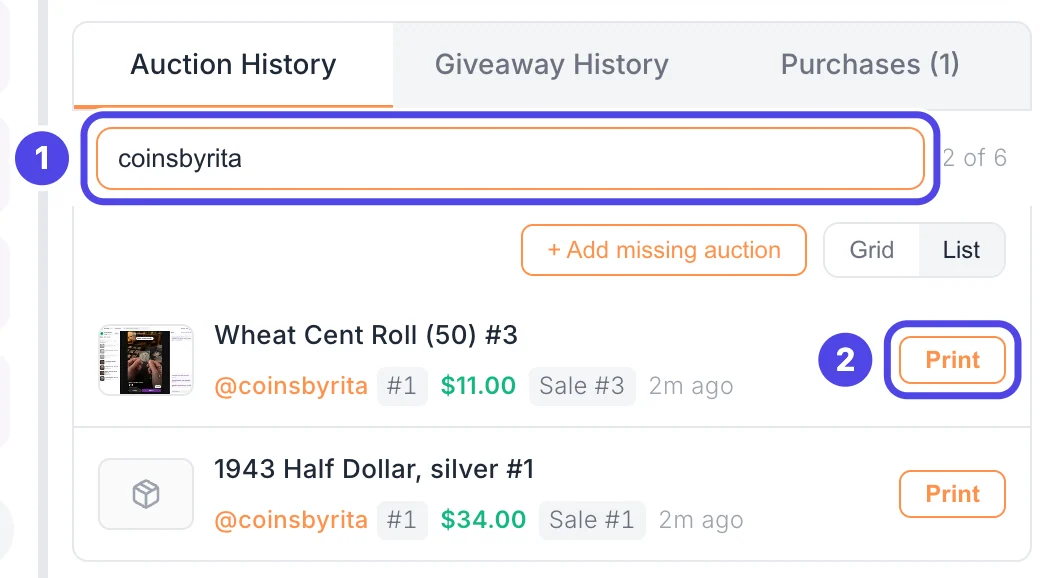
Auction History lists every auction won in this show, newest first, with the item, the buyer and their number, the price, and the sale number. Each row starts with a small photo of your show at the moment of the win (NotBot saves one for every auction win unless you turn Save a photo of each auction win off in Customize › Advanced Settings › Capture & photos). Click the photo to see it larger. A sale without a photo shows a small box picture instead.
To find one sale, type an item name, a username or a buyer number (like #2) in the search box (1). Click Print (2) on a row to print a label for that sale again.
If NotBot missed a sale, click + Add missing auction above the list. See Add a sale NotBot missed.
Step 16: Check a giveaway in Giveaway History
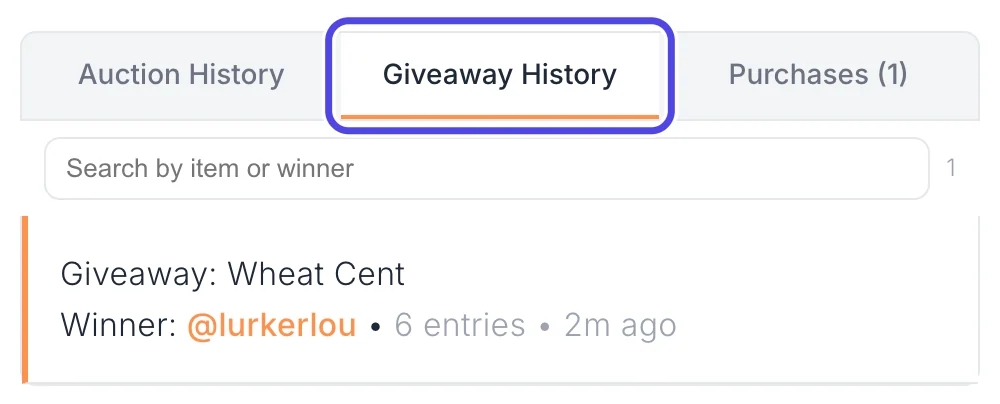
Click Giveaway History to see each giveaway of this show: its name, the winner (with their buyer number, if they have one), and how many people entered.
Step 17: Check Buy It Now sales in Purchases
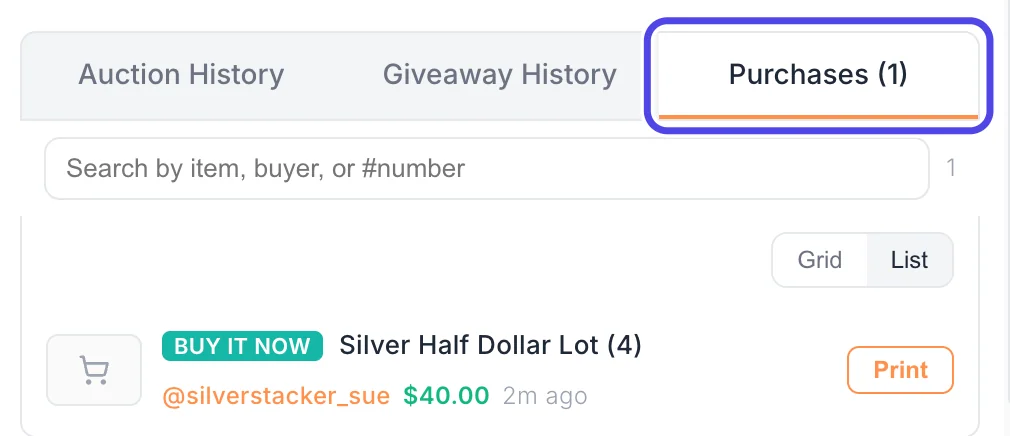
Click Purchases to see the Buy It Now sales and accepted offers of this show. Each one has a BUY IT NOW or OFFER ACCEPTED tag, the buyer, and the price. The number on the tab is how many there are. Click Print on a row to print its label again.
If something looks different
The panel says No Active Stream during my show
NotBot has not found the show. It must be open in the built-in browser on the left of the NotBot window, not in another browser or on your phone. If it is open there, click the round arrow button at the top of the window to reload it.
Recent Labels says No labels yet, but I have made sales
Check that the bar at the top shows the right show name. If it shows a different show, open your show in the built-in browser. If it is the right show, see Add a sale NotBot missed.
Every label says Skipped. Tap to print
Auto-print was off. Turn the switch next to the printer picture on (purple), then click each skipped label to print it.
Labels say Check printer or Failed
The printer did not print them. Click the printer picture to see its status, fix the printer, and click each label to print it again. Labels are not printing: step-by-step fixes has every fix.
Names in the panel are cut off
Make the panel wider by dragging the thin grey line between your show and the panel to the left.
Live Bids stays on Waiting for bids...
No bid has come in for the show NotBot is following yet. If bids are happening on your show, check the name at the top of the panel, and see When the show connection drops.