Step-by-Step Guides
Set up winner popups
Choose where each winner popup appears, how big it is and how long it stays, then change how it looks and test it.
Last updated 2026-10-08 · Applies to NotBot 1.4.4+ · Identical to the stable docs
When someone wins an auction, wins a giveaway or buys something during your show, NotBot shows a small popup on your screen with their username and, when they have one, their buyer number, so you can call it out on stream. Popups are on unless you turn them off.
The popup is its own small window. It sits on top of everything on your screen, including other programs, counts down the seconds in its top right corner, and closes by itself (after 5 seconds unless you change it). Click it to close it sooner. Popups only show for the show you are looking at in NotBot.
Before you start
- NotBot is signed in. If not, follow Sign in to NotBot.
- If you use two screens, have both plugged in and turned on, so NotBot can show them.
Turn popups on or off
Step 1: Click Customize
In the purple bar at the very top of NotBot, click Customize.

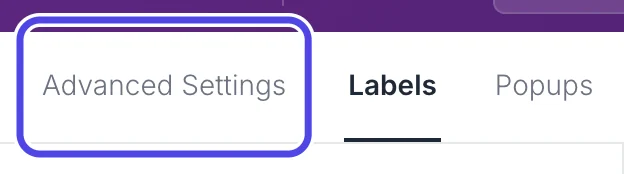
Step 2: Click Advanced Settings
Near the top left of the Customize page, click Advanced Settings. It opens on Basics.
Step 3: Check the Winner popups switch
On Basics, the Winner popups switch turns every popup on or off. When it is purple, popups are on.
The same switch is in the ⚙️ Settings panel on the Dashboard, where it is called Show popup on your desktop.

Choose where each popup appears
Each kind of popup (auction wins, giveaways, purchases) has its own spot, size, time on screen and entrance. Accepted offers use the purchase popup.
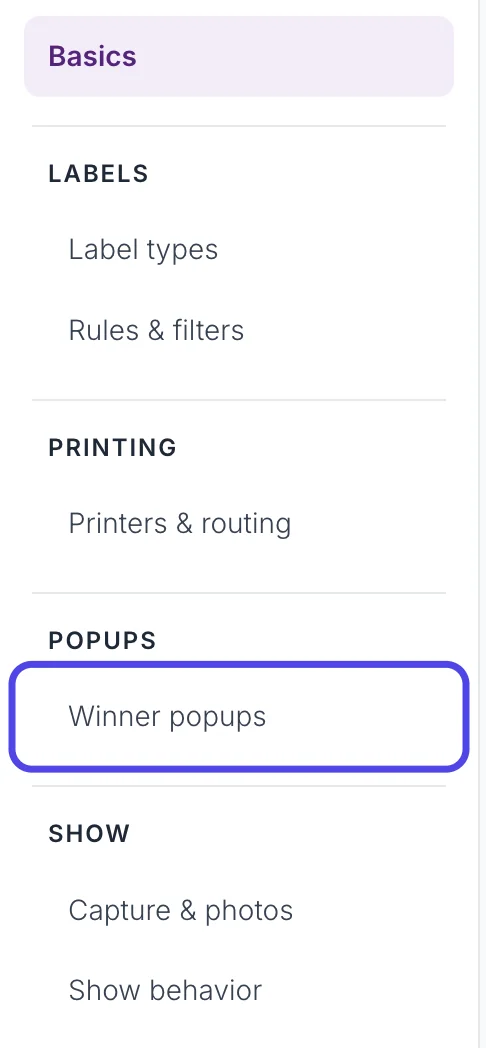
Step 4: Click Winner popups
In the list on the left, under POPUPS, click Winner popups.
Step 5: Pick which popup to change
At the top of the box, click the kind of popup you want to set up: Auction wins, Giveaways or Purchases. Everything below applies to that kind only.
A green dot means that kind of popup is on. A gray dot means it is off. To stop one kind, pick it and turn off its Show ... popups switch on the right.

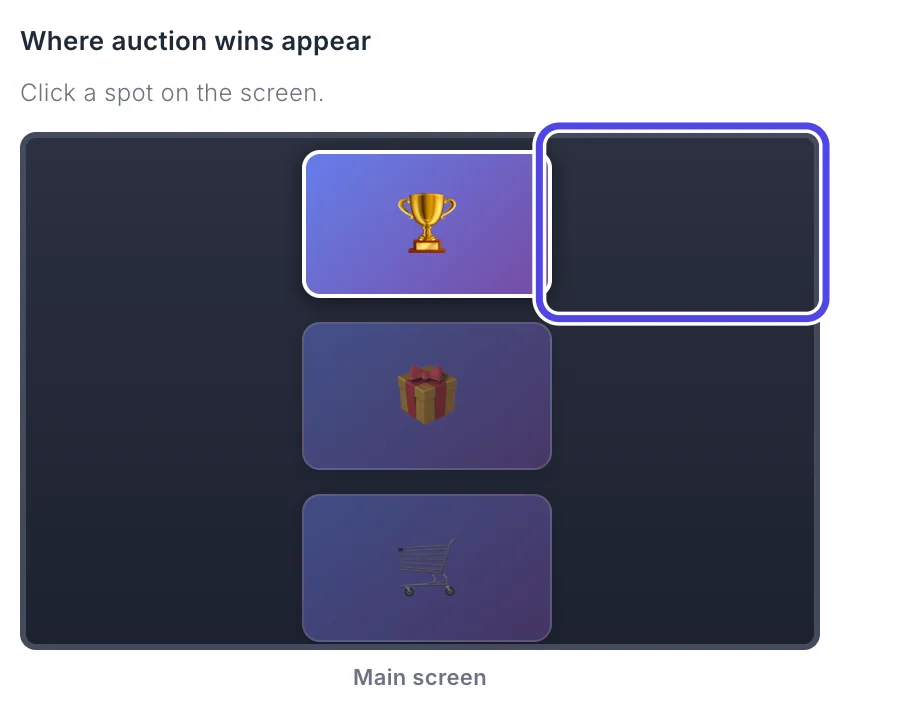
Step 6: Click a spot on the screen picture
The dark picture is your screen (Main screen). If you have two screens plugged in, you see one picture for each.
The small cards show where each kind of popup appears now. The kind you picked is the bright one. At first they use the Usual spot: auction wins at the top, giveaways in the middle and purchases at the bottom, all in the center.
Click where you want the popup: any corner, any edge or the center. This guide clicks the top right corner, so auction wins stay out of the middle of your screen.
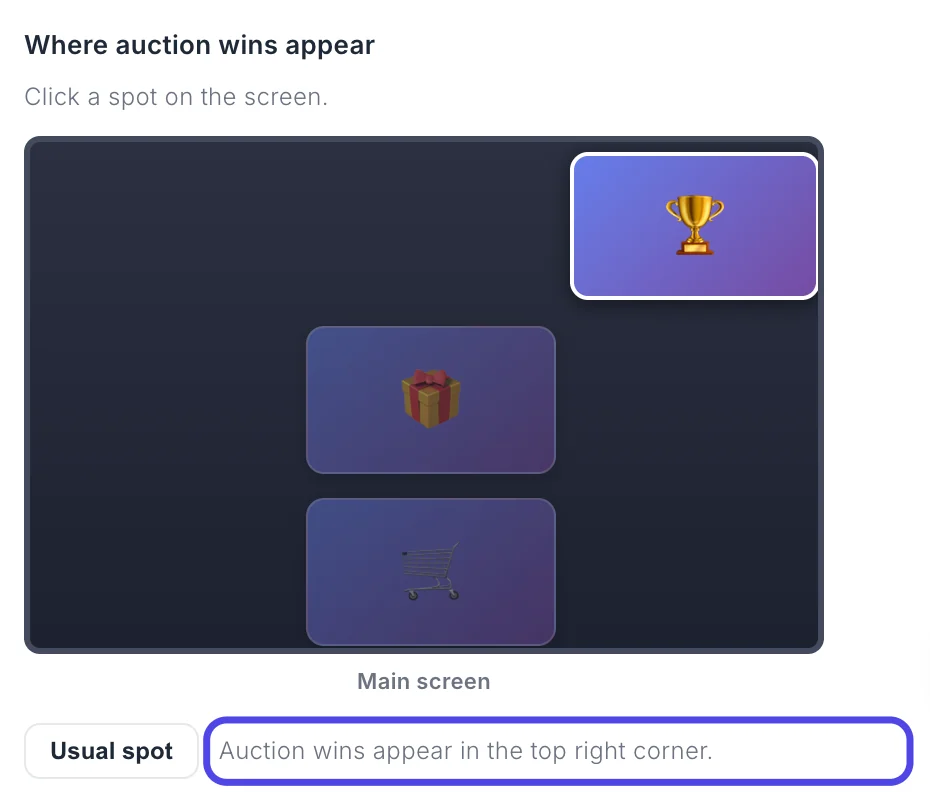
Step 7: Check the new spot
The bright card moves to the corner you clicked, and the sentence under the picture says where the popup will appear.
To go back to the standard place, click the Usual spot button.
Step 8: Set the size, time on screen and entrance
On the right:
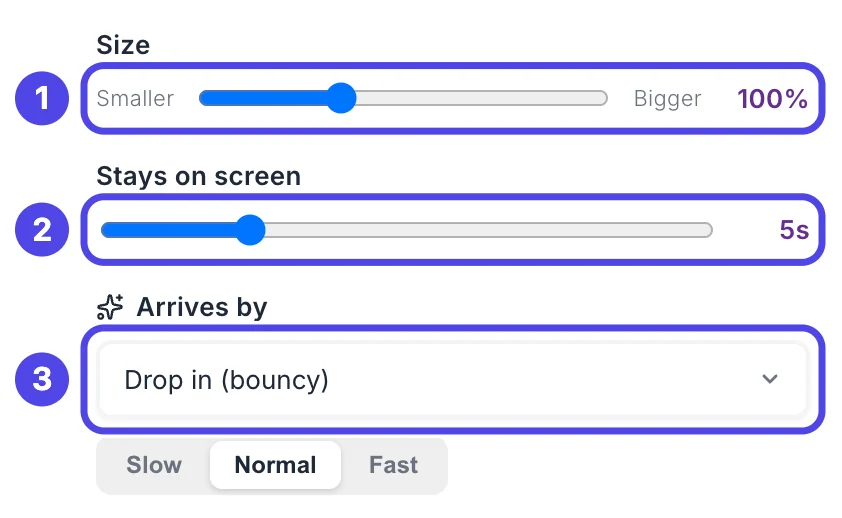
- Size: drag the dot left for a smaller popup or right for a bigger one, from 50% to 200%.
- Stays on screen: how many seconds the popup stays, from 2 to 15.
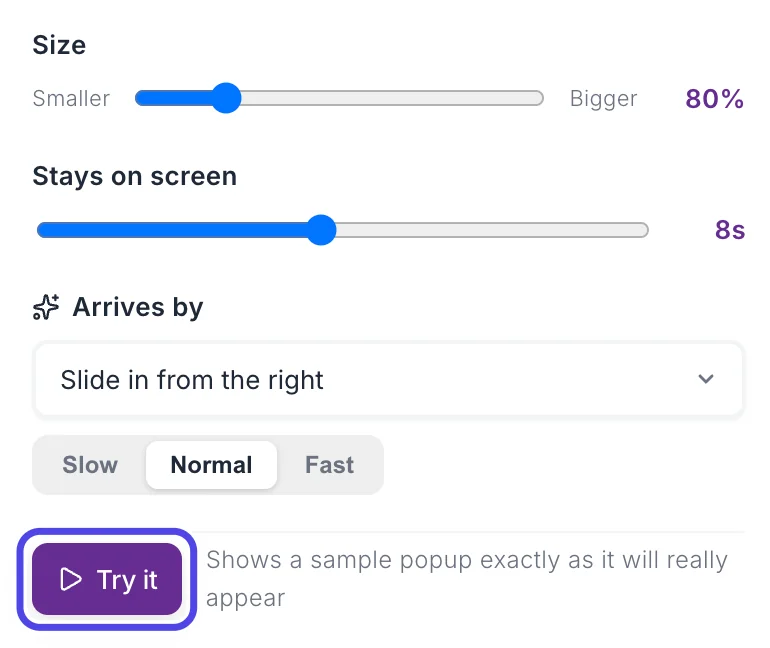
- Arrives by: how the popup comes onto the screen. Click it and choose Drop in (bouncy), Slide in from the left, Slide in from the right, Pop (grow in), Fade in or Just appear. Under it, pick Slow, Normal or Fast.
NotBot saves each change as you make it. This guide sets the size to 80%, the time to 8 seconds, and Slide in from the right.
Step 9: Click Try it
Click the purple Try it button. A sample popup appears on your screen as it will during a show: in the spot you picked, at the size you picked, arriving the way you picked. Try it as often as you like while you adjust.
The sample popup always closes after 5 seconds. During a show, it stays for the time you set.
Step 10: Use plain popups if popups never show
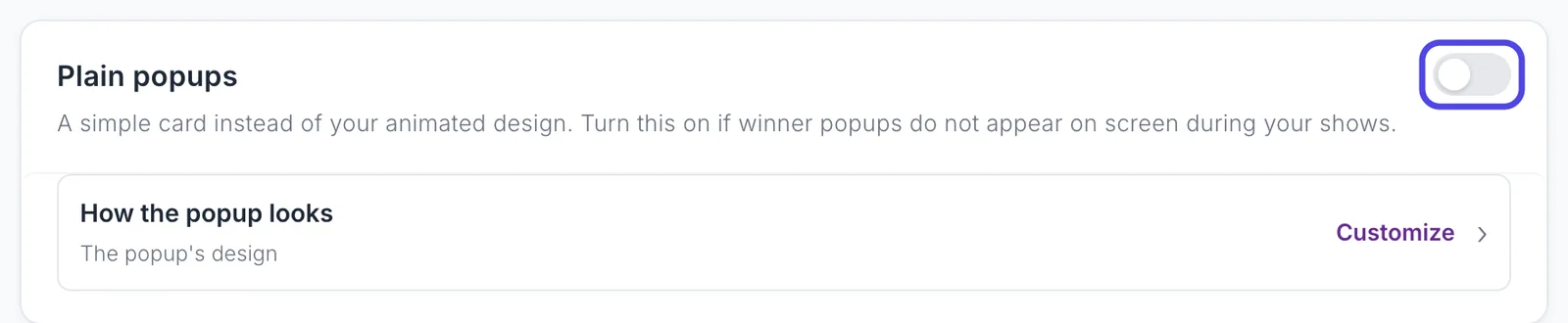
Under the box, Plain popups swaps your design for a simple card. Leave it off unless winner popups do not appear on your screen during shows; on some computers the plain card shows when the designed one does not.
Change how the popup looks
There is one popup design, used for auction wins, giveaways and purchases alike. The designer works like the label editor; see Edit a label in the label editor for dragging, resizing and the other settings.
Step 11: Click the Popups tab
Near the top left of the Customize page, click Popups. (The How the popup looks link on the Winner popups page opens the same place.)
The big card in the middle is the popup, filled in with a sample winner, CardCollector99, buyer #42.
Step 12: Pick the background colors
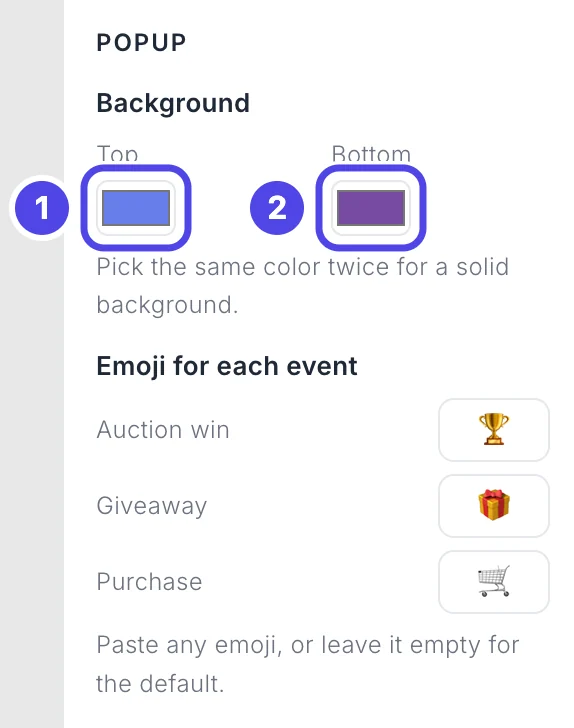
On the right, under Background, the popup fades from the Top color (1) to the Bottom color (2). Click a color box and your computer's color picker opens. Choose a color and close the picker. For one solid color, pick the same color in both boxes.
Under Emoji for each event you can also type or paste a different emoji for auction wins, giveaways and purchases (on a Mac press Control + Command + Space, on Windows the Windows key + period). Leave a box empty to keep the standard one. This guide changes the auction win emoji to 🔥.
Step 13: Click Item to add what they won
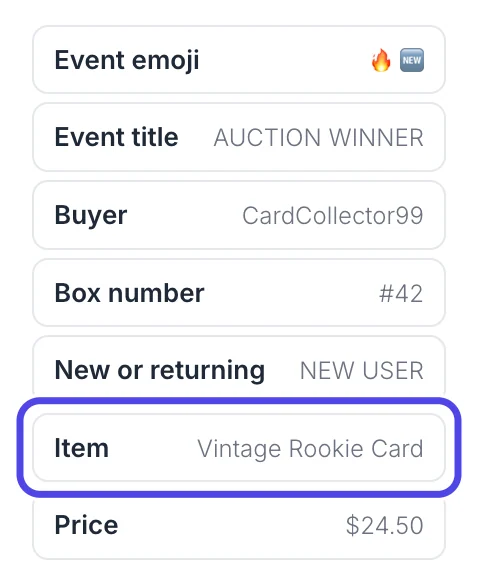
On the left, FIELDS lists everything the popup can show, each with its sample. Click Item. The item name appears on the popup, selected, near the top.
You can also drag a field straight to the spot you want on the popup.
Step 14: Move the item name to the bottom
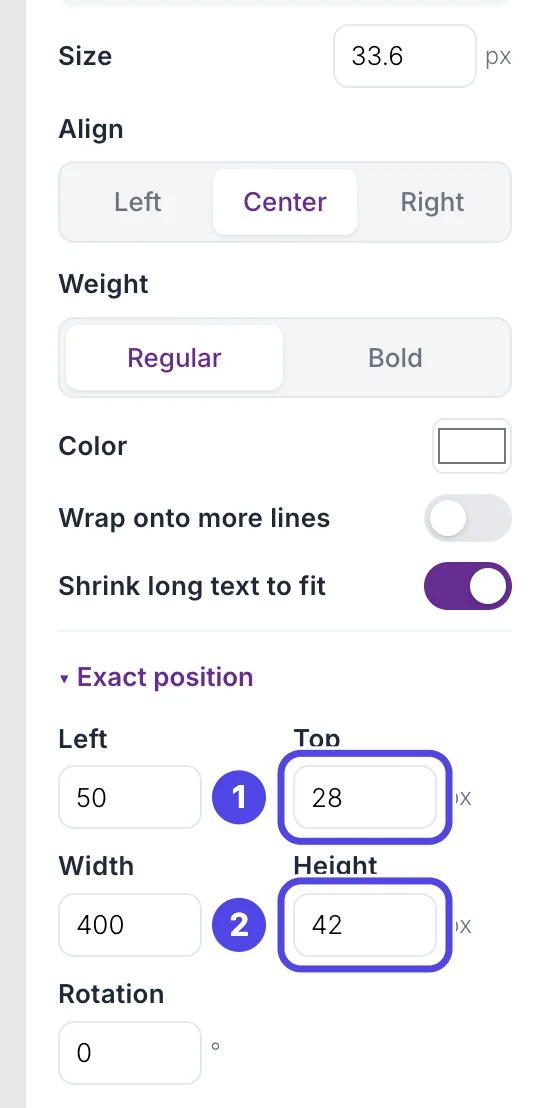
The new field sits on top of the emoji. Drag it to the empty space under NEW USER, or open Exact position on the right and type the numbers:
- Top: 228, how far down from the top edge.
- Height: 26.
Then set Size at the top of the panel to 20 so the name fits. Leave the very bottom of the popup and its top right corner empty: the real popup shows Click to dismiss and the countdown there.
Step 15: Click Preview
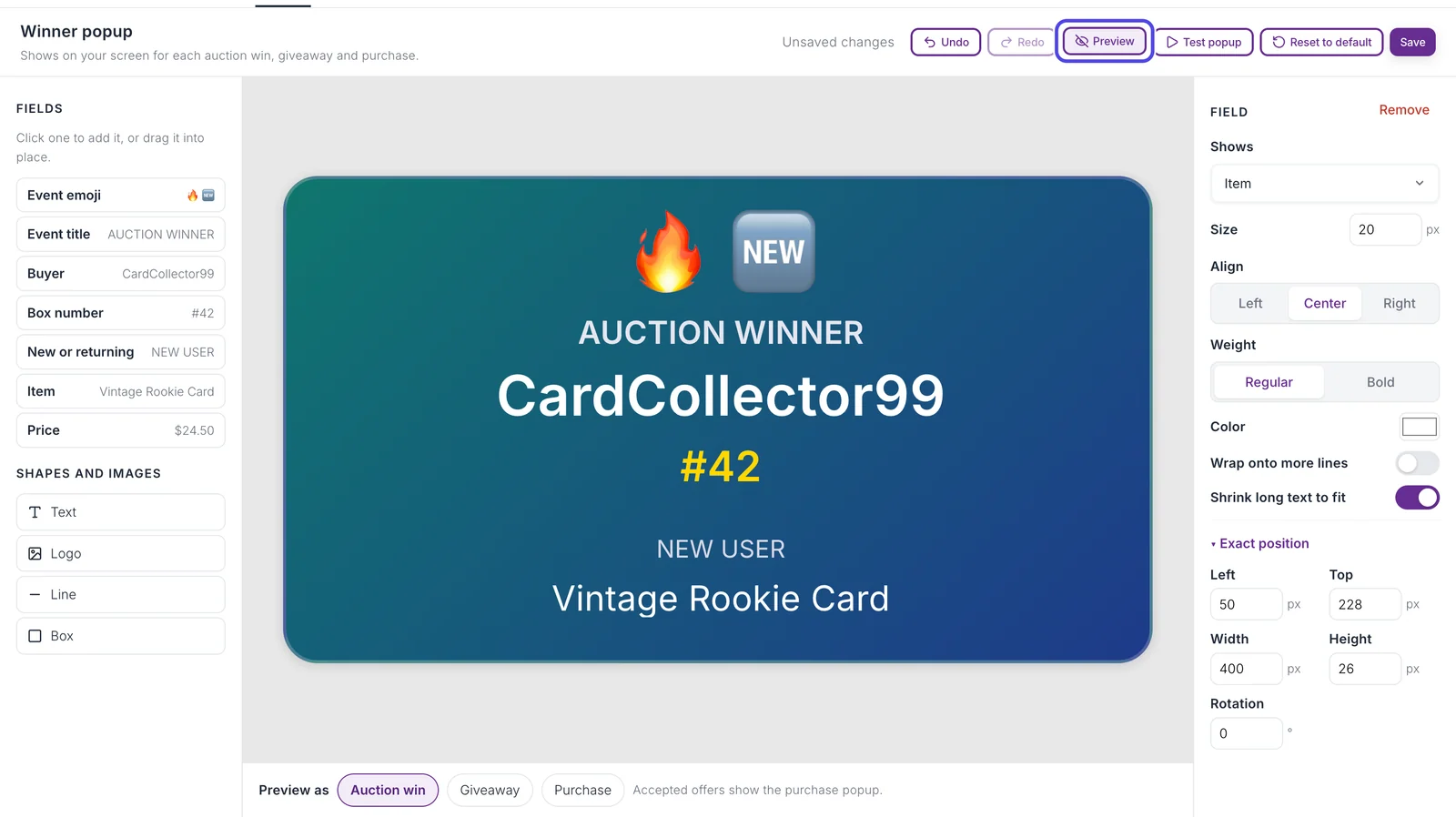
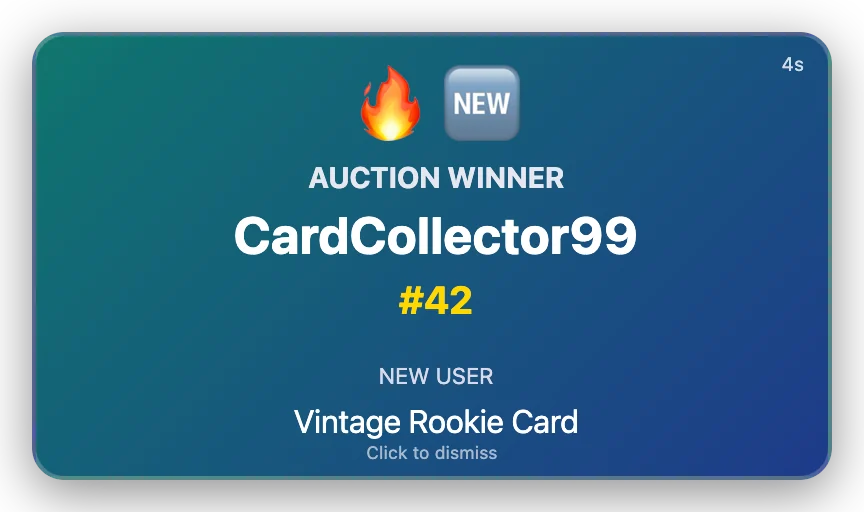
Above the popup, click Preview. The editing lines go away and you see the popup as it will look: the 🔥 emoji, your colors, and Vintage Rookie Card at the bottom.
Under the popup, Preview as switches the sample between Auction win, Giveaway and Purchase. Click Preview again to go back to editing.
Step 16: Click Test popup
Click Test popup. NotBot shows the real popup on your screen, with your changes and the sample selected under Preview as, for 5 seconds. Testing does not save your design.

Step 17: Check the test popup
The popup appears on your screen, on top of everything else. The number in its top right corner counts down the seconds until it closes. Click anywhere on it to close it sooner.
Step 18: Click Save
Click the purple Save button. The words next to Undo change from Unsaved changes to Saved, and every popup uses your design from now on.
Changed your mind? Reset to default puts the original popup back. It asks first, and your changes are lost.

If something looks different
No popup appears when someone wins
Check that Winner popups is on in Customize › Advanced Settings › Basics. Then open Winner popups: if that kind of popup has a gray dot, pick it and turn on its Show ... popups switch. Popups only show for the show you are looking at in NotBot. If they still never appear, turn on Plain popups on the Winner popups page.
The popup shows up on the wrong screen
On the Winner popups page, pick the kind of popup and click a spot on the picture of the screen you want. If that screen is unplugged or turned off during a show, NotBot shows the popup on your main screen instead.
The popup covers my stream or my chat
Move it to a corner, make it smaller with the Size slider, or shorten Stays on screen. You can also click a popup to close it right away.
Two popups appear at the same time
A new popup replaces a popup of the same kind that is still on screen, so you see at most one popup of each kind. Different kinds can be on screen together. If two kinds share a spot, the second appears next to the first instead of covering it. Give each kind its own spot if you want them apart.
My design changes do not show on real popups
Click Save in the popup designer. Test popup shows your changes without saving them, so the words next to Undo must say Saved before real popups use the new design.
I don't like my changes
In Customize › Popups, click Reset to default and confirm. The popup goes back to the original purple design. The spots, sizes and times on the Winner popups page stay as they are.